
To split a comic page into panels automatically, you run the page through a panel detector that returns one box per panel in reading order, then cut each box out as its own image. Free open-source tools like Kumiko do the cutting. ScreenWeaver does it inside a film project, so each panel can become a shot.
This page covers the extraction step only. If you want the bigger picture of taking a comic all the way to an animated series, start with the comic to animation guide. If you already have your panels and want to know how a panel becomes a camera setup, read comic panels to storyboard.
Disclosure: we build ScreenWeaver. Frank Houbre, one of our co-founders, makes his animated series Lost Garden in it. Every limit quoted below for ScreenWeaver comes from the app's code, read on 27 October 2026. The two open-source tools were checked on their GitHub pages the same day.
Why you want panels, not pages
A comic page is the wrong unit for anything that moves. A video model wants one image per shot. A storyboard wants one frame per camera setup. A motion comic wants one panel at a time on screen. The page is the printer's unit, and it carries six or eight moments that each need to be handled on their own.
You can cut by hand, of course. Open the page in an image editor, draw a selection, export, repeat. On one page that takes ten minutes. On a 24-page issue with six panels a page, you are drawing 144 selections and naming 144 files, and you will lose the order somewhere around page 9. That is the job worth automating.
How automatic panel detection works
There are two families of detectors.
Contour detection. Classic computer vision. The tool looks for the gutters (the white or black space between panels) and the borders, finds closed shapes, and returns a rectangle for each. It is fast, free, runs on your own machine, and works very well on clean Western layouts with white gutters. It struggles when art bleeds past the border, when panels overlap, or when there is no gutter at all.
Vision models. A multimodal model looks at the page the way a reader does and returns a box for each panel, plus the order you read them in. It copes better with broken borders and odd layouts, and it can tell you what each panel shows. It costs a little per page, and like any model it can be wrong.
Whichever you use, two problems remain: reading order (left to right for most comics, right to left for manga) and what happens to the panels afterwards. A folder of 144 JPEGs is better than a page, but it is not a storyboard yet.
Method 1: let ScreenWeaver find the panels with findPanels
ScreenWeaver exposes this through its MCP server and its built-in assistant. You hand the page to your assistant (Claude, ChatGPT, Cursor or the one inside ScreenWeaver) and it calls import_media with findPanels: true. Take the six-panel lighthouse page from screenweaver.ai/start. This is what happens to it.
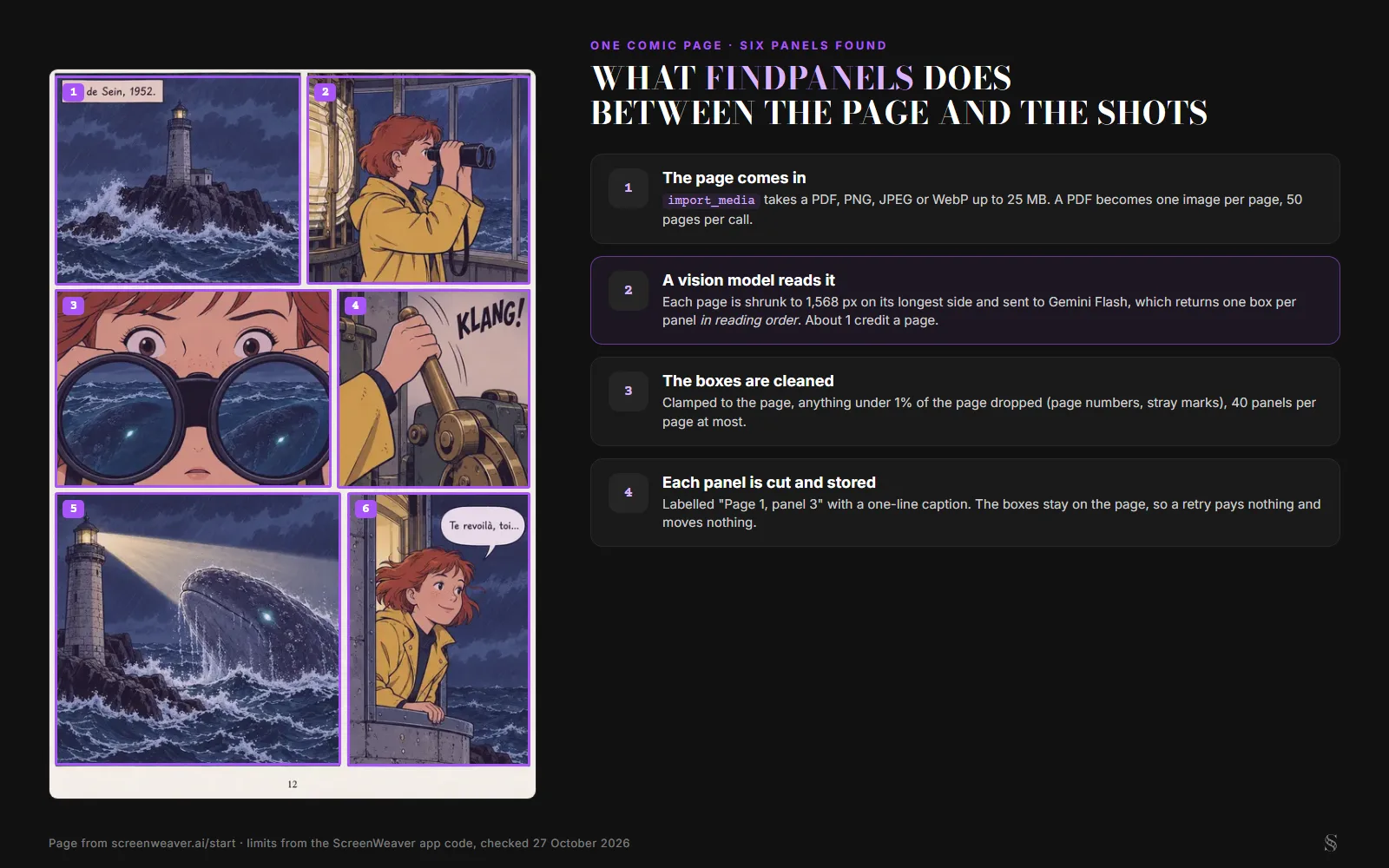
The page from /start with its six detected panels, and what findPanels does to it. Diagram by ScreenWeaver, limits from the app's code on 27 October 2026.
The details, because they decide whether it fits your book:
- Files. PDF, PNG, JPEG or WebP, up to 25 MB. A PDF becomes one image per page, 50 pages per call. A longer PDF tells you which pages were left out (
pagesLeftOut) and the assistant takes the rest in a second call. - Detection. Each page is shrunk to 1,568 pixels on its longest side and sent to Gemini Flash, which returns a box for every panel in reading order and a one-line caption of what the panel shows.
- Cleanup. Boxes are clamped to the page. Anything smaller than 1% of the page is dropped, which gets rid of page numbers and stray marks. At most 40 panels a page are kept.
- Cost. About 1 credit a page. ScreenWeaver's documentation cites a real run: a 20-page board with six panels a page cost $0.097. Above 20 pages, the tool stops and asks for confirmation before spending anything.
- Retries are free. The boxes are saved on the page, so if something fails halfway and the assistant runs the import again, nothing is paid twice and the boxes do not move. A page whose detection fails is reported and the rest of the import goes on.
Each panel is stored in the project as its own image, labelled "Page 1, panel 3" with its caption. Your assistant can look at any of them with view_media (up to 8 images per call) to check the cut before going further.
One caveat on manga. The detection prompt asks for "reading order" without saying which direction. On a right-to-left page, check the numbers before you build shots from them, and ask the assistant to reverse the order if needed. We have not yet tested enough manga pages to promise more than that.
Method 2: give the boxes yourself with crops
The same tool has a free mode. With crops, there is no detection model: your assistant looks at the page (or you tell it where the panels are) and passes the boxes itself, as fractions of the page from the top-left corner. The server only cuts the pixels. Up to 300 boxes per call, nothing charged.
When is that the better choice?
- Storyboard sheets and thumbnail pages, where you want to cut a frame and leave the notes beside it, or cut the notes as a separate image.
- Odd layouts where you already know the detector will hesitate: a panel inside a panel, a splash with insets.
- Pages you already cut once, where you just want one more crop. The same file imported again reuses what is stored and renders nothing twice.
The notebook page on our MCP page shows the result on pencil thumbnails: six sketches from one photo, six images, each attached to its own shot.
Method 3: free open-source panel extractors
If you only need the panel images, with no film project at the end, two open-source tools did the job when we checked them.
Kumiko ("the Comics Cutter") uses OpenCV contour detection to find where the panels are on a page. It numbers them left to right by default, and the --rtl option switches to right to left for manga. It returns rectangles even when a panel has an odd shape, and it can compile the panel positions for a whole book into one JSON file. It is licensed AGPL v3. There is a live demo where you paste up to 50 image URLs and tick "Right-to-left numbering".
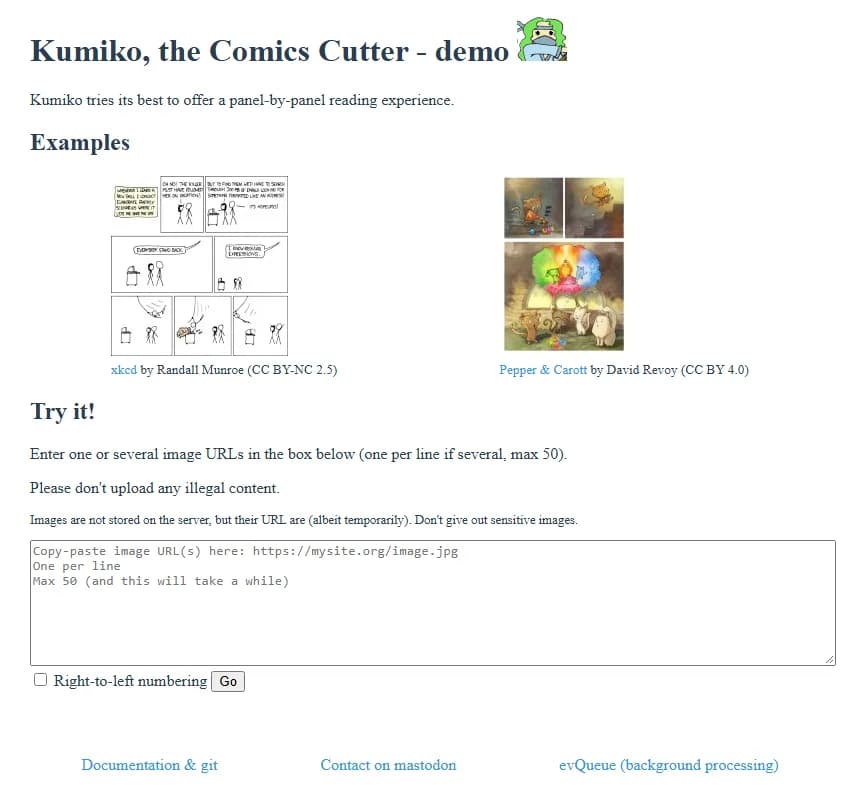
Kumiko's public demo at kumiko.njean.me/demo, captured 27 October 2026. The page warns that image URLs are kept temporarily on the server, so don't paste private pages.
Manga Panel Extractor takes manga pages and outputs the panels as separate images. It is MIT licensed, ships a Windows executable, and also runs in the browser through a Hugging Face Space, where you upload pages and download a zip. Its README is upfront that it was built for manga and "may not work correctly with manhwas or other similar formats". There is a "Split Joint Panels" option, which the README says can slow processing down up to ten times.
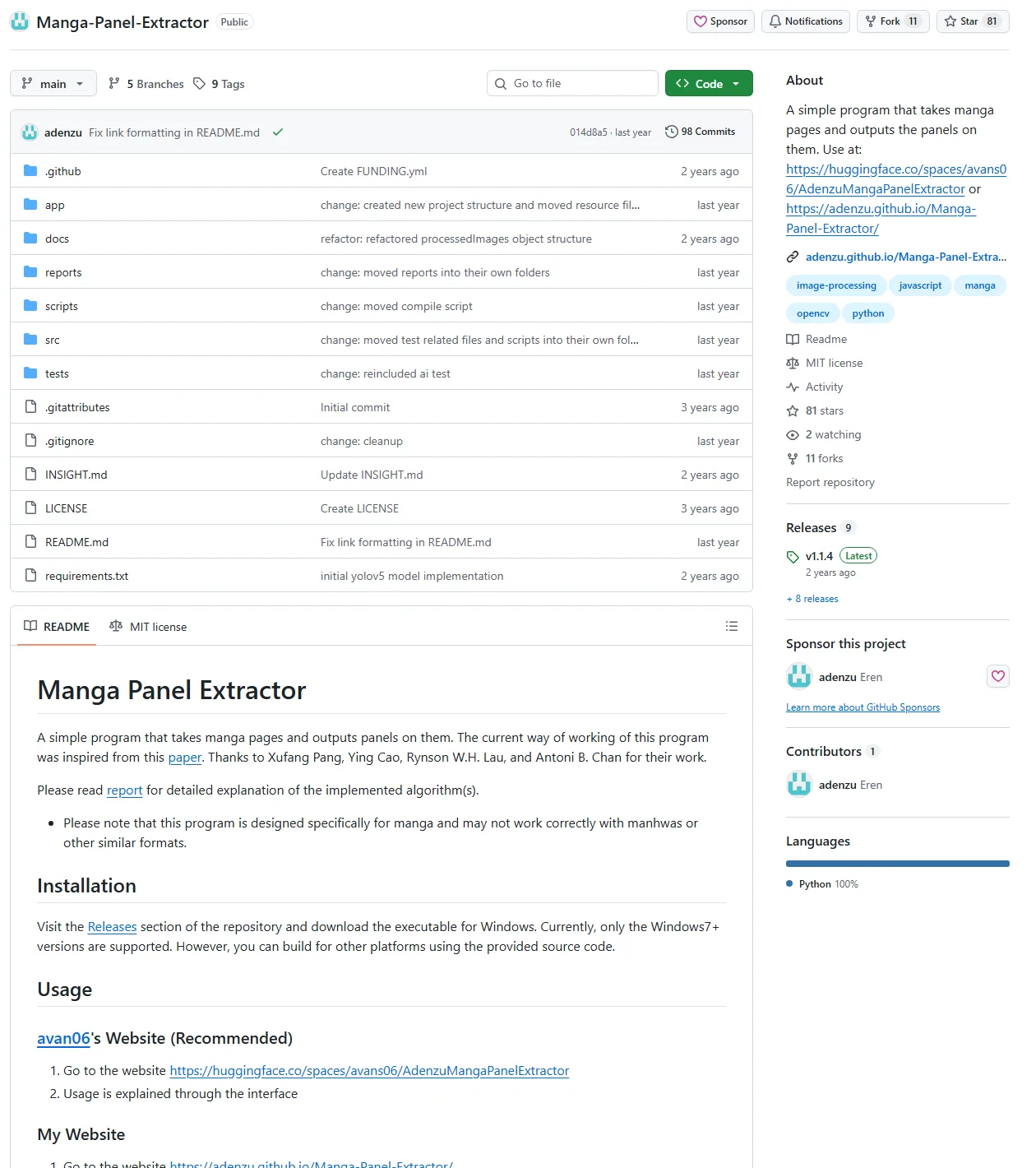
The Manga-Panel-Extractor repository on GitHub, captured 27 October 2026.
Both work. You end up with files on disk, though, and ordering them into scenes, naming the characters and attaching each panel to a shot is still yours to do.
Try it free
Try Screenweaver for free on your script
It is free. Import your existing project, get a clearer view of your outline, and regain control of your story structure in minutes.
Start FreeThe four methods side by side
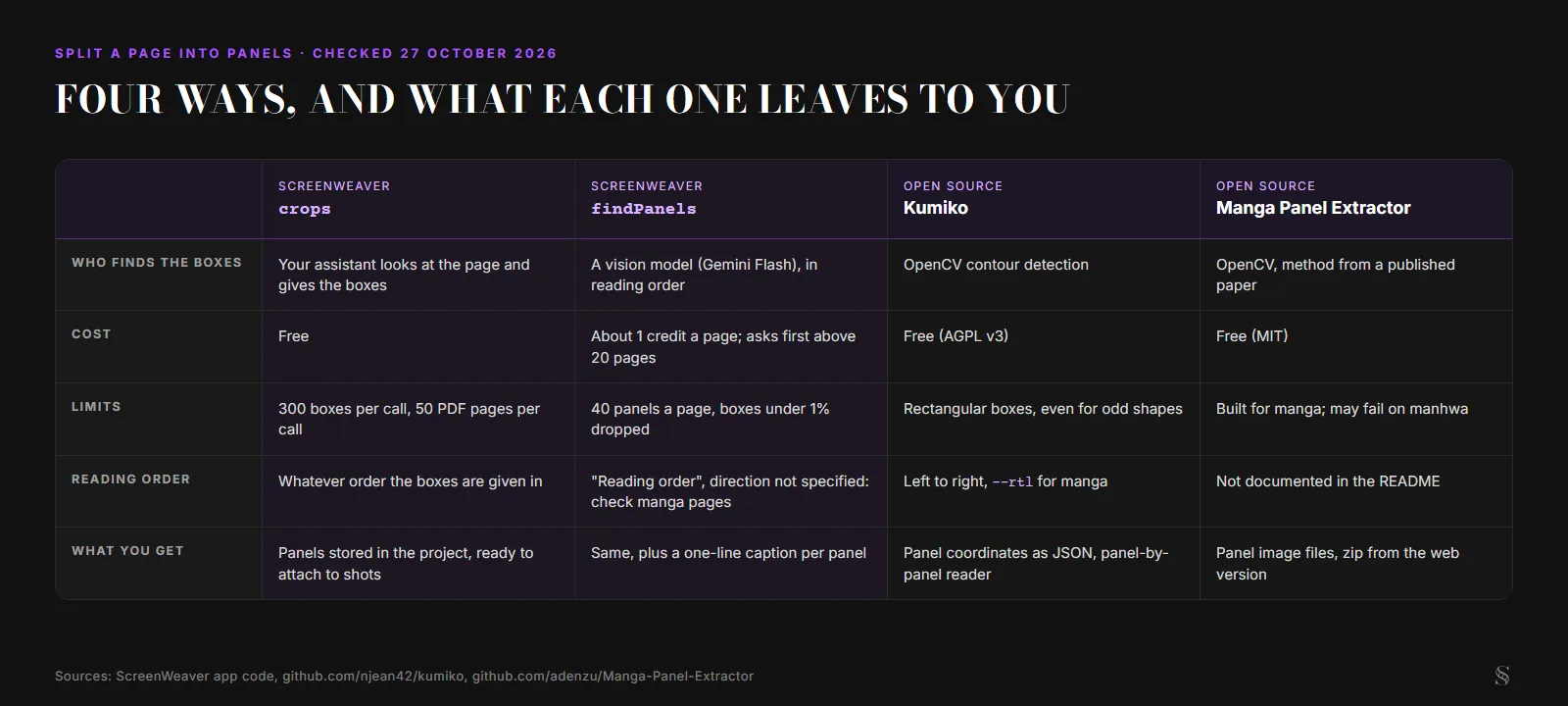
Four ways to split a page, checked 27 October 2026. Diagram by ScreenWeaver.
ScreenWeaver crops | ScreenWeaver findPanels | Kumiko | Manga Panel Extractor | |
|---|---|---|---|---|
| Finds the boxes | Your assistant | Vision model | OpenCV contours | OpenCV |
| Cost | Free | About 1 credit a page | Free (AGPL v3) | Free (MIT) |
| Manga order | As given | Check it | --rtl | Not documented |
| Output | Panels in a film project | Panels plus captions in a film project | JSON positions, panel reader | Image files |
| Best for | Storyboard sheets, odd layouts | Whole issues you want to adapt | Batch positions, readers | Manga volumes |
From panels to shots
Panels on their own are a halfway point. In ScreenWeaver, your assistant keeps going:
- Story elements. The assistant lists who and what recurs across the panels, compares with what the project already has (
list_entities), and asks you once to approve the names before callingcreate_entities. It should never invent a cast behind your back. - Shots.
create_shotswrites one shot per panel (or two shots for a panel that holds two moments), with framing, camera movement and duration. Each panel is attached to its shot as a board. A board in "reference" mode fixes the staging while the panel generator redraws it in your storyboard style, with balloons and lettering left out. In "as-is" mode the panel itself becomes the shot's frame. - Generation. This is the part the MCP does not do. It generates no image and no video. The assistant prepares shots, prompts and references; you open the Storyboard tab and press Generate when the framing looks right.
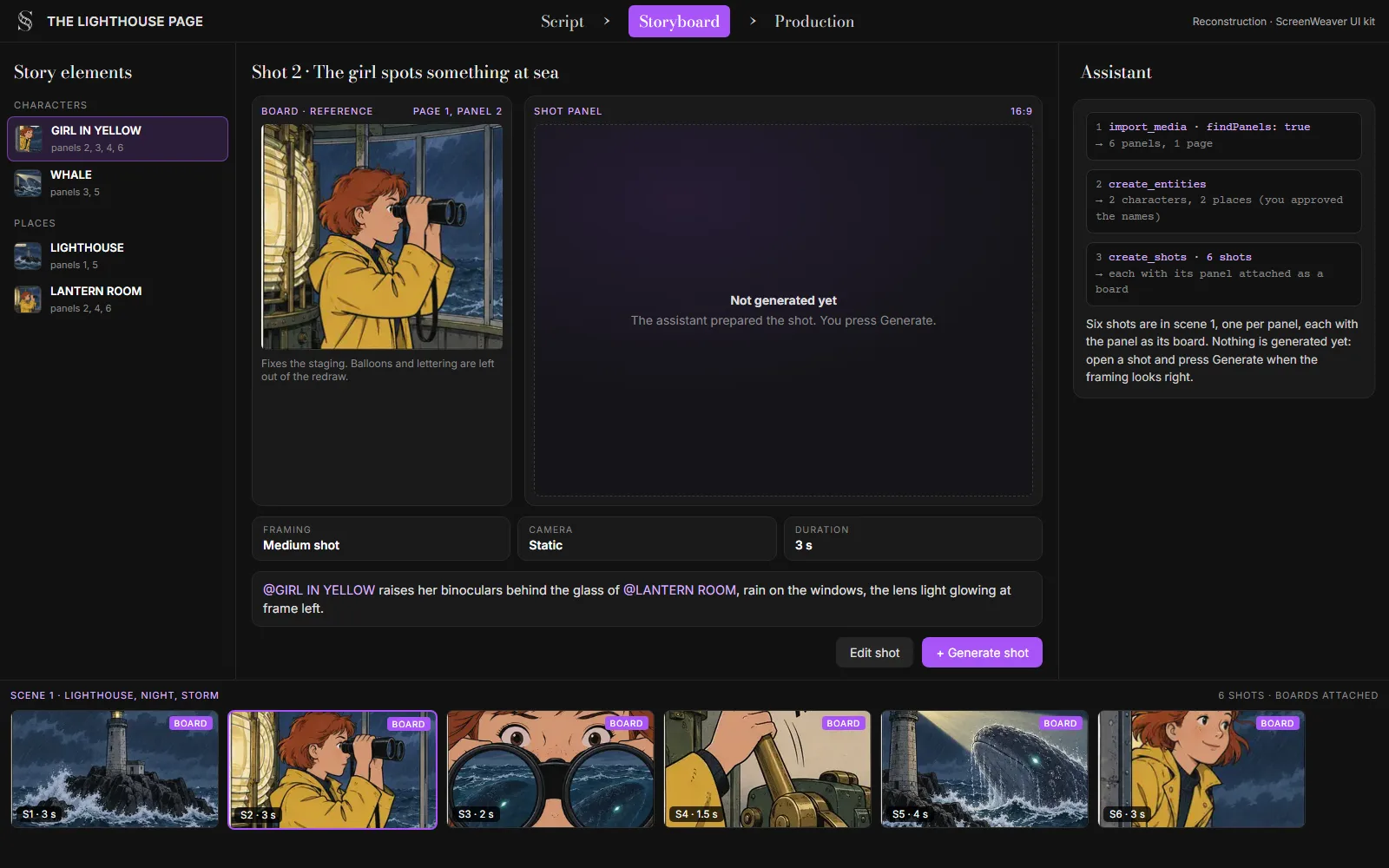
Reconstruction of the Storyboard tab after the import, built from the ScreenWeaver UI kit. Element names and shot values are illustrative.
Two practical notes. Comic panels come in every shape, and a film frame does not, so a tall panel becomes a 16:9 shot by choosing what to keep, not by stretching. Comic panels to storyboard covers that reframing. And before you commit to a whole book, size it: the comic to animation calculator turns a page count into a runtime and a shot count.
Webtoons need one extra cut first
A webtoon episode is one very long vertical strip, and that breaks the page logic. findPanels looks at a page shrunk to 1,568 pixels on its longest side, so a strip thousands of pixels tall becomes a thin ribbon where panels are too small to read. Cut the strip into page-sized chunks first, then import them. Webtoon to storyboard explains how to read the vertical rhythm before you cut, and the webtoon to anime page shows the full import on Imaginarium.
A short checklist before you import a whole book
- Pages exported at a decent resolution (the detector downsizes anyway, but your crops keep the full pixels).
- One file per issue or chapter, 50 pages at most per call, or let the assistant take the rest with a second call.
- Reading direction known. Manga: check the numbering on the first two pages.
- Splash pages and double spreads flagged, so they are not forced into one tiny box.
- Cast names ready, so you can approve or correct the assistant's suggestions in one go.
- Rights cleared for the book you are adapting.
FAQ
Can AI split a comic page into panels automatically?
Yes. Contour-based tools such as Kumiko find the gutters and borders and return a box per panel. Vision models read the page like a reader and return boxes in reading order. ScreenWeaver's findPanels uses a vision model and stores each panel in your film project.
How much does automatic panel detection cost in ScreenWeaver?
About 1 credit a page. A real 20-page board with six panels a page cost $0.097. Above 20 pages it asks before spending. The crops mode, where the assistant gives the boxes, is free, and so are retries.
Is there a free comic panel extractor? Yes. Kumiko (AGPL v3) runs locally or through a web demo and has a right-to-left option for manga. Manga Panel Extractor (MIT) has a Windows app and a Hugging Face Space. Both give you image files or positions, not shots.
Does panel detection work on manga?
The detection itself works on manga layouts. The order is the thing to check: Kumiko needs --rtl, Manga Panel Extractor was built for manga, and ScreenWeaver's detector asks for reading order without naming the direction, so verify the numbering on a right-to-left page.
Can Claude or ChatGPT split my comic pages?
Not on their own: they can describe a page but they do not cut and store panels. Connected to ScreenWeaver's MCP server (Claude guide), they call import_media to cut the panels and create_shots to turn them into shots in your project.
Final Step
Build your next script with Screenweaver
Move from ideas to production-ready pages faster with timeline-native writing and AI-assisted story flow.
Try Screenweaver