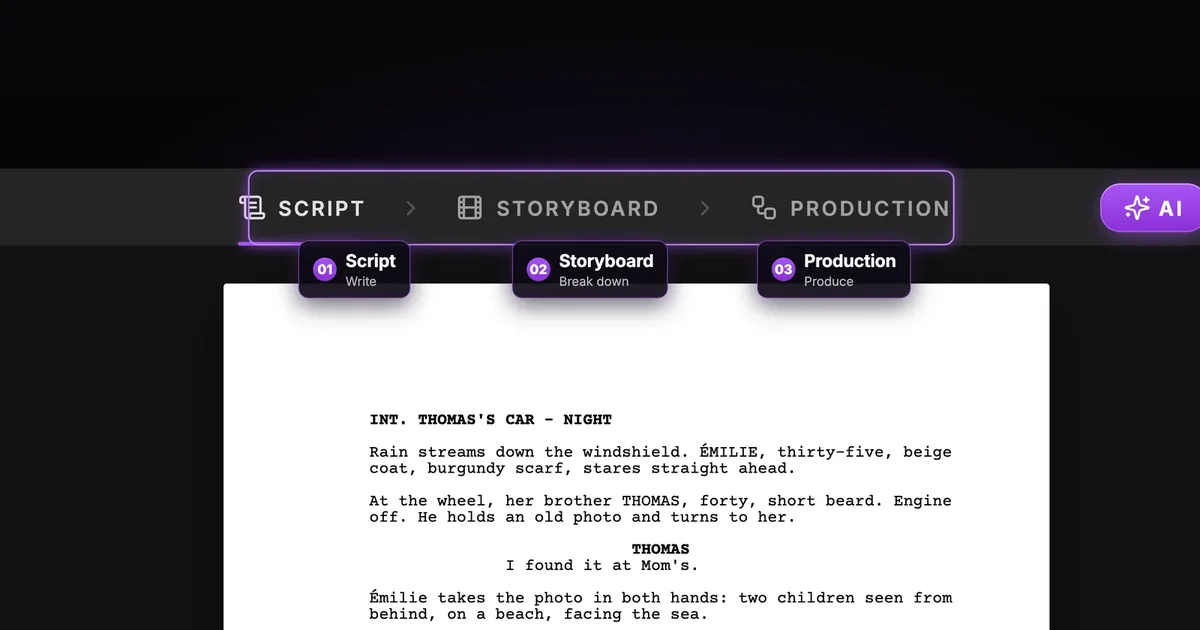

To add an MCP server to Claude, open Customize, then Connectors, click Add custom connector, give it a name and paste the server's URL. Claude then sends you to the server's sign-in page. For ScreenWeaver the URL is https://app.screenweaver.ai/api/mcp, and the whole thing takes about two minutes on any Claude plan, Free included.
If you are still wondering what an MCP server is, start with our plain guide to MCP servers. This page is the practical half: the clicks, the screens you will see, the first three things to ask, and what to do when it does not work. The full list of tools and clients lives on the ScreenWeaver MCP page.
One disclosure first: we build ScreenWeaver. The steps below are the same for any remote MCP server, and we say where ScreenWeaver differs.
What you need before you start
- A Claude account. Custom connectors work on Free, Pro, Max, Team and Enterprise. Free accounts can add one custom connector, which is enough for this.
- A ScreenWeaver account on the Auteur or Studio plan. The MCP server is reserved for those two plans.
- Two minutes and a browser. Nothing to install. ScreenWeaver is a remote server, so the connection runs from Anthropic's cloud to ours, not from your laptop.
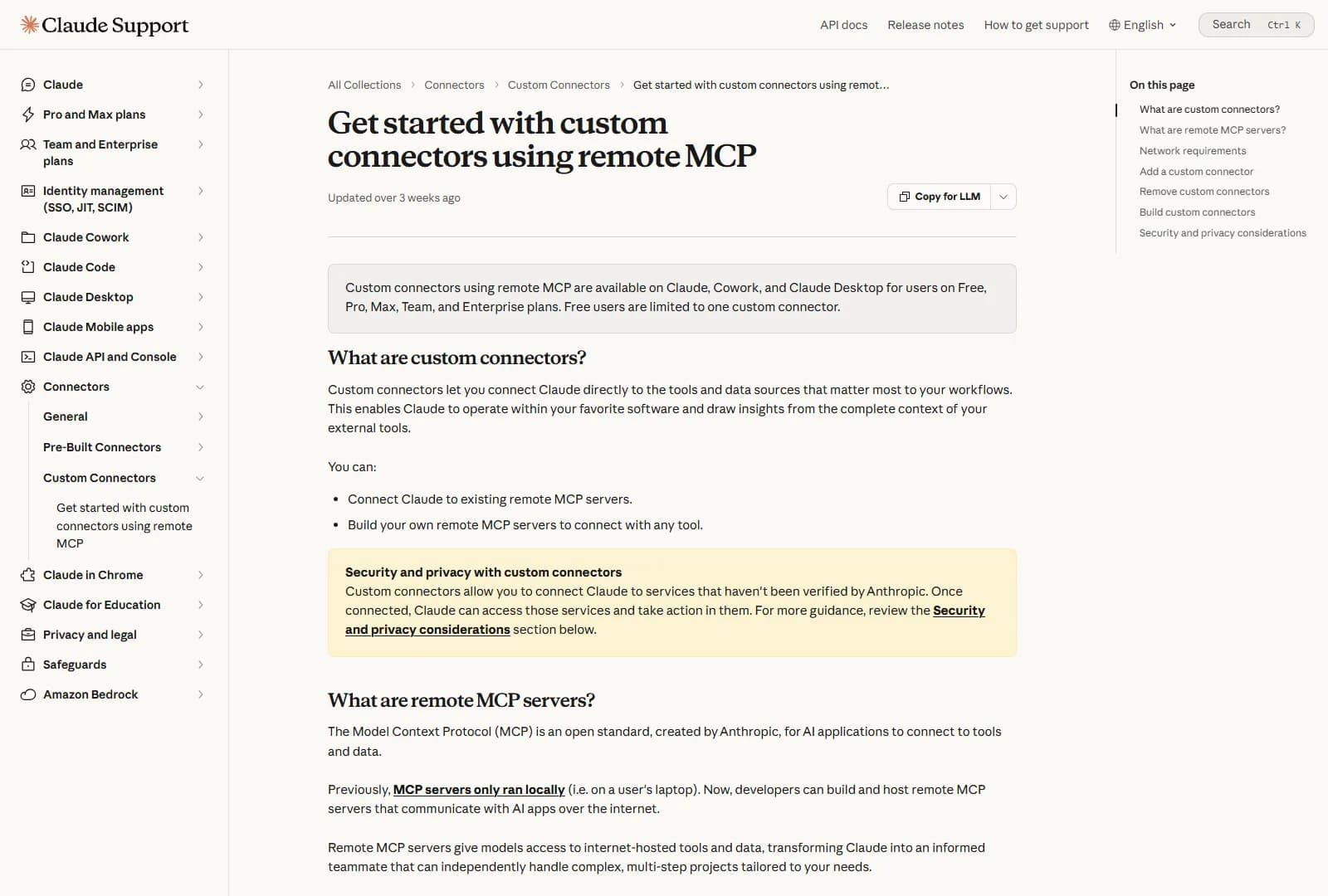
Anthropic's help center, "Get started with custom connectors using remote MCP", captured 24 October 2026.
A connector you add once follows your Claude account. Anthropic's help center says remote connectors work across claude.ai, Claude Desktop, Cowork and the mobile apps, so you do not repeat the setup on each one.
The shortcut: the Add to Claude button
If you are already signed in to ScreenWeaver, skip half the typing. Open your account, then the Connected apps tab. Under the list of connected apps you will find Add to Claude, Add to Cursor and Add to VS Code. The Claude button opens claude.ai with the Add custom connector window already filled in: name and URL. You confirm in Claude, and the rest of the flow below starts at step 4.
The button only prefills Claude's own form. Nothing is connected until you confirm in Claude and allow access on the ScreenWeaver page.
Add the connector by hand, step by step
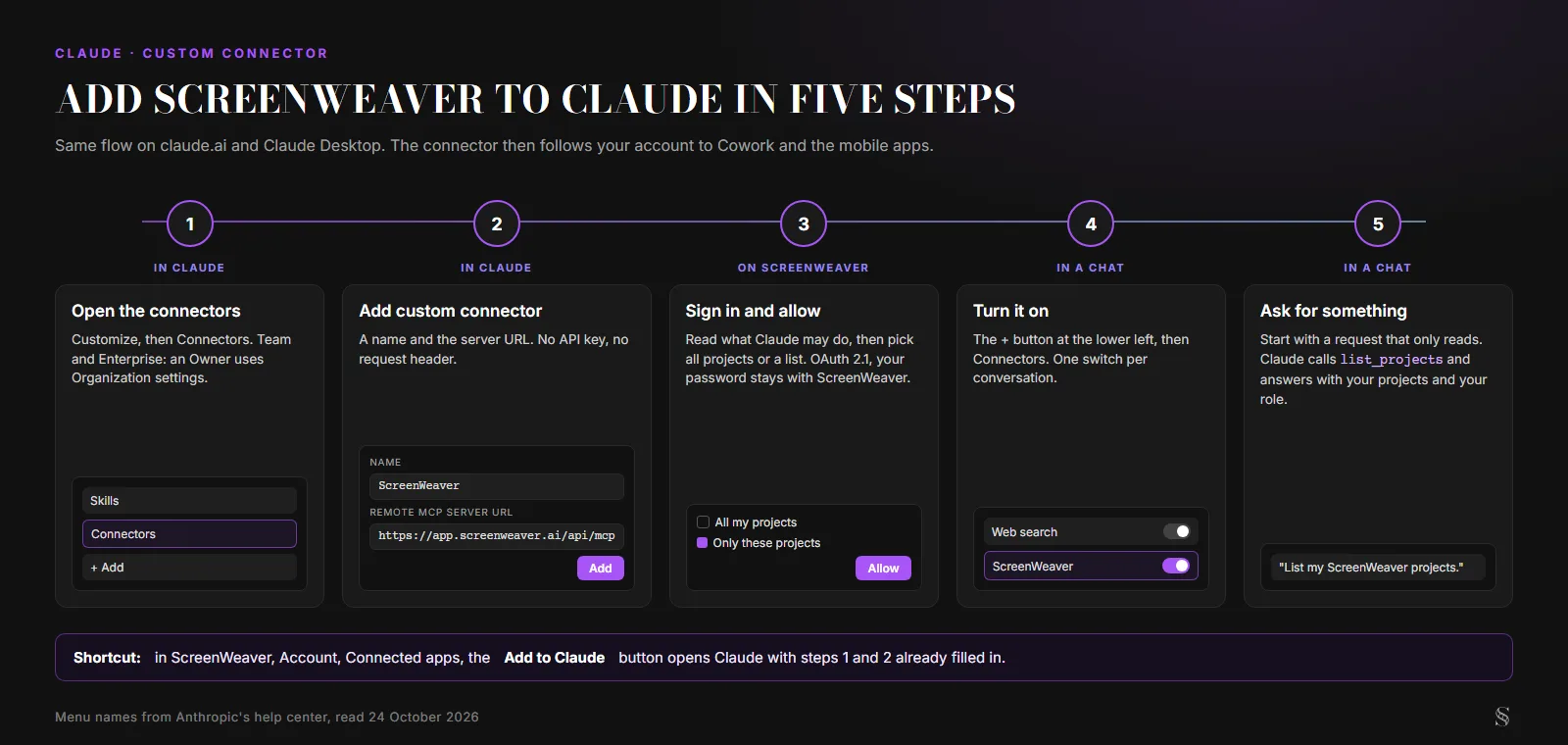
The five steps, with what you see on each screen. Menu names from Anthropic's help center, read 24 October 2026.
Step 1. Open the connectors settings. In Claude on the web or in Claude Desktop, go to Customize, then Connectors. Older guides, ours included, say Settings; Anthropic moves these menus while the feature is in beta, so trust the help center over any screenshot.
Step 2. Add a custom connector. Click + Add, then Add custom connector. Type ScreenWeaver as the name and paste the URL:
https://app.screenweaver.ai/api/mcp
Click Continue.
Step 3. Leave the sign-in settings Claude detects. Claude reads the server and proposes its authentication settings. ScreenWeaver signs you in with OAuth 2.1, so keep sign-in on. You need no request header and no API key: there is no ScreenWeaver key to paste anywhere. Click Add, then Connect.
Step 4. Sign in to ScreenWeaver and choose your projects. A ScreenWeaver page opens. It says which app wants to connect, lists what that app will be able to do, and asks which projects it may open: All my projects (including future ones) or Only these projects, with a checklist. Click Allow and you land back in Claude.
Step 5. Turn it on in a conversation. Open a new chat, click the + button at the lower left, then Connectors, and switch ScreenWeaver on. If Claude ever says it has no ScreenWeaver tools, check this switch before anything else.
On a Team or Enterprise plan
On Team and Enterprise, members cannot add a custom connector themselves. An Owner goes to Organization settings, then Connectors, clicks Add, hovers Custom, picks Web, and enters the same name and URL. Each member then opens Customize, then Connectors, finds ScreenWeaver with its Custom label and clicks Connect. Everyone signs in to ScreenWeaver with their own account, so each person only reaches the projects they already have in ScreenWeaver.
What the ScreenWeaver consent page asks
The consent page is the one moment where you decide what Claude can touch, so read it once. Here it is, rebuilt from the app's code with its exact wording.
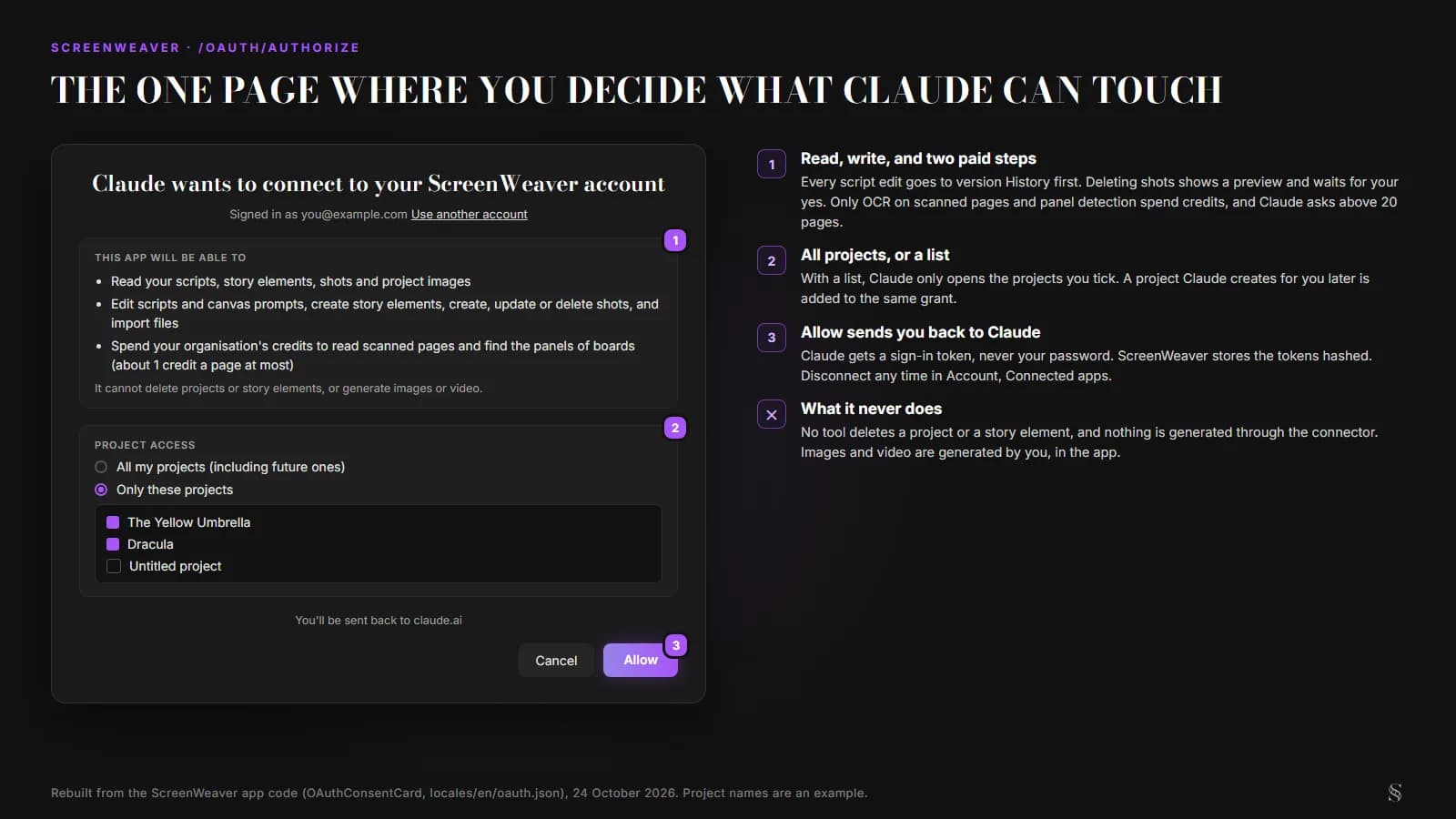
The consent page at /oauth/authorize, rebuilt from the ScreenWeaver app code on 24 October 2026. The project names are an example.
The three permission lines, in plain words:
| Line on the page | What it means for you |
|---|---|
| Read your scripts, story elements, shots and project images | Claude can look at everything in the projects you pick |
| Edit scripts and canvas prompts, create story elements, create, update or delete shots, and import files | Every script edit goes to version History first; deleting shots shows a preview and waits for your yes |
| Spend your organisation's credits to read scanned pages and find the panels of boards | The only two paid steps: OCR on scanned pages and panel detection, about 1 credit a page at most, and Claude asks you above 20 pages |
The page also says what Claude cannot do: delete projects or story elements, or generate images or video. Claude prepares the script, the cast, the shots, the prompts and the references. You launch the image and video generation yourself, in the Storyboard and Production tabs.
If you pick Only these projects and later ask Claude to start a new project, that new project is added to the same grant, so Claude can keep working in it.
Try it free
Try Screenweaver for free on your script
It is free. Import your existing project, get a clearer view of your outline, and regain control of your story structure in minutes.
Start FreeYour first three requests
Begin with a request that only reads, and open ScreenWeaver next to the chat to watch what changes.
1. "List my ScreenWeaver projects." Claude calls list_projects and answers with your projects and your role in each. If you see nothing, you picked a list of projects on the consent page and left it empty, or the connector is off in this chat.
2. Import a draft, preview first. Attach a Fountain or Final Draft file and write: "Import this into my project, but show me the preview before you write anything." Claude runs import_script with dryRun, which lists the scenes, the characters and the places it found, and flags names close to ones you already have, like TOBY and TOBIAS. Say yes and it imports for real; the script that was there before goes to History. For PDFs and scanned scripts, our screenplay import guide covers what is free and what costs credits.
3. Turn sketches into shots. This is the request from our start page, with a photo of one notebook page:
Here are my sketches for the wake-up scene. Turn them into shots in scene 3, and read my notes for the framing.
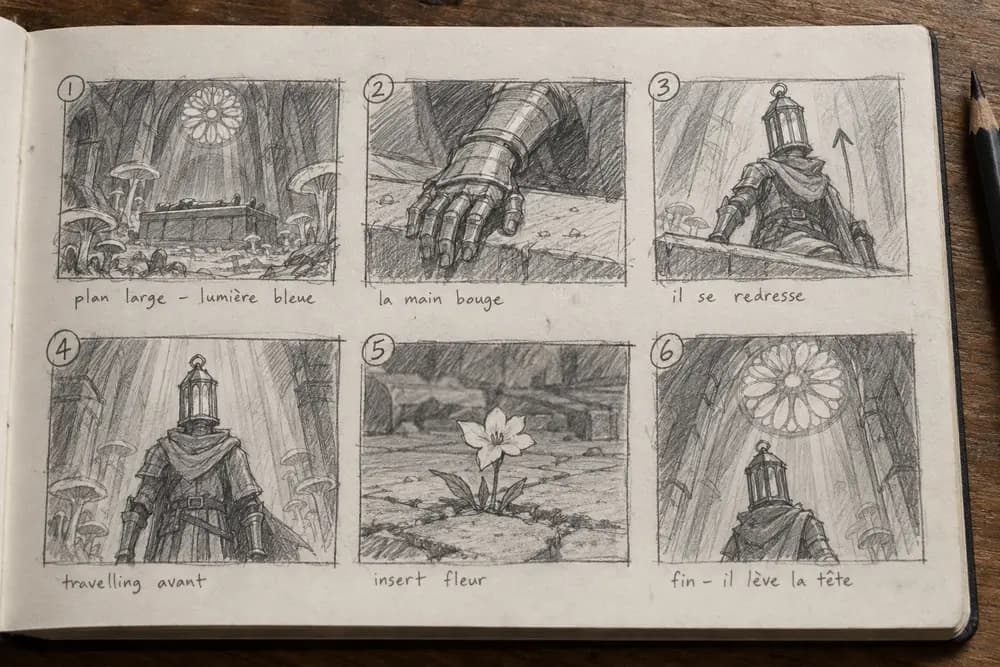
The notebook page from our start page. Its six sketches became shots S14 to S19 of scene 3.
Claude brought the page in with import_media, created the six shots with create_shots, took the framing and camera movement from the notes, then attached each sketch to its shot with add_reference_images. The images came next, generated in the Storyboard tab. The same pattern works on comic pages and webtoon episodes; see how to animate a webtoon with AI.
When it does not work
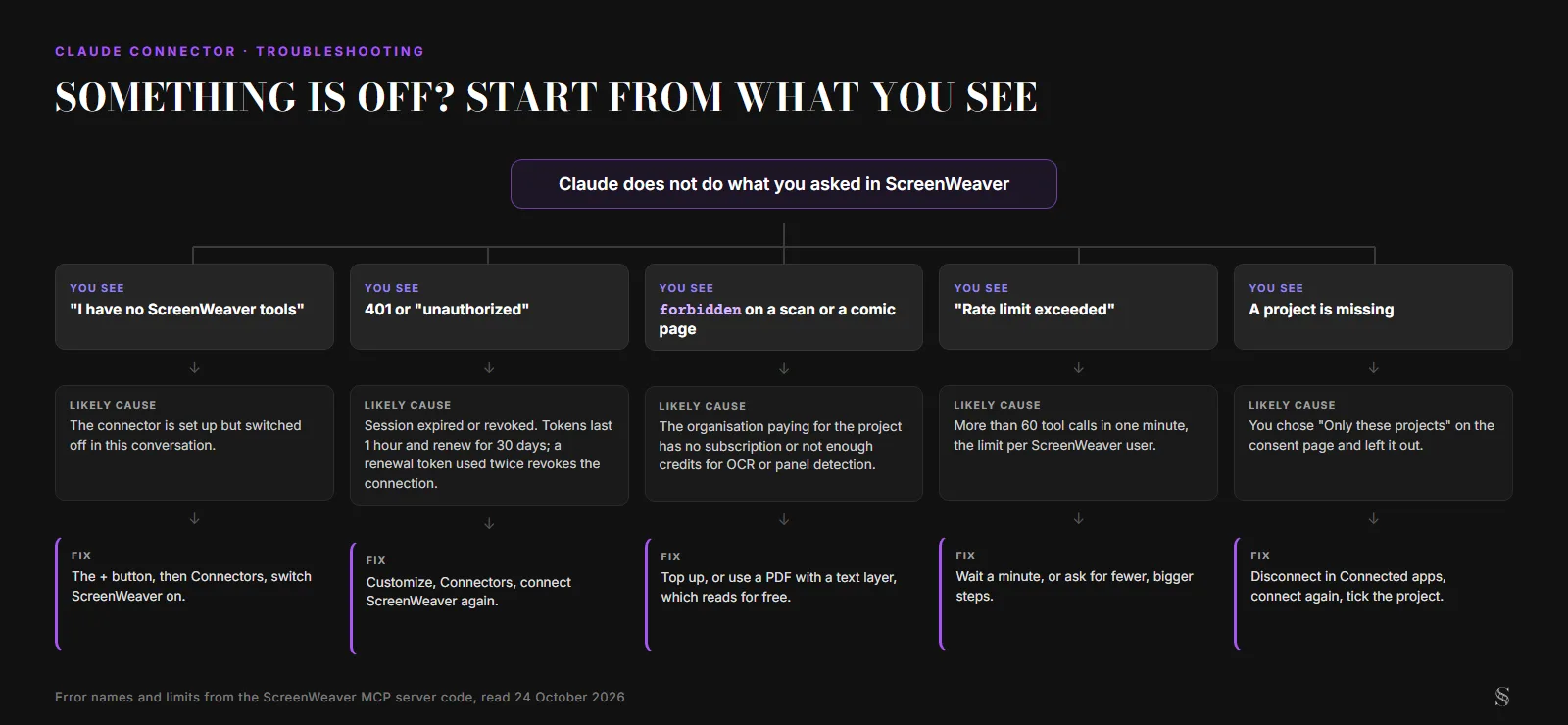
Five common problems and the fix for each. Error names from the ScreenWeaver MCP server code, read 24 October 2026.
| What you see | Likely cause | Fix |
|---|---|---|
| Claude says it has no ScreenWeaver tools | The connector is off in this conversation | +, then Connectors, switch ScreenWeaver on |
| A 401 or "unauthorized" error | Your session expired or was revoked | Open Customize, Connectors, and connect ScreenWeaver again |
forbidden on a scanned PDF or a comic page | The organisation paying for the project has no subscription or not enough credits for OCR or panel detection | Top up, or use a PDF with a text layer, which reads for free |
| "Rate limit exceeded" | More than 60 tool calls in a minute, the ScreenWeaver limit per user | Wait a minute, or ask for fewer, bigger steps |
| Claude cannot find a project | You chose Only these projects and left it out | Disconnect, connect again, and tick it |
Two details explain the 401s. ScreenWeaver's sign-in tokens last one hour and renew themselves for 30 days. If a renewal token is ever used twice, ScreenWeaver revokes the whole connection on purpose, as a safety measure. Connecting again fixes it.
How to disconnect
You can cut access from either side, and they do different things.
- In ScreenWeaver, open your account, Connected apps, and click Disconnect next to Claude. Claude loses access right away. The tab also shows when each app connected, when it was last used and how many projects it can open.
- In Claude, open Customize, Connectors, and click Remove or the three dots next to ScreenWeaver. This removes the connector from your Claude account. To change the URL or the name, Anthropic's advice is to remove it and add it again.
Deleting your ScreenWeaver account revokes every connection.
Claude Desktop, Cowork, ChatGPT and the rest
Claude Desktop and Cowork use the connector you added on claude.ai, so there is nothing more to do there. Claude Code, Cursor and VS Code each have their own setup, a command or a small JSON file, listed on the MCP page. ChatGPT works too, through its Developer mode; menu names and eligible plans change often on that side, so check OpenAI's help center for yours.
Whichever client you use, the server and the 23 tools are the same, and so is the rule: the assistant reads, writes and organises, and you generate the images and the film in ScreenWeaver.
If your script is still a PDF, our free PDF to Fountain converter gives you a clean file to hand to Claude.
FAQ
Is the Claude connector free? Adding a custom connector is free on every Claude plan, and the Free plan allows one. On the ScreenWeaver side, the MCP server comes with the Auteur and Studio plans. Reading, writing and importing a script cost no credits; only OCR on scanned pages and panel detection do.
Do I need an API key to connect ScreenWeaver to Claude? No. You sign in to ScreenWeaver on its own page and allow access. Claude never sees your password, and ScreenWeaver stores the sign-in tokens hashed.
Does it work in Claude Desktop and Cowork? Yes. A connector added on claude.ai follows your account to Claude Desktop, Cowork and the mobile apps, according to Anthropic's help center. The Add to Claude button in ScreenWeaver covers all of them.
Can Claude generate my storyboard images through the connector? No. Through the MCP, Claude creates the shots, writes the prompts and attaches reference images. The images and videos are generated in ScreenWeaver, by you, with your credits.
Why don't I see the Add custom connector button on my Team plan? On Team and Enterprise, only Owners (and on Enterprise, roles allowed to manage libraries) can add custom connectors, from Organization settings. Ask an Owner to add ScreenWeaver once; you then click Connect under Customize, Connectors.
How do I stop Claude from opening a project? Disconnect Claude in ScreenWeaver's Connected apps tab, then connect again and pick only the projects you want. Access stops the moment you disconnect.
Final Step
Build your next script with Screenweaver
Move from ideas to production-ready pages faster with timeline-native writing and AI-assisted story flow.
Try Screenweaver