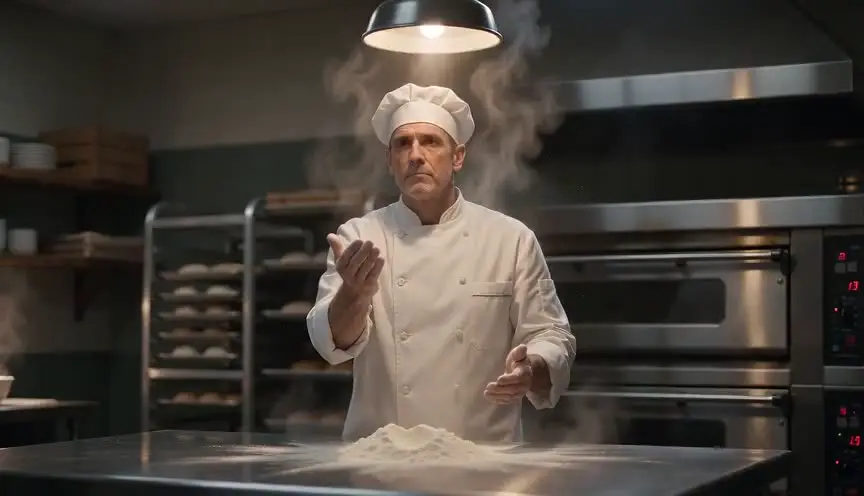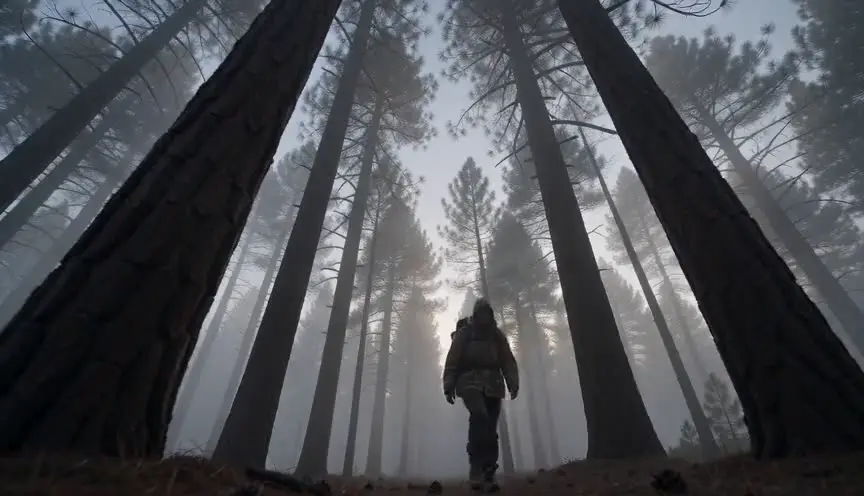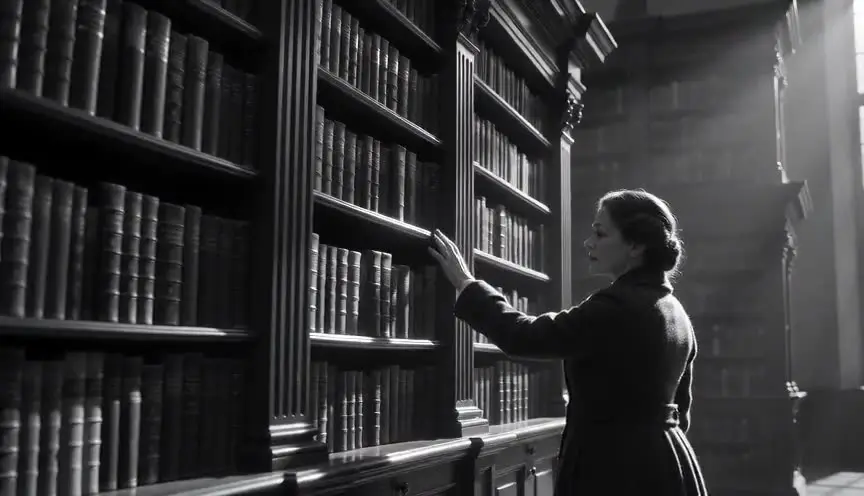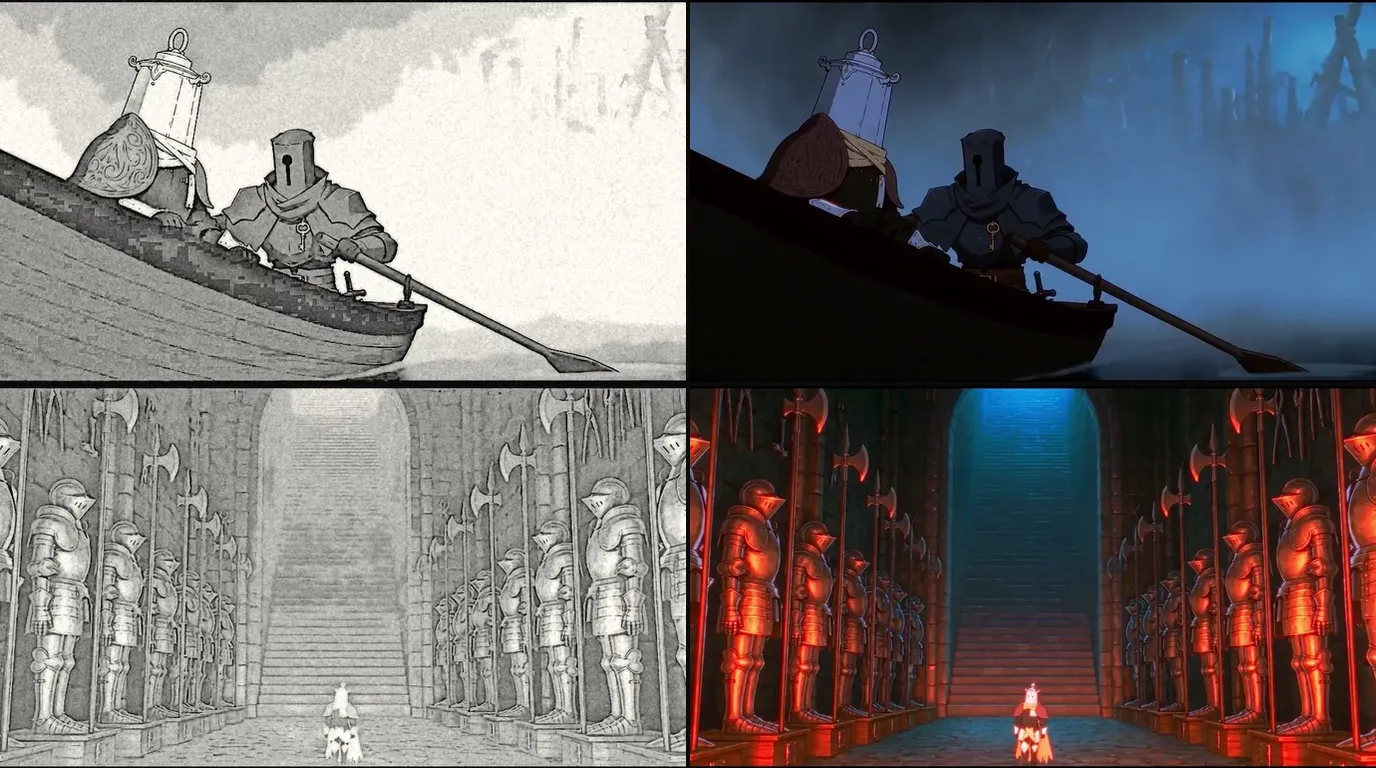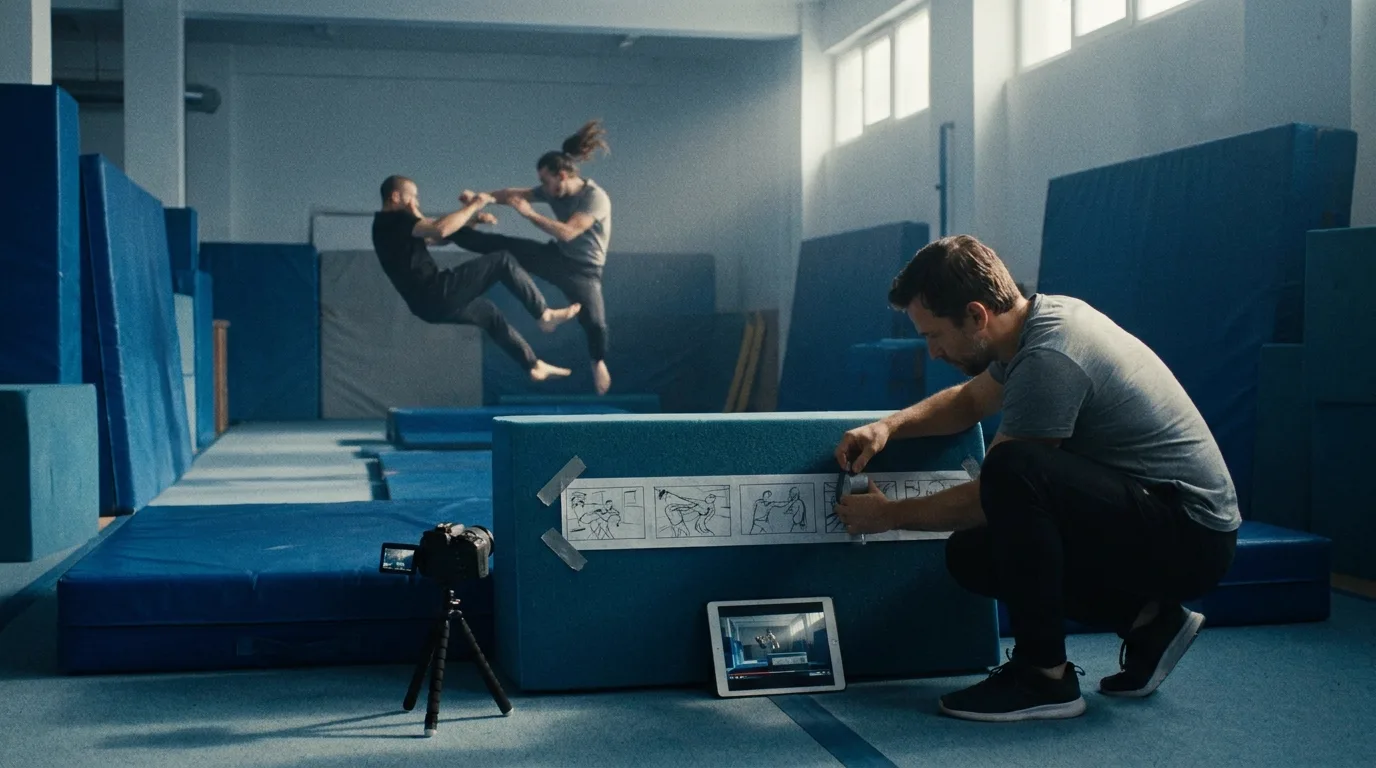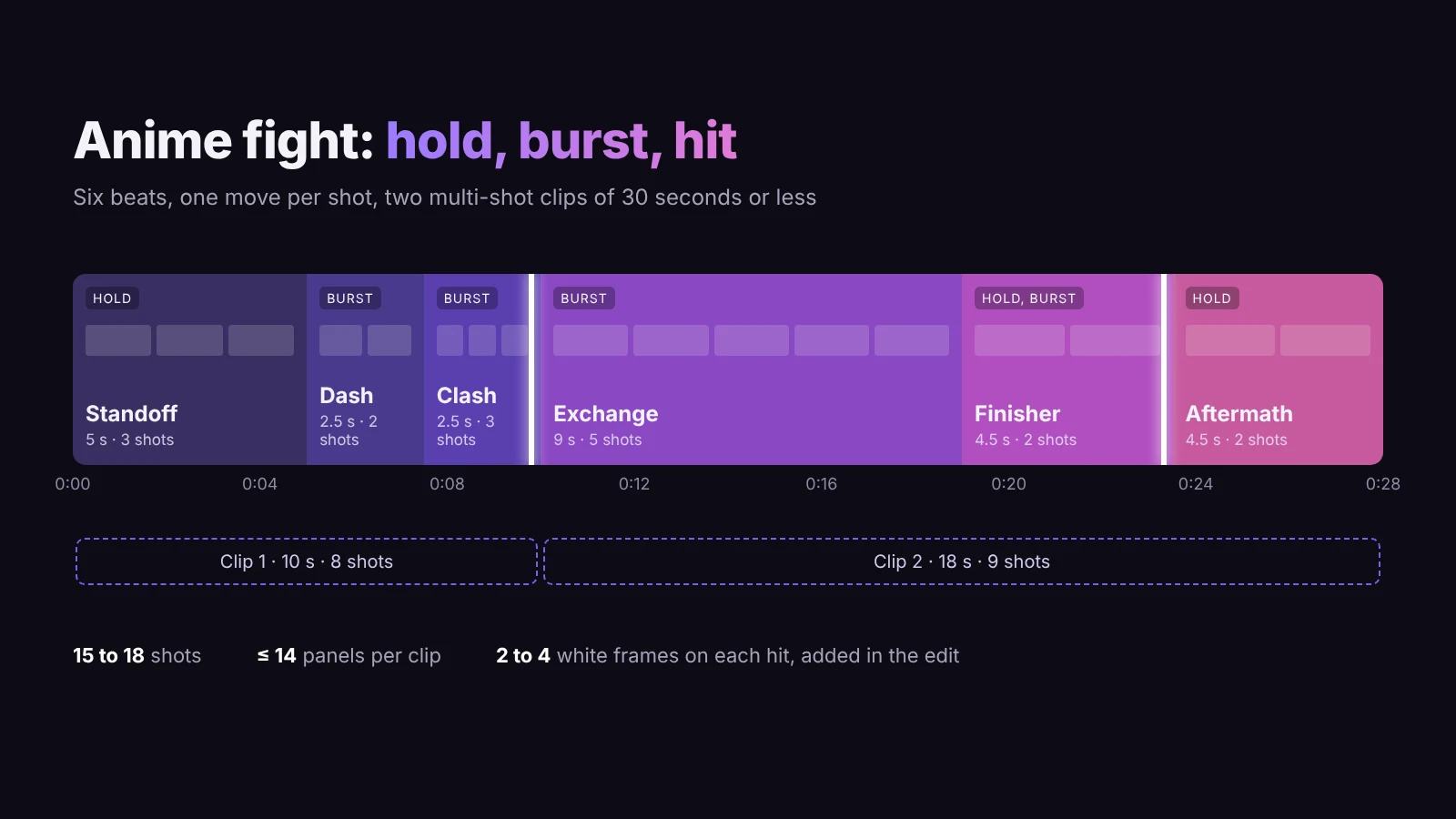

Short answer: an anime fight is built from holds and bursts, not continuous motion. To make one with AI, write the fight as six beats (standoff, dash, clash, exchange, finisher, aftermath), give each fighter, weapon and the arena a reference sheet, board 15 to 18 shots with one move per shot, time them as an animatic, then generate two multi-shot clips of 30 seconds or less in ScreenWeaver. The impact frames, the retiming "on twos" and the sound go on in your editor.
This guide is about the anime grammar. For live-action physics (weight, contact, consequence), read our action scene prompts guide; the full method for an anime episode is in how to make anime with AI.
What you need
- Two fighters and a reason. A fight with no stake is a demo reel. One line of script that says what each side wants is enough.
- A ScreenWeaver project. Writing is free on the Screenwriter plan. Storyboard panels and video use credits: the Auteur plan is $39.99 a month with 6,000 credits, Studio $149.99 with 25,000 (prices on the site in November 2026).
- An editor. DaVinci Resolve has a free version. The flashes, the retiming and the sound effects happen there.
Why anime fights break in AI video
Live-action fights are continuous: a stunt team moves, a camera follows. Anime fights cheat. They hold a still frame for two seconds of stare-down, then cross the whole screen in eight frames, then freeze on the hit. A video model left alone does the opposite: it smooths everything into the same medium speed, so the stare-down drifts and the strike is mush.
The fix is to decide in the storyboard which shots are holds (almost nothing moves) and which are bursts (one fast move, start and end written), and to never mix the two in one shot.
The anime fight beat map
Use this 30-second template, then move the boundaries to fit your scene.
| Beat | Seconds | Shots | Hold or burst | What the shots do |
|---|---|---|---|---|
| Standoff | 4 to 6 | 3 | Hold | Wide of the arena, eyes in extreme close-up, a hand tightening on the hilt |
| Dash | 2 to 3 | 2 | Burst | One fighter crosses the frame, speed lines, the camera stays still |
| Clash | 2 to 3 | 2 to 3 | Burst, then hold | Contact, a flash on the hit, a ring of dust |
| Exchange | 6 to 10 | 4 to 6 | Burst | Strike, block, counter: one move per shot, same screen direction |
| Finisher | 3 to 5 | 2 | Hold, then burst | Push in on the face as the move charges, then the hit |
| Aftermath | 3 to 5 | 2 | Hold | Wide, dust settling, who is still standing |
Total: 20 to 32 seconds and 15 to 18 shots. Those numbers come from two limits in ScreenWeaver. Seedance 2.5, the default video model, makes clips of 4 to 30 seconds, and the Storyboard grid that guides a scene clip takes up to 14 panels. So the fight splits cleanly into two clips: standoff, dash and clash in the first (7 or 8 shots), exchange, finisher and aftermath in the second (8 to 10 shots).
Step 1: Write the fight as beats
In the ScreenWeaver editor, write the fight as a scene with one action line per shot. No choreography paragraphs: each line is one image a camera can film in one to three seconds.
EXT. TEMPLE COURTYARD - NIGHT (RAIN)
Rin and Kaito face each other across the flooded stones, twenty metres apart. Neither moves.
Rin's eyes, extreme close-up. Rain runs down her face.
Kaito's hand closes on the hilt of his sword.
Rin dashes from frame left to frame right, a wake of water behind her.
Steel meets steel. White flash. A ring of water blows outward.
Write the screen direction into every movement line ("from frame left to frame right"). In anime, the hero usually keeps one side of the screen for the whole fight; if Rin attacks left to right in the dash, she attacks left to right in the exchange too.
Step 2: Lock fighters, weapons and the arena
A fight puts two faces, two weapons and one place in fifteen shots taken from every angle, so drift shows at once. In Story elements, give each fighter a description of what a camera sees (hair, outfit, colours, silhouette) and generate the Storyboard reference sheet. Do the same for each weapon and for the courtyard: places and objects are story elements too, and a sword that changes shape between two shots breaks the scene. Why this works is covered in consistent locations and props in AI video.
Set the anime look once in the project's art direction (style text and style image), not in every shot, so the whole fight shares one line and one palette.
Step 3: Board the anime grammar
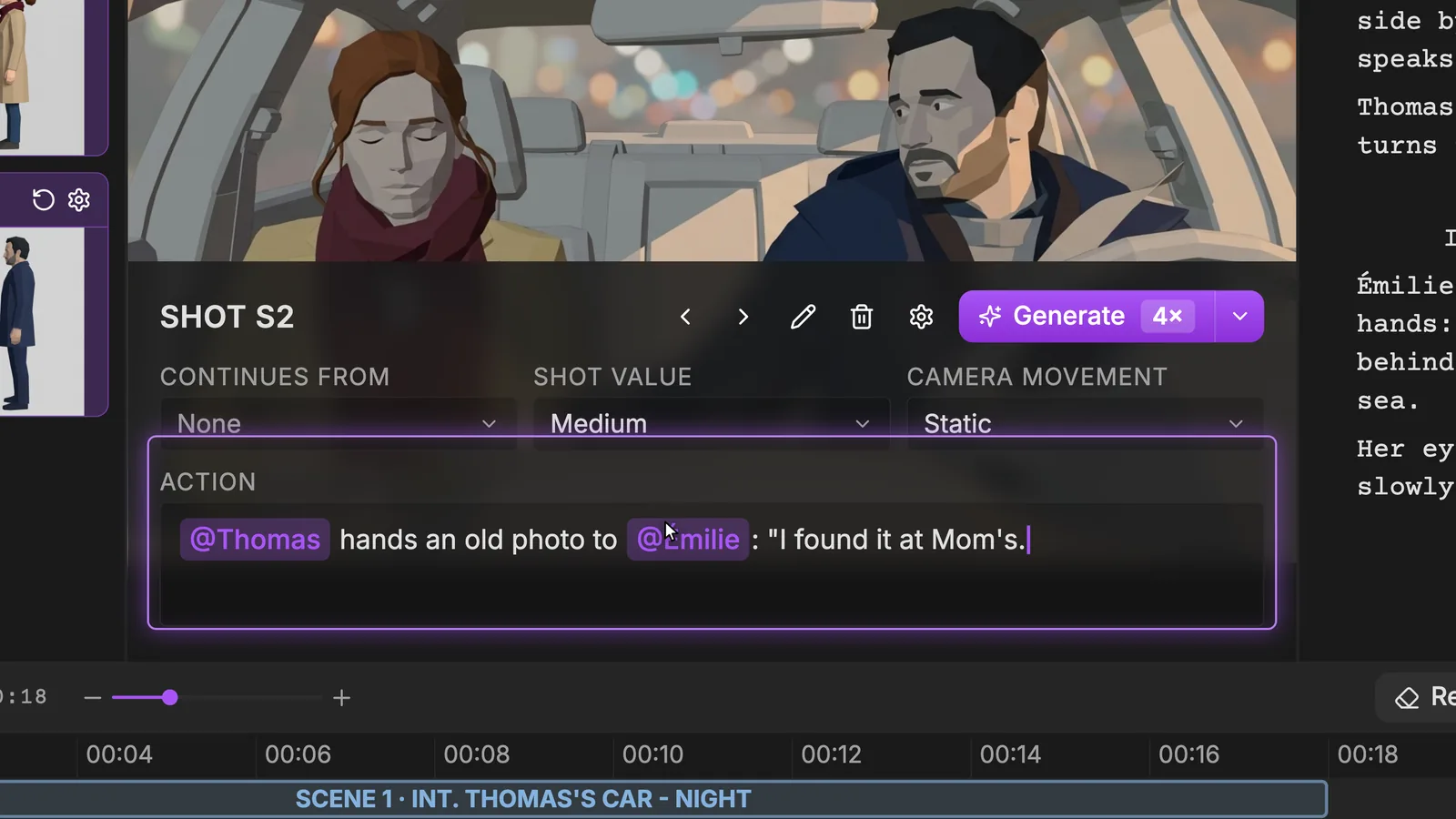
Open the Storyboard tab and run Auto-generate: it creates missing reference sheets, breaks the scene into shots and draws one panel per shot. Then direct each shot with Shot value, Camera movement and Action, and mention the fighters with @ so the panel cites their sheets.
The shots that make a fight read as anime:
- The eye close-up. Extreme close-up, Static, almost no motion. It is the hold before the burst.
- The dash. Wide, Static camera, the fighter crosses the whole frame. Write "speed lines behind her, background streaked" in the action.
- The clash. Medium, Static, two weapons meeting in the centre of the frame. One contact only.
- The low angle on the finisher. The camera below the fighter, Dolly in while the move charges.
- The aftermath wide. Wide, Static, one figure standing, one down. Hold it.
How a fight board reads, and why the geography shot comes first, is in storyboarding a fight scene.
Try it free
Try ScreenWeaver for free on your script
It is free. Import your existing project, get a clearer view of your outline, and regain control of your story structure in minutes.
Start FreeStep 4: Time the holds and the bursts
In the sequencer, drag the edge of each block to set how long the shot lasts. Give holds 2 to 3 seconds and bursts 1 to 2. Then press Play to run the board as an animatic. If the stare-down feels short, it is: anime directors stretch it. If the exchange feels slow, cut a shot rather than shortening all of them. No video credits are spent at this stage.
Step 5: Generate one clip per half of the fight
In the Production tab, click Add pipeline, choose Storyboard panels to video and tick the shots of the first half (standoff, dash, clash). Check Selected duration: it must stay at 30 seconds or less.
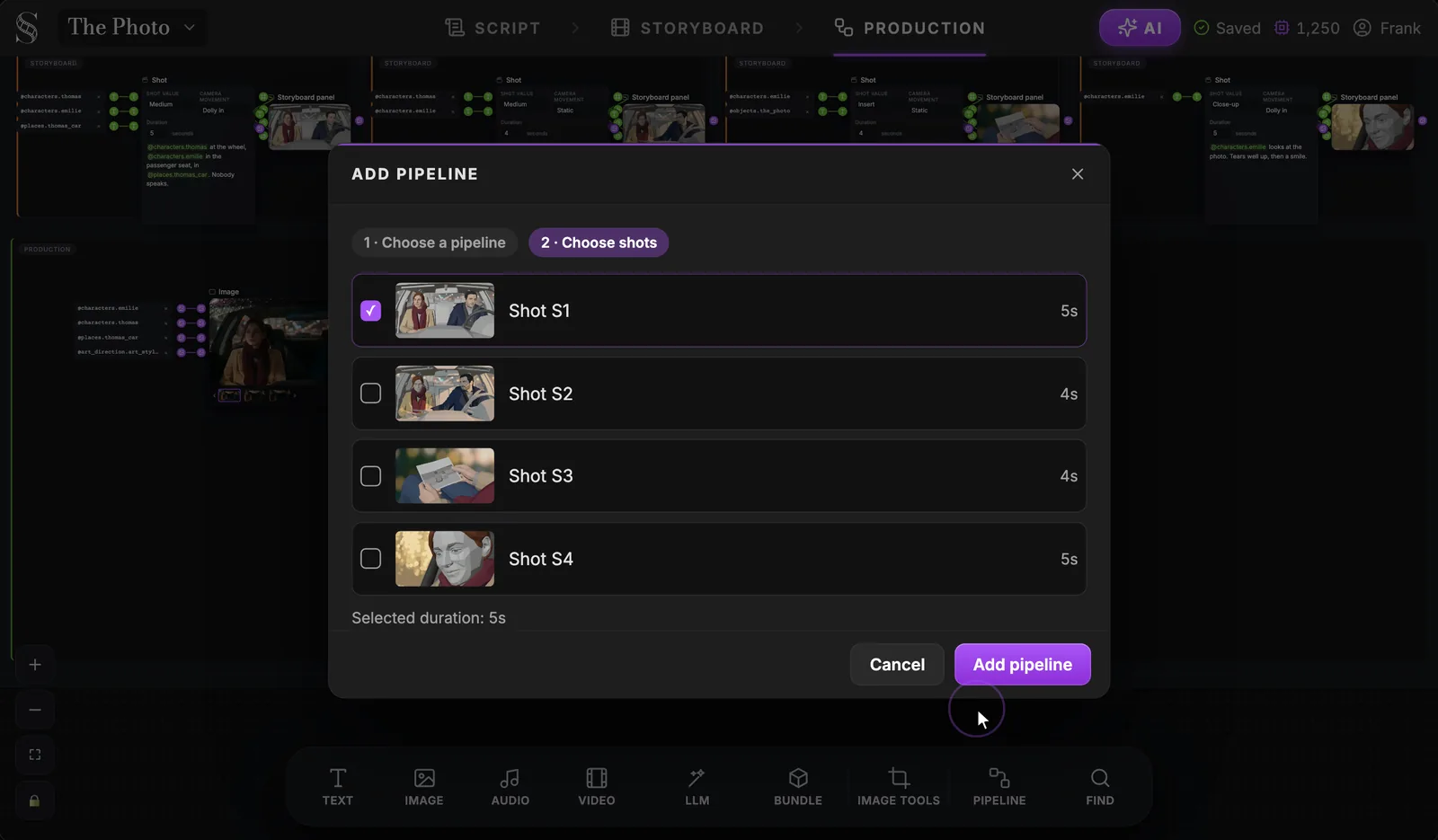
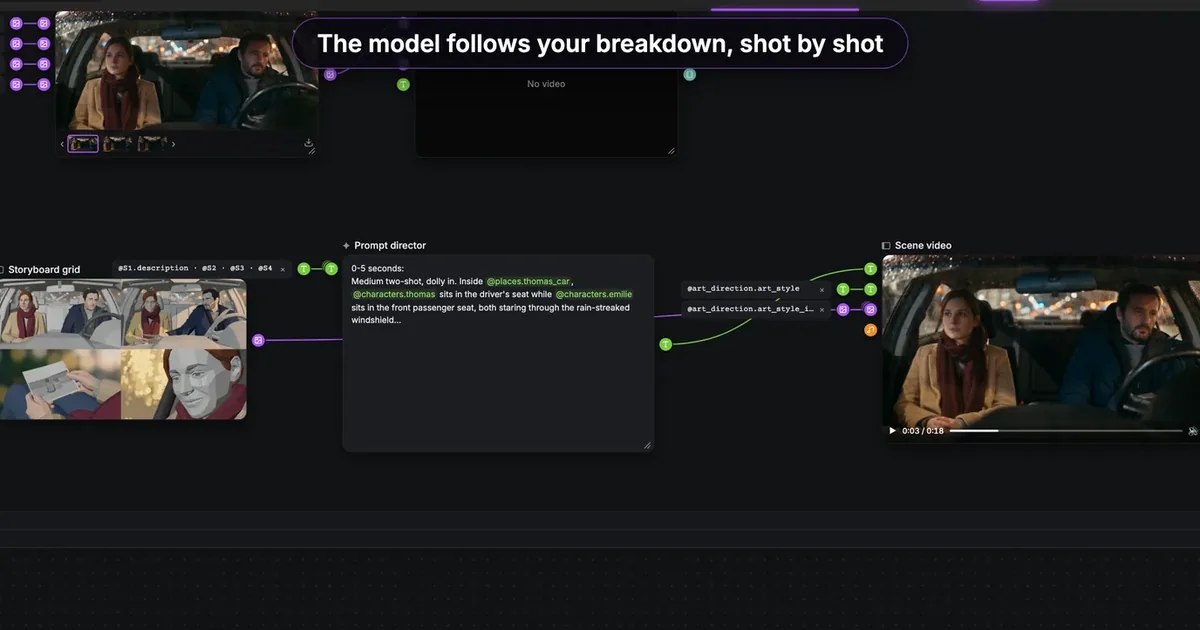
The pipeline assembles the panels into a Storyboard grid, writes a timed staging and sends both, with the sheets and the art direction, to one Scene video node. Because the whole half is one generation, the fighters, the rain and the light stay the same from the stare-down to the clash. The full walkthrough is in multi-shot AI video: a whole scene in one clip. Repeat for the second half.
Turn the Video node's Audio switch off if you will mix your own sound. To compare models on anime motion before you spend, read the best AI video model for anime; Seedance 2.5 is the default, and Veo 3.1, Kling v3.0 and three others sit in the same menu.
Step 6: Add the impact frames and the sound in the edit
Download the two clips and finish in your editor:
- Impact frames. On each hit, insert two to four frames of a flat white frame, or the hit frame inverted to black and white. It is the anime flash, and it is cheaper to add here than to ask a model for it.
- Retime on twos. Convert the clip to 12 new images per second (holding each image for two frames at 24 fps). Motion animated "on twos" reads as hand-drawn; smooth 24 fps motion reads as 3D.
- Freeze the hold. If a stare-down shot drifts, freeze its best frame for the length of the shot.
- Sound. A silence before the dash, a sharp hit on the flash, rain back in on the aftermath.
Common mistakes
- A whole fight in one action line. "They fight across the courtyard" gives the model nothing to stage. One move per shot.
- Holds and bursts in the same shot. A slow stare that ends in a dash comes back at one medium speed. Split it.
- Screen direction that flips. The hero attacking from the other side reads as a new fight.
- No sheet for the weapon. The sword changes length, guard and colour between shots.
- More than 14 shots or 30 seconds in one pipeline. The clip is capped and the shots get squeezed. Split the fight in two.
- Asking the model for the flash. Video models redraw full-white frames unpredictably. Add impact frames in the edit.
FAQ
How long should an anime fight scene be?
For a short film or a pitch, 20 to 40 seconds is enough to show both fighters, one exchange and a result. A TV episode climax runs longer, but it is built from the same beats repeated.
Can AI make a sakuga-quality fight?
Not on its own. Sakuga is the name fans give to standout hand-drawn animation, usually the work of one key animator. AI gets you a staged, consistent fight you can direct; the flash, the timing and the cut are still choices you make in the board and the edit.
How many shots do I need?
About 15 to 18 for a 30-second fight with the template above. Fewer, longer shots make a fight feel slow; more shots than 14 per clip get squeezed.
Which camera moves work best?
Mostly Static. Anime sells speed through the subject crossing a still frame, speed lines and the cut. Keep Dolly in for the charge of the finisher and a pan for the dash only if it follows one fighter.
Can I make the fight from my manga or webtoon pages?
Yes. Import the chapter, build the fighters and the arena from its panels, and board the fight from the key images; the webtoon to anime converter covers the import.
Make your fight
Write the six beats tonight, board and time them tomorrow, and generate only when the animatic hits the way you want. When you are ready, open the AI anime video generator and start with the two fighters.
From script to shots
Turn your script into a film, shot by shot
Write the scene, get its storyboard, then generate each shot with consistent characters. You direct every step.
Start your film free