
To turn sketches into a storyboard, photograph the page, cut out each drawing, and make every drawing a shot with its framing and camera move. An AI assistant connected to ScreenWeaver does the cutting and the shot setup from your notes. Your sketch fixes the composition. The panel generator redraws it, or keeps it as it is.
Below, one real notebook page goes from a phone photo to six shots, with the tool calls that did the work and the decisions that stayed with the author. If you are coming from a script rather than from drawings, the screenplay to storyboard walkthrough is the better starting point. If you want the broader picture of storyboarding with AI, start at the AI storyboard generator page.
Disclosure: we build ScreenWeaver (Frank Houbre is one of our co-founders), and the page below is our own demo. Every tool name and limit quoted here comes from the app's code and its agent documentation, read on 30 October 2026.
Why start from a sketch at all
Because you already know the shot. A quick pencil thumbnail holds three decisions that a text prompt struggles to carry: where the camera sits, how big the subject is in the frame, and which way everyone faces. Directors and storyboard artists draw thumbnails because nothing is faster for thinking in frames.
The problem has always been the next step. A notebook page is a private document. To share it with a crew, or to use it as the base for a proper storyboard, someone has to redraw it, scan it, slice it, number the frames and type the notes into a shot list. That copying job is the part worth handing off.
What you should not hand off is the drawing itself. A sketch is where the intent lives. Any tool that throws it away and invents a new frame from a description has lost the thing you came with.
The real page: six pencil sketches, one scene
Here is the page we used for the demo on our MCP page and on the start page. It is a photo of a notebook: six pencil frames, each numbered in a circle, each with a short handwritten note underneath. The notes are in French, because that is how they were scribbled.
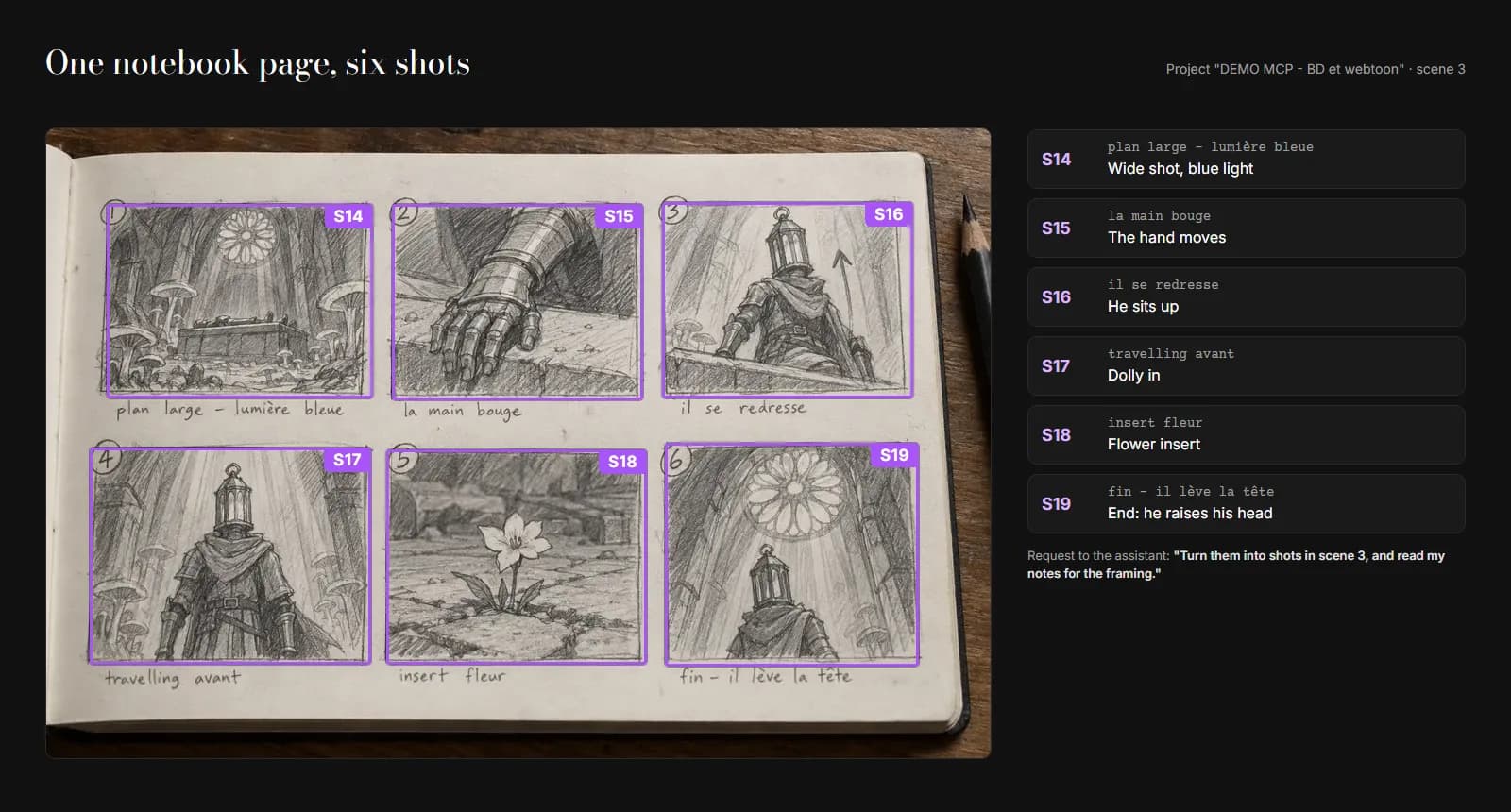
The notebook page from the ScreenWeaver demo project, with the shot code each sketch became and a translation of its note. Diagram by ScreenWeaver.
The project was called "DEMO MCP - BD et webtoon". The six sketches went into scene 3 and became shots S14 to S19. The request typed to the assistant was short: "Here are my sketches for the wake-up scene. Turn them into shots in scene 3, and read my notes for the framing."
Look at what the notes actually say. Two of them are camera language ("plan large", a wide shot, and "travelling avant", a dolly in). One names a shot type ("insert fleur", a flower insert). The other three describe action ("the hand moves", "he sits up", "end, he raises his head"). Real thumbnail pages look like that: half camera notes, half reminders of what happens.
What the assistant does with the page
ScreenWeaver exposes its project to AI assistants through an MCP server (Claude, ChatGPT, Cursor, VS Code and the assistant built into the app all use the same tools). If you have not connected one yet, the Claude setup guide takes about two minutes. Then the page goes through four steps.
1. The photo comes in with import_media. It accepts PDF, PNG, JPEG or WebP up to 25 MB. Each sketch then has to be cut out, and there are two ways. With crops, the assistant looks at the page and gives the boxes itself, as fractions of the page. That is free, up to 300 boxes per call. With findPanels: true, a vision model finds the frames for you, at about 1 credit a page. A notebook page with six clearly ruled boxes is easy work for either. For sketches with no borders, or a page where notes run between frames, crops lets the assistant cut each drawing and leave the scribbles out. Splitting a page into panels compares both methods in detail.
2. The assistant looks before it acts, with view_media. It can view up to 8 stored images per call. This is where it reads your handwriting and checks that each cut holds one whole drawing.
3. The shots are created with create_shots. One call can create up to 50 shots in a scene, in storyboard order. Each shot gets an action written in story terms, a framing (shotValue), a camera movement (cameraMovement) and, if you gave one, a duration in seconds. Each sketch is attached to its shot as a board in the same call.
4. Nothing is generated yet. The shots exist, the sketches sit on them, and the panels stay empty until you say go.
How a handwritten note becomes shot fields
People underestimate this step. ScreenWeaver's shot fields use fixed values: framing runs from Extreme close-up through Close-up, Medium, Long / Wide and Extreme long / Establishing, plus Over-the-shoulder, POV and Insert. Camera movement has seventeen presets such as Static, Dolly in, Pan left, Tilt up, Crane and Handheld. Anything else is kept as free text.
So the assistant has to translate. "Travelling avant" maps cleanly to Dolly in. "Insert fleur" maps to Insert. "Plan large" is Long / Wide. A note like "il se redresse" (he sits up) says nothing about the camera at all, so the framing has to come from the drawing: a medium shot from a low angle.
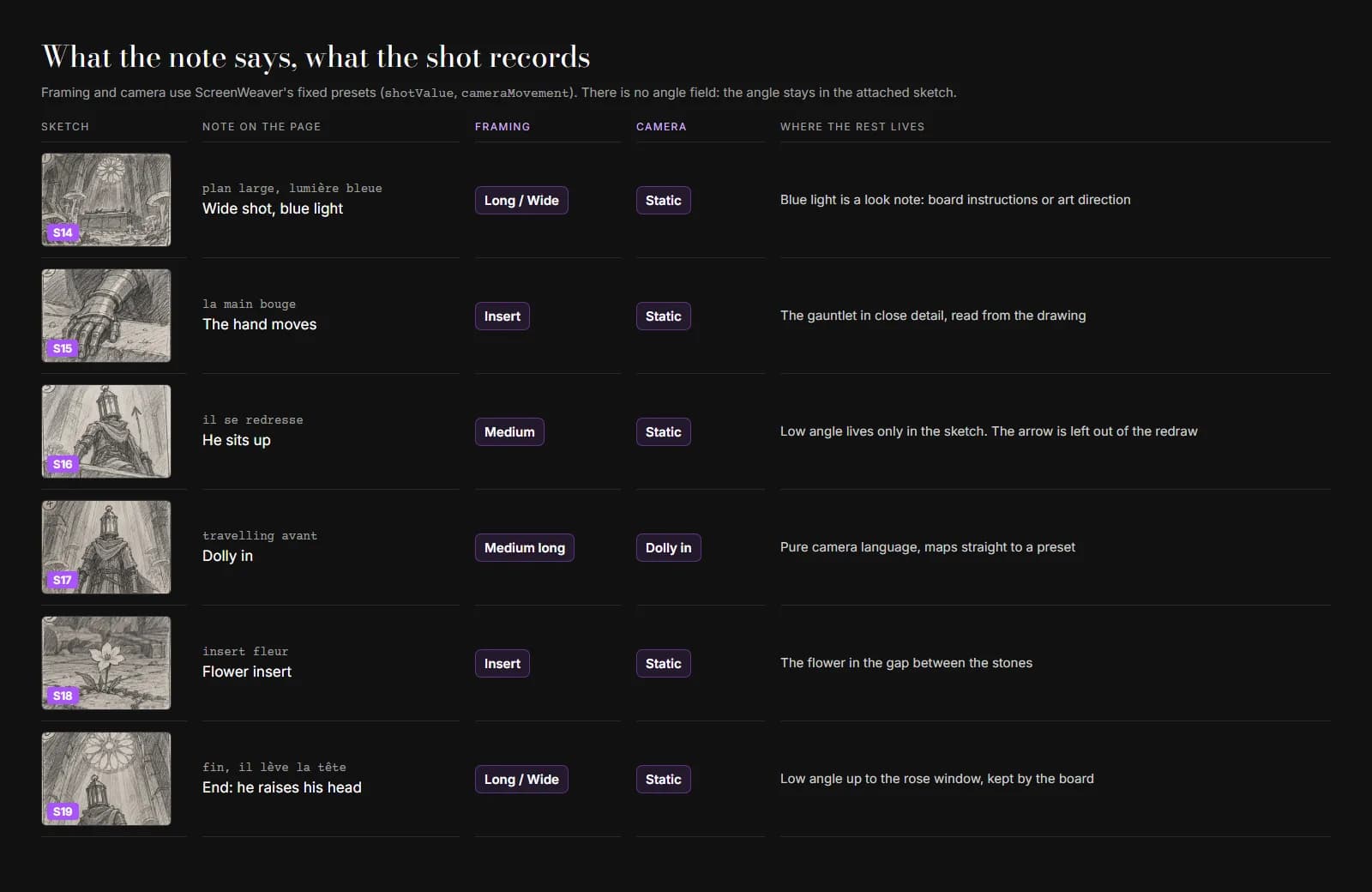
How each note maps to ScreenWeaver's framing and camera presets. The mapping is our reading of the page; the preset names come from the app's code, 30 October 2026.
| Sketch | Note on the page | Framing | Camera | Where the rest lives |
|---|---|---|---|---|
| S14 | plan large, lumière bleue (wide shot, blue light) | Long / Wide | Static | Blue light is a look note: board instructions or art direction |
| S15 | la main bouge (the hand moves) | Insert | Static | Read from the drawing: a gauntlet in close detail |
| S16 | il se redresse (he sits up) | Medium | Static | Low angle is only in the drawing; the arrow is dropped |
| S17 | travelling avant (dolly in) | Medium long | Dolly in | The note is pure camera language |
| S18 | insert fleur (flower insert) | Insert | Static | The flower in the stone gap |
| S19 | fin, il lève la tête (end, he raises his head) | Long / Wide | Static | Low angle up to the rose window |
There is no angle field. ScreenWeaver records framing and movement, not "low angle" or "high angle". The angle stays in the sketch, and the sketch travels with the shot as its board. Of all the reasons to attach the drawing instead of describing it, that one convinced us most.
A note like "blue light" is not story action. The tool description for create_shots is strict about this: the action is written "in story terms only, with no instruction to the generator", because the same action also feeds the production and video prompts later. A look note goes into boardInstructions (one instruction in your own words for every shot in the call, like "keep the blue light from the rose window") or into the project's art direction.
Missing information is fine. Our page had no durations, so the shots kept the app's default length. If your notes say "3 sec" under a frame, the assistant can write durationSeconds: 3.
Try it free
Try ScreenWeaver for free on your script
It is free. Import your existing project, get a clearer view of your outline, and regain control of your story structure in minutes.
Start FreeReference or as-is: two ways to use a sketch
Each board attached to a shot has a mode, and the choice changes the result more than any prompt.
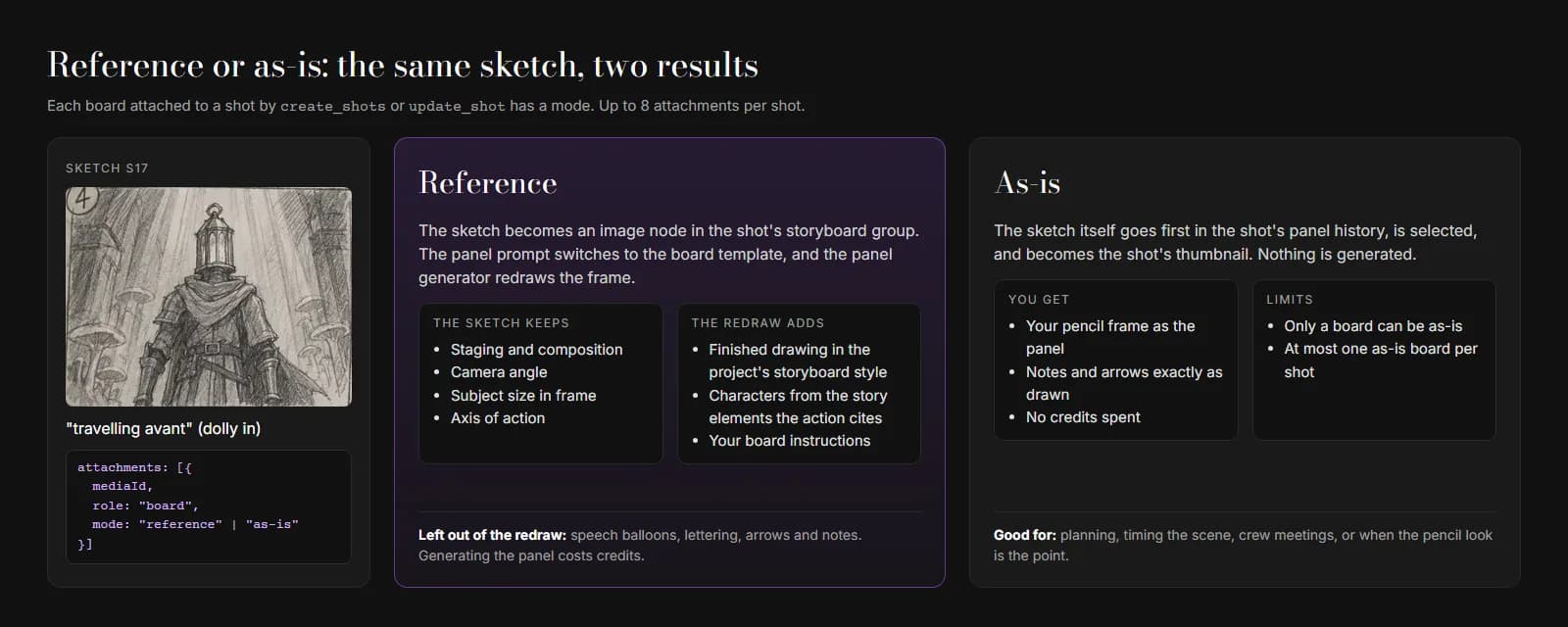
The two board modes, with what the sketch keeps and what the generated image adds. From ScreenWeaver's agent documentation, 30 October 2026. Diagram by ScreenWeaver.
Reference is the mode most people want when they turn sketches into a storyboard. The sketch becomes an image node in the shot's storyboard group, and the panel prompt switches to a board template. In that template the board fixes the staging, the characters' look comes from the story elements the action names, and the style comes from the project's storyboard style. Speech balloons, lettering, arrows and notes are left out of the redraw. That last point matters on a thumbnail page: the upward arrow on S16 tells you he rises, and you do not want it drawn into the frame.
As-is skips the redraw. The sketch itself goes first in the shot's panel history, gets selected and becomes the shot's thumbnail. No generation, no credits. Only a board can be as-is, and only one per shot. This is the right choice when the storyboard is for your own planning, for a crew meeting, or when the pencil look is the point.
A practical split: keep the sketches as-is while you reorder, cut and time the scene. Then, on the shots you want finished, add the same sketch as a reference board with update_shot and generate. You can also attach context images to a shot (up to 8 attachments in total), like a location photo, which the template cites as read-only.
What the sketch keeps, whatever the mode: composition, the axis of action, the size of the subject in frame, the angle. What a generated panel adds: finished drawing, consistent characters taken from the story elements, light, texture and the project's style. If a generated panel loses the composition, the fix is usually in the sketch or in the board instructions, not in a longer prompt.
Generating the panels, and what stays manual
Since 27 October 2026 the assistant can also run the storyboard images itself with run_generations. It never does it on its own initiative. It first returns an estimate in credits, target by target, and only spends after you agree to a ceiling (maxCredits). The jobs are the same ones the Generate button runs in the app, and a failed job is refunded. You can just as well open the Storyboard tab and press Generate on each shot.
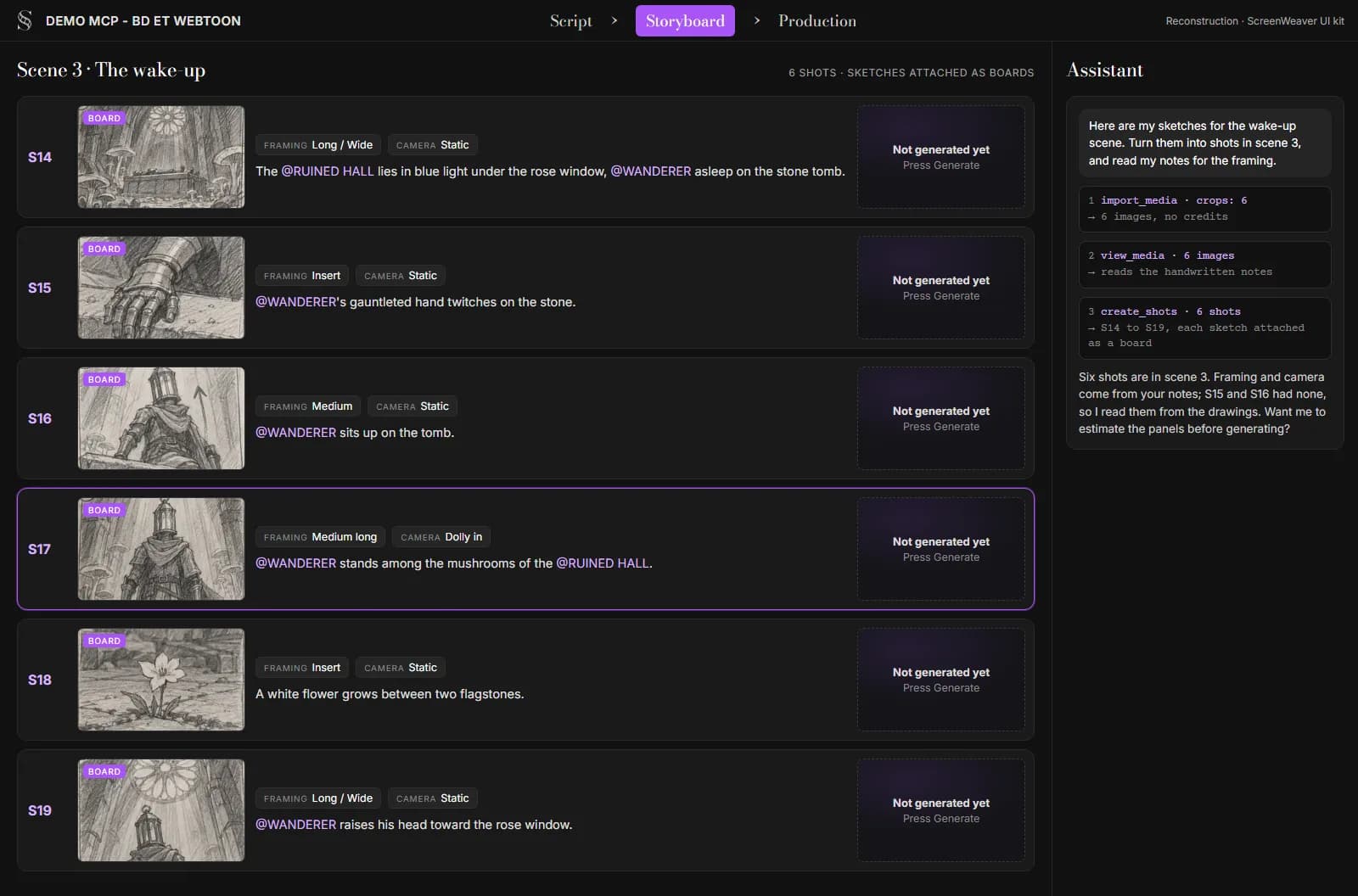
Reconstruction of the Storyboard tab after the import, built from the ScreenWeaver UI kit. The sketches are the real ones; the action text, element names and the assistant's reply are written for this diagram.
Video is a separate decision. No MCP tool runs video: you start it from the Production tab, shot by shot, once the panels look right. That keeps the expensive step in your hands.
Things the assistant will not do for you, and should not:
- Decide the cast. If the sketches show a recurring character, it proposes story elements and asks you to approve the names before it calls
create_entities. - Fix a drawing that does not read. If your S15 could be a hand or a rock, it will ask, or get it wrong.
- Choose between two readings of an ambiguous note. "Plan large" is clear. A squiggle with an arrow is not.
A checklist before you photograph your page
- Shoot the page flat, in daylight or under even light, with no shadow from your phone across the frames.
- One drawing per box, with a clear border or clear space around it.
- Number the frames in the order you want the shots. The assistant follows your numbers.
- Write camera notes with standard words where you can: wide, close, insert, dolly in, pan, tilt. They map straight to presets.
- Put look notes (light, weather, colour) on a separate line, so they end up in board instructions and not in the action.
- Say which scene the shots belong to, and whether they go after existing shots.
- Decide reference or as-is before you start. Attachments can be added later with
update_shot, but deciding up front saves a round.
If you do not have a page yet and want a grid to sketch on, the free storyboard template generator makes printable sheets at your aspect ratio, with notes fields. And if you are still deciding how rough your boards should be, previs vs storyboard vs animatic sorts out what each stage is for.
FAQ
Can AI turn my sketches into a storyboard?
Yes. In ScreenWeaver, an AI assistant connected through the MCP server imports a photo or scan of your page with import_media, cuts out each drawing, then creates one shot per sketch with create_shots, reading framing and camera movement from your notes. The sketch is attached to its shot and either redrawn by the panel generator or kept as the frame.
Do my sketches need to be good? No. They need to be readable. A stick figure in the right place with the right frame size gives the generator more to work with than a polished drawing with an unclear camera position. Composition, angle and subject size are what the board template takes from the sketch.
Will the AI copy my arrows and notes into the frames? Not in reference mode. The board template leaves out speech balloons, lettering, arrows and notes when it redraws. In as-is mode the sketch is used exactly as you drew it, notes included, so crop the notes out at import if you plan to keep the sketches as frames.
How much does it cost to turn a page of sketches into shots?
Cutting the drawings with crops, viewing them and creating the shots cost no credits. Automatic detection with findPanels costs about 1 credit a page. Generating the panels costs credits like any storyboard generation, and the assistant shows an estimate before it runs anything. The MCP itself is included in the Auteur and Studio plans.
Can I use scanned storyboard sheets instead of a notebook photo? Yes. A PDF of scanned sheets works the same way, up to 50 pages per call. Pre-printed storyboard sheets with ruled frames are the easiest case for panel detection.
Does this work with ChatGPT or only Claude? Both, plus Cursor, VS Code and Claude Code. They all call the same ScreenWeaver tools. The ChatGPT setup guide covers the plans that can add an MCP server today.
From script to shots
Turn your script into a film, shot by shot
Write the scene, get its storyboard, then generate each shot with consistent characters. You direct every step.
Start your film free