
Good Veo prompts start before the text box. In Veo 3.1, resolution, duration and reference images are tied together: 1080p, 4K and reference images all force an 8-second clip, and extensions only run at 720p. Then write one focused moment, describe the sound in its own sentences, and keep dialogue from turning into on-screen text.
Everything below comes from Google's own pages: the Veo 3.1 page of the Gemini API docs (updated 8 October 2026), plus the Vertex AI prompt guide and Veo best practices (both updated 13 October 2026). For the prompt order that works on every video model, start with the pillar on cinematic prompts.
The settings that change the shot
| Setting | Allowed values (Gemini API, Veo 3.1) | What it decides for you |
|---|---|---|
| Model | veo-3.1-generate-preview, veo-3.1-fast-generate-preview, veo-3.1-lite-generate-preview | Lite has no 4K and cannot extend videos |
| Resolution | 720p (default), 1080p, 4K | 1080p and 4K only exist at 8 seconds |
| Duration | 4, 6 or 8 seconds | 8 seconds is mandatory for 1080p, 4K, reference images and extension |
| Aspect ratio | 16:9 (default) or 9:16 | Pick it per platform, not per mood |
| Frame rate | 24 fps | Fixed; you cannot ask for 30 or 60 |
| Audio | Always on | You can't switch it off, so describe it or accept whatever the model picks |
| Seed | Optional | Google says it "doesn't guarantee determinism, but slightly improves it" |
| Videos per request | 1 | Every variation is a separate call |
| Text input | 1,024 tokens | A ceiling, not a target: spend the words on the shot |
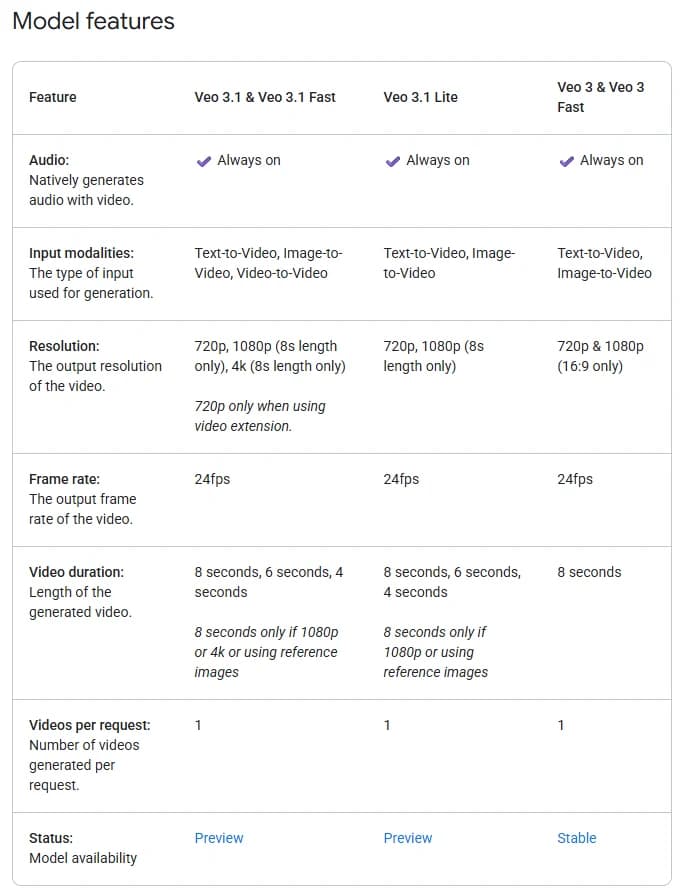
The 8-second rule matters more than anything else in that table. If you plan a 4-second insert shot at 1080p, Veo will not give it to you. You either generate 8 seconds and trim, or you accept 720p. Plan clip lengths with that in mind before you write a single prompt: a scene broken into 8-second units is easier to redo than one written as a single long take and then forced into pieces. The free scene-to-clip splitter has a Veo preset at 8 seconds for exactly this.
Check the model IDs too. The Gemini API docs mark Veo 3 and Veo 3 Fast as deprecated, while the three Veo 3.1 variants are all labelled Preview. If an old tutorial tells you to call veo-3.0-generate-001, it is out of date.
Write one focused moment per clip
Google's best practices page is blunt about this: "For short videos, dedicate each prompt to a single, focused moment." Chaining events, it says, "often leads to muddled or incomplete videos."
Eight seconds is roughly one beat of a scene. A character walks in, sees the letter on the table, and stops. That fits. A character walks in, reads the letter, cries, calls her sister and leaves does not. That is the chained-events case Google warns about.
The same page gives a before-and-after that works as a style test. Its rejected prompt is a rambling description of "a dude" who "is kinda sad." Its preferred version reads: "Low-angle close-up shot of a man with a somber expression. The scene is dimly lit, conveying a melancholic mood." Short, but every word is something a camera or a light could do.
The Vertex prompt guide breaks a prompt into subject, action, scene or context, camera angles, camera movements, lens and optical effects, visual style, temporal elements, audio and cinematic terms. It also notes that you don't need all of them in every prompt. In practice I order them roughly the way a shot list does:
- Shot size and angle ("Low-angle close-up").
- Subject and the one action.
- Place and time of day.
- Camera movement, if any.
- Light and color.
- Sound, in separate sentences.
Each of those layers has its own reference page on this blog if you want the vocabulary: camera movement prompts, lighting prompts and shot size prompts.
"Cinematic" is a mood word, not a setting
Google's own examples use "cinematic" constantly ("A cinematic shot of a majestic lion in the savannah"). It does no harm. It just doesn't do much on its own, because it describes a feeling instead of a camera decision.
The Gemini API page shows this with a pair of prompts. The short version: a camera dollies to a desperate man in a green trench coat making a call on a rotary wall phone under green neon, and "it looks like a movie scene." The longer version names a close-up, the weathered coat, the gritty brick wall, the dolly-in that reveals tension in his jaw. Same idea. The second gives the model a shot to build.
The Vertex prompt guide lists the style terms it supports under Artistic style, including "cinematic film look", "shot on 35mm film" and "anamorphic widescreen", and cinematic terms like "match cut", "jump cut" and "split diopter effect." Use them, but pair each with the physical thing it means. For the color side, our film stock and grade prompts page breaks named looks into the four properties a model can actually render.
The Gemini page also suggests the word "portrait" when you want more facial detail.
Sound: write it or Veo picks it for you
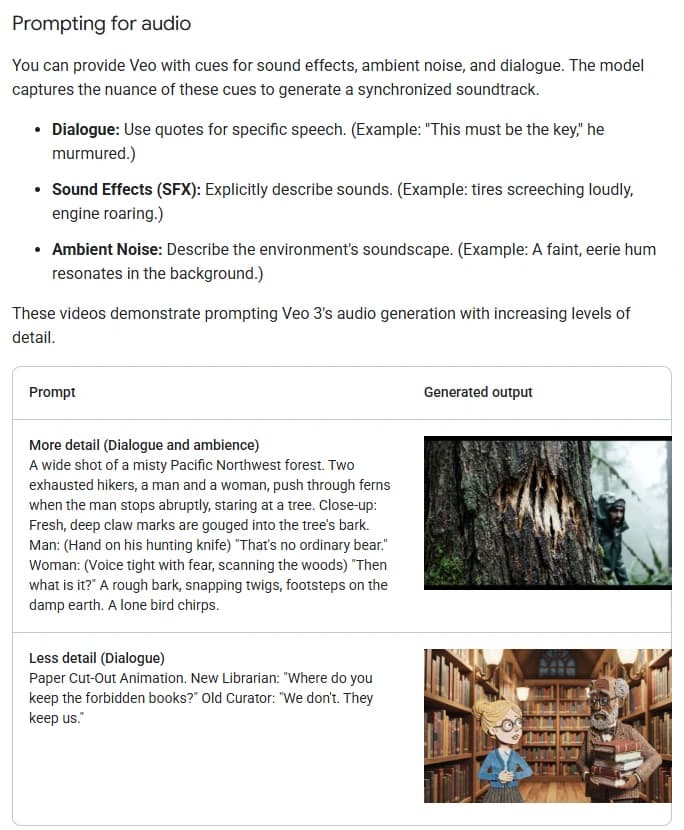
Audio is always on in every Veo 3.1 variant. If you don't describe it, you still get a soundtrack, just not one you chose. The Gemini API docs split sound into three kinds:
- Dialogue, the lines a character speaks.
- Sound effects, described explicitly ("tires screeching loudly, engine roaring").
- Ambient noise, the soundscape of the place ("A faint, eerie hum resonates in the background").
The Vertex prompt guide adds a formatting rule: "use separate sentences in your prompt to describe the audio." Don't tuck the sound into the visual sentence. Put it after, on its own.
I write sound the way a sound designer would mark up a scene: one sentence for the room tone, one for the effects tied to the action, then the dialogue. For a laundromat at night that might be: "The low drone of dryers and rain against the front window. A coin drops into a slot and a machine clunks to life." Two sentences, and the model has something specific to sync.
Dialogue: quotes or a colon? Google says both
Google's two documentation sets disagree on this one.
The Gemini API page says: "Dialogue: Use quotes for specific speech." Its example is "This must be the key," he murmured. Its longer sample prompt uses the screenplay-like pattern Man: (Hand on his hunting knife) "That's no ordinary bear."
The Vertex AI best practices page says the opposite. Under the heading "Avoid quotation marks", it advises using "a colon (:) after the speaker's action to denote speech" and avoiding quotation marks, "to prevent the model from rendering text in the video." Its recommended form is A woman says: My name is Clara.
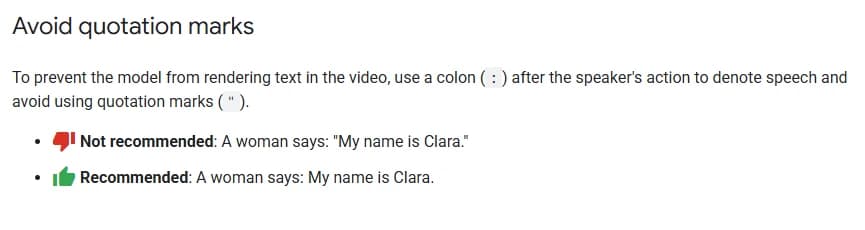
My reading: the Vertex advice is the more specific of the two, because it names a failure (dialogue turning into on-screen text) and a fix. So I default to the colon form, and only switch to quotes if the model drops or rewords a line. If you see a caption or a sign with your dialogue on it, the quotation marks are the first thing to remove.
Either way, keep the speaker's action in front of the line. "The old curator looks up from the ledger and says: We don't." gives Veo a mouth to sync and a moment to put it in.
Negative prompts: describe the thing, skip "no"
The Vertex prompt guide has a Negative prompts section, and its advice is about wording: avoid instructive language like "no" or "don't", and "describe what you don't want to see." Its example is simply "wall, frame" when you want no wall or frame. We captured that section in the cinematic prompts pillar if you want to see it.
The Gemini API's Veo 3.1 parameter table does not list a negative prompt field, so how you send one depends on which surface you call. Check the reference for your platform before you build a pipeline around it. The broader method, turning each defect you want to avoid into a positive description, is in negative prompts for AI video. With Veo, I'd spend the effort on the positive prompt first.
Try it free
Try Screenweaver for free on your script
It is free. Import your existing project, get a clearer view of your outline, and regain control of your story structure in minutes.
Start FreeReference images, first frames and extensions
Each image-driven mode has its own rules, and most of them limit settings you might have picked for a text-only shot.
| Mode | What you send | Rules from the Gemini API docs |
|---|---|---|
| Image to video | One starting image | personGeneration limited to allow_adult |
| First and last frame | image plus lastFrame | lastFrame must be used together with image |
| Reference images | Up to 3 images of one person, character or product, type asset | 8 seconds required |
| Extension | A Veo-generated video | Veo 3.1 and Fast only; adds 7 seconds per call, up to 20 times; input 720p, 141 s or less; output up to 148 s |
For image to video, Google's best practices make two points. A "sharp, clear, and well-composed photograph" gives a more coherent video. And once the image sets the look, your prompt should focus on "the motion you want to see." Don't re-describe the frame; describe what moves in it: the camera, the subject, the environment.
Extensions have one trap that matters for dialogue scenes. The docs warn that a voice "doesn't extend well" if it isn't present in the last second of the input clip. So if a character is mid-line when the clip ends and you plan to extend, make sure they're still speaking in that final second, or start the line fresh in the extension.
The storage rule is practical too: generated videos stay on the server for 2 days. Referencing a video for extension resets that timer, but download anything you want to keep.
Keeping a character the same across clips
Google's Veo best practices give two concrete habits for consistency. First: "Copy and paste the entire, unchanged character description into your prompt for every new scene or action." Not a summary, not a shorter version: the same text. Second: reuse the same seed across scenes for consistent visual, stylistic and voice output. (Remember the API page's caveat that a seed only slightly improves determinism.)
That copy-paste rule is a good argument for keeping your character descriptions in one place outside the prompt box. Our free character consistency sheet builds that locked block, and character consistency prompts covers what the text should and shouldn't say once a reference image is holding the face.
If you're also running Seedance on the same project, note how differently the two models want to be addressed. Seedance binds assets by number and reads whole-second timestamps, as covered in our Seedance prompts guide. Veo's documentation describes neither, so I keep Veo prompts as plain prose: one moment, described in shot-list order.
A full Veo 3.1 prompt, assembled
Here is everything above in one 8-second shot. The characters and scene are invented.
Medium close-up, eye level. A woman in her thirties in a damp wool coat sits on a laundromat bench at night, watching her clothes spin behind a dryer window, then turns to the old attendant behind the counter.

Pale green fluorescent light overhead, rain streaking the front window behind her, one warm desk lamp on the counter. Slow push-in on her face. Shot on 35mm film, muted teal and amber tones, natural skin texture.

The low drone of dryers and steady rain on the glass. A dryer buzzer sounds once.

She looks at him and says quietly: You never asked why I come here.
Settings: 16:9, 8 seconds, 1080p, a fixed seed if I plan to shoot the reverse angle next. One action, one camera move, sound in its own sentences, the line after a colon. If you'd rather fill in fields than write prose, the AI video prompt generator has a Google Veo target that assembles the visual sentence; add the sound lines yourself. And if you work from a screenplay, ScreenWeaver's AI film workflow turns each scene's action lines into shot prompts you can then shape this way.
Pre-flight checklist for Veo 3.1
- Model chosen on purpose: Lite has no 4K and no extension.
- Resolution and duration agree: 1080p or 4K means 8 seconds.
- Aspect ratio set for the platform (9:16 for Shorts, Reels and TikTok).
- One focused moment in the prompt, not a sequence.
- Shot size, angle and camera move named in plain film terms.
- "Cinematic" backed by at least one concrete light or lens choice.
- Sound written in separate sentences: room tone, effects, dialogue.
- Dialogue after a colon, with the speaker's action before it.
- Character description pasted in full and unchanged.
- Same seed reused across shots of one scene.
- For extensions: 720p input, voice present in the last second.
- Download planned within 2 days.
FAQ
What is the best prompt structure for Veo 3.1?
One focused moment, written roughly in shot-list order: shot size and angle, subject and action, location and time, camera movement, light and color, then sound in separate sentences. Google's Vertex prompt guide lists subject, action, scene, camera angles, camera movements, lens, visual style, temporal elements, audio and cinematic terms, and says you don't need every element in every prompt.
Should Veo dialogue go in quotation marks?
Google's two documentation sets disagree. The Gemini API page says to use quotes for specific speech, while the Vertex AI best practices page says to use a colon after the speaker's action and avoid quotation marks so the line doesn't render as on-screen text. Start with the colon form and switch to quotes only if a line gets dropped.
Why can't I get a 4-second Veo clip in 1080p?
In Veo 3.1, 1080p and 4K are only available at 8 seconds. The same applies to reference images and extensions. Generate 8 seconds and trim, or stay at 720p for short inserts.
How many reference images does Veo 3.1 accept?
Up to three images of a single person, character or product, sent as asset references. The clip must be 8 seconds long, and Google says Veo preserves the subject's appearance in the output.
How long can a Veo video get with extensions?
Each extension adds 7 seconds, up to 20 times, for a total of up to 148 seconds. The input must be a Veo-generated video at 720p and 141 seconds or less, so extended sequences stay at 720p.
Does "cinematic" improve a Veo prompt?
A little, as a mood cue. It works much better when paired with concrete choices like a close-up, a dolly-in, a light source or "shot on 35mm film", which the Vertex guide lists as a supported style term.
Final Step
Build your next script with Screenweaver
Move from ideas to production-ready pages faster with timeline-native writing and AI-assisted story flow.
Try Screenweaver