AI Video Clip Planner
Split any scene into clips that fit your model's cap
Paste a scene, pick your model's max clip length, and this AI video clip planner splits it into numbered, ready-to-paste prompts that chain into one continuous sequence. Built for AI filmmakers whose model caps out at 8 or 10 seconds while the scene runs 45.
Every text-to-video model generates in short bursts: Veo 3 tops out around 8 seconds, Sora 2 and Kling 2.x around 10. A longer scene only exists as a chain of clips that share one continuity block and hand off state at every cut. The planner estimates screen time per beat (action at about 3 words per second visualized, dialogue at about 2.5 words per second spoken plus 20 percent handles), then packs consecutive beats into clips that never exceed your cap.
Everything runs in your browser. Your scene text never leaves it and nothing is sent to any server.
Model presets only set the seconds, using each model's cap as of late 2026.
Seconds per clipRepeated word for word at the top of every clip prompt. The more specific it is, the less your characters and location drift between clips.
CharactersYour clip plan
Paste your scene above to see the clip plan.
How it works
The planner segments your scene into beats: each sentence of action and each dialogue turn (a NAME: line, or a quoted sentence) becomes one beat. It estimates screen seconds per beat using reading-pace conventions, action at about 3 words per second and dialogue at about 2.5 words per second spoken plus 20 percent handles for breaths and reactions. Then it packs consecutive beats, in order, into clips that stay at or under your max length. Each clip prompt carries the identical continuity header, an ENTRY STATE line inherited from the previous clip's EXIT STATE, the beat text, and a target duration, so the chain cuts together as one scene.
How to split a scene into AI video clips
Models cap duration for two reasons: compute cost grows steeply with clip length, and coherence drifts the longer a generation runs (faces mutate, props teleport, lighting slides). That is why there is no setting that makes Veo 3 longer than 8 seconds or gives you a Sora 2 longer video in one pass. The only reliable way to extend AI video length is a multi clip AI video workflow: split the scene into beats, generate each clip separately, and cut them together.
The chaining workflow that works is boring and repeatable. Use the last frame of one clip as the first frame of the next where your model supports image conditioning, and repeat the full continuity description in every prompt. Writing "same character as before" does nothing, because the model has no memory of the previous generation; repeating "red rain jacket, short black hair" does. That repetition is what preserves AI video continuity between clips, and it is exactly what an AI video clip planner should automate for you.
The seams between clips disappear when you cut on action, an editing convention as old as continuity editing itself. End a clip mid-movement (a door swinging open, a head turning) and start the next clip completing it, and the viewer's eye bridges the cut. The EXIT STATE and ENTRY STATE lines in each prompt exist to set up those handoffs, which is what makes it possible to chain AI video clips from Veo 3, Sora 2, or Kling into a scene that plays as one continuous piece instead of a slideshow.
Once the plan is set, dial in the camera and lighting language for each clip with our free AI video prompt generator so every prompt in the chain speaks the same film grammar.
Who this is for
- AI short film makers: use it as an AI short film scene planner, turning each script scene into a numbered shot plan before burning generation credits.
- Solo creators on Veo 3 or Sora 2: stop trimming scenes to fit 8 seconds and start planning Veo 3 clip stitching with entry and exit states that actually cut together.
- Agencies and social teams: brief a 30-second spot as a clip chain the whole team can read, with continuity locked before the first generation.
Start from the screenplay.Get the storyboard.
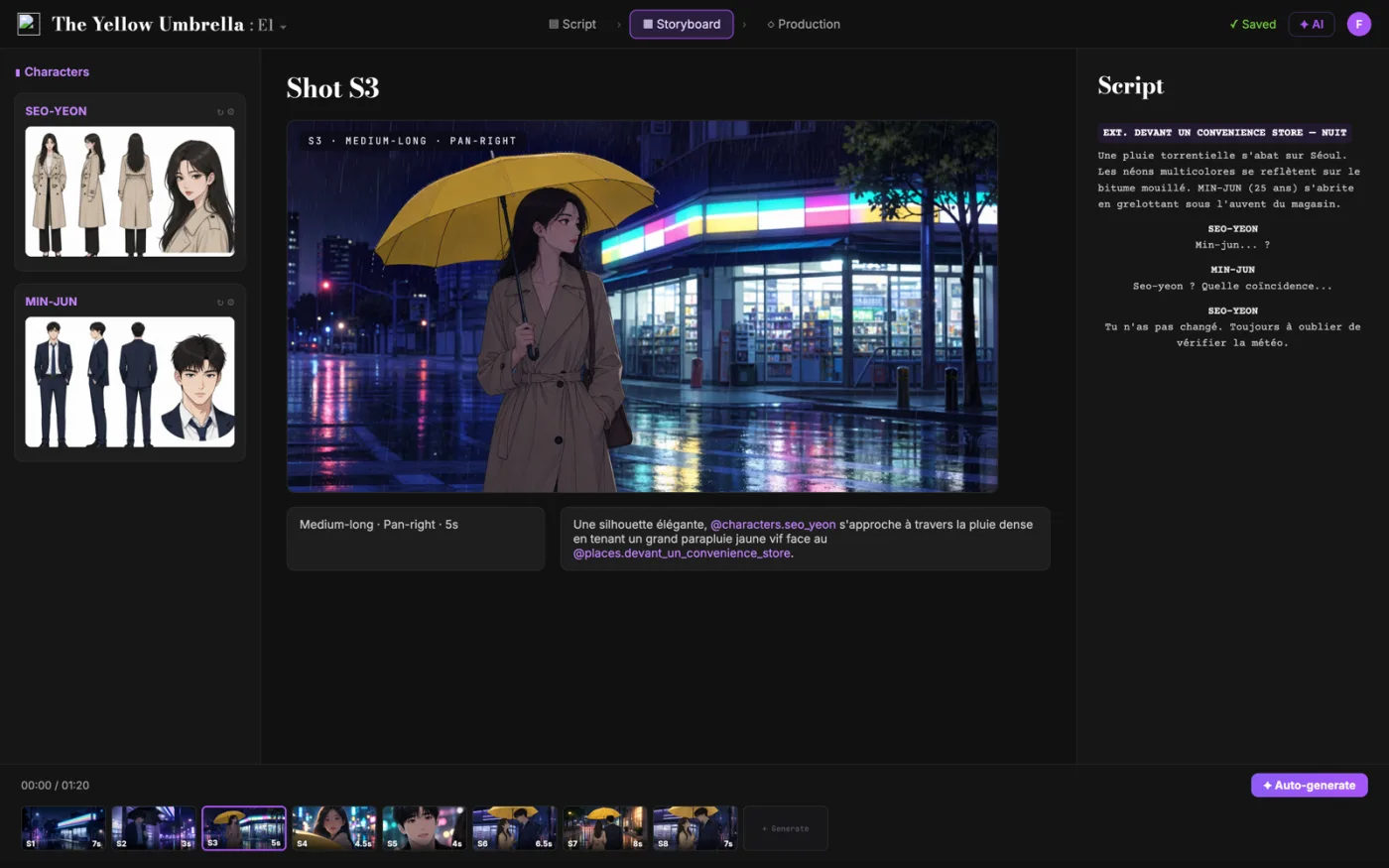
ScreenWeaver breaks your script into shots and generates the storyboard from it. You control framing, angle, movement and duration. Characters carry from shot to shot.
- $0, does not expire
- PDF and Final Draft export
- Mac, Windows, Linux, iPad
Scene to Clip Splitter: the complete guide
It segments a pasted scene into beats, estimates screen seconds per beat from word count, packs beats into clips under your max length, and writes one ready-to-paste prompt per clip with an identical continuity header.
For this workflow, the central problem is clear: text-to-video models cap generations at 8 to 12 seconds, so full scenes have to be planned as clip chains, and doing that by hand loses continuity and screen-time math. Left unresolved, this creates downstream friction and slower decisions. The practical target is a numbered clip plan with per-clip prompts, chained entry and exit states, and duration estimates that never exceed the model's cap.
Limitation to keep in mind: Word-count pacing is an estimate, not a stopwatch: performance, camera speed, and model interpretation shift real durations, so treat clip timings as planning targets and expect to trim in the edit.
Advanced workflow: Advanced users pair each clip prompt with last-frame conditioning: generate clip 1, export its final frame, feed it in as clip 2's start image, and keep the written continuity header identical so the model has both a visual and a textual anchor.
Step-by-Step Workflow
- Paste the scene text, dialogue included, and pick your model preset or a custom max clip length.
- Fill the continuity block with exact character looks, location, lighting, and style, since it repeats in every prompt.
- Review the clip cards: check durations, watch for over-cap warnings, and adjust beats that split awkwardly.
- Copy prompts clip by clip (or export the .txt), generate in order, and cut the results together on the action beats.
Use Cases By Profile
- AI short film maker: turn a script scene into a shot-by-shot generation plan before spending credits.
- Solo Veo 3 creator: plan an 8-second clip chain with handoffs that cut on action instead of jarring resets.
- Social team lead: brief a 30-second spot as a readable clip chain with continuity locked up front.
Common Mistakes To Avoid
- Writing "same character as before" instead of repeating the full description, which the model cannot remember.
- Packing clips to the exact cap with no handle, leaving nothing to trim when a generation runs short.
- Splitting mid-sentence on dialogue, which makes lip-sync and performance continuity nearly impossible.
Professional Best Practices
- Plan clips a second or two under the cap so every generation has trim room in the edit.
- End clips mid-movement and start the next completing it; cutting on action hides the seam between generations.
- Keep one master continuity block per project and paste it unchanged into every scene you split.
Treat this tool output as a decision support layer, not a replacement for authorship. Great scripts are remembered for specific choices, emotional precision, and clarity of dramatic movement. Tools help by removing noise so your energy can go where it matters: character, conflict, escalation, and payoff. If you review outcomes after each pass and keep an explicit log of accepted changes, your workflow becomes faster and more predictable from draft to draft. That consistency is exactly what professional collaborators value: fewer surprises, clearer rationale, and a script that evolves with intent.
Extended FAQ
Why do AI video models cap clips at 8 or 10 seconds?
Two reasons: compute cost grows steeply with duration, and temporal coherence drifts the longer a generation runs, so faces and props mutate. Short caps keep quality high, which is why longer scenes are built as clip chains instead.
What is the best AI video clip planner workflow for a full scene?
Split the scene into beats, pack beats into clips under your model's cap, repeat one continuity block in every prompt, chain entry and exit states, and generate in order. This tool automates the splitting, timing, and prompt assembly.
How does last frame to first frame chaining work?
You export the final frame of clip N and feed it to clip N+1 as a start image where the model supports it. Paired with a repeated text continuity block, it anchors character, wardrobe, and lighting across the cut.
Can I use this for Kling or Runway instead of Veo?
Yes. The presets only set the max seconds (10 for Kling 2.x and Runway Gen-4 as of late 2026). The prompts are plain text, so they paste into any model's prompt field.
How is clip duration estimated from my scene text?
Action is estimated at about 3 words per second of visualized screen time and dialogue at about 2.5 words per second spoken, plus 20 percent handles. Beats are clamped to a 1 second minimum, and clips never exceed your cap.
What should I do when one beat is longer than the cap?
The tool splits it at word boundaries and flags the affected clips. The better fix is a rewrite: break the long beat into two actions with a natural cut point, then re-run the split.
Frequently asked questions
You cannot in a single generation. The workflow is to split the scene into clips of 8 seconds or less, repeat the same continuity block in every prompt, feed the last frame of each clip in as the first frame of the next where supported, and edit the results together. This planner builds that clip chain for you.
Roughly 24 words of action (at about 3 words per second visualized) or about 16 words of spoken dialogue (at about 2.5 words per second plus 20 percent handles for breaths and reactions). That is why a half-page scene needs several clips.
Because each generation starts from zero: the model has no memory of your previous clip. The fix is repeating the full character and location description word for word in every prompt, which is what the continuity header in each clip card does.
They chain the clips. Each clip's EXIT STATE describes the final frame, and the next clip's ENTRY STATE repeats it so the model starts where the last clip ended. If your model accepts a start image, pair this with feeding in the previous clip's last frame.
Your model's cap is the ceiling: 8 seconds for Veo 3, about 10 for Sora 2, Kling 2.x, and Runway Gen-4 as of late 2026. Many filmmakers deliberately plan shorter clips (4 to 6 seconds) because shorter generations drift less and give you more cut points in the edit.
Related tools
AI Video Prompt Generator
Build cinematic prompts for Veo, Sora, Runway, and Kling.
AI Character Consistency Sheet
Build a reusable character block that stops drift across AI video clips.
Camera Movement Prompts
Animated library of camera moves with copy-paste AI video prompts.
Storyboard Template Generator
Create printable storyboard sheets in any aspect ratio.
You can also browse the full library on /tools.
Core blog guides
- Idea → first draft (process hub)
- Screenplay format guide 2026
- Hidden costs of “free” software
- Affordable software & TCO
- Revision passes (structure → dialogue)
Film techniques
Film techniques to explore
Each one with a short clip, a screenplay excerpt and the shot list line.