
Seedance 2.5 rewards prompts that read like a production document: every reference asset bound by its number, one summary sentence, then a timeline in whole seconds with no gaps. It punishes negatives, labels written inside images and overstuffed time ranges. Name the task first, because editing and extension lock your aspect ratio.
Every rule here comes from ByteDance's own Seedance 2.5 prompt guide on BytePlus ModelArk, quoted where the wording matters, along with the failure modes that same page admits to. If you want the general prompt order that works across Veo, Kling and Seedance, start with the pillar on cinematic prompts. Here I stick to what only Seedance does.
What the model rewards, on one page
| Habit | What to write | What it prevents |
|---|---|---|
| Name the task | Use the trigger words: "edit", "replace", "extend backward", "continue from" | The model treating your edit as a fresh generation, or the reverse |
| Bind every asset | "The knight in Image 1", "Images 1-2 are Character 1 and correspond to Audio 1" | Swapped faces, duplicated characters, the wrong voice on the wrong person |
| One summary sentence | Subject + location + event + genre/style + camera movement | A timeline with no anchor, where each segment drifts on its own |
| Whole-second timeline | "0-3 seconds... 3-7 seconds... 7-15 seconds" | Improvised filler in empty ranges, surprise cuts in crowded ones |
| Positive descriptions | Describe what fills the frame | Wasted words: negatives only work for subtitles and audio |
| Explain niche camera terms | "Rack focus: the foreground trees blur while the character behind becomes sharp" | A model guessing at jargon it half knows |
Start by naming the task, because some tasks lock the output
Skip this step and you can pay for a full generation that comes back in the wrong shape. Seedance 2.5 splits every request into two families.
Locked tasks place your input asset on the output timeline itself. Editing, first-frame or first-and-last-frame generation, and extension all fall here. The documentation says the aspect ratio is locked to the input in all three cases (the ratio parameter must be set to adaptive), and for editing the duration is locked too (duration set to -1).
Unlocked tasks use your assets as semantic references only. Subject references, motion references, style references, audio references, storyboards and keyframes all leave you free to pick the ratio and the duration.
How does the model know you want an edit? Through two signals: the role you give the asset in the API (reference_video, reference_image, reference_audio) and a trigger word in the prompt. For editing, the guide lists "edit video, add, insert, remove, delete, modify, replace, change to." For extension: "extend forward, extend backward, continue, continue from, extend the story."
So if you upload a clip as a reference and casually write "change the jacket to red" in a prompt that was meant to be a fresh shot, you have just asked for an edit.
| Task | Ratio | Duration | Trigger |
|---|---|---|---|
| Editing | Locked to the input video | Locked, can run about 0.3 s short | "edit", "add", "remove", "replace", "change to" |
| First frame / first and last frame | Locked to the first-frame image | You choose | first_frame / last_frame role |
| Extension | Locked to the input video | You choose | "extend forward/backward", "continue from" |
| References, storyboards, keyframes | You choose | You choose | No trigger, plain description |
Two more rules from that section. A last frame with a different aspect ratio from the first frame gets stretched, so crop both to the same shape before uploading. And for extension and editing, ByteDance recommends mov as the output format, because it keeps color, brightness and audio continuous with the input.
Bind every asset by number, in the order the subjects appear
Seedance 2.5 accepts up to 50 reference assets per request. That's a lot of room to confuse a model, and the guide spends more words on mapping than on anything else.
The rule: number assets by upload order (Image 1, Video 1, Audio 1) and bind each one in the text. "The knight in Image 1." "Image 1 depicts the protagonist John and uses the voice timbre from Audio 1." If you only want part of an asset, say which part: "Refer to the action of casting the spell in Video 1 and the wrap-around camera movement in Video 2."
What the guide warns against is the habit most of us picked up from character sheets: writing a name across the reference image and then using that name in the prompt. Its example is writing "John" on the protagonist's picture and then prompting "John is at school." To the model that label is just text inside a picture, and the guide says the result is character confusion or duplication. I covered the same trap from the face-consistency side in character consistency prompts; with Seedance it is spelled out in the vendor's own words.
The FAQ adds a second rule that I had not seen stated elsewhere: upload references in the order the subjects first appear on screen. When the order is off, the first character to appear can be swapped for another referenced character. Reordering the uploads and renumbering the prompt fixed it in their example.
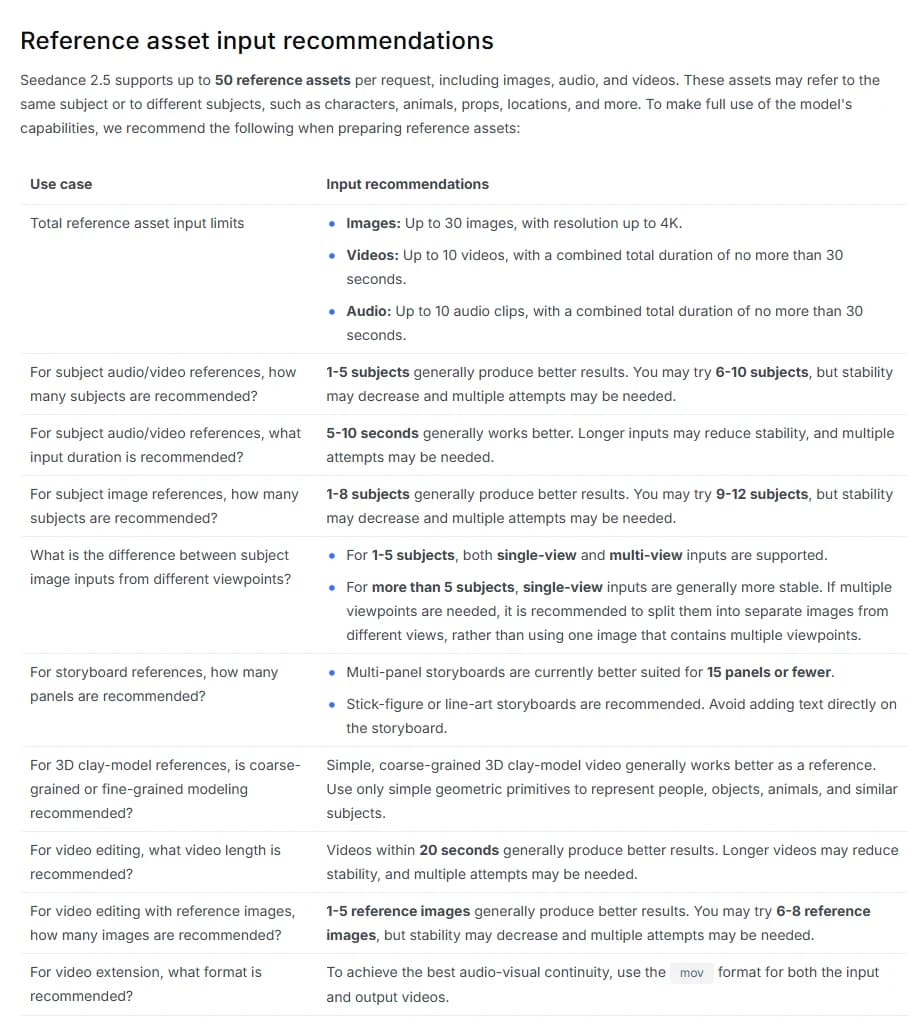
Treat that table as a budget. The hard limits are 30 images, 10 videos and 10 audio clips, with video and audio each capped at 30 seconds combined. The comfortable range is much smaller: one to eight subjects from images, one to five from audio or video, five to ten seconds per audio or video reference, one to five images when you are editing. Above those numbers the guide's own wording is "stability may decrease and multiple attempts may be needed." Multiple attempts means multiple bills.
When the reference is precise enough, stop describing it. The guide's example is "Strictly refer to the actions and camera movements in Video 1, and keep the sequence consistent with the video." Re-describing every hand raise and every orbit in text gives the model two sources of truth to reconcile.
Write one summary sentence before the timeline
After the bindings, the guide asks for a single sentence covering subject, location, event, genre or style, and camera movement. Then the detailed plot.
It feels redundant when you're about to write the timeline anyway. Skip it, though, and each time range gets read as its own little shot with its own idea of the light and the mood. The summary holds the segments together. In practice my summary sentence is usually the line I would put on a call sheet next to the scene number.
The guide's own sample, a panda cub rolling down a forest slope, has exactly that shape: style line, subject and setting with the camera position, two timed segments, then depth of field, audio and mood.
Timelines in whole seconds, with no gaps
This is the single biggest difference from Seedance 2.0. The documentation says 2.0 "does not respond to timestamps and only responds to shot numbers," while 2.5 supports integer-second timestamps. If you're reusing an old 2.0 prompt library, this is where to spend your rewrite time.
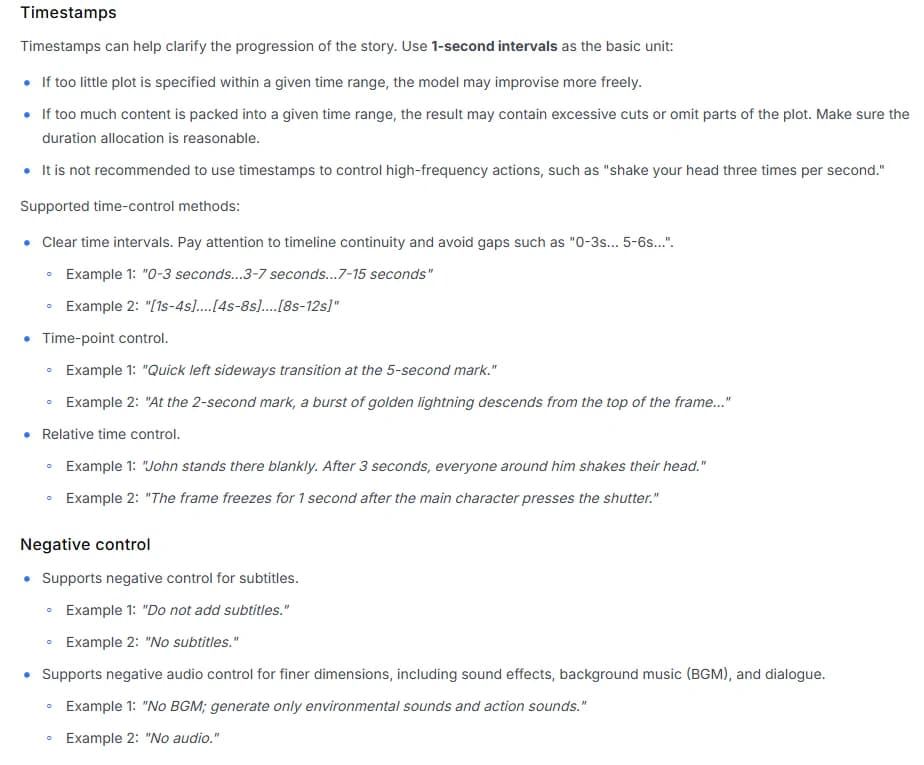
The guide accepts intervals ("0-3 seconds... 3-7 seconds... 7-15 seconds", or the bracketed "[1s-4s]... [4s-8s]"), time points ("At the 2-second mark, a burst of golden lightning descends from the top of the frame") and relative time ("After 3 seconds, everyone around him shakes their head").
The rules around them matter more than the formats. Keep the timeline continuous: the guide explicitly calls out gaps like "0-3s... 5-6s" as something to avoid. Do not use timestamps for high-frequency actions such as shaking a head three times a second. And size each range to its content. Too little plot in a range and the model improvises; too much and you get extra cuts or dropped beats.
My working rule, which is an opinion rather than anything ByteDance publishes: one action and one camera instruction per range, and no range shorter than two seconds unless it is a hard cut point. When a beat needs more than that, it is two ranges.
Say it positively: only two negatives work
Seedance 2.5 supports negative control for exactly two things. Subtitles ("No subtitles", "Do not add subtitles") and audio, at a finer grain than you might expect: sound effects, background music and dialogue can be switched off separately. "No BGM; generate only environmental sounds and action sounds" is the line you will see at the bottom of most good Seedance prompts.
Everything visual has to be described positively. If you don't want a cluttered background, describe the empty wall. If you don't want the plastic AI skin, describe pores, stubble and a slightly oily forehead under a practical lamp. The full method for turning each defect into a positive description is in negative prompts for AI video, and Seedance is the model where you will use it most.
There is one interesting exception in the FAQ. For the glowing-eyes problem (more on that below), the recommended fix is to set "normal human eyes; no glowing eyes" as the highest-priority negative constraint. So the documentation itself bends its own rule once. I would read that as: a targeted negative on a known artifact can help, a list of fifteen generic negatives will not.
Camera language: plain terms work, jargon needs a gloss
Common vocabulary goes straight in. Shot sizes from extreme wide to close-up, moves like push in, pull out, pan, track, follow, orbit, dive, tilt up and handheld shake, angles like low angle, overhead and first-person. Named techniques too: long take, dolly zoom, aerial perspective, FPV, bullet time, speed ramp. Our camera movement prompts reference uses the same terms, so the wording carries over.
For anything more niche, the guide asks for the term plus a plain description of what happens on screen. Its example: "Rack focus: the focus shifts smoothly; the trees that were originally clear in the foreground become blurred, while the character in the background gradually becomes clear."
Transitions need both a timing and a method: "At the 5-second mark, the camera quickly transitions leftward using a left wipe combined with a natural dissolve."
For performance, keep actions general ("several sets of high-knee raises and somersaults"), detail only one or two memorable moves, and describe expressions in plain sentences rather than idioms.
Try it free
Try Screenweaver for free on your script
It is free. Import your existing project, get a clearer view of your outline, and regain control of your story structure in minutes.
Start FreeStoryboards or keyframes: pick based on how strict you need to be
Both take images. They behave very differently.
A multi-panel storyboard (several frames combined into one image) is a loose plot reference. The guide says the video "does not strictly align with the storyboard," works best at 15 panels or fewer, and prefers stick-figure or line-art boards without text. It specifically warns against cluttered, over-sharpened AI-generated storyboards, and says an 18-panel board can lead to still frames or the wrong order. Fill in actions, camera and style in the prompt, because the board will not carry them.
Keyframes are separate images uploaded in order, and the generated video aligns "relatively strictly" with them. The prompt has to open with one sentence: "Use Images X to X in order as keyframes."
So if a shot must hit specific compositions, board it as individual frames, not as a contact sheet. If you just need the story beats in the right order, a simple line-art strip and a well-written timeline will do.
The failures the documentation admits to
The FAQ at the bottom is the most useful part of the guide: real artifacts, real fixes.
- Glowing eyes. Strong emotional cues can make pupils emit blue or red light. Fix: the "normal human eyes; no glowing eyes" constraint, and swap words like "fanatical" or "extremely shocked" for something calmer like "amazed."
- Wrong character on the wrong reference. Covered above: upload in order of first appearance and renumber.
- Misspelled on-screen text. Their example renders "DIHETAO" as "DIHERTAO." Fix: spell the word letter by letter and ask for the letters to appear in sequence, or supply the text as a reference image.
- Subtitles despite "no subtitles". Improved since 2.0, not eliminated. Two triggers: repeating dialogue words with tone instructions attached, and subtitles already burned into a reference video. Use the format "Character's line (emotion): content" and clean your reference clips first.
- Edits that come out about 0.33 seconds short. Either switch to reference mode with an explicit duration, or trim the input to 8n+1 frames (their example uses 161 frames).
- Style drift between 2.0 and 2.5. The two versions have visibly different aesthetic preferences. To keep a 2.0 look inside a 2.5 workflow, feed the 2.0 clip into an extension task with
movoutput.
That last one matters if you're mid-project: switch model versions halfway through a film and the shots stop cutting together.
A full Seedance 2.5 prompt, assembled
Here is every habit above in one ten-second shot with two image references and one voice. The names and story are invented.
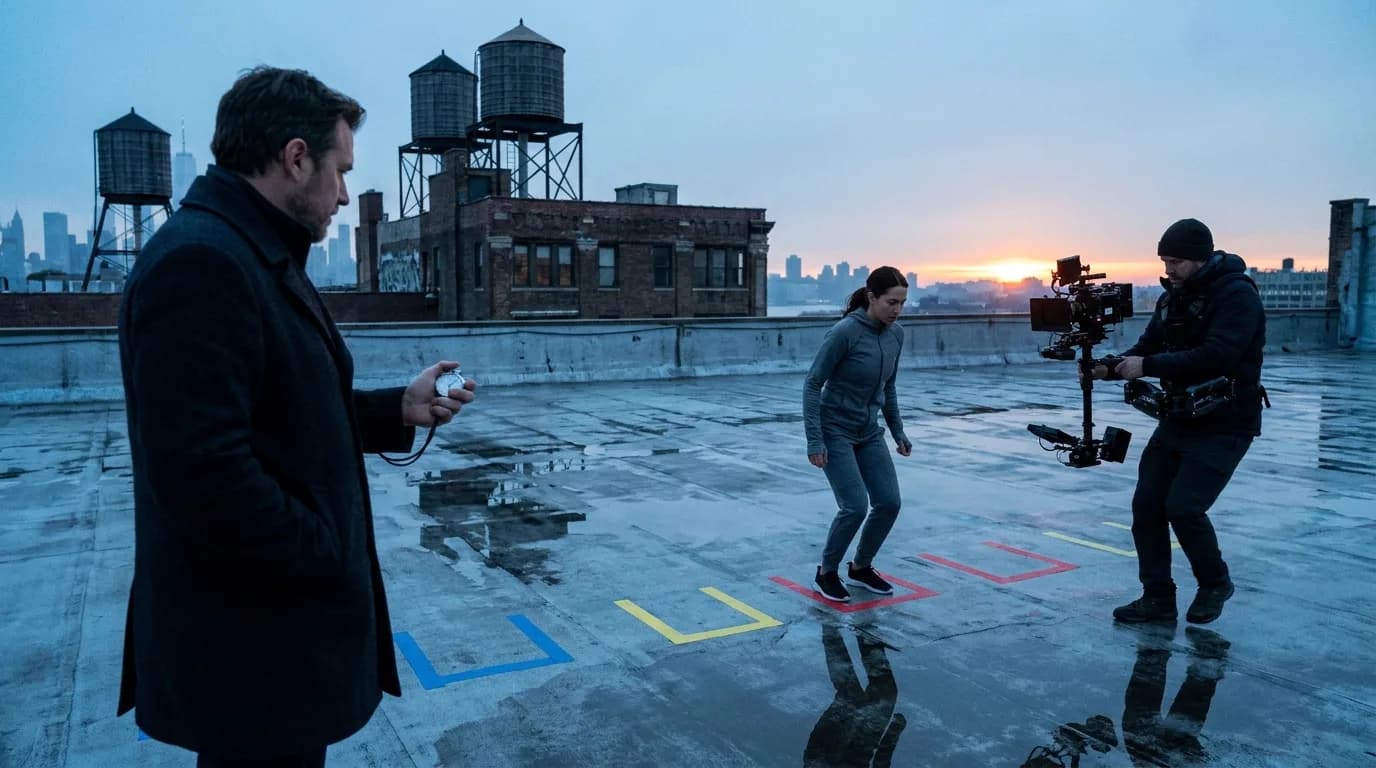
Image 1 is Mara, a stunt performer in grey training clothes. Image 2 is the rooftop location. Mara uses the voice from Audio 1.

Realistic drama, handheld feel: at dawn on a wet city rooftop, Mara rehearses a fall onto colored tape marks while the camera tracks beside her.

0-3 seconds: Wide shot, low angle. Mara stands at the first tape mark, breath visible in the cold air, water towers behind her against a blue pre-sunrise sky.
3-6 seconds: The camera tracks right alongside her as she runs and lands on the third mark, knees bent, one hand touching the wet concrete.
6-10 seconds: Push in to a medium close-up. She looks off-frame and says (out of breath): "Again. From the top."

Keep Mara's face and clothing consistent with Image 1 throughout. Natural, slightly desaturated color, film grain, puddle reflections. No subtitles. No BGM; only wind, footsteps and breathing.
Notice what is not in it: no "masterpiece," no list of things to avoid, no name written on the reference image, no gap in the timeline. If you work from a screenplay, a lot of this structure already exists in the scene heading and action lines. ScreenWeaver's AI film workflow builds shot prompts in this order straight from the script, and the free scene-to-clip splitter helps you cut a scene into clip-sized ranges before you write the timestamps.
Pre-flight checklist
Run this before every Seedance 2.5 generation:
- I know whether this is an edit, an extension, a first/last frame job or a reference job, and my verbs match.
- First and last frames share the same aspect ratio.
- Every asset is bound in the text by its number, and uploaded in the order subjects first appear.
- No names or labels are written inside the reference images.
- I stayed in the comfortable range: 1-8 image subjects, 1-5 audio or video subjects, 5-10 second clips.
- One summary sentence sits above the timeline.
- The timeline is in whole seconds, continuous, and no range is overloaded.
- Visual instructions are all positive; negatives only cover subtitles and audio.
- Niche camera terms come with a plain-language explanation.
- Reference videos have no burned-in subtitles.
- For edits and extensions, output is set to
mov.
For the head-to-head question of which model to use in the first place, see Seedance 2 vs Veo 3 vs Sora 2.
FAQ
What is the best prompt structure for Seedance 2.5?
Asset bindings first (Image 1, Video 1, Audio 1, each tied to a role), then one summary sentence with subject, location, event, style and camera, then a timeline in whole seconds or numbered shots, then a closing note on what must stay consistent, plus "no subtitles" and your audio policy. That is the order ByteDance's own guide recommends.
Does Seedance 2.5 support negative prompts?
Only for subtitles and audio. You can say "no subtitles", "no BGM" or "no audio", and switch off sound effects, music and dialogue separately. Everything visual should be described positively. The FAQ makes one targeted exception for glowing eyes.
How do timestamps work in Seedance 2.5?
Use integer seconds as intervals ("0-3 seconds... 3-7 seconds"), time points ("at the 5-second mark") or relative time ("after 3 seconds"). Keep the timeline continuous with no gaps. Seedance 2.0 ignored timestamps and only followed shot numbers, so old 2.0 prompts need rewriting.
Why does Seedance swap my characters?
Usually one of two reasons: the names were written inside the reference images instead of being bound in the text, or the references were uploaded in a different order from the order the characters appear. Bind each one by number and upload in order of first appearance.
Should I use a storyboard or keyframes in Seedance?
Use keyframes when the shot must match specific compositions: upload each frame separately and start the prompt with "Use Images 1 to N in order as keyframes." Use a simple line-art storyboard of 15 panels or fewer when you only need the plot order.
Final Step
Build your next script with Screenweaver
Move from ideas to production-ready pages faster with timeline-native writing and AI-assisted story flow.
Try Screenweaver