How to auto-generate a storyboard from your script in ScreenWeaver
Run the automatic storyboard generation: sheets, shot breakdown and panels in one window, then review the result like a director.
Chapters (10)
Video: lesson 5.5 of the free AI Filmmaking Course.
What the automatic pass does
Click "Auto-generate" at the right of the sequencer toolbar. A window titled "Automatic storyboard generation" lists everything your storyboard still needs, in the order it needs it:
- 1"Missing entity reference sheets": "Characters, places, and objects without a storyboard sheet yet." Button: "Run missing entity sheets".
- 2"Empty scenes (shot breakdown)": "AI shot list from script. No panel images yet." The AI reads each scene without shots and decides how many it needs, with a shot value and a camera movement for each. Button: "Run empty-scene shots".
- 3"Missing shot storyboard images": "Nano Banana panels for shots that don't have an image yet." Button: "Run shot images".
"Run all" chains the three. The order is not arbitrary. As the window says, "Shot prompts reference entity sheets. Generate missing sheets first when indicated." A panel drawn before Émilie's sheet exists has nothing to keep her face consistent with.
Before you click: three checks
- The script is written, with proper scene headings. The breakdown reads scenes, so a messy script gives a messy shot list.
- Every character, place and key object exists once, with a description a camera can film (characters, places and objects).
- The aspect ratio is the one your film will be watched in (the Storyboard tab).
Run it, step by step
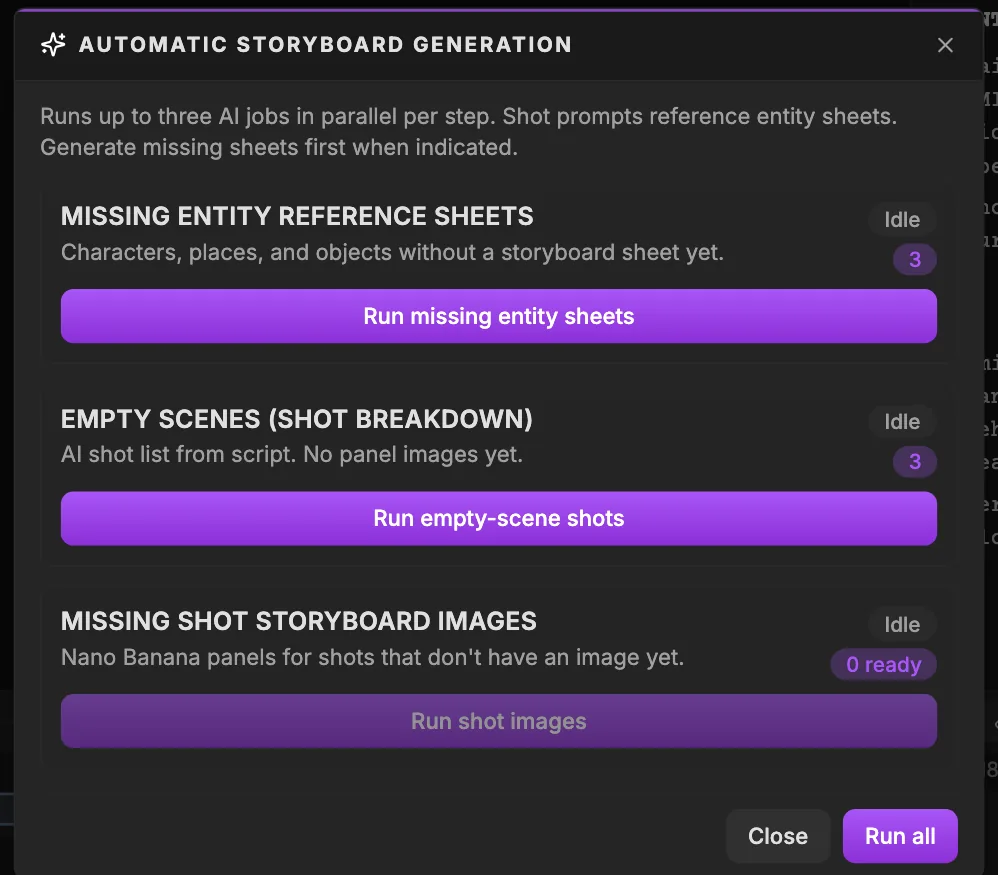
- 1Missing entity reference sheets. Step 1: characters, places and objects without a storyboard sheet yet. Run it first, because shot prompts reference the entity sheets.
- 2Items waiting. How many items this step will process. Read it with the step's credit estimate before you click.
- 3Step status. "Idle", "Running", "Done" or "Blocked". Watch it to know when a step has finished and the next one can start.
- 4Run missing entity sheets. Generates the missing reference sheets. Review them in the entities panel before going further: a wrong costume here repeats in every panel.
- 5Run empty-scene shots. Writes an AI shot list for every scene that has no shots yet ("Empty scenes (shot breakdown)"), without panel images. Read the breakdown and fix shot values and actions before you draw.
- 6Run shot images. Generates storyboard panels for the shots that don't have an image yet ("Missing shot storyboard images", Nano Banana panels).
- 7Run all. Runs every step. Handy on a short project; on a long one, run step by step and review in between so you never pay for panels of a breakdown you would change.
- 8Close. Closes the dialog. The jobs keep running in Generations, which you follow from the AI button.
- 1Read the counts. They tell you how many sheets, scenes and shots each step will process.
- 2Hover each Run button: the tooltip shows the credit estimate before you spend anything. The breakdown may say "from N credits", because the length of the AI's shot list is not known in advance.
- 3For a first pass on a new project, click "Run all". When you want control, run "Run missing entity sheets" alone, check the sheets in the left panel, then run the other two.
- 4Close the window whenever you like. The hint says it: "You can close this dialog; jobs continue in Generations."
Each step shows "Idle", "Running", "Done" or "Blocked". The window "Runs up to three AI jobs in parallel per step", so a long script does not mean a long wait one panel at a time. To follow, cancel or retry a single job, open the AI button in the header: the Generations list is explained in the AI Center module.
Missing descriptions and blocked steps
If some elements still need a sheet but have no description, the window flags them and offers "Generate anyway". A shot step shows "Blocked" when its shots reference entity sheets that do not exist yet.
One scene at a time: Auto with a shooting plan
In the sequencer, a scene without shots shows "No shots" and an "Auto" button ("Generate shots from scene script"). It opens "Auto-generate shots: {scene}" with an optional field: "Optional. Describe your shooting plan; leave empty for default coverage."
Leave it empty and the AI proposes standard coverage. Write a plan and it follows your direction. This is where you behave like a director, not a spectator.
Medium two-shot through the windshield with a slow dolly in, then the same angle static as he hands her the photo, an insert on her hands, and a close-up on her face with a dolly in.
Start over cleanly: Reset storyboard
After a rewrite, old shots can stop matching the script. "Reset storyboard" offers two options: "Clear unscheduled shots" deletes only shots whose scene is gone, "Clear entire storyboard" deletes every shot so empty scenes can be generated again. Both ask for confirmation and cannot be undone.
Review the result like a director
The breakdown is a proposal, not a verdict, the way an assistant director proposes a shot list. Click each shot and ask five questions:
- Is the shot size right for this beat?
- Is everyone where the script says, Thomas at the wheel, Émilie in the passenger seat?
- Do the eyelines connect?
- Does the panel catch the decisive moment of the action?
- Does it respect screen direction from the panel before?
A panel that fails one of these will fail as a video too. In our demo, the breakdown proposed a handheld camera for a quiet moment between siblings; it went to static. Fix shots one by one in compose a shot, and read the full walkthrough in AI previz from a script.
Do it now
Practice in ScreenWeaver
- 1Check your descriptions and aspect ratio, then open "Auto-generate" and read the counts and credit estimates.
- 2Run "Run missing entity sheets" alone and check every sheet in the left panel.
- 3Run the shot breakdown and the shot images, close the window and follow the jobs in Generations.
- 4Review every shot with the five questions and note the ones to fix.
Watch the video lessons
Questions about this step
How much does it cost to auto-generate a storyboard?
It depends on how many sheets, scenes and shots are missing. Each Run button shows its credit estimate in the tooltip before you click. Plans and credits are on the pricing page.
Can I close the window while it runs?
Yes. The jobs continue and appear in the Generations list of the AI Center.
Why is a step marked "Blocked"?
Its shots reference entity sheets that are not generated yet. Run "Run missing entity sheets" first, then try again.
Can I tell the AI how to cover a scene?
Yes. Click "Auto" on an empty scene and describe your shooting plan in the optional field. Leave it empty for default coverage.
I rewrote my script. How do I regenerate the storyboard?
Use "Reset storyboard": "Clear unscheduled shots" removes shots whose scene is gone, "Clear entire storyboard" removes everything. Then run the breakdown again on the empty scenes.
More answers in the Academy FAQ and the button-by-button interface guide.