How to structure your story in the ScreenWeaver outline view
Map your story as cards, from the title page down to each scene, label the key beats and attach your research, with the script kept in sync.
Chapters (10)
Video: lesson 3.2 of the free Screenwriting Course.
Why outline before you write pages
An outline is the map of your story. Writers who skip it can write sixty pages before discovering the story does not work. Writers who outline find out in an afternoon. Changing a card costs one second, rewriting twenty pages costs a week.
In ScreenWeaver the outline is not a separate document. The outline and the script are the same thing seen two ways: add a beat in the outline and it appears in the script, write a scene heading and a scene card appears in the outline.
Open the outline view
In the Script tab sidebar, "Outline view" and "Script view" each have an eye icon. Show both and the outline sits above the page, so you see the shape of the story and the words at the same time. Show only the outline when you work on structure, only the script when you write.
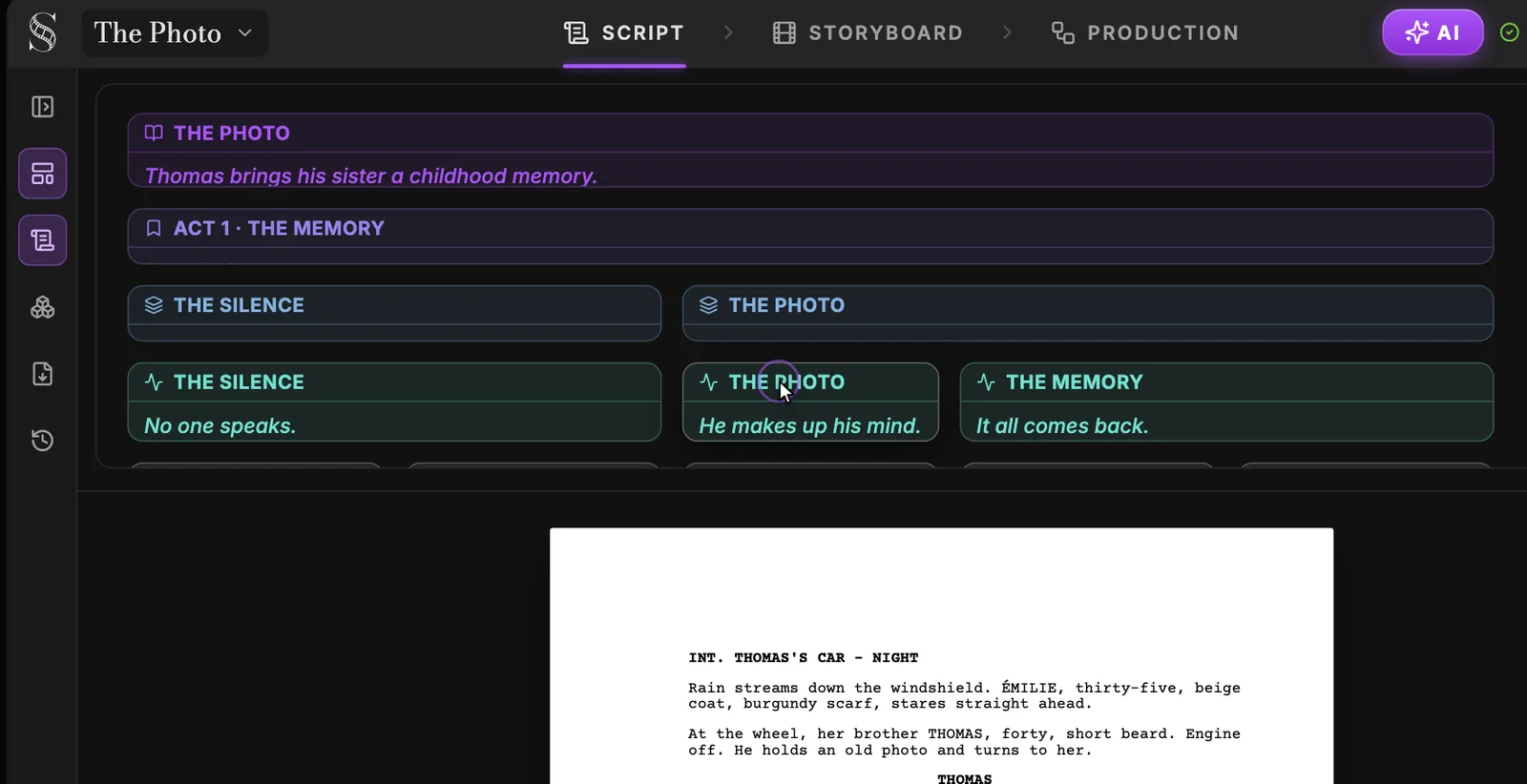
Swipe sideways to see the whole screen.
- 1Outline view. Shows or hides the outline board. Turn it on when you plan or restructure, off when you only want the page.
- 2Script view. Shows or hides the screenplay under the board. With both on, you see the structure and the scenes it holds together.
- 3Title page or episode. The top card: one "Title page" in a feature film (with "Written by" and "Optional description..."), one card per Episode in a series. The italic line is its description.
- 4Act. One card per act, in "Episodical / TV" projects only. Acts group the sequences below them.
- 5Sequence. Each one sits under its act and groups the beats and scenes that belong together.
- 6Story beat. A turning point of the story. "Manage labels" tags it with one of the 13 default labels (Opening / Setup, Inciting Incident, Plot Point 1, Rising Action, Midpoint, Low Point, Plot Point 2, Climax, Resolution, Action / Kinetic, Tension / Suspense, Comedy / Levity, Heart / Emotional) or your own ("New label..."); "Add attachment" adds a Note, Link, Image or Audio.
- 7Beat summary. The card's one-line description (placeholder "Description..."). Write what changes in this beat: it is the sentence you check the whole structure against.
- 8The script, in sync. The page below is the same script. Structure blocks appear on the board as cards, so you never maintain two versions of the story.
- Marker 3, the title page or episode: the top card. In a Feature film it is the "Title page", with "Written by" and "Optional description...". Use the description for your logline.
- Marker 4, the act: shown in Episodical / TV projects. A big movement of the story.
- Marker 5, the sequence: a chapter inside an act, several scenes chasing one goal.
- Marker 6, the story beat: one moment where something changes.
- Marker 7, the beat summary: the one line that says what happens. "No one speaks." is enough.
- Marker 8, the script below, always in sync with the cards.
The outline tracks run Episode, Act, Sequence, Story Beat, Scene. A new card shows "Untitled" and "Description..." until you fill it, and a scene card asks for a "Scene heading...". You can reorder scenes and beats by drag and drop.
The five levels, and what each one is for
- Episode (Ep), or Title page (Title) in a Feature film: the whole story or one episode of a series.
- Act (Act): a big movement. Only in Episodical / TV projects, because a series needs episodes and acts.
- Sequence (Seq): a chapter inside an act.
- Story Beat (Beat): a decision, a discovery or a reversal. If nothing changes, it is not a beat.
- Scene: a single place and time, the unit you actually write and later storyboard.
One beat can span several scenes, and one scene can hold several beats. That is normal: the beat is about meaning, the scene is about where the camera is.
Build the structure from the keyboard
The structure types sit in the floating toolbar: EP (or Title), ACT, SEQ, BEAT and OUT. OUT is the Outline line, the short summary under each structure block. Enter chains them for you:
- 1On an empty line, click SEQ in the floating toolbar and type the sequence title.
- 2Press Enter: you get its outline line. Write one sentence on what the sequence does.
- 3Press Enter again: you get the next level down, a Story Beat. Title it.
- 4Press Enter for its outline line, write what changes, then Enter again: the next level is a Scene heading.
- 5Write the scene. It appears as a scene card under its beat in the outline.
Want clean screenplay pages while you read? Use the eye in the floating toolbar, "Hide outline blocks in the script (page breaks ignore them)". The structure stays in the outline; it just leaves the page.
BEAT: THE PHOTO OUT: Thomas hands Émilie the photo. He makes up his mind.
Label your beats
Labels are coloured tags on beat cards. Use "Manage labels" on a card to add one ("Add {label}"), or type a name in "New label..." to create your own, such as Twist or Flashback. Nine default labels follow classic structure, four describe tone:
- Opening / Setup: "Establishes the protagonist, their flaws, and the ordinary world."
- Inciting Incident: "The disruptive event that shatters the status quo and sets the story in motion."
- Plot Point 1: "The point of no return: the protagonist commits to engaging the conflict."
- Rising Action: "The protagonist faces obstacles and pursues their goal; subplots develop."
- Midpoint: "A major twist, false victory, or false defeat that raises the stakes."
- Low Point: "The protagonist is furthest from their goal: a major setback or 'All is Lost' moment."
- Plot Point 2: "The epiphany: new information propels the protagonist into the final act."
- Climax: "The ultimate confrontation where the protagonist faces their primary obstacle."
- Resolution: "The aftermath: loose ends are tied up and a new status quo is established."
- Action / Kinetic: "Chases, fights, or fast-paced physical movement."
- Tension / Suspense: "Build-up, mystery, sneaking around, or waiting for the other shoe to drop."
- Comedy / Levity: "Jokes, banter, and moments of levity that relieve tension."
- Heart / Emotional: "Vulnerable moments, deep character connections, romance, or grief."
Attach your research to the cards
Every card has a paperclip, "Add attachment". Choose "Note", "Link", "Image" or "Audio". Hover an attachment for a quick preview, or click it to open it in a floating window you can move while you write.
- A reference photo on a scene card: the location you have in mind.
- A link on a sequence: the article or the scene from another film that inspired it.
- A note on a beat: the line of dialogue you have not placed yet.
- Audio on the title card: the temp music that sets the mood.
Do it now
Practice in ScreenWeaver
- 1Show both the Outline view and the Script view with their eye icons.
- 2Fill the title card with your logline.
- 3Create one sequence, three story beats with an outline line each, and one scene under the first beat, using only Enter.
- 4Tag your inciting incident and your midpoint with their labels, and create one custom label.
- 5Attach one image and one note to a scene card, then open the image in its floating window.
Watch the video lessons
Questions about this step
Why is there no Act button in my project?
Acts are hidden in Feature film projects. Switch the format to Episodical / TV in Project settings if your story needs episodes and acts.
Do outline lines appear in my exported PDF?
Only if you want them. The export window has an "Include outline" option; see import, export and version history.
How do I create my own beat label?
Open "Manage labels" on a beat card and type the name in "New label...". It then appears next to the defaults.
If I add a scene card in the outline, does it appear in the script?
Yes. The outline and the script are two views of the same document, so structure added in one shows in the other.
Can I hide the structure blocks while I read the script?
Yes. Click the eye in the floating toolbar: "Hide outline blocks in the script (page breaks ignore them)".
What can I attach to a card?
A "Note", a "Link", an "Image" or an "Audio" file, from the paperclip on the card.
More answers in the Academy FAQ and the button-by-button interface guide.