How to write a screenplay in the ScreenWeaver script editor
Write a correctly formatted screenplay with Enter, Tab and autocomplete, and turn names into characters, places and objects with a right-click.
Chapters (9)
Video: lesson 2.1 of the free Screenwriting Course.
A real screenplay page, seven kinds of lines
The Script tab is a real screenplay editor: Courier 12 point and industry margins, so a page still reads as roughly one minute of screen time. You never set a margin. You choose an element, and the page places it.
- Scene: the scene heading, or slugline. Where and when: INT. THOMAS'S CAR - NIGHT.
- Action: what the camera sees and hears, in the present tense.
- Character: the name above a line of dialogue, in capitals.
- Dialogue: what the character says.
- Parenthetical: a short note on how a line is said, between dialogue lines.
- Transition: CUT TO:, rare and on the right.
- Shot: a specific camera instruction, to use sparingly.
Why it matters beyond style: ScreenWeaver reads these elements. Names before dialogue become characters, places in scene headings become locations, and every scene later becomes a group of shots in the storyboard. A clean page is a clean pipeline.
Enter and Tab: write a scene without the mouse
Enter creates the next logical element, so most of the time you never choose one:
- After a Scene, Enter gives an Action.
- After a Character, Enter gives a Dialogue.
- After a Dialogue, Enter gives the next Character.
- After a Parenthetical, Enter goes back to Dialogue.
- After a Transition, Enter gives a new Scene.
- After a Shot, Enter gives an Action.
When the guess is wrong, press Tab: it cycles Scene, Action, Character, Dialogue, Parenthetical, Transition, Shot. Shift + Tab goes the other way, so one or two presses fix any line. Backspace at the very start of a line merges it with the line above. Cmd/Ctrl + Z undoes, Cmd/Ctrl + Shift + Z or Cmd/Ctrl + Y redoes.
- 1Start a line, press Tab until it becomes a Scene, and type the heading.
- 2Press Enter and write the first action line.
- 3Press Enter, then Tab to turn the new line into a Character, and type the name.
- 4Press Enter: you are in Dialogue. Type the line.
- 5Press Enter: the next Character is ready for the reply.
Autocomplete: headings, names and extensions
As you type, a suggestion list opens. Move with the arrow keys, confirm with Enter, close it with Escape and keep typing.
- Scene heading prefix: INT., EXT., INT./EXT., EXT./INT. or I/E.
- Place: your existing places, plus Create "{name}" for a new one.
- Time of day: DAY, NIGHT, DAWN, DUSK, MORNING, AFTERNOON, EVENING, LATER, CONTINUOUS, MOMENTS LATER, SAME TIME.
- Character name: your existing characters, plus Create "{name}".
- Cue extension: type "(" after a name to get V.O., O.S., O.C., CONT'D, PRE-LAP, FILTERED, INTO PHONE, ON PHONE, ON TV, ON RADIO or SUBTITLED. Tab confirms.
- Objects: suggested in action lines when they already exist, with no Create option.
INT. THOMAS'S CAR - NIGHT
The floating toolbar
When a line has focus, a toolbar floats at the bottom of the page. It does with the mouse what Enter and Tab do with the keyboard, and the current element is highlighted.

Swipe sideways to see the whole screen.
- 1Undo. Reverts your last change, same as Cmd/Ctrl + Z.
- 2Redo. Reapplies what you undid, same as Cmd/Ctrl + Shift + Z or Cmd/Ctrl + Y.
- 3Show or hide outline blocks. Hides or shows the structure blocks inside the script (tooltip "Hide outline blocks in the script (page breaks ignore them)"). Hide them to read the screenplay clean, show them to see your structure inline.
- 4EP. Episode (Ep), the top structure level of an "Episodical / TV" project. In "Feature film" mode it becomes "Title page" (Title), and only one is allowed ("Title page already present").
- 5ACT. Act, the level under the episode. It exists only in "Episodical / TV" projects and is hidden in "Feature film" mode.
- 6SEQ. Sequence (Seq), a group of scenes that pursue one goal inside an act or episode.
- 7BEAT. Story Beat (Beat), a turning point of your story. On the outline board you tag beats with labels such as "Inciting Incident", "Midpoint" or "Climax".
- 8OUT. Outline (Out), the line that follows a structure block. Enter on Episode, Act, Sequence or Story Beat creates one, and Enter on it opens the next structure level (Episode, Act, Sequence, Story Beat, then Scene).
- 9SCENE. Scene heading. Autocomplete offers INT., EXT., INT./EXT., EXT./INT. or I/E., then your places (or "Create "{name}""), then DAY, NIGHT, DAWN, DUSK, MORNING, AFTERNOON, EVENING, LATER, CONTINUOUS, MOMENTS LATER or SAME TIME. Enter goes to Action.
- 10ACTION. What we see and hear. Autocomplete suggests your existing objects as you type, with no Create option here.
- 11CHAR. Character cue. Autocomplete suggests existing characters or "Create "{name}"", and after "(" offers V.O., O.S., O.C., CONT'D, PRE-LAP, FILTERED, INTO PHONE, ON PHONE, ON TV, ON RADIO or SUBTITLED (Tab confirms). Enter goes to Dialogue.
- 12DIAL. The spoken line under a cue. Enter after dialogue starts a new Character cue, ready for the reply.
- 13PAREN. Parenthetical (Paren), a short acting note inside dialogue. Enter returns to Dialogue.
- 14TRANS. Transition (Trans), such as a cut between scenes. Enter after it starts a new Scene heading.
- 15SHOT. Shot line, to call a specific angle on the page. Enter goes to Action. Tab cycles Scene, Action, Character, Dialogue, Parenthetical, Transition and Shot; Shift + Tab goes backwards.
- "Undo" and "Redo" (markers 1 and 2).
- The eye (marker 3): "Hide outline blocks in the script (page breaks ignore them)" or "Show outline blocks in the script". Hide them when you want to read pure screenplay pages.
- The structure types (markers 4 to 8): EP, ACT, SEQ, BEAT, OUT. In a Feature film project, EP becomes Title and ACT is hidden. They are covered in structure your story in the outline.
- The screenplay elements (markers 9 to 15): SCENE, ACTION, CHAR, DIAL, PAREN, TRANS, SHOT. Click one to turn the current line into that element.
Right-click a name to create a story element
Characters and places appear as you write: the autocomplete Create option adds them. For everything else, select a name in the text and right-click it.
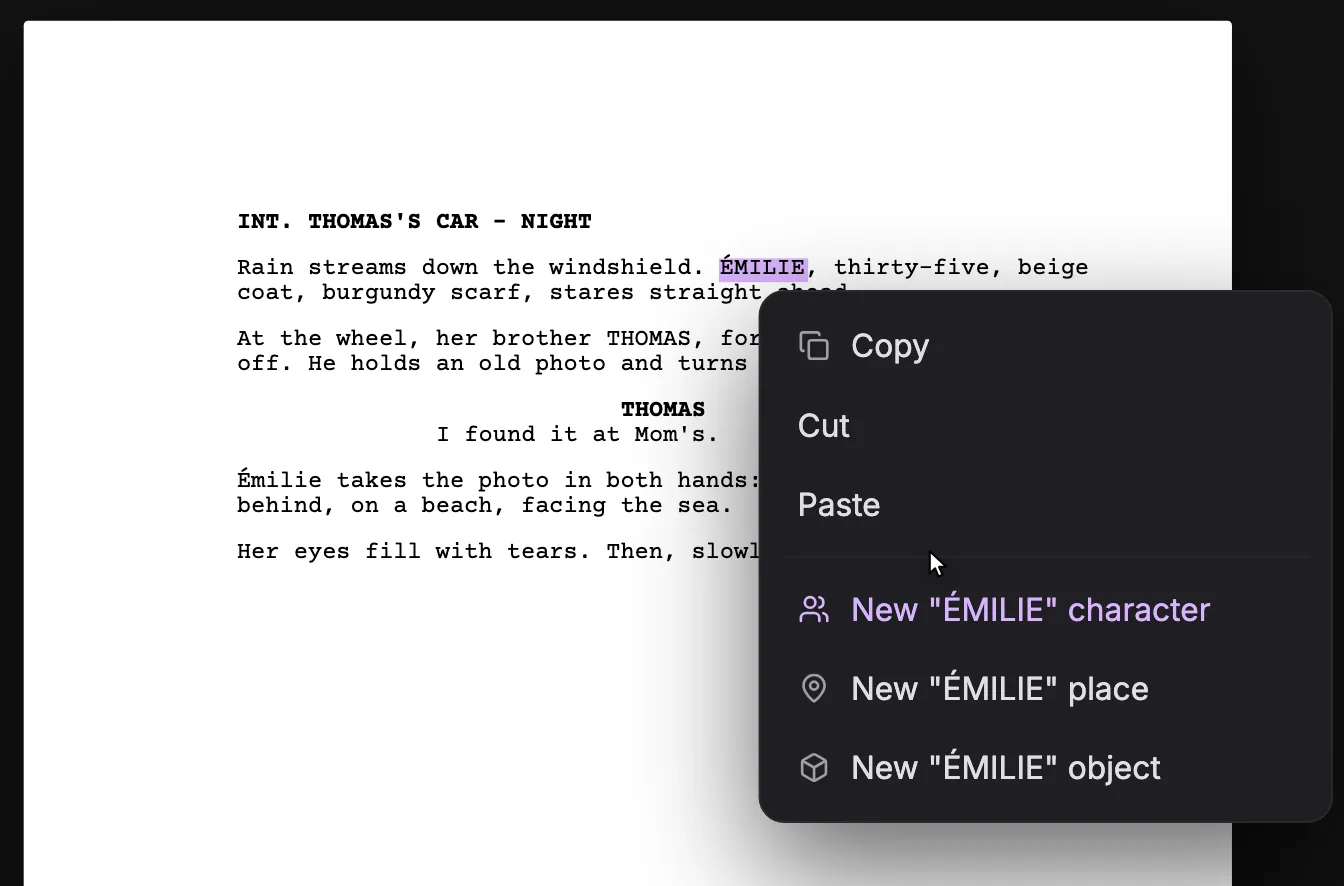
Swipe sideways to see the whole screen.
- 1Selected name. The text you selected before right-clicking. It becomes the entity's name, so select exactly the name, without the punctuation around it.
- 2Copy, Cut, Paste. The usual clipboard actions on the selection.
- 3New character. Creates a character named after the selection ("New "{name}" character"). If it already exists, the line reads ""{name}" character exists" instead, so you never create a duplicate.
- 4New place. Creates a place with that name ("New "{name}" place"). Places also come from scene headings, where autocomplete offers "Create "{name}"" after the INT. or EXT. prefix.
- 5New object. Creates an object, a prop that matters to the story ("New "{name}" object"). This menu is how you create one from the page: action-line autocomplete only suggests existing objects, with no Create option.
- 1Double-click or drag to select the name, for example ÉMILIE in an action line (marker 1).
- 2Right-click it. The menu shows "Copy", "Cut" and "Paste" (marker 2).
- 3Choose New "ÉMILIE" character, New "ÉMILIE" place or New "ÉMILIE" object (markers 3 to 5).
- 4If that element already exists, the menu says so instead, for example "ÉMILIE" character exists, so you never create a duplicate.
Why this matters: every story element becomes a group with a description and reference sheets, and those sheets are what keep a face, a set or a prop identical from shot to shot. Objects are never created automatically, so right-click the props that matter on screen: the letter, the weapon, the photo seen in close-up.
Long scripts
Past a certain length, ScreenWeaver warns you: "This screenplay is approaching 200 pages…". A screenplay over 200 pages will not sync reliably, so split a very long work into several projects, or use the Episodical / TV format and one episode at a time.
Do it now
Practice in ScreenWeaver
- 1Build a scene heading from the autocomplete lists in three picks: prefix, place, time of day.
- 2Write a half-page scene with two characters without touching the mouse, using only Enter, Tab and Shift + Tab.
- 3Type "(" after a character name and add an extension such as V.O.
- 4Select a prop in an action line, right-click it and create it as an object.
- 5Hide the outline blocks with the eye in the toolbar, read your page, then show them again.
Watch the video lessons

Questions about this step
How do I change a line from Action to Character?
Put the cursor in the line and press Tab until it becomes a Character, or click CHAR in the floating toolbar. Shift + Tab cycles backwards.
Why doesn't autocomplete offer to create objects?
Objects are suggested when they exist but never created from autocomplete. Select the word, right-click it and choose the New object option.
I have the same character under two spellings. What should I do?
Fix the spelling in the script so every cue matches, then keep one element in Story elements. Deleting the other is blocked while it still has lines in the script.
Can I format camera directions in the script?
Yes, with the Shot element. Use it sparingly: framing and camera moves are decided shot by shot in the Storyboard tab.
Does the editor support CONT'D and V.O.?
Yes. Type "(" after a character name to get V.O., O.S., O.C., CONT'D, PRE-LAP, FILTERED and the other extensions, then press Tab to confirm.
Is there a comments feature for co-writers?
No. Collaboration in the script is real-time co-editing, with presence and live cursors. See work as a team.
More answers in the Academy FAQ and the button-by-button interface guide.