Organisations: who owns what
Every project belongs to an organisation. An organisation owns its projects, its plan and its credits, so it is the unit of a team: your studio, your production company, or just you.
Open the account menu (the Account icon on the right of the header). The organisation block at the top shows the current organisation, with a "Paused" badge if it is paused, then:
- "Switch organisation" and "Create organisation".
- "Billing & credits": the plan and the credit balance of this organisation.
- "Organisation settings", with the tabs "General" and "Danger zone".
- "Members": the people of the organisation and their roles.
Roles: Owner, Editor, Viewer, Guest
- Owner: owns the organisation and its projects. Only owners invite people, change access and delete a project.
- Editor: writes and changes the project, and can open "Project settings" and "Version history".
- Viewer: reads without changing anything. Good for a producer following the latest draft.
- Guest: someone outside the organisation who only sees the project they were invited to, set to "Can edit" or "Can view".
Members of the organisation have access to every project in it. Guests see one project and nothing else, which makes them the right choice for a client, a composer or a co-writer on a single film.
Share a project
There is no share button in the header. Sharing lives in the project menu.
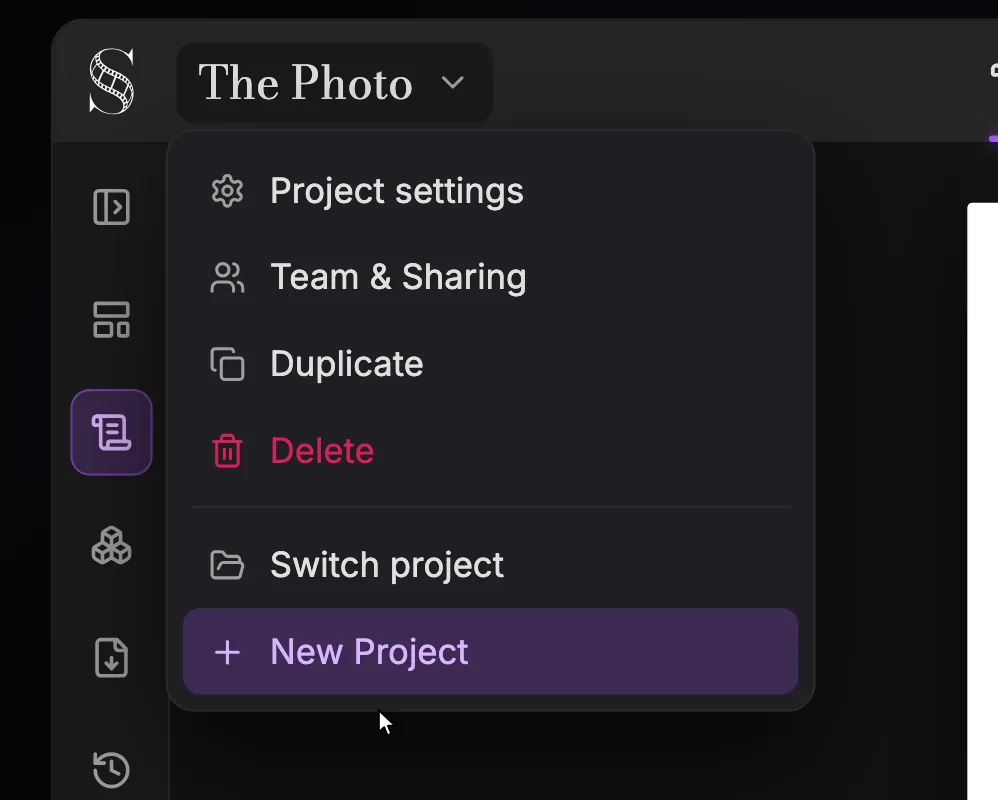
- 1Project menu. The current project's title. Click it to open or close this menu.
- 2Project settings. Edits the "Title", the "Format" and the default "Aspect ratio". Shown only if you can edit the project; owners of two or more organisations can also move the project to another organisation from here.
- 3Team & Sharing. Opens the "Share · {title}" dialog, where you give people a role: Owner, Editor, Viewer or Guest (a guest is set to "Can edit" or "Can view"). Collaboration needs the Studio plan; without it you see "Studio plan required" and "Upgrade to Studio".
- 4Duplicate. Makes a copy of the project ("Duplicating project…" while it runs). Duplicate before a risky rewrite, or to try a variant without touching the original.
- 5Delete. Deletes the project after the confirmation "Are you sure you want to delete this project?". Only owners see it; if in doubt, export a backup or duplicate first.
- 6Switch project. Lists your other projects (or "No other projects") so you can jump between them.
- 7New Project. Opens the "New project" dialog: a "Title", a "Format" ("Feature film" or "Episodical / TV"), then "Create project". The aspect ratio is asked later, on your first visit to Storyboard or Production.
- 1Click the project title at the top left to open the project menu (marker 1).
- 2Click "Team & Sharing" (marker 3). A window titled "Share · {title}" opens.
- 3It lists the organisation members who already have access, and the guests of this project.
- 4As an owner, invite a guest by email and set them to "Can edit" or "Can view".
Real-time collaboration is part of the Studio plan ($149.99 a month, with unlimited seats). On another plan, the window shows "Studio plan required" with an "Upgrade to Studio" button.
Co-edit in real time
When several people open the same project, their avatars appear in the header. The indicator reads "{n} users online"; open it to see "Online Users (n)". Click a name to jump to that person's cursor ("Click to jump to cursor"); a person who is only looking shows "User not actively editing". In the script, each collaborator's cursor appears on the page with their name.
The save status in the header tells you where your work stands: "Saving...", "Saved", "Unsaved Changes" or "Offline". If your connection drops, a banner says "Working offline - Changes will sync automatically when online".
There is no comments feature. Teams leave notes where the story lives: in the outline, a card's paperclip adds a "Note", a "Link", an "Image" or an "Audio" attachment. See structure with the outline.
Duplicate, move, delete
- "Duplicate" (marker 4) copies the project; the button reads "Duplicating project…" while it runs. Use it before an experiment you might not keep, like a new ending or a different art direction.
- "Project settings" (marker 2) appears only if you can edit. If you own two or more organisations, it also lets you move the project to another one. The project, its history and its files move; past generations stay billed to the organisation that paid for them, and the new organisation pays for new ones.
- "Delete" (marker 5) is for owners only and asks "Are you sure you want to delete this project?".
Below them, "Switch project" lists your other projects and "+ New Project" starts a new one.
Do it now
Practice in ScreenWeaver
- 1Open the account menu and check which organisation you are in.
- 2Open "Members" and review who has access to every project.
- 3Open "Team & Sharing" on one project and read who has access to it.
- 4Invite a test guest with "Can view", open the project with them, and watch the presence indicator.
- 5Duplicate the project before your next big experiment.
Questions about this step
Can several people write the same screenplay at the same time?
Yes, on the Studio plan. Collaborators edit the project in real time, with their avatars in the header and their named cursors in the script.
What is the difference between a member and a guest?
Members of an organisation have access to every project in it. A guest only sees the project they were invited to, with "Can edit" or "Can view".
Why does my team see Studio plan required?
Real-time collaboration is part of Studio ($149.99 a month, unlimited seats). The "Upgrade to Studio" button in that message takes the organisation there.
Can I leave comments on a script?
There is no comments feature. Use outline attachments (Note, Link, Image, Audio) to leave notes on a card, and real-time co-editing to work together.
How do I move a project to another organisation?
Open "Project settings" from the project menu. The option appears when you own two or more organisations; past generations stay billed to the organisation that paid for them.
Who can delete a project?
Only owners. "Delete" in the project menu asks for confirmation first, so duplicate the project if you want a safety copy.
More answers in the Academy FAQ and the button-by-button interface guide.