The ScreenWeaver AI Center: the writing assistant and the Generations list
Work with the assistant that reads and edits your script and storyboard, and follow every image and video generation from one list.
Chapters (7)
Video: lesson 4.1 of the free Screenwriting Course.
One window for the assistant and every generation
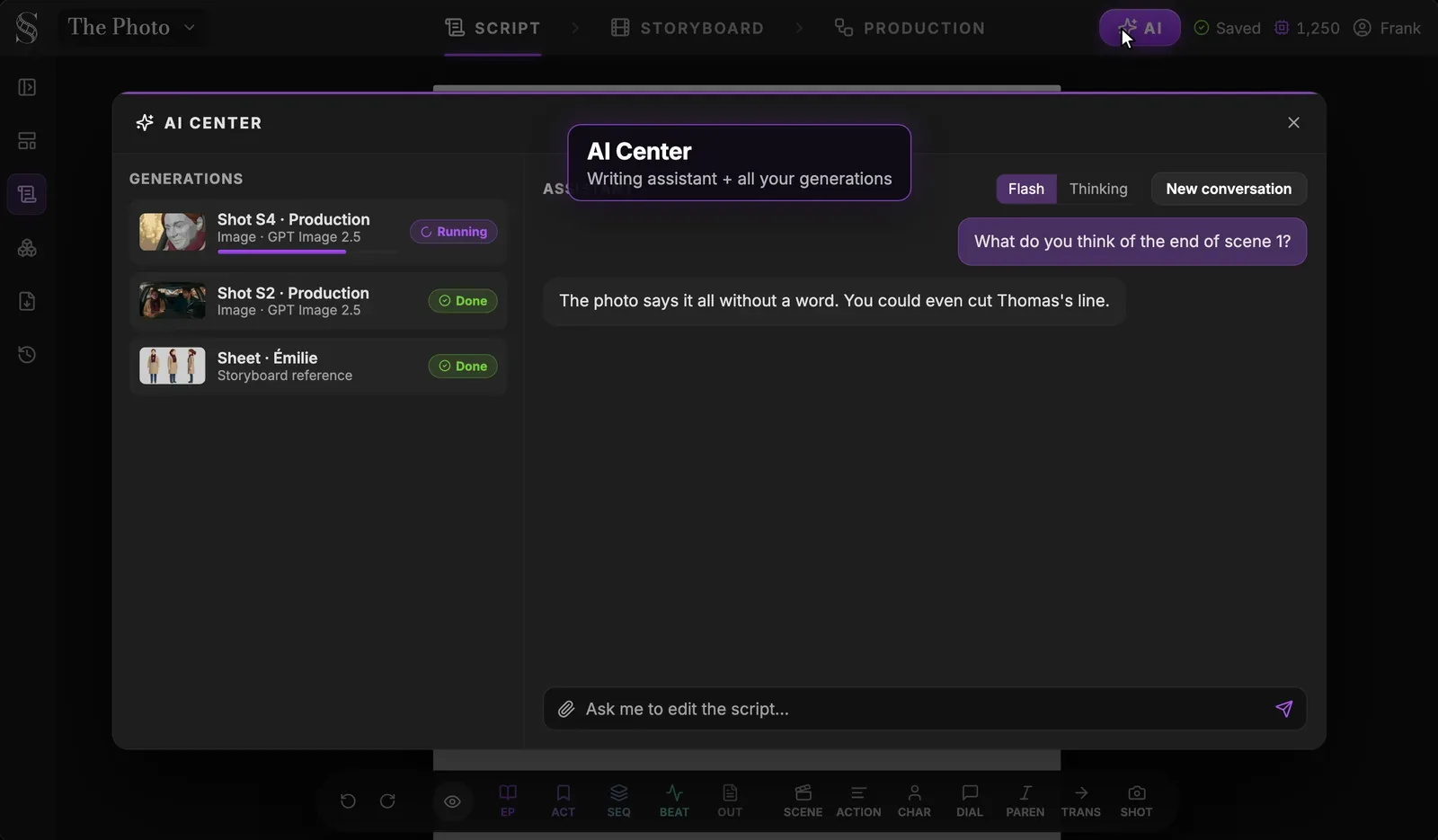
Click "AI" on the right of the header (tooltip "AI generations & assistant"). The "AI Center" opens over whatever tab you are in. On the left, "Generations": everything running or finished in the project. On the right, the assistant and its conversation. While jobs run, the AI button shows a spinner and a count, so you can keep working and glance up.
Swipe sideways to see the whole screen.
- 1AI button. Opens this window from any tab (tooltip "AI generations & assistant"). While jobs run, it shows a spinner and how many are running.
- 2Generations. Every image, video, sheet and text the project generates, wherever you started it: storyboard, production canvas or entity panels. Click a finished item to preview it, download it or jump to its node.
- 3Running generation. A job in progress, with its name, type, model and a progress bar. "Cancel generation" stops it if you launched it by mistake.
- 4Done. The status badge: "Running", "Done", "Failed", "Error" or "Canceled". A finished item can be previewed with its "Model", "Prompt", "Parameters", "Credits" and "Created" details, downloaded, or traced back with "Go to node".
- 5Assistant. A chat that can read and change your script and storyboard: it reads the outline, scenes, story elements and shots, searches and edits the script, creates and updates shots, imports files and changes the aspect ratio. When it needs a decision, it asks you a question with choices plus "Something else".
- 6New conversation. Starts a fresh conversation; "Switch conversation" brings an older one back and "Delete" removes it. One conversation per task keeps the assistant focused.
- 7Attach a file. "Attach a script (Final Draft, Fountain, WriterDuet), notes, a PDF or an image." Accepted: .pdf, .json, .fdx, .fountain, .txt and images, up to 15 MB. You can also drag and drop the file.
- 8Message box. Type your request here (placeholder "Ask me to edit the script or build shots..."). Name the scene, say what must change and what must stay.
- 9Send. Sends the message. The tooltip gives the maximum the reply can cost and reminds you that "You only pay for what the reply uses.": a message is capped at 50 credits ($0.25).
What the assistant can read and change
Its welcome message says it plainly: "Hi! I can read and change your script and storyboard." It works inside your project, and every action it takes shows up in the conversation with a label, so you always know what it touched.
- It reads: "Read the project outline", "Read a scene", "Searched the script", "Read the story elements", "Read the shots", "Read an attached file".
- It changes: "Edited the script", "Created shots", "Updated a shot", "Changed the aspect ratio", and imports with "Previewed the import" and "Imported a file".
It does not generate images or videos and does not publish anything. Those come from the Storyboard and Production tabs. When your request is ambiguous, it can ask you a question with a few choices plus "Something else" for your own answer.
What a message costs
Hover the send button: "Up to {count} credits. You only pay for what the reply uses." The cap is 50 credits per message, so a short question costs less than a full scene rewrite. The model behind the assistant is Mistral Large 4.
Write and rewrite scenes with precise requests
A good scene request says where the scene goes, what happens, how long it is and how many lines of dialogue it may have. The assistant then writes headings, action, cues and dialogue straight into the script as real elements.
After scene 1, write a new scene: EXT. BEACH - DAWN. Émilie walks to the water alone, holding the photo. Half a page, no more than two lines of dialogue, quiet and visual.
Then run three rewrite passes, one request each:
- 1Story pass: does the scene change something? Ask the assistant to cut any explanation that kills the mystery.
- 2Camera pass: replace every feeling with something visible. "Émilie stares at the photo" can be filmed, "a strange familiarity" cannot.
- 3Dialogue pass: quote one line and ask for something shorter, colder or funnier.
Rewrite Thomas's line "I found it at Mom's." Keep it under six words and make it sound like he has rehearsed it.
Attachments and conversations
The paperclip ("Attach a script (Final Draft, Fountain, WriterDuet), notes, a PDF or an image.") accepts PDF, .fdx, .fountain, .json, .txt and images, up to 15 MB. Attach a script to import it, notes to turn into a shot list, or an image as a visual reference for a discussion.
- "New conversation": start a clean thread for a new task.
- "Switch conversation": go back to an earlier thread.
- "Delete": remove a conversation you no longer need.
Every AI edit is reversible
Each change the assistant makes to the script lands on the page, where you can read it, keep it or undo it with Cmd/Ctrl + Z. It also creates a "Created after AI edit" checkpoint in version history, so even a bold rewrite of a whole act can be restored. Stay the writer: the assistant proposes, you choose, and you read every change before moving on.
The Generations list
Everything you launch in the project, from reference sheets to storyboard panels, images, videos and upscales, appears here, with a thumbnail, its type and model, and a status: "Running", "Done", "Failed", "Error" or "Canceled". Running jobs show a progress bar. Until you launch the first one, you see "No generations yet."
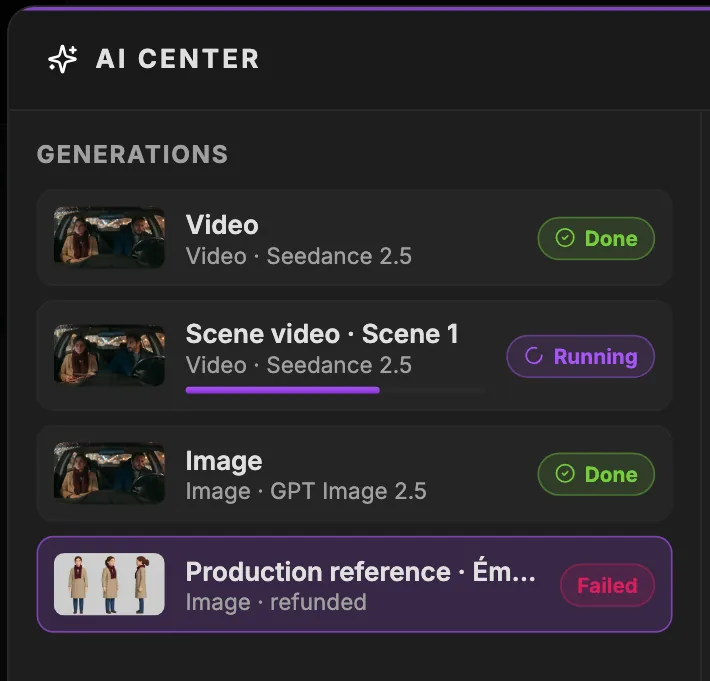
- 1Generations. The list itself. Empty, it reads "No generations yet. Start one from the storyboard, production canvas, or entity panels."
- 2Generation. One job: its name, type and model. "Preview generated media" shows its "Model", "Prompt", "Parameters", "Credits" and "Created"; "Download" saves it and "Go to node" jumps to the node that made it.
- 3Done. Finished and ready. The other statuses are "Running", "Failed", "Error" and "Canceled"; "Remove from list" tidies the column.
- 4Running. Still generating. "Cancel generation" stops it.
- 5Progress. How far the job has gone. Videos take longer than images: keep working, the list updates on its own.
- 6Failed, refunded. A run that fails is refunded, so you do not pay for it. "Retry generation" runs it again; if it fails twice, check the prompt and the inputs first.
- "Cancel generation": stop a job you launched by mistake.
- "Retry generation": relaunch a job that failed or that you canceled.
- "Preview generated media": open the result with its "Model", "Prompt", "Parameters", "Credits" and "Created" date.
- "Download": save the file to your computer.
- "Go to node": jump to the node that produced it, in the storyboard or on the canvas.
- "Remove from list": tidy the list.
Failed generations are refunded, as the last line of the screenshot shows. Long batches, such as the automatic storyboard generation, keep running here even after you close the dialog that launched them.
Do it now
Practice in ScreenWeaver
- 1Open the AI Center and ask: "Summarise my script in five sentences."
- 2Ask one analysis question: "Which beat is the weakest, and why?"
- 3Write one precise scene request with place, events, length and a dialogue limit, then read the result on the page.
- 4Undo that change with Cmd/Ctrl + Z, then find its "Created after AI edit" checkpoint in Version history.
- 5Start a "New conversation" and check the credit cap on the send button before you send.
Watch the video lessons
Questions about this step
How many credits does the assistant use?
Up to 50 credits per message, and you only pay for what the reply actually uses. The cap is shown on the send button.
Can the assistant generate images or videos?
No. It reads and changes your script and storyboard shots. Images and videos are generated from the Storyboard and Production tabs, then tracked in Generations.
Can the assistant ruin my script?
It edits the script only when you ask, every change lands on the page, and each one creates a "Created after AI edit" checkpoint you can restore.
Can the assistant create shots for the storyboard?
Yes. It can read your shots, create shots and update a shot, for example from notes you paste. Check them in the Storyboard tab.
A generation failed. Do I lose the credits?
No. Failed generations are refunded. Use "Retry generation" to run it again.
I closed the window while a job was running. Is it lost?
No. Jobs keep running and appear in the Generations list of the AI Center, with a spinner and a count on the AI button while they run.
More answers in the Academy FAQ and the button-by-button interface guide.