How to create your first ScreenWeaver project: title, format and aspect ratio
Create a project, choose between Feature film and Episodical / TV, and pick the aspect ratio your whole film will be shot in.
Chapters (7)
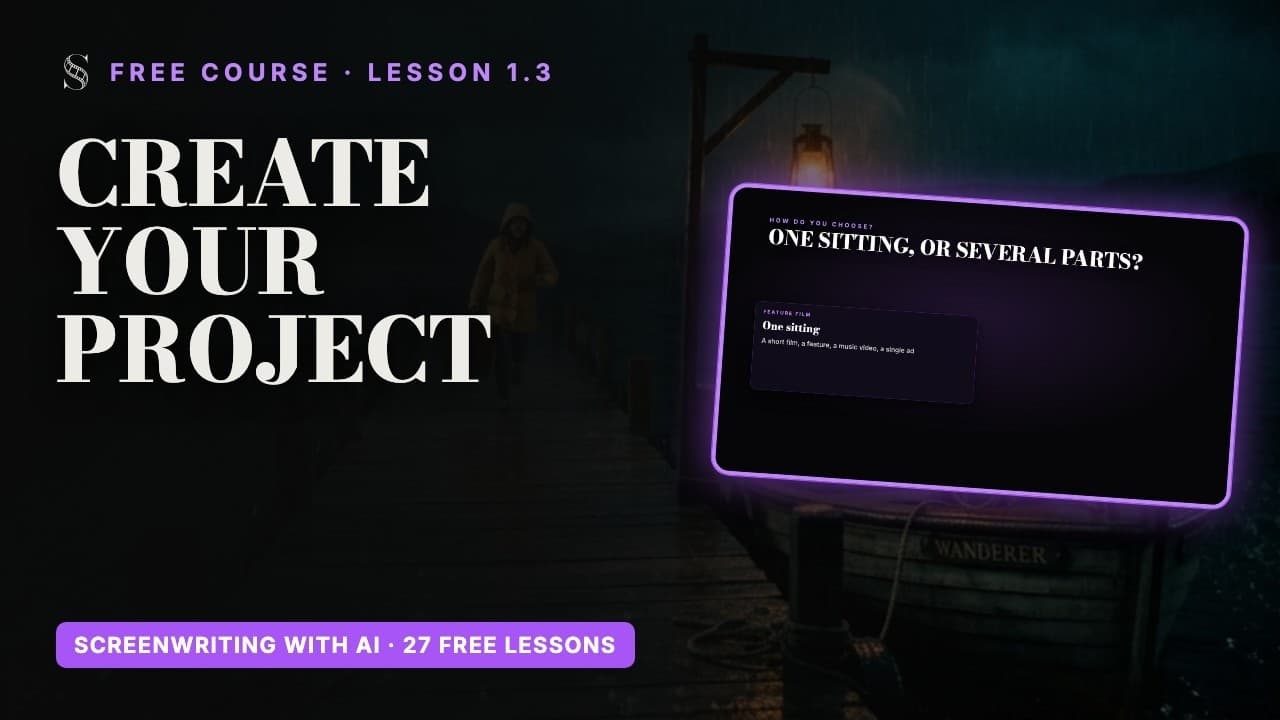
Video: lesson 1.3 of the free Screenwriting Course.
Your first login: start with the example project
The first time you sign in, ScreenWeaver asks "Which best describes you?" with three answers: "Screenwriter", "Independent AI Filmmaker" or "Studio or Production Team". Pick the one that fits and click "Continue". Your answer does not lock any feature: every tool stays available whatever you choose.
ScreenWeaver then prepares an example project for you (you will see "Initializing the example project…"). Open it before you create your own. It is the fastest way to see what a finished script, a storyboard and a production canvas look like when they are filled in, and you can click anything without risking your own work.
Create a new project in four clicks
One story, one project. The script, the outline, the characters, the places and later the storyboard and the shots all live inside it, so start a fresh project for every new film or series.
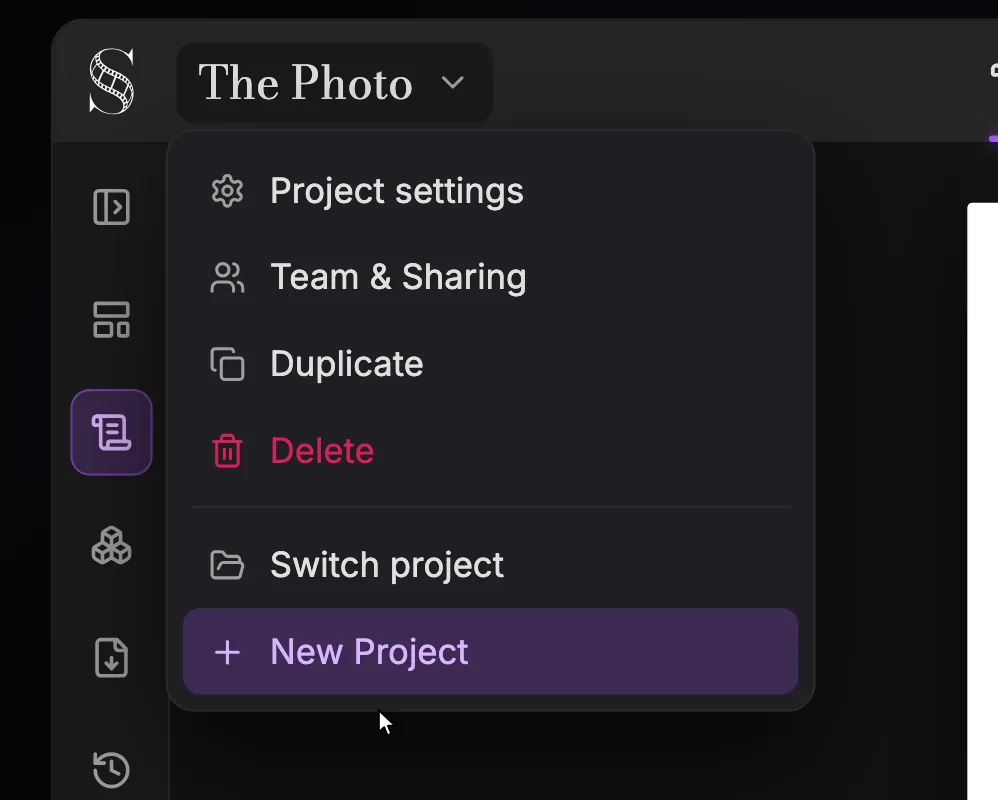
- 1Project menu. The current project's title. Click it to open or close this menu.
- 2Project settings. Edits the "Title", the "Format" and the default "Aspect ratio". Shown only if you can edit the project; owners of two or more organisations can also move the project to another organisation from here.
- 3Team & Sharing. Opens the "Share · {title}" dialog, where you give people a role: Owner, Editor, Viewer or Guest (a guest is set to "Can edit" or "Can view"). Collaboration needs the Studio plan; without it you see "Studio plan required" and "Upgrade to Studio".
- 4Duplicate. Makes a copy of the project ("Duplicating project…" while it runs). Duplicate before a risky rewrite, or to try a variant without touching the original.
- 5Delete. Deletes the project after the confirmation "Are you sure you want to delete this project?". Only owners see it; if in doubt, export a backup or duplicate first.
- 6Switch project. Lists your other projects (or "No other projects") so you can jump between them.
- 7New Project. Opens the "New project" dialog: a "Title", a "Format" ("Feature film" or "Episodical / TV"), then "Create project". The aspect ratio is asked later, on your first visit to Storyboard or Production.
- 1Click the project title at the top left of the header to open the project menu.
- 2Click "+ New Project". A window titled "New project" opens.
- 3In "Title", type a working title (the placeholder says "My screenplay"). You can change it at any time, so do not wait for the perfect one.
- 4Under "Format", choose "Feature film" or "Episodical / TV" (see below), then click "Create project".
The script opens on a first, empty structure block: the title page in a feature film. Type the title of your film in it. In the outline, this block becomes the card that sits above everything else.
Feature film or Episodical / TV?
This is the one real decision of the creation window. It changes the structure tools you get in the script and the outline.
- "Feature film": "Standard mode: best for single-story screenplays". The top block is a "Title page" (only one per project) and the "Act" level is hidden, so you structure with sequences, story beats and scenes.
- "Episodical / TV": "Episodes, acts, and series-style structure". You get the "Episode" level and the "Act" level, so a season can live in one project, episode by episode.
Ask yourself one question: will this story be watched in one sitting, or in several parts? A short film, a feature, a music video or an ad: Feature film. A web series, an animated series or a vertical drama in many episodes: Episodical / TV. If you are not sure, start with Feature film; you can switch later in the project settings.
Project settings: rename and switch format later
Open the project menu and click "Project settings" (visible if you can edit the project). The same window as the creation dialog comes back, with one extra field.
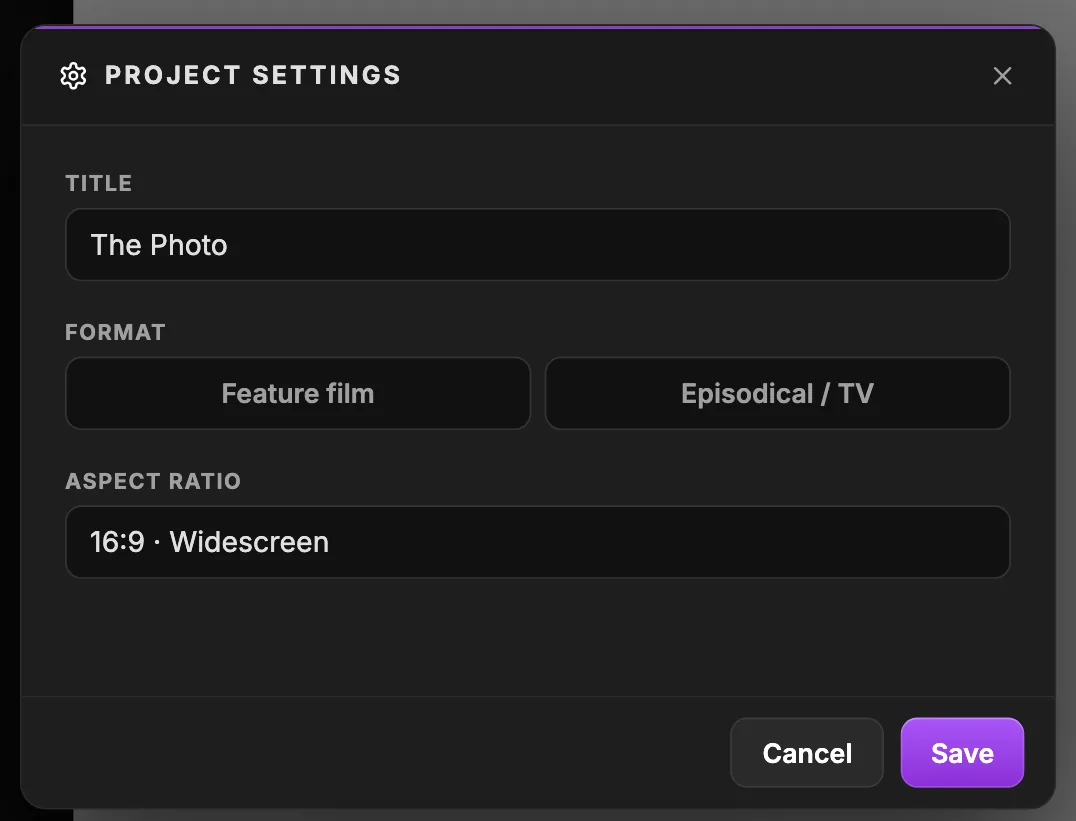
Swipe sideways to see the whole screen.
- 1Title. The project name shown in the header and in your project list (placeholder "My screenplay" on a new project).
- 2Feature film. "Standard mode: best for single-story screenplays". The structure starts with a single "Title page" and the Act level is hidden.
- 3Episodical / TV. "Episodes, acts, and series-style structure". Choose it for a series: the outline gets Episode and Act levels, and exports let you pick the episode.
- 4Aspect ratio. The default frame for new work: 16:9 Widescreen, 9:16 Vertical, 2.39:1 Cinematic, 4:3 Retro & Classic or 3:4 Portrait. "Applies to newly created shots and image-generation nodes only.": existing images keep their ratio.
- 5Save. Applies your changes. "Cancel" closes the dialog without saving.
- "Title": the name shown in the project menu and in your project list.
- "Feature film" / "Episodical / TV": switch here if your short film grows into a series.
- "Aspect ratio": the default frame shape, with the hint "Applies to newly created shots and image-generation nodes only."
- Click "Save" to apply your changes.
If you own two or more organisations, the project settings also let you move the project to another organisation.
Choose the aspect ratio: the frame of your whole film
The aspect ratio is not asked when you create the project. A window titled "Choose project aspect ratio" opens the first time you visit the Storyboard or Production tab, and you must choose before you continue. It sets the default frame shape for new storyboard and production images.
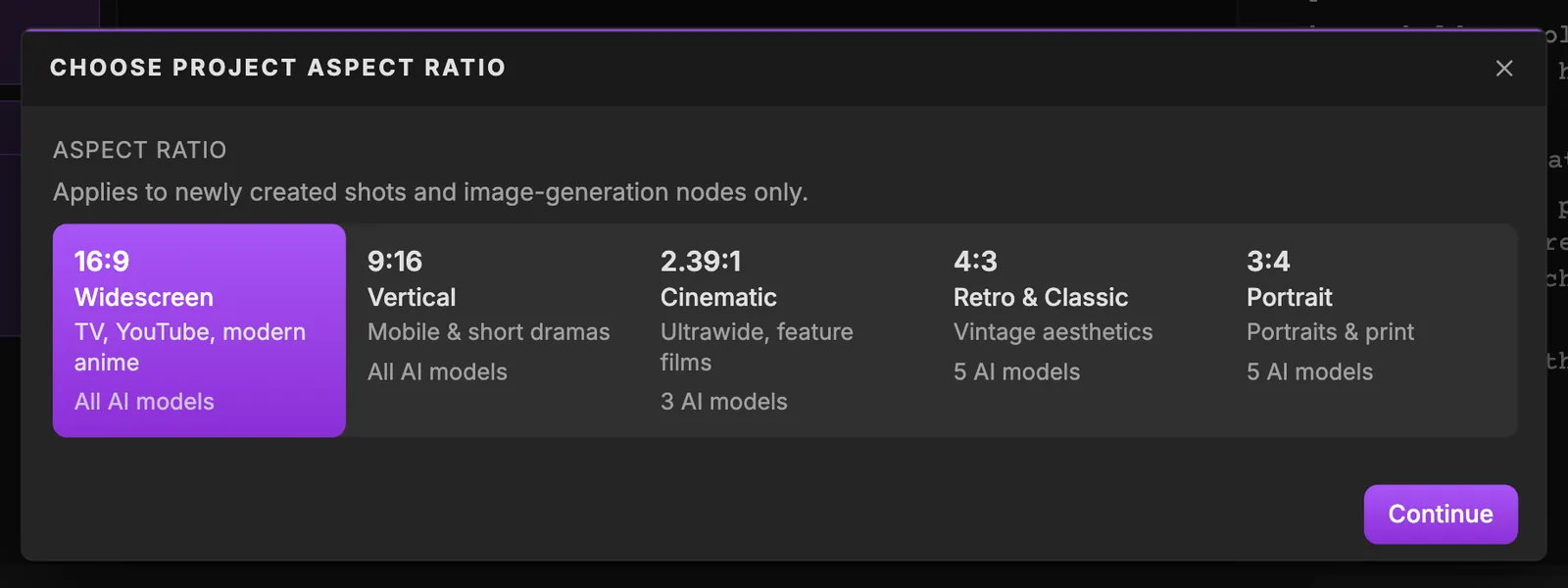
Swipe sideways to see the whole screen.
- 116:9 Widescreen. "Standard for TV, YouTube & modern anime". The safe default for most films and series.
- 29:16 Vertical. "Built for mobile & short dramas". Choose it for vertical series and social formats.
- 32.39:1 Cinematic. "Ultrawide aspect ratio for feature films". Check the model count on the card first: not every model supports it (Veo 3.1, for instance, accepts only 16:9 and 9:16).
- 44:3 Retro & Classic. "Vintage aesthetics & classic 90s anime". A squarer frame for period looks; the card shows how many models support it.
- 53:4 Portrait. "Classic portrait stills & print formats". Use it for stills and print work.
- 6Continue. Confirms the ratio and opens the tab. To change it later, use "Aspect ratio" in "Project settings".
- 16:9 "Widescreen": "Standard for TV, YouTube & modern anime". The safe default.
- 9:16 "Vertical": "Built for mobile & short dramas". For vertical series, Reels and TikTok.
- 2.39:1 "Cinematic": "Ultrawide aspect ratio for feature films". The scope look of cinema.
- 4:3 "Retro & Classic": "Vintage aesthetics & classic 90s anime".
- 3:4 "Portrait": "Classic portrait stills & print formats".
Click a card, then "Continue". Look at the line under each ratio that counts the AI models supporting it: fewer models means fewer choices later in Production. For example, Veo 3.1 only makes 16:9 and 9:16 video.
Duplicate, switch and delete
- "Duplicate" (the button reads "Duplicate project", then "Duplicating project…" while it works). Use it before a big restructure, or to try a second version of a story without touching the first.
- "Switch project" lists your other projects (or "No other projects"). One click opens another story.
- "Delete" is for owners only and asks "Are you sure you want to delete this project?". Export a ScreenWeaver backup first if there is any chance you will want the script again.
Your project is ready. Next, learn to write a screenplay in the script editor, or import an existing script if you already have one.
Do it now
Practice in ScreenWeaver
- 1Open the example project, then use "Duplicate" to make your own copy of it.
- 2Click "+ New Project", give it a working title and choose the format with the one-question test.
- 3Type the title of your film in the first block of the script.
- 4Open the Storyboard tab, read the five ratios and choose the one your final film will use.
- 5Open "Project settings" and check that the title and the aspect ratio are the ones you want.
Watch the video lessons
Questions about this step
Where do I choose the aspect ratio when I create a project?
You don't. The "Choose project aspect ratio" window opens the first time you open Storyboard or Production. You can change it later in Project settings.
Can I change my project from Feature film to Episodical / TV later?
Yes. Open the project menu, click "Project settings", choose the other format and save.
I changed the aspect ratio but my old panels did not change. Is it a bug?
No. The new ratio applies to newly created shots and image-generation nodes only, and existing images keep their ratio. Regenerate the shots you want in the new frame.
Why can't I add a second title page?
A Feature film project allows only one title page; the button shows "Title page already present". Use Episodical / TV if your story has several episodes.
Can I start a project from an imported script?
Yes. Create the project, then import the file through the AI assistant, as shown in import, export and version history.
Is creating projects free?
Yes. The Screenwriter plan is free forever and includes the script editor, the outline, beats, story elements and export. See pricing for the paid plans.
More answers in the Academy FAQ and the button-by-button interface guide.