How to compose a shot in ScreenWeaver: shot value, camera movement, action
Direct a single shot: continuity, shot value, camera movement and action, then generate, compare versions and set its duration.
Chapters (10)
Video: lesson 4.1 of the free AI Filmmaking Course.
Open a shot
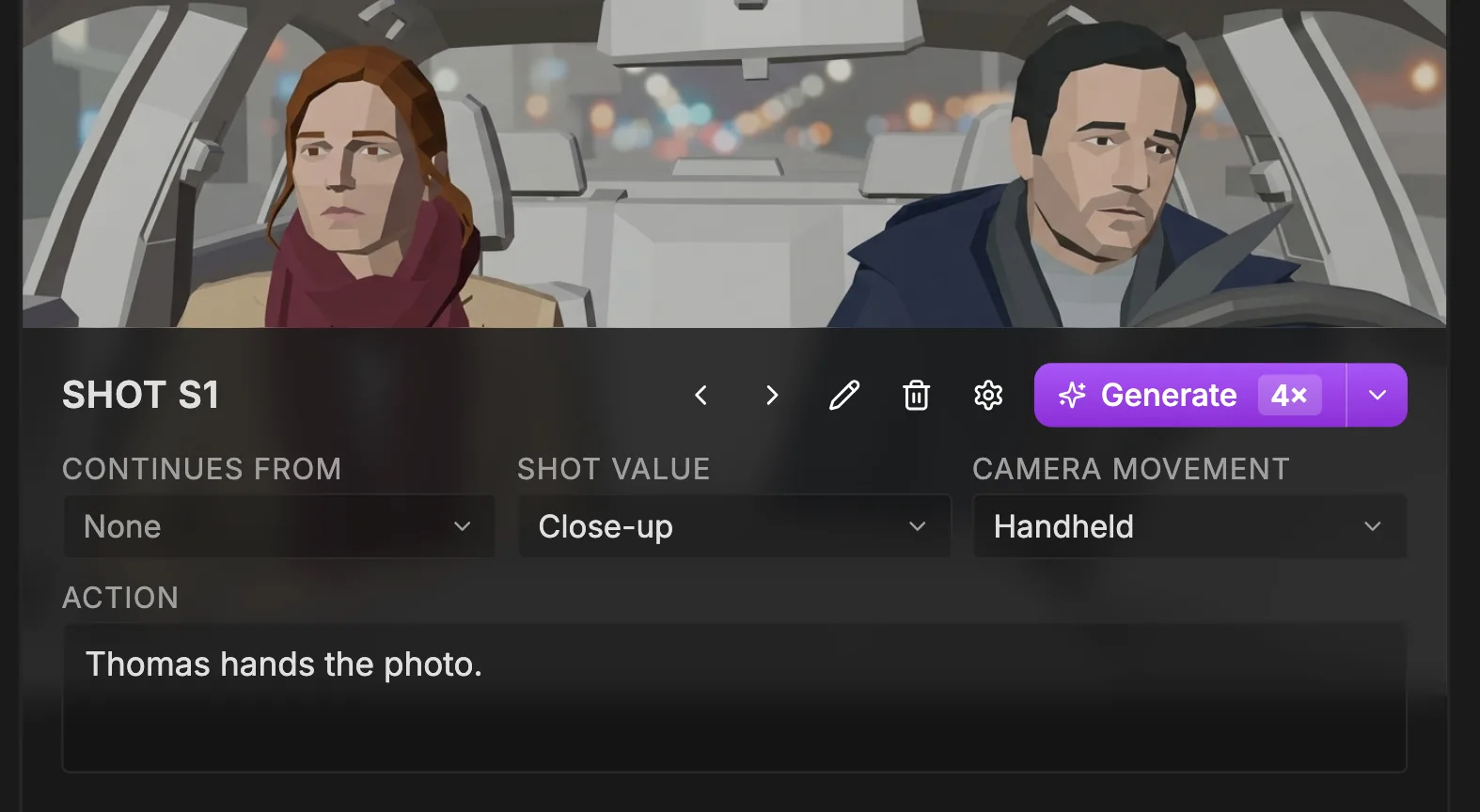
Click a shot in the sequencer. The shot composer, in the centre of the Storyboard tab, shows its panel and its title, "Shot {label}", with four fields below: "Continues from", "Shot value", "Camera movement" and "Action". Every shot has the same fields, so once you know one, you know them all.
Swipe sideways to see the whole screen.
- 1Storyboard panel. The current image of the shot. It is what the sequencer plays and what appears as the Storyboard panel of this shot on the production canvas.
- 2Shot label. "Shot {label}": S1, S2, or S1A for a shot that continues S1.
- 3Previous / Next image. "Previous" and "Next" browse the images generated earlier for this shot. Regenerating does not lose them, so you can step back to a better version.
- 4Edit with AI. "Edit with AI" opens the "Edit image" window: paint over part of the panel and describe the change, crop it, or change the camera angle. Faster and more faithful than regenerating when only a detail is wrong.
- 5Delete image. "Delete image" removes the current image from the shot.
- 6Advanced generation settings. "Advanced generation settings" opens the shot as a node canvas, for when the one-click panel needs more control.
- 7Generate. "Generate storyboard panel" draws the shot from its value, movement, action and the entity sheets; once an image exists it becomes "Regenerate", and "Stop" cancels a run. The credit cost is in the tooltip.
- 8Continues from. Links the shot to a previous one ("None" by default) to make a continuation such as S1A. A continuation inherits Shot value and Camera movement ("Inherited from {head}. Edit the head shot to change this.").
- 9Shot value. The framing: Extreme close-up (ECU), Close-up (CU), Medium close-up (MCU), Medium (MS), Medium long (MLS), Long / Wide (LS), Extreme long / Establishing (ELS), Over-the-shoulder (OTS), POV or Insert. Hover an option to preview it.
- 10Camera movement. The move: Static, Pan left, Pan right, Tilt up, Tilt down, Dolly in, Dolly out, Truck left, Truck right, Pedestal up, Pedestal down, Crane, Handheld, Steadicam, Whip pan, Zoom in or Zoom out. It stays with the shot and shows on its Shot node in Production.
- 11Action. What happens in the shot (placeholder "Describe the action of the shot. Reference entity sheets with @..."). Type @ to cite a character, place or object so the panel uses its reference sheet.
Continues from: keep continuity across a cut
"Continues from" is "None" by default. Pick the previous shot when the camera stays on the same moment across a cut. The continuation inherits Shot value and Camera movement from its head shot, and the composer tells you so: "Inherited from {head}. Edit the head shot to change this." Its label shows it too: S1A continues S1.
Shot value: how close the audience stands
Swipe sideways to see the whole screen.
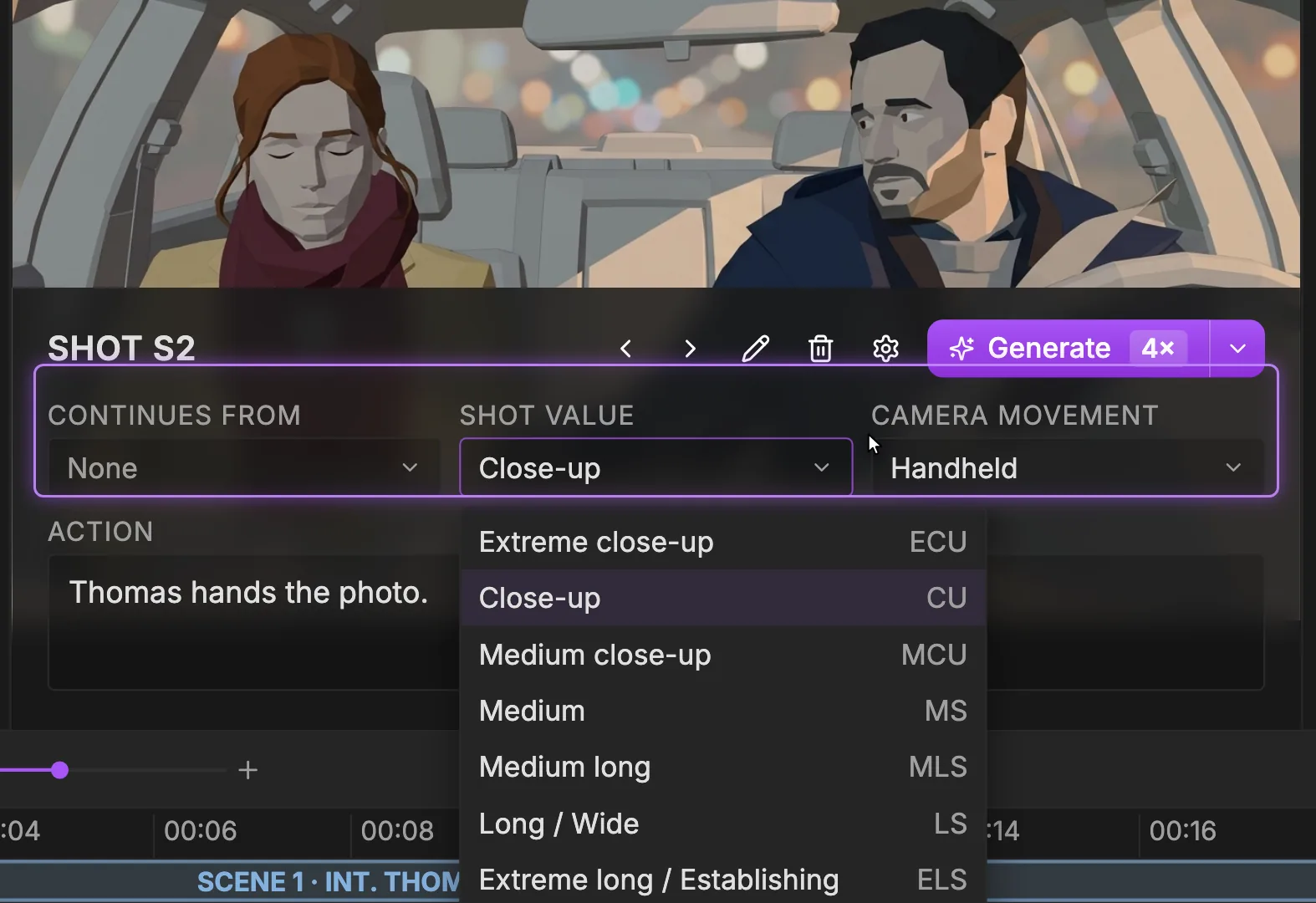
- 1Shot value. The current framing of the shot, here Close-up. Click to open the list. On a continuation shot the value is inherited from the head shot and changed there.
- 2Shot sizes. Extreme close-up, Close-up, Medium close-up, Medium, Medium long, Long / Wide, Extreme long / Establishing, then Over-the-shoulder, POV and Insert further down. Hover an option to see a preview image of that framing.
- 3Abbreviation. The standard abbreviations: ECU, CU, MCU, MS, MLS, LS, ELS, OTS, POV and Insert, the shorthand of shot lists and call sheets.
- 4Camera movement. The next menu: Static, Pan left, Pan right, Tilt up, Tilt down, Dolly in, Dolly out, Truck left, Truck right, Pedestal up, Pedestal down, Crane, Handheld, Steadicam, Whip pan, Zoom in, Zoom out.
The ten sizes are Extreme close-up (ECU), Close-up (CU), Medium close-up (MCU), Medium (MS), Medium long (MLS), Long / Wide (LS), Extreme long / Establishing (ELS), Over-the-shoulder (OTS), POV and Insert. Pick by what the shot has to do:
- Extreme long / Establishing: where we are, and how small the character is in that world.
- Long / Wide: the whole body and the space around it.
- Medium: a relationship. Two people, how they sit, how they turn to each other.
- Close-up: where emotion lives.
- Insert: a detail the audience needs, a hand, an object, a word on a page.
- Over-the-shoulder and POV: they put us inside the conversation.
Camera movement: every move needs a reason
The list has 17 moves: Static, Pan left, Pan right, Tilt up, Tilt down, Dolly in, Dolly out, Truck left, Truck right, Pedestal up, Pedestal down, Crane, Handheld, Steadicam, Whip pan, Zoom in and Zoom out.
- Static holds tension and lets the performance do the work.
- A pan or a tilt follows something, or reveals it.
- Dolly in moves closer to an emotion; dolly out leaves a character alone.
- A truck slides along with a character; a crane lifts us above the scene.
- Handheld adds urgency.
Action: write what is in the frame
The "Action" field is the instruction for the panel: "Describe the action of the shot. Reference entity sheets with @...". Write who does what, to whom, in this frame. Type @ and pick each visible character, place or object: its reference sheet goes into the generation.
@Thomas hands an old photo to @Émilie: "I found it at Mom's."
@Émilie looks at the photo. Tears well up, then a smile.
- Put the emotion in the action. There is no expression sheet; the face comes from the sheet, the feeling from your words.
- Write which hand holds the prop, or it will switch hands between shots.
- Mention the prop with @ when it carries the shot, like an insert on the photo.
- If a mentioned element has no sheet yet, generate its sheet first, or the panel cannot be drawn.
Generate and compare versions
- 1Click "Generate storyboard panel" ("Regenerate" once an image exists). Only this shot is redrawn; the rest of the board stays as it is. The tooltip shows the cost.
- 2Changed your mind mid-run? "Stop" cancels it.
- 3Use "Previous" and "Next" to step through earlier images and keep the best one.
- 4"Delete image" removes a bad version, "Edit with AI" repairs one (see fix and edit images).
- 5"Advanced generation settings" opens the shot as a node canvas, for full control over its generation.
Duration, order, insert, delete
Duration is not in the composer. In the sequencer, a block's width is its duration: drag its right edge. On the Production canvas the same value appears on the Shot node as "Duration … seconds" (4 seconds by default, from 0.5 to 60).
- Drag a block to reorder it within its scene.
- "Insert shot after {label}" slips a new shot in; "Add shot" (+) adds one; "Delete shot" removes it.
- Aim for three to five seconds per shot for AI video: long enough for an action to land, short enough to keep the performance clean.
Do it now
Practice in ScreenWeaver
- 1Open a shot, set its "Shot value" and "Camera movement", and write one reason for each choice.
- 2Rewrite its action with @ mentions for every visible character and prop, then regenerate it and compare with "Previous".
- 3Make the next shot continue from it and check what it inherits.
- 4Adjust durations to three to five seconds and play the scene as an animatic.
Watch the video lessons
Questions about this step
Where do I set a shot's duration?
In the sequencer: drag the right edge of the shot's block. The Shot node in the Production tab shows the same duration, 4 seconds by default.
Why can't I change the shot value of a shot?
It continues from another shot and inherits its Shot value and Camera movement. Edit the head shot, or set "Continues from" back to "None".
Does regenerating one shot change the others?
No. Generate redraws only the selected shot. Earlier images stay available with "Previous" and "Next".
How do I make sure a character looks the same in every shot?
Mention them with @ in the action of every shot where they are visible. The mention attaches their reference sheet to the generation.
How many camera movements should I use?
In a short film, two or three, each with a reason. Static is a valid, often best, choice.
More answers in the Academy FAQ and the button-by-button interface guide.