
To add a remote MCP server in Claude Code, run claude mcp add --transport http <name> <url>, then type /mcp and sign in through the browser. Cursor reads the same URL from .cursor/mcp.json. VS Code takes it through MCP: Add Server. When the server speaks OAuth, none of the three needs an API key.
This guide does all three with one real server, ScreenWeaver's (https://app.screenweaver.ai/api/mcp), and then puts it to work on a Fountain screenplay sitting in your repo. If MCP itself is new to you, start with what an MCP server is. The chat apps have their own guides: Claude and ChatGPT.
Disclosure: we build ScreenWeaver. The client steps work for any remote server that signs you in with OAuth; the ScreenWeaver parts are marked as such.
Why write a screenplay in a code editor at all
Fountain is plain text. A screenplay in Fountain lives happily in a Git repository, next to your notes and old drafts, and every change shows up in a diff. If you already spend your day in Cursor or VS Code, opening another app just to type a scene is friction you can skip.
The trouble starts after the draft. A .fountain file doesn't break itself into shots, and it has no idea which characters you already designed. The MCP server covers that part: the agent in your editor reads the file, sends it into a ScreenWeaver project, and builds the shots from your notes. You keep writing in text. The board, the character sheets and the generation stay in ScreenWeaver.
Here is the setup for each client at a glance.
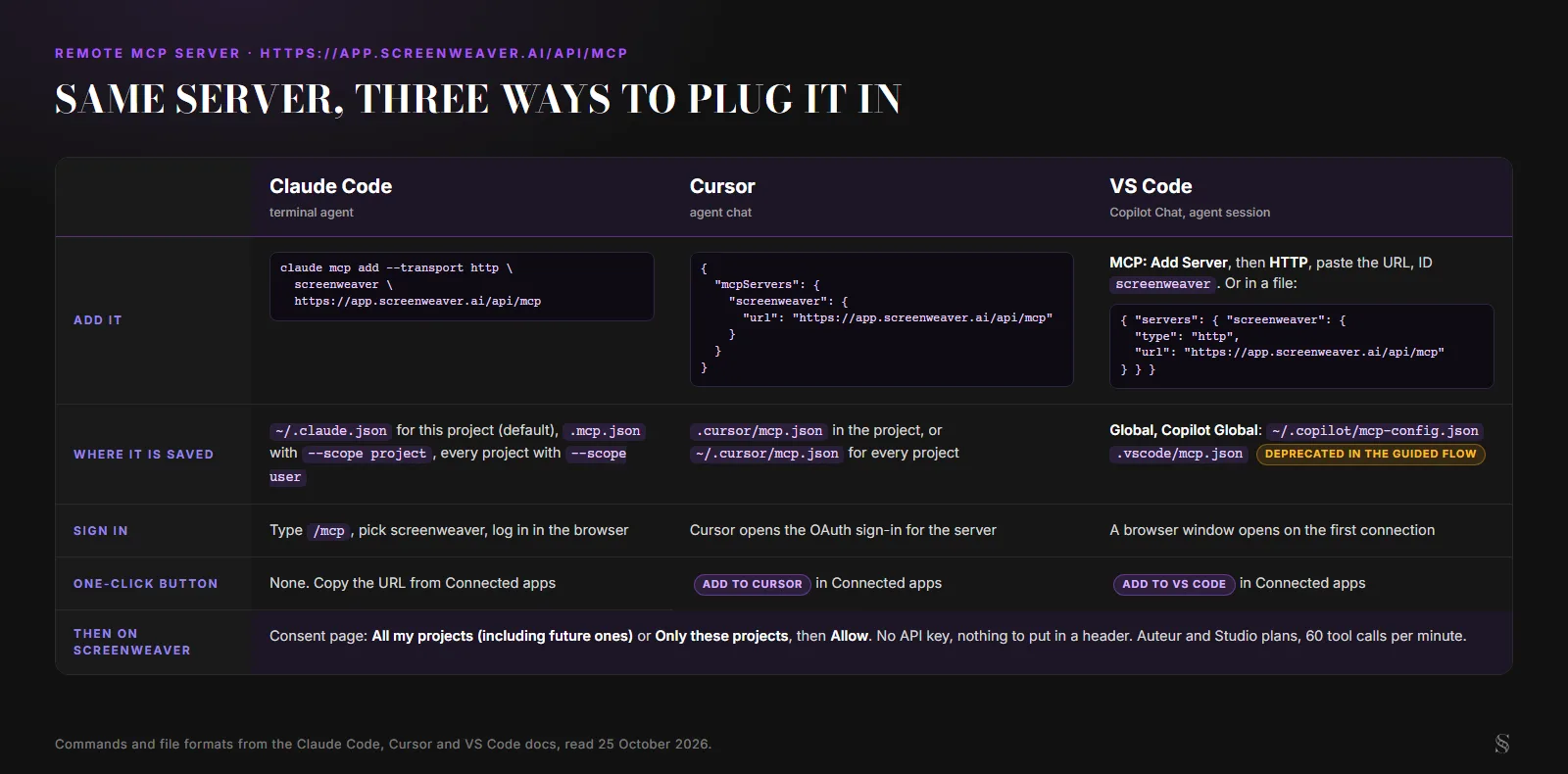
The three clients side by side. Commands and file formats from each vendor's docs, read 25 October 2026.
Before you start
- A ScreenWeaver account on the Auteur or Studio plan. The MCP server is reserved for those two.
- The server URL:
https://app.screenweaver.ai/api/mcp. It sits in your ScreenWeaver account, Connected apps tab, with a copy button. - For VS Code, GitHub Copilot set up, since the tools run in Copilot Chat.
- A browser on the same machine. All three clients open it for the sign-in.
There is no key to generate. ScreenWeaver is its own OAuth 2.1 server: the client registers itself, you log in on a ScreenWeaver page, and you choose which projects the agent may open. Pick Only these projects if the repo you work in has nothing to do with the rest of your slate.
Claude Code: add an MCP server with one command
Anthropic's reference page puts the remote HTTP option first and calls it the recommended transport:
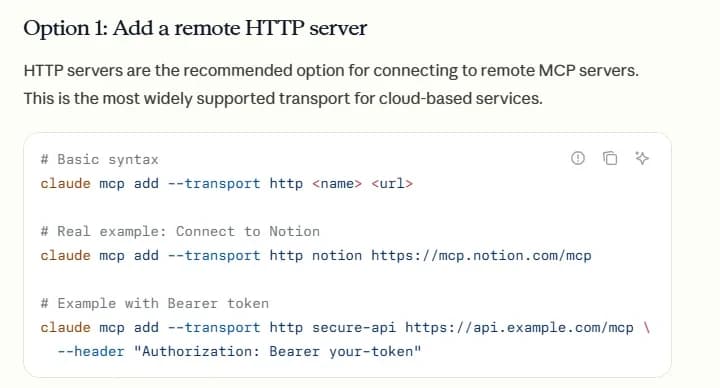
Claude Code docs, "Connect Claude Code to tools via MCP", captured 25 October 2026.
For ScreenWeaver, the command is:
claude mcp add --transport http screenweaver https://app.screenweaver.ai/api/mcp
Skip the --header line from the docs example. That's for servers that want a token pasted in; ScreenWeaver signs you in instead.
Pick a scope. Without a flag, the server is saved in the local scope: this project only, stored in ~/.claude.json, invisible to anyone else. Add --scope project and it goes into a .mcp.json file at the root of the repo, which you can commit so a co-writer gets the same setup when they clone. Each person still signs in with their own ScreenWeaver account. --scope user makes it available in every project on your machine.
Sign in. Start Claude Code, type /mcp, pick screenweaver and follow the browser. You land on the ScreenWeaver consent page, choose your projects, click Allow, and you're back in the terminal with the tools loaded.
Check and clean up. claude mcp list shows what is configured, claude mcp get screenweaver shows the details, claude mcp remove screenweaver deletes it. According to the docs, removing a remote server also deletes the OAuth tokens it stored. To keep the server but cut its access, use Clear authentication in the /mcp menu.
You won't have to babysit the token either. ScreenWeaver's access tokens last an hour, and Claude Code stores and refreshes them on its own. If a refresh ever fails, it shows a notice pointing you back to /mcp.
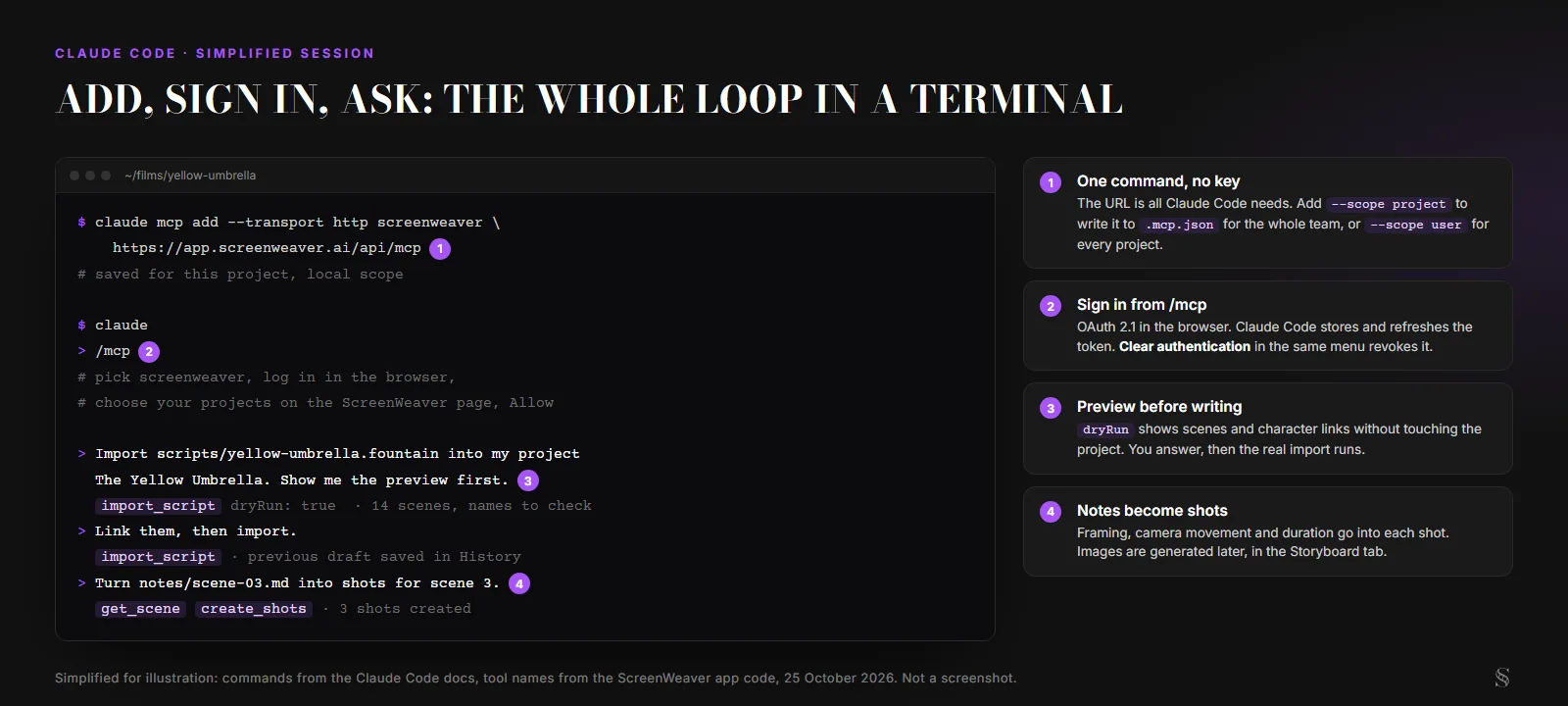
A simplified session, drawn for this guide. The commands are Claude Code's; the tool names come from the ScreenWeaver app code. Not a screenshot.
Cursor: the mcp.json entry or the Add to Cursor button
Cursor keeps its servers in a JSON file. .cursor/mcp.json in the project applies to that project only; ~/.cursor/mcp.json in your home folder applies everywhere. Its docs show the remote server shape, a url with optional headers:
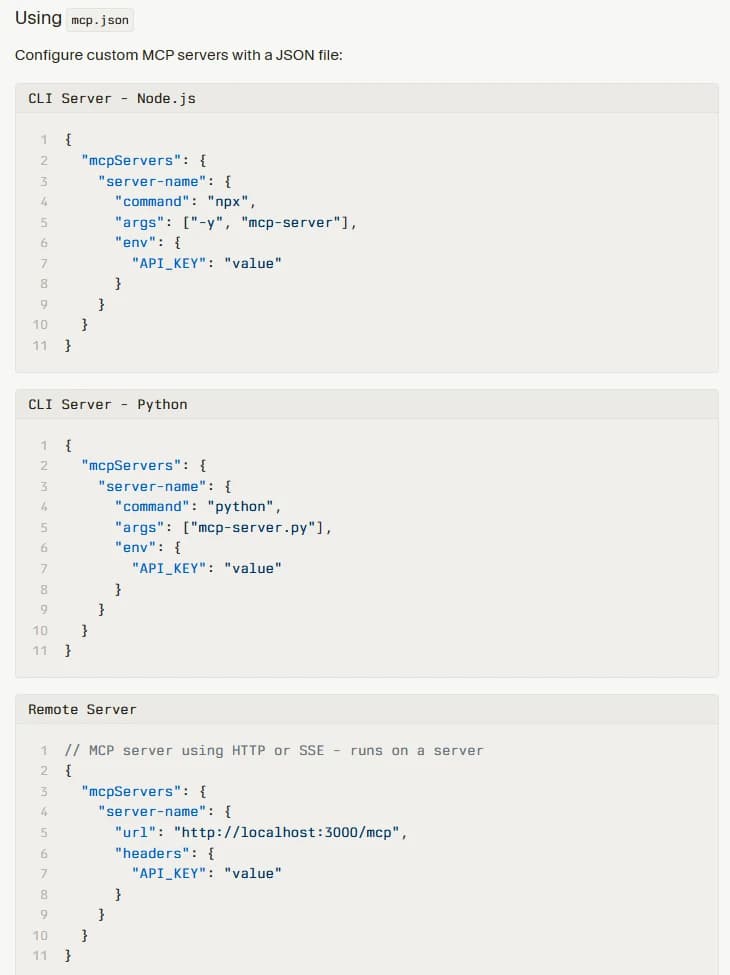
Cursor docs, "Model Context Protocol (MCP)", captured 25 October 2026.
The ScreenWeaver entry drops the headers:
{
  "mcpServers": {
    "screenweaver": { "url": "https://app.screenweaver.ai/api/mcp" }
  }
}
Save the file and open Cursor's Customize page, where your MCP servers are listed and switched on or off. Cursor supports OAuth, and by default it registers itself with the server, so there is nothing else to fill in. Sign in when it asks, pick your projects on the ScreenWeaver page, allow.
The faster route is the Add to Cursor button in ScreenWeaver's Connected apps tab. It opens Cursor with the entry already filled in; you confirm on Cursor's side, then sign in as above.
In the agent chat, Cursor uses MCP tools on its own when they fit the request, and you can also name one. By default it asks for approval before each MCP tool call. Leave that on for the first session, at least: you see which tool the agent picks for each request and what it sends.
Try it free
Try Screenweaver for free on your script
It is free. Import your existing project, get a clearer view of your outline, and regain control of your story structure in minutes.
Start FreeVS Code: MCP: Add Server and the Copilot Global option
This is where older tutorials will trip you up, ours included. Our VS Code page still tells you to create .vscode/mcp.json and click Start above the entry. VS Code's current docs walk you through a guided flow instead, and the file has been demoted:
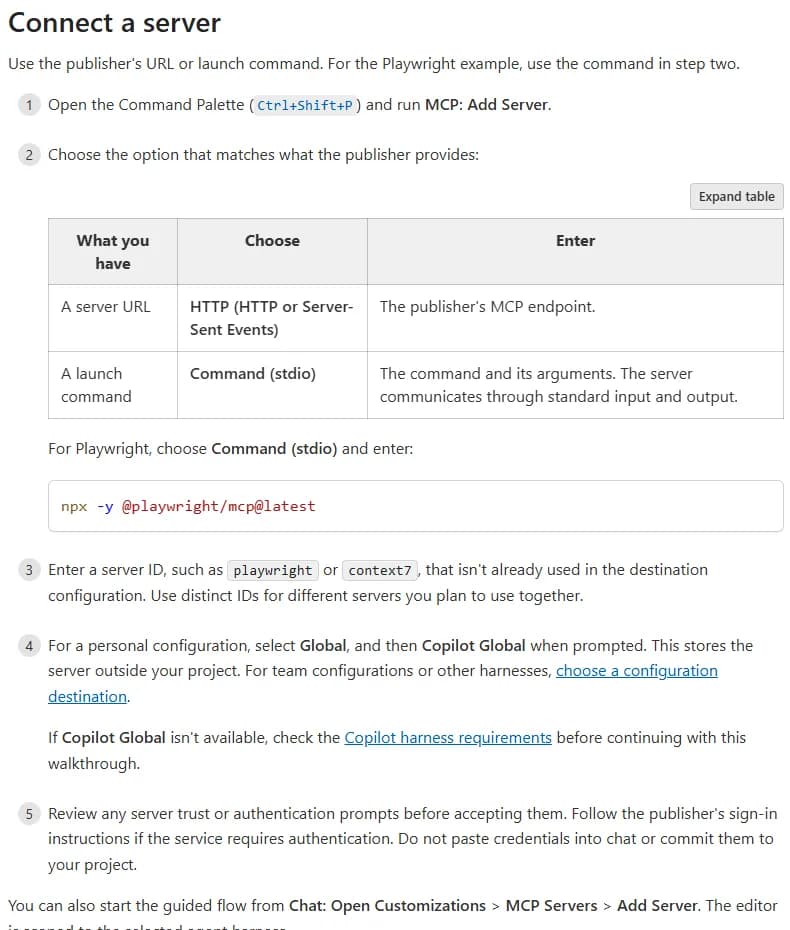
VS Code docs, "Add MCP servers in VS Code" (the page carries the date 21 October 2026), captured 25 October 2026.
The steps for ScreenWeaver:
- Open the Command Palette (
Ctrl+Shift+P, orShift+Cmd+Pon a Mac) and run MCP: Add Server. - Choose HTTP (HTTP or Server-Sent Events).
- Paste
https://app.screenweaver.ai/api/mcp. - Enter the server ID
screenweaver. - Choose Global, then Copilot Global. The server is saved in
~/.copilot/mcp-config.json, outside your project. - Accept the trust prompt, then sign in to ScreenWeaver in the browser window that opens.
- In a Copilot Chat agent session, ask something small that names the server, then expand the tool call to check it really came from screenweaver.
The old file still works. VS Code's configuration reference lists .vscode/mcp.json as a supported format, with a top-level servers object and "type": "http". The guided flow simply labels it deprecated and keeps it "for compatibility". If you share a workspace with a team, the reference also describes a workspace-root .mcp.json using mcpServers, which the guided flow only offers when an experimental setting is on. For a personal setup, Copilot Global is the path VS Code now pushes.
The Add to VS Code button in Connected apps still exists and prefills the entry. You confirm in VS Code and sign in as above.
Use case: a Fountain draft in your repo, imported and cut into shots
Once one of the three clients is connected, the ScreenWeaver part is the same everywhere. Here is the full loop on The Yellow Umbrella, the demo project from our MCP page.
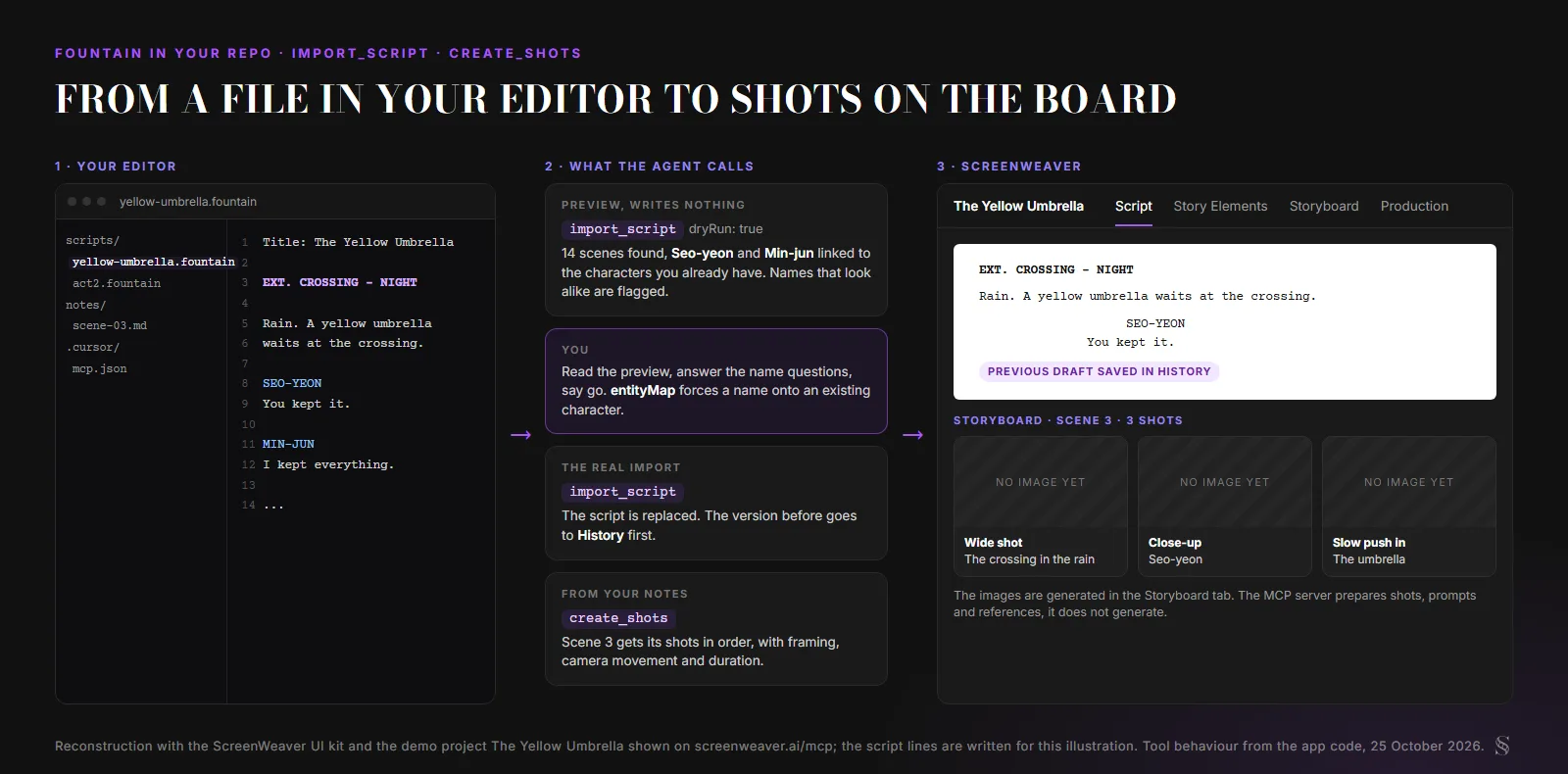
Reconstruction with the ScreenWeaver UI kit and the demo project The Yellow Umbrella; the script lines were written for this illustration. Tool behaviour from the app code, 25 October 2026.
1. Preview the import. Ask: "Import yellow-umbrella.fountain into my ScreenWeaver project The Yellow Umbrella. Show me the preview first and ask me about any character name that looks like one I already have." The agent calls import_script with dryRun: true. Nothing is written. You get the scenes it found, where they will go, and which names link to characters already in the project. Near misses get flagged, and entityMap lets you force a name in the file onto an existing character.
2. Import for real. Say go. The second import_script call writes the script. The version that was there before goes into History first, so a bad import is one restore away.
3. Turn notes into shots. Keep your shot notes in the repo too, say notes/scene-03.md, and ask: "Turn the notes in notes/scene-03.md into storyboard shots for scene 3, in order, with framing, camera movement and duration." The agent reads the scene with get_scene and calls create_shots. On the demo, that gives three shots: a wide on the crossing, a close-up on Seo-yeon, a slow push in on the umbrella.
4. Generate in the app. The MCP server doesn't make images or video. It prepares the shots, prompts and references. You open the Storyboard tab and generate the panels there, then move to Production for the clips.
Rewrote act 2 locally? "Replace scenes 12 to 18 in ScreenWeaver with act2.fountain, and ask me before deleting anything." Deleting shots also goes through a preview: delete_shots shows what it would remove and waits for your confirmation. For a script that only exists as a PDF, convert it first with our free PDF to Fountain tool, or let the agent read it with extract_file_text; the import guide covers what that costs.
When the tools don't show up
| Symptom | Likely cause | Fix |
|---|---|---|
| Claude Code lists screenweaver but no tools | Not signed in yet | Type /mcp, pick screenweaver, log in |
| The server only appears in one repo | Claude Code local scope, or Cursor project file | Re-add with --scope user, or move the entry to ~/.cursor/mcp.json |
| A co-writer cloned the repo and has nothing | Server added in local scope | Use --scope project and commit .mcp.json |
| VS Code shows no ScreenWeaver tools in chat | Server not started or not trusted | Run MCP: List Servers and start it, accept the trust prompt |
Every write fails with forbidden | No Auteur or Studio plan, or no credits for a paid step | Check your plan; only OCR and panel detection spend credits |
rate_limited errors in a long session | More than 60 tool calls in a minute | Wait a minute, or ask for fewer, larger batches |
| The agent can't see a project | It wasn't picked on the consent page | Revoke in Connected apps, reconnect, choose that project |
FAQ
Do I need an API key to add the ScreenWeaver MCP server?
No. The server signs you in with OAuth 2.1 in the browser. Claude Code, Cursor and VS Code each open the login page themselves, and you choose which projects the agent may open. Nothing goes in a header or a config secret.
Should I commit .mcp.json to my repo?
Yes for ScreenWeaver, because the file only holds the server URL. Each person who clones the repo still signs in with their own ScreenWeaver account and their own project choices. Never commit a config that holds a token or a key from another server.
Is .vscode/mcp.json still supported?
Yes. VS Code's configuration reference still documents it. In the current docs, dated 21 October 2026, the guided MCP: Add Server flow labels it deprecated and steers personal setups to Copilot Global (~/.copilot/mcp-config.json). An existing file keeps working.
Can Claude Code or Cursor generate my storyboard images through the MCP server?
No. The server reads and writes the script, characters, places, shots, prompts and references. Images and video are generated inside ScreenWeaver, in the Storyboard and Production tabs.
How do I disconnect an editor from ScreenWeaver?
From ScreenWeaver, open your account, Connected apps, and disconnect that app: access stops right away. On the client side, claude mcp remove screenweaver in Claude Code, or delete the entry from mcp.json in Cursor or VS Code.
Final Step
Build your next script with Screenweaver
Move from ideas to production-ready pages faster with timeline-native writing and AI-assisted story flow.
Try Screenweaver