
The short answer: ScreenWeaver's Script tab is a free screenplay editor with industry formatting (US Letter, Courier Prime 12 pt, standard margins) and a built-in AI assistant. Write from a blank page, or attach a PDF or Final Draft (.fdx) file and ask the assistant to import it: it rebuilds the script and its structure, and creates your characters and places. The Storyboard and Production tabs then read that same script to board and shoot the film.
Most screenwriting software stops at the page. You finish the draft, export a PDF, and start again from zero in a storyboard tool, then again in a video tool. In ScreenWeaver the script is not the end of the job. It is the source file of the film: the shot breakdown, the character sheets and the video prompts are all built from what you write here.
That is why the Script tab sits on the Screenwriter plan, which is free forever: the script editor, the outline, moodboards, import and unlimited projects. If you are comparing free screenwriting software, this guide shows exactly what you get.
We use our demo project, The Photo, all the way through: one scene in a car at night, in the rain, where Thomas hands his sister Émilie an old photo he found at their mother's house. Every screenshot below is the ScreenWeaver interface with that project open.
The Script tab: step one of three
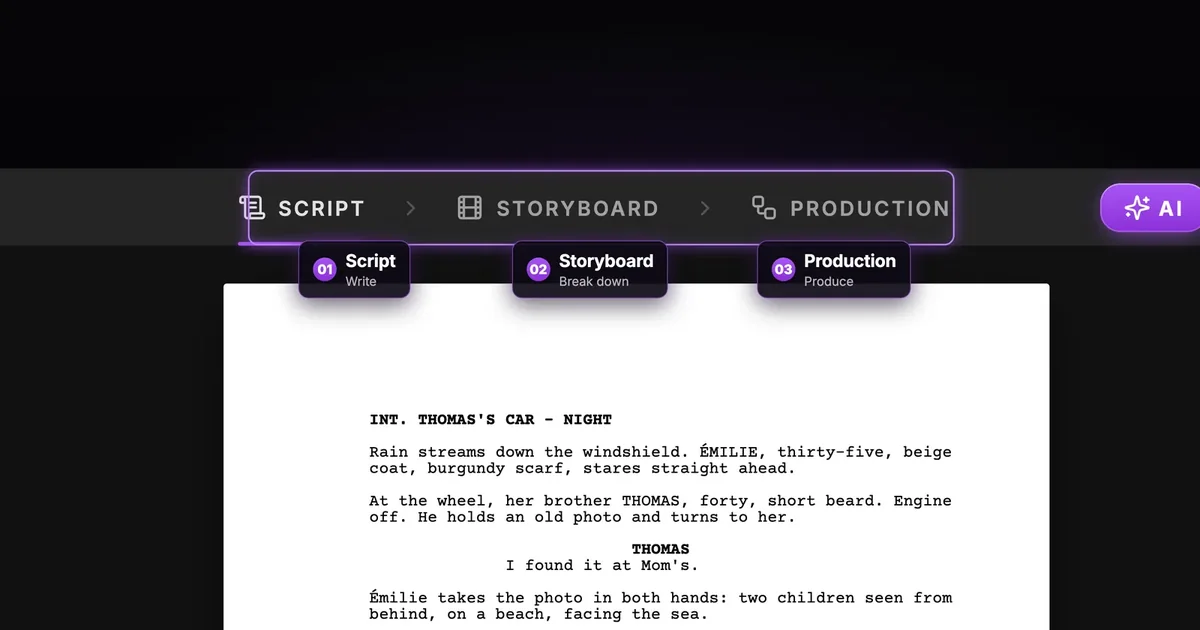
Every project has three numbered tabs at the top: Script (Write), Storyboard (Break down) and Production (Produce). To their right, the AI button opens the AI Center, where the writing assistant lives.
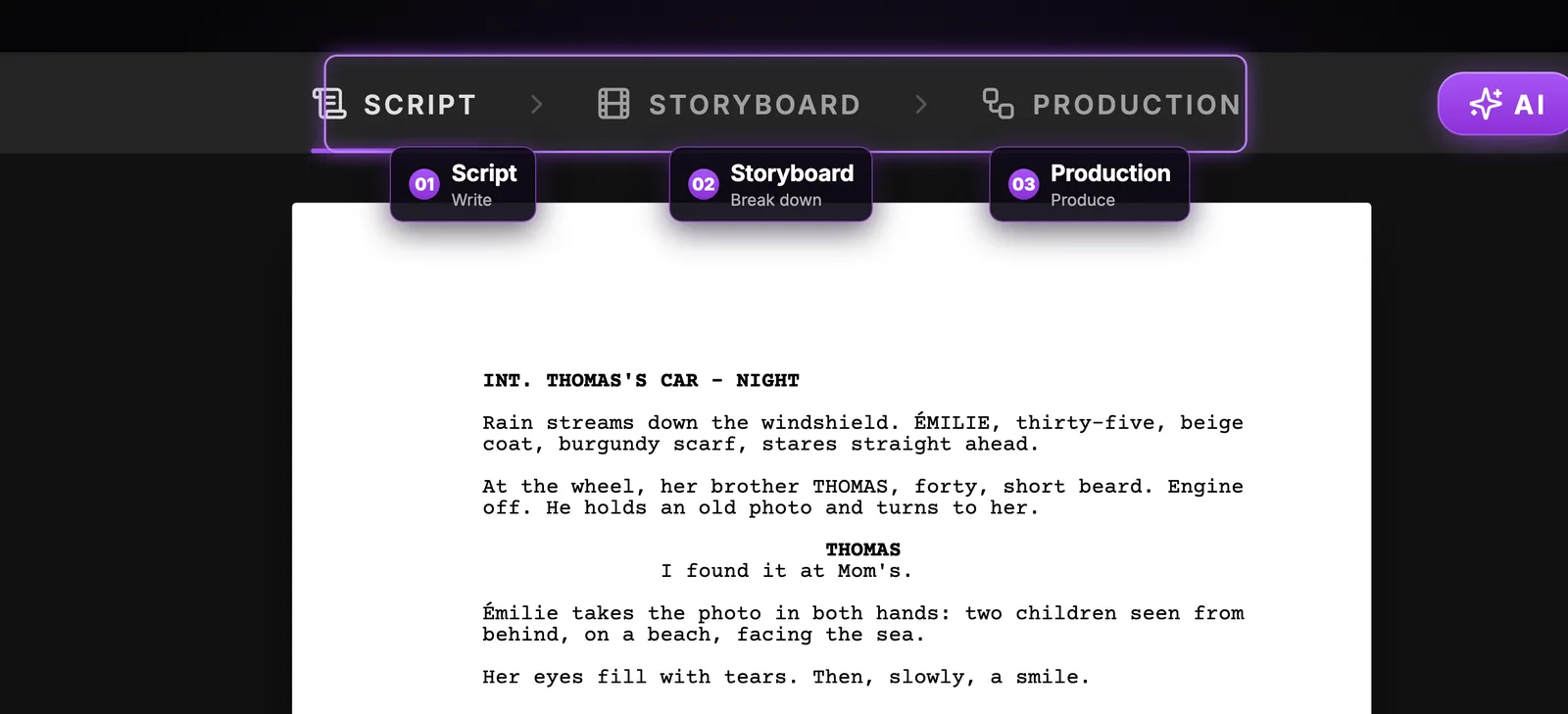
The order is the point. Each tab feeds the next automatically: the Storyboard tab reads your scenes to propose shots, and the Production tab is built from the storyboard. A scene that is vague on the page will be vague on screen. Time spent on the script is the cheapest time in the whole film.
Industry format, without thinking about it
The page is US Letter, set in Courier Prime 12 pt, with the margins that readers, contests and producers expect. You never set a margin by hand. Each element snaps to its place:
| Element | Position on the page |
|---|---|
| Action | 1.5 in from the left edge |
| Character | 4.2 in from the left edge |
| Parenthetical | 3.6 in from the left edge |
| Dialogue | 2.9 in from the left edge, ending 2.3 in from the right edge |
| Transition | 6.0 in from the left edge |
Because the layout is standard, the usual rule of thumb still holds: about one page per minute of screen time. To estimate the running time of a draft, use our script time calculator. For the reasoning behind each element, read the screenplay formatting guide, and to check a draft written elsewhere against the same rules, try the screenplay format checker.
Two keys do most of the work
Enter moves you to the next logical element, so most of the time you never choose one. Tab cycles through the seven script elements: Scene, Action, Character, Dialogue, Parenthetical, Transition, Shot. If you prefer the mouse, the floating toolbar at the bottom of the page does the same thing.
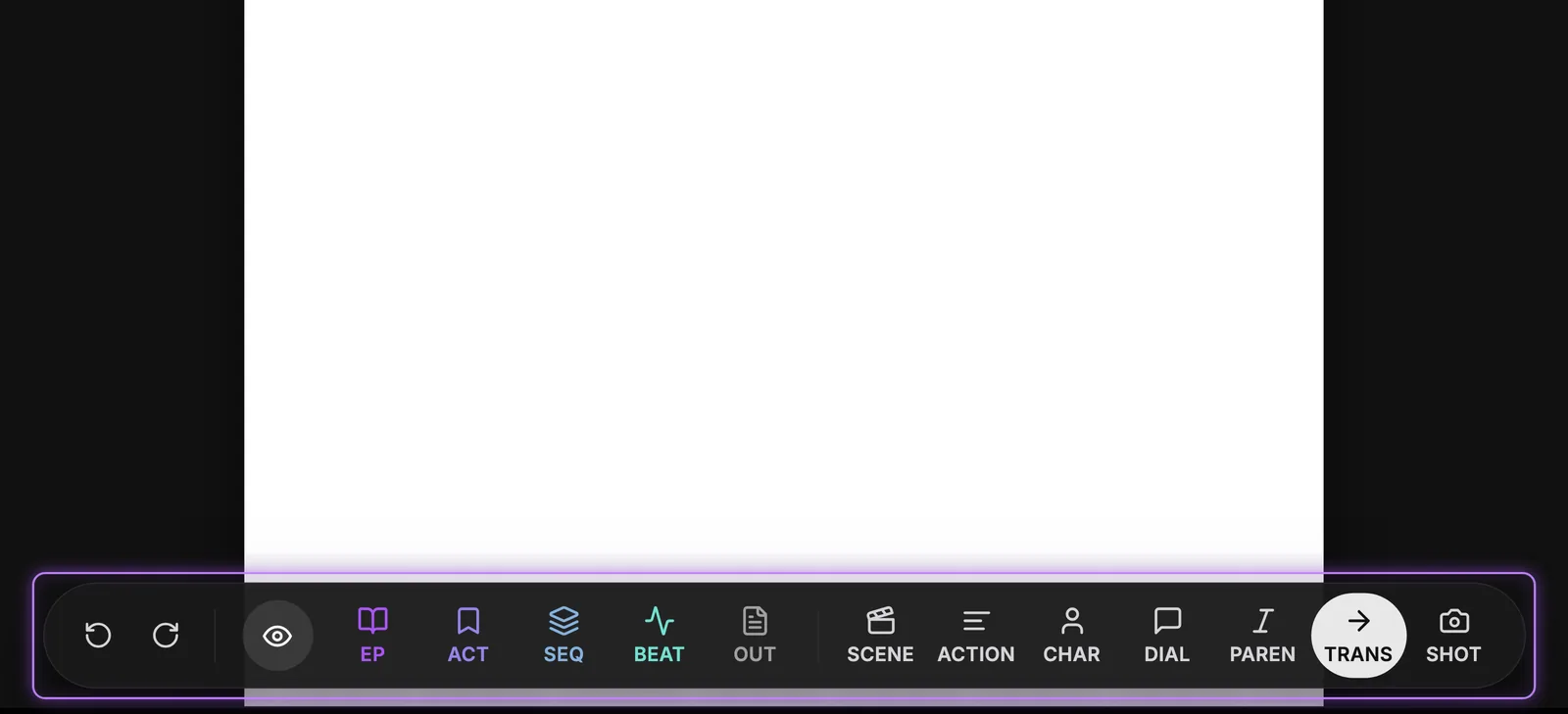
On the right of the toolbar are the seven elements; the current one is highlighted. On the left are undo and redo, then the outline types (EP, ACT, SEQ, BEAT, OUT), which add structure cards above the script. That is the next section.
Outline your story: acts, sequences, beats and labels
The left sidebar switches between views: Outline, Script, Story elements, Import / Export and Version history. In the outline, the structure of the story appears as cards above the page, each with a title and a one-line summary.
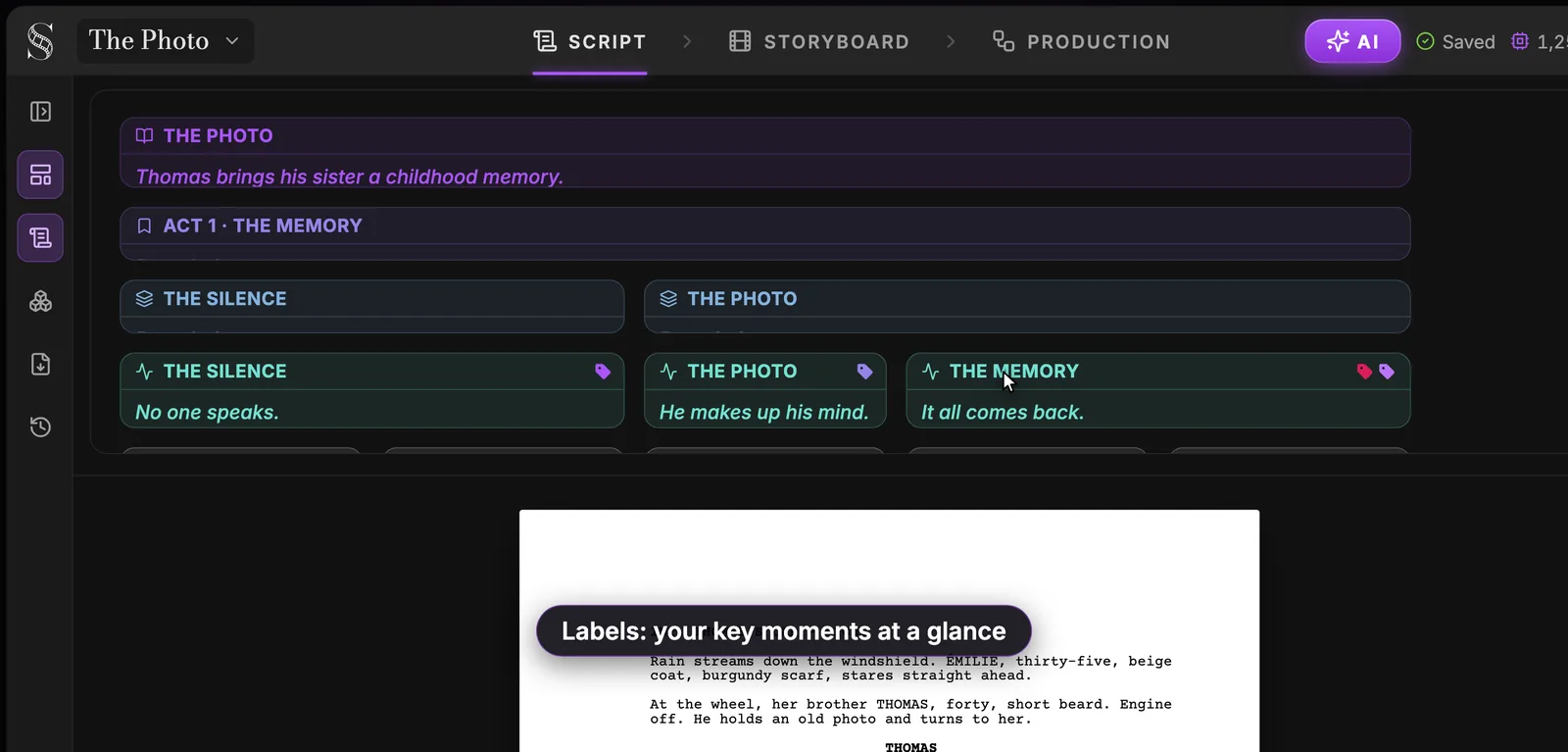
In the screenshot, the logline reads "Thomas brings his sister a childhood memory." Under ACT 1 THE MEMORY, the beats say what happens in a few words: "No one speaks.", "He makes up his mind.", "It all comes back." You can reorder scenes and beats by drag and drop.
What the toolbar offers depends on the project format, set in the project settings:
- Series / TV mode shows Episode, Act, Sequence, Story Beat and Outline.
- Feature film mode replaces Episode with a Title page button.
Labels mark the key moments. The defaults follow classic structure: Opening / Setup, Inciting Incident, Plot Point 1, Rising Action, Midpoint, Low Point, Plot Point 2, Climax, Resolution. To know on which page each beat should land for your length, our beat sheet calculator gives you the page targets.
Import a PDF or Final Draft script with the AI assistant
Already have a draft? You do not need to retype it.
- Click AI in the header to open the AI Center.
- Attach your file with the paperclip in the chat field. The assistant reads PDF screenplays, Final Draft (.fdx), WriterDuet JSON and plain text.
- Ask it to import: "Import this script."
The assistant rebuilds the script in ScreenWeaver's format, rebuilds the structure, then creates characters from the character cues and places from the scene headings.
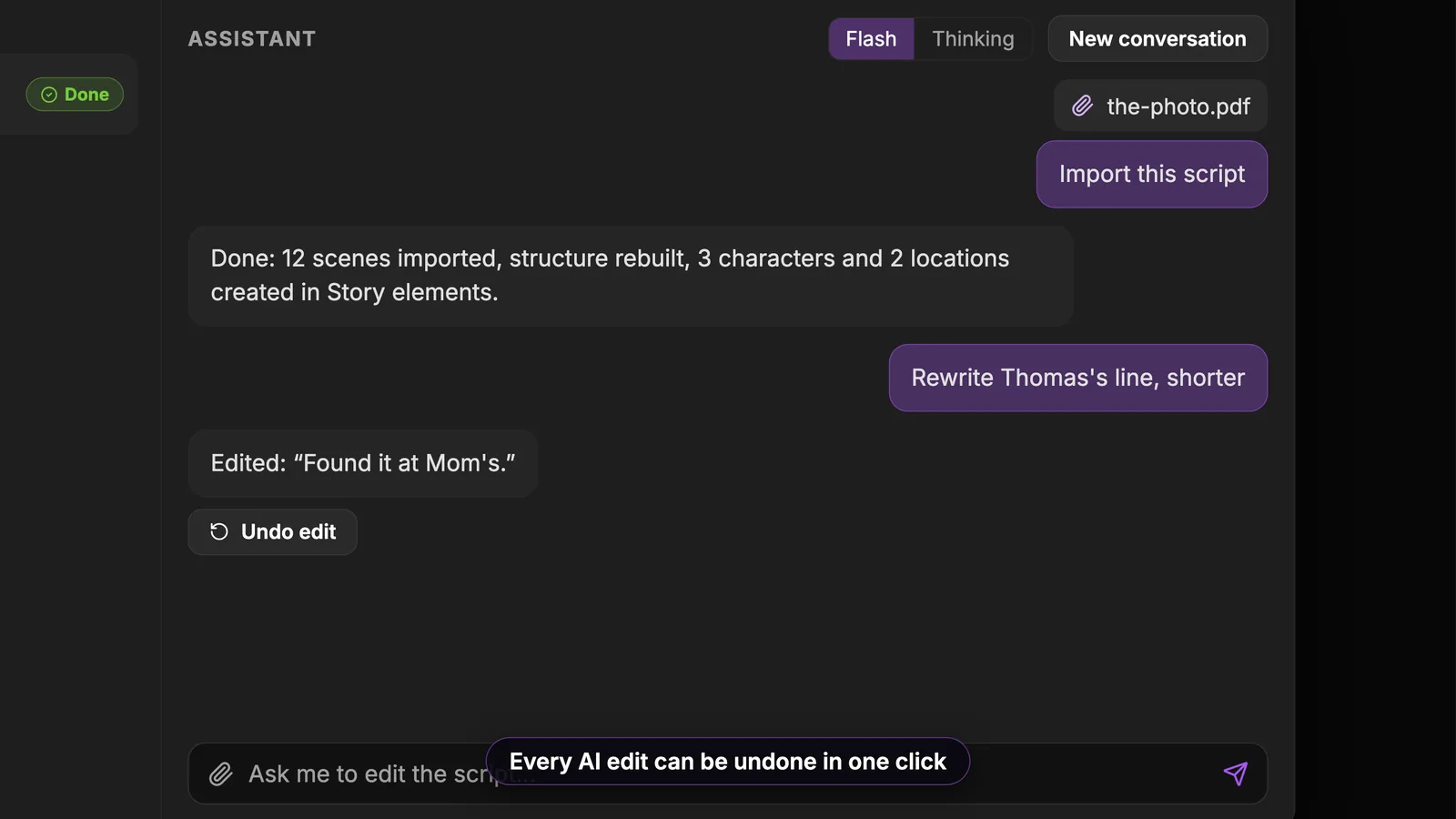
In this example, the reply says: "Done: 12 scenes imported, structure rebuilt, 3 characters and 2 locations created in Story elements." The same chat keeps going. Here the writer asks "Rewrite Thomas's line, shorter", and the assistant answers with the edit, "Found it at Mom's." Right under it, Undo edit cancels the change in one click. Every AI change can be undone that way.
The assistant can also proofread a scene, rewrite it, or tell you what it thinks of it. Choose Flash or Thinking mode at the top of the chat, and start a fresh thread with New conversation. For more on writing with AI, see our AI screenplay writer page.
Two practical tips after an import:
- Read the first pages. Check that the elements landed where they should, especially dialogue and transitions.
- Check your character list. Characters are created from the cues, so one person written two ways (MOM and MOTHER) can end up as two characters. Fix the cue in the script and keep one.
Need the file the other way, as Final Draft for someone who only has the PDF? Our PDF to FDX converter does that.
Characters and places, created as you go
Whether they come from an import or from your own typing, the entities of the story appear as small cards beside the page.
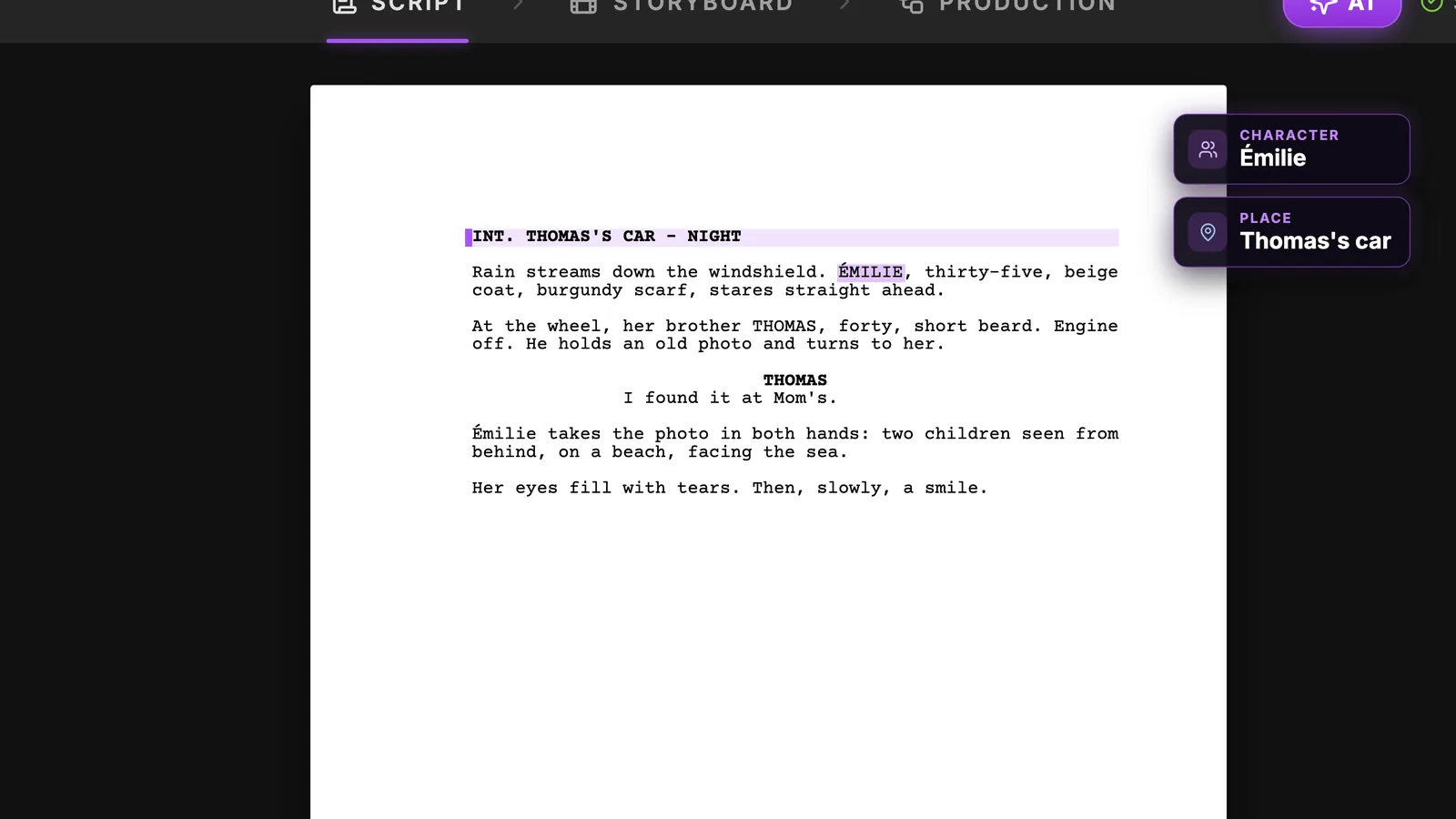
You can create them three ways in the script: on import (characters and places), with autocomplete while you type, or by right-clicking a name and choosing New character, New place or New object. Objects are always added by hand. In The Photo, the photo itself is an object: it appears in close-up, so it deserves its own entry.
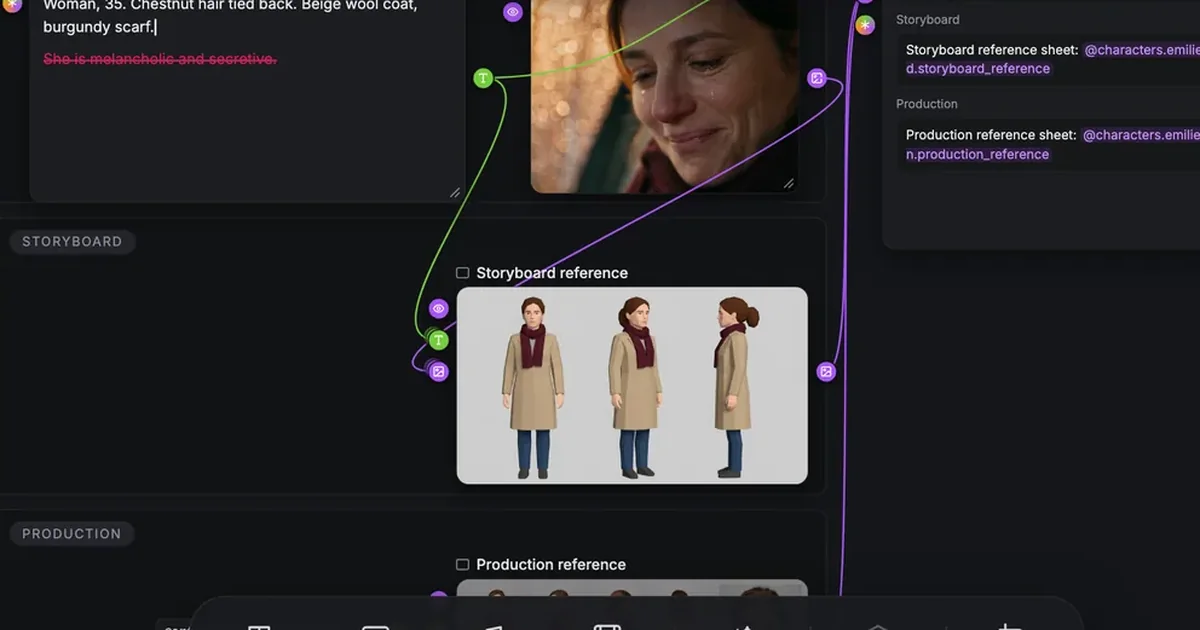
Each of these entities becomes a group in Story elements, with a moodboard, a storyboard reference sheet and a production reference sheet. How these sheets are built is explained in the guides linked at the end of this page.
Write together, in real time
A script is rarely written alone. Invite your co-writer, director or producer into the project and you see each other's cursors live, with their names, on the same page.
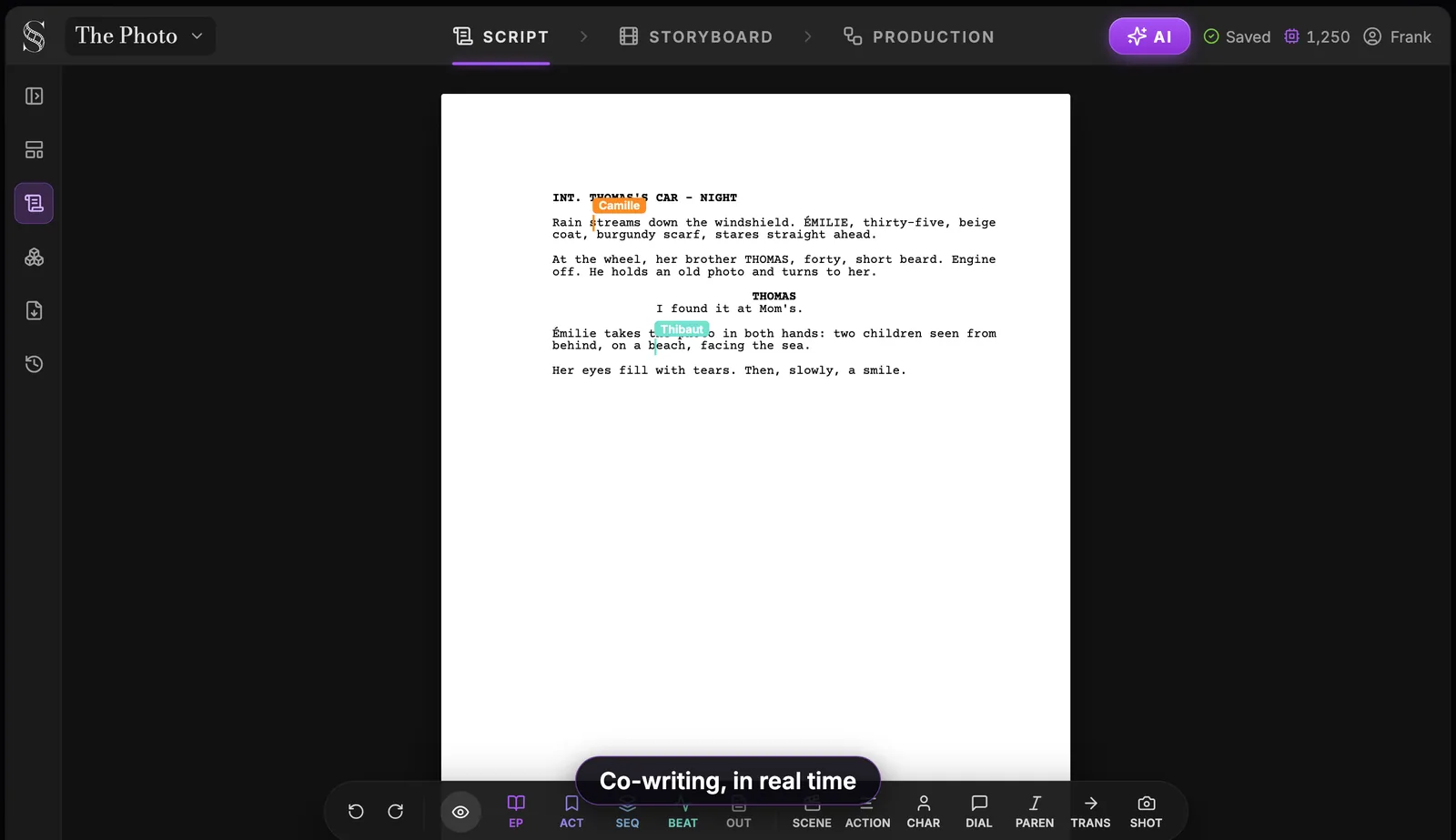
Each person gets a role:
- Owner: the person who owns the project.
- Editor: can write and change the script.
- Viewer: can read without changing anything, which suits a producer or a reader following the latest draft.
Real-time collaboration with unlimited seats is part of the Studio plan.
Try it free
Try Screenweaver for free on your script
It is free. Import your existing project, get a clearer view of your outline, and regain control of your story structure in minutes.
Start FreeExport to PDF, Final Draft, or a full backup
When a draft is ready to leave the building, open Import / Export in the sidebar. The Export tab offers three formats.
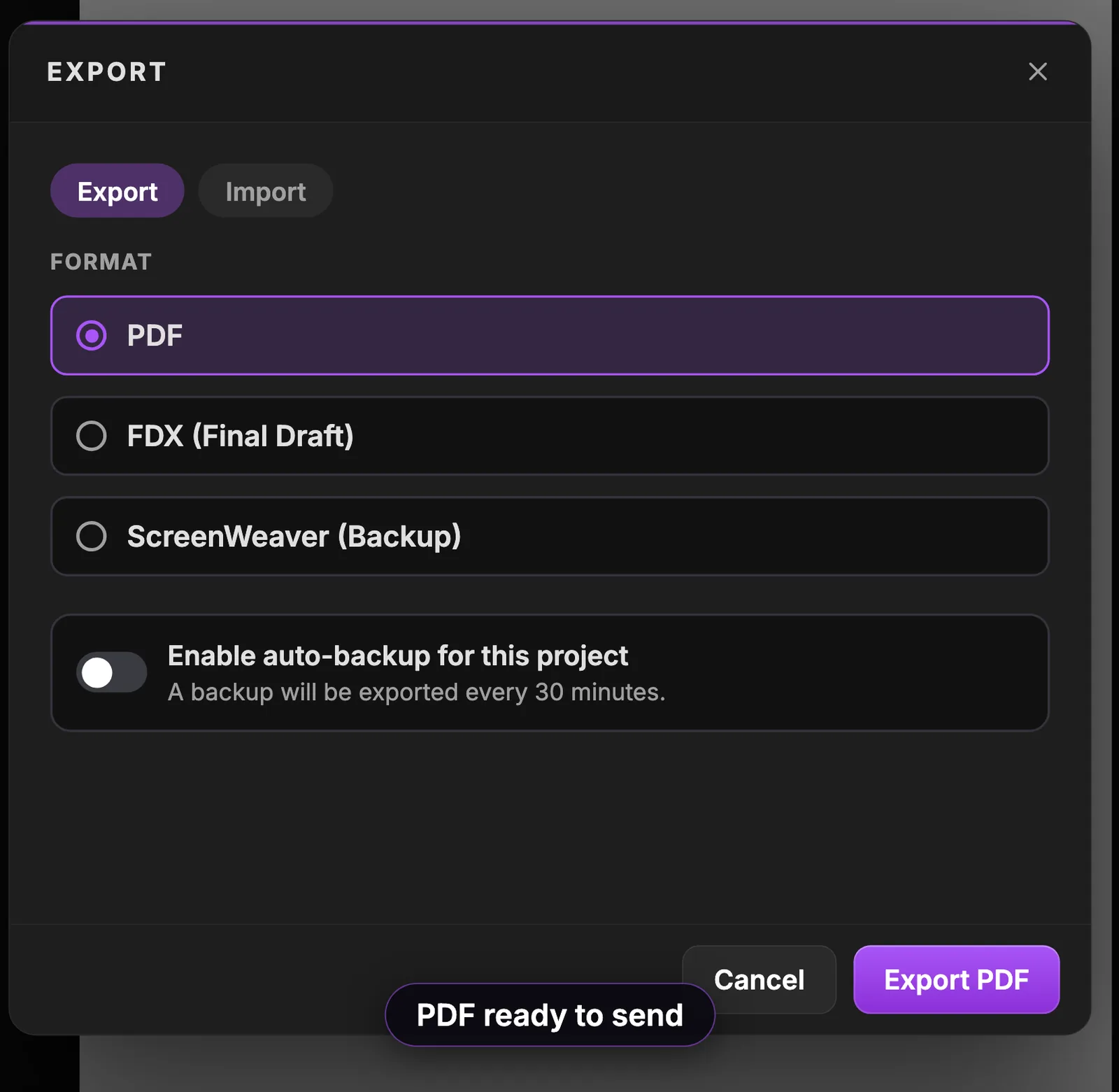
- PDF: the formatted script to send to a reader, a contest or a producer.
- FDX (Final Draft): for a collaborator or a production that works in Final Draft.
- ScreenWeaver (Backup): a JSON copy of your project, to keep on your own drive.
An Include outline option lets you add your outline to the export when you want the structure to travel with the script.
The backup format comes with a safety net you should switch on once and forget.
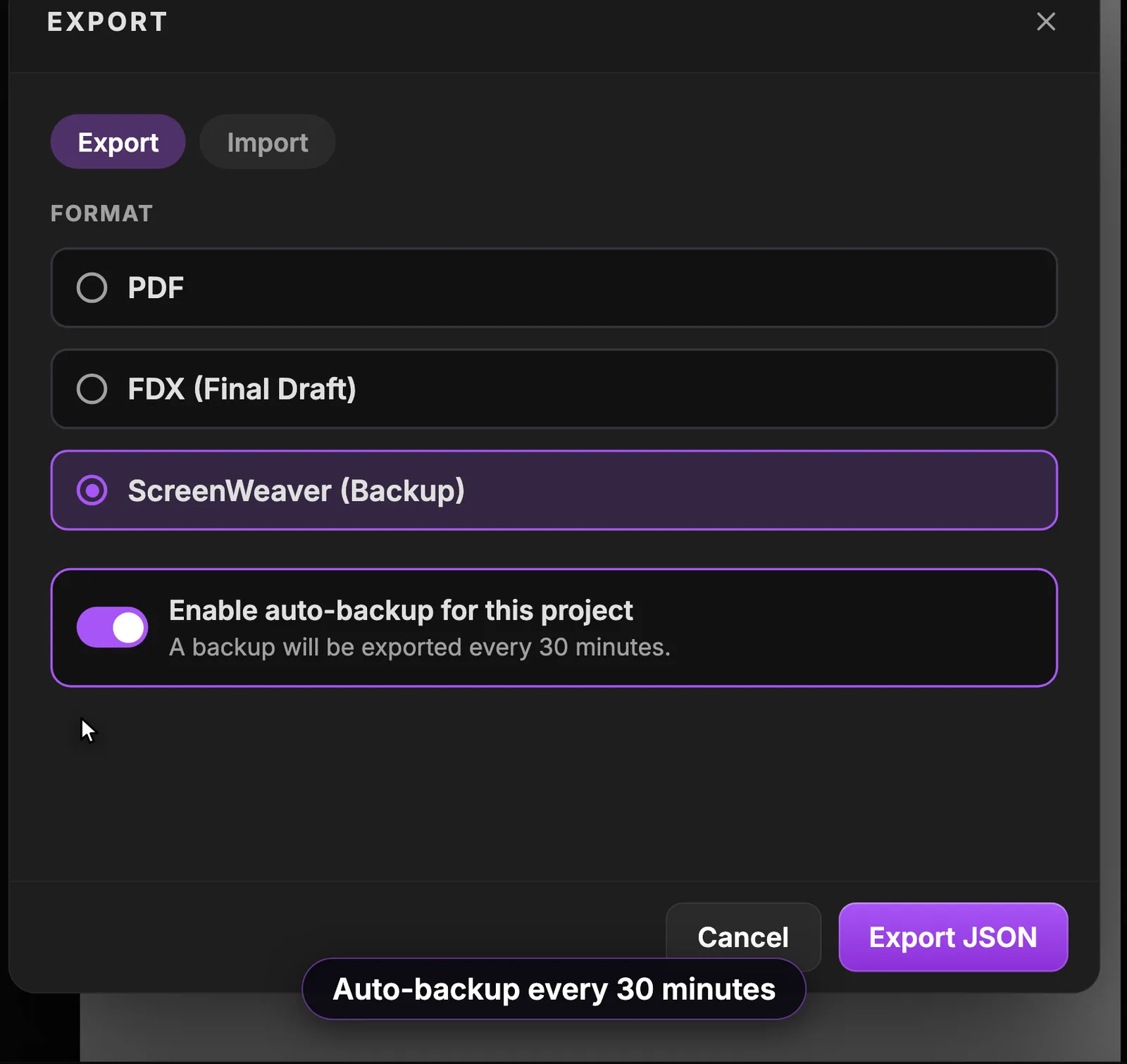
Turn on Enable auto-backup for this project and a backup is exported every 30 minutes, without you thinking about it.
Version history: go back to any draft
The last icon in the sidebar opens Version history. ScreenWeaver saves restore points on its own, and it always creates one at every import and at every AI change.
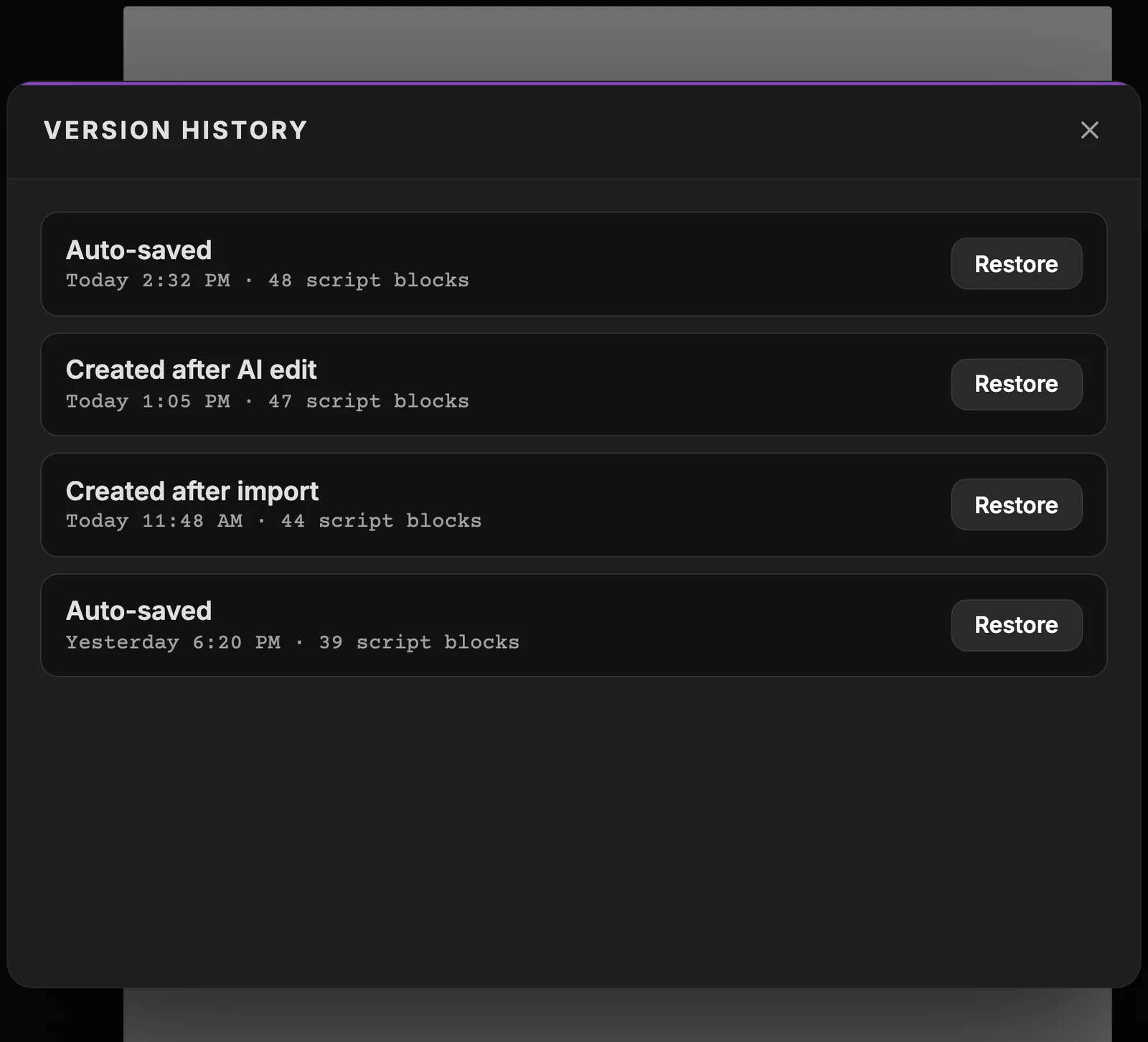
Each entry tells you why it exists (Auto-saved, Created after AI edit, Created after import), when, and how many script blocks the draft had. Click Restore to go back. Restoring touches the script only: your story elements, storyboard and production are left as they are.
This is what makes the assistant safe to use. Ask for a bold rewrite of a scene; if you do not like it, Undo edit or the restore point created after that AI edit brings the old version back.
What happens next: the script drives the rest
Once the scene reads right, the rest of the film starts from it. The AI Center you opened for the import is the same place where you ask for notes and, later, follow every generation of the project.
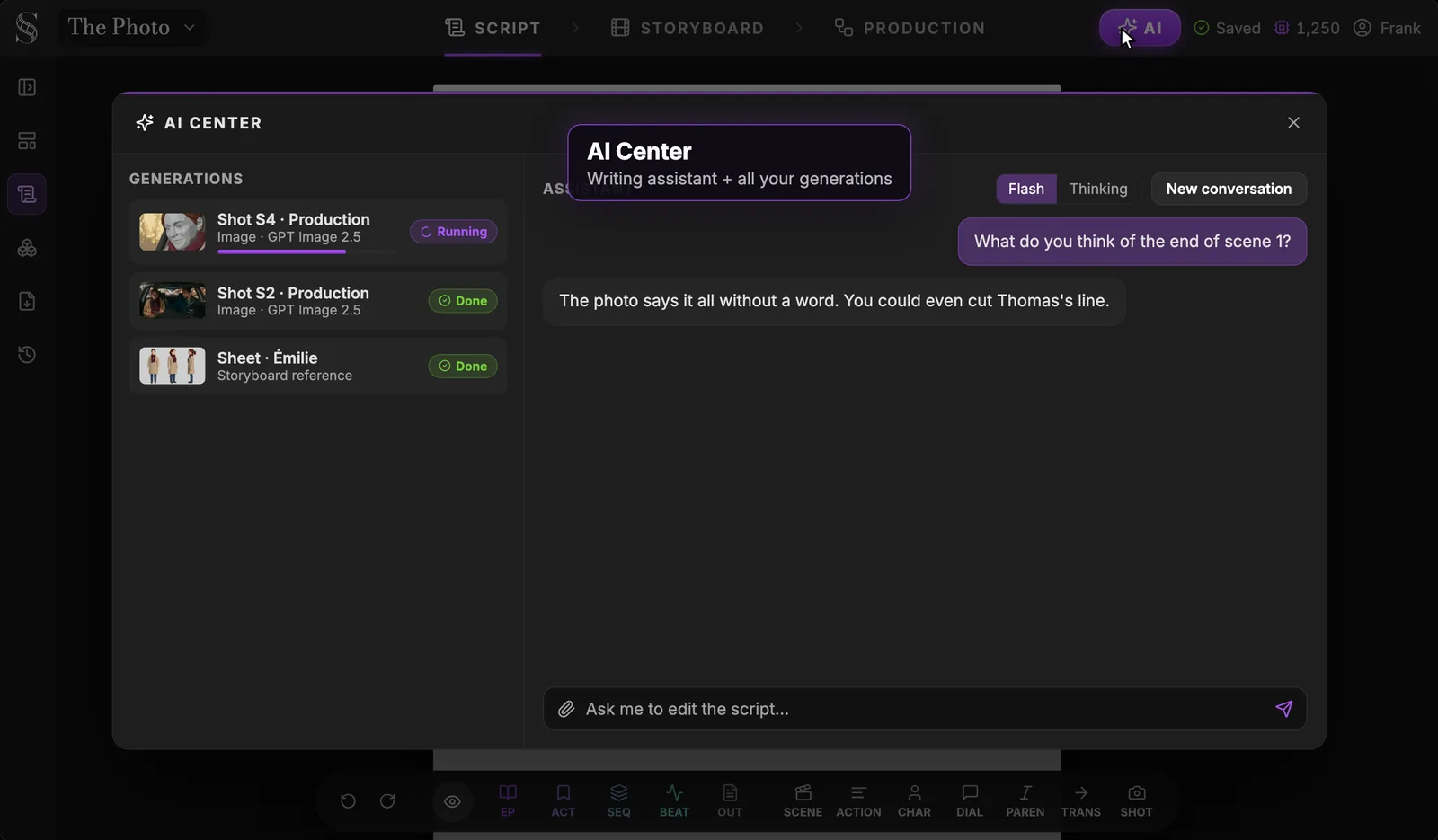
Here the writer asks "What do you think of the end of scene 1?" and the assistant answers: "The photo says it all without a word. You could even cut Thomas's line." Whether you cut it is your call. On the left, the Generations list already shows what comes after the script: Émilie's reference sheet and production images for two shots.
Here is how your script is read downstream:
- Story elements. Each character, place and object gets a group with a description and reference sheets. Write what a camera can film: "Émilie, thirty-five, beige coat, burgundy scarf" gives the model something to draw, "she is secretive" does not. The full method is in how to make an AI character sheet for film.
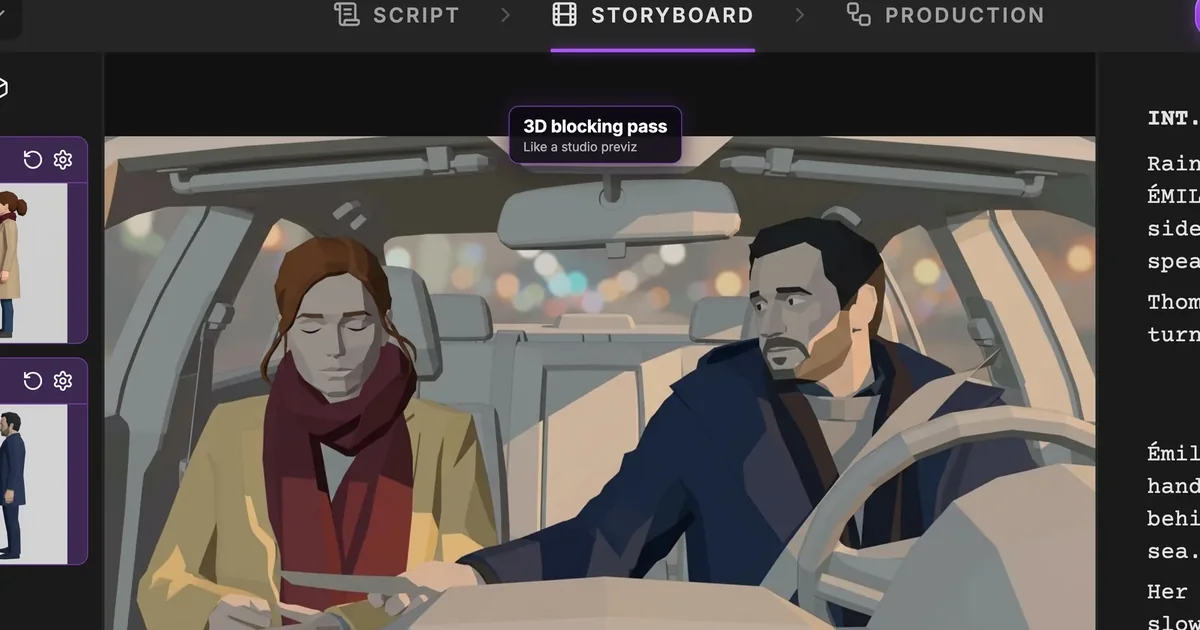
- Storyboard. The AI reads each scene and decides the number of shots, the shot value and the camera movement, then draws each panel as a 3D blocking pass. That step is covered in AI previz: a storyboard from your script.
- Production. The node canvas is built from the storyboard, nothing to wire.
For the whole path, from the first line to the finished shots, start with the ScreenWeaver guide.
FAQ
Is ScreenWeaver's screenplay editor really free?
Yes. The Screenwriter plan costs $0, forever, and includes the script editor, the outline, moodboards, import and unlimited projects. Storyboard and AI video production use credits on the paid plans. You can write a complete feature or series without paying.
How do I import a PDF screenplay?
Click AI in the header to open the AI Center, attach the PDF with the paperclip and ask "Import this script." The assistant rebuilds the script and its structure, then creates characters from the cues and places from the scene headings. Read the first pages afterwards to check the result.
Can I import and export Final Draft files?
Yes. Attach a .fdx file in the AI Center to import it, and choose FDX (Final Draft) in the Export dialog to send it back. ScreenWeaver also reads WriterDuet JSON and plain text, and exports PDF and a ScreenWeaver backup in JSON.
Does the AI write the script for me?
It assists; you stay the writer. The assistant can proofread, rewrite a scene on request and give you notes, and every AI change can be undone in one click. Version history also keeps a restore point after each AI change.
Can I co-write a screenplay online with someone?
Yes. Collaborators work on the same page in real time, with live cursors and three roles: Owner, Editor and Viewer. Real-time collaboration with unlimited seats comes with the Studio plan.
Does it handle TV series format?
Yes. In series / TV mode the outline offers Episode, Act, Sequence, Story Beat and Outline, so you can structure a season episode by episode. In feature film mode, a Title page button takes the place of Episode.
What font and margins does the editor use?
US Letter pages in Courier Prime 12 pt, with standard margins: action at 1.5 in, character at 4.2 in, parenthetical at 3.6 in, dialogue from 2.9 in to 2.3 in from the right edge, transitions at 6.0 in. Enter and Tab place each element for you.
Start writing
Open a project, write your first scene or drop in the draft you already have. The script editor is free, and everything you write here becomes the base of your storyboard: create your free ScreenWeaver account.
Final Step
Build your next script with Screenweaver
Move from ideas to production-ready pages faster with timeline-native writing and AI-assisted story flow.
Try Screenweaver