
The iPad promises something seductive: a script you can hold like a paper page, revise in a chair, and hand to someone like an artifact. The reality has friction. Not every “screenplay” app on the App Store respects pagination the way industry readers expect. Not every Bluetooth keyboard setup preserves the flow of a writers room. Not every export pipeline survives the jump from tablet to coordinator laptop.
If you are choosing an iPad screenplay workflow in 2026, you are choosing portability plus risk. The job is to keep risk contained while preserving professional output.
Here is why that matters: a pretty editor that breaks scene headings or warps dialogue under export is not a professional tool. It is a hobby with courier lipstick.
The iPad is not a toy form factor. Bad exports are.
Free tool: use the Slugline Formatter to clean up and standardize your scene headings.
What “Professional Formatting” Means on Tablet
Professional means predictable pagination, stable scene numbering behavior, correct screenplay element hierarchy, and export parity between devices. It also means your PDF does not surprise a reader who opens it on a different viewer.
| Expectation | Why Readers Care | iPad-Specific Watch-Out |
|---|---|---|
| Standard element widths | Reading speed and timing assumptions | Zoom-to-fit masks errors |
| Stable PDF output | Exec reads on phones and laptops | Tablet preview lies |
| Scene navigator integrity | Fast notes sessions | Reorder bugs |
| Dual dialogue handling | Comedy and argument scenes | Breaks on round-trip |
| Offline usability | Planes, sets, basements | Cloud-only anxiety |
Use this as a verification grid, not marketing claims.
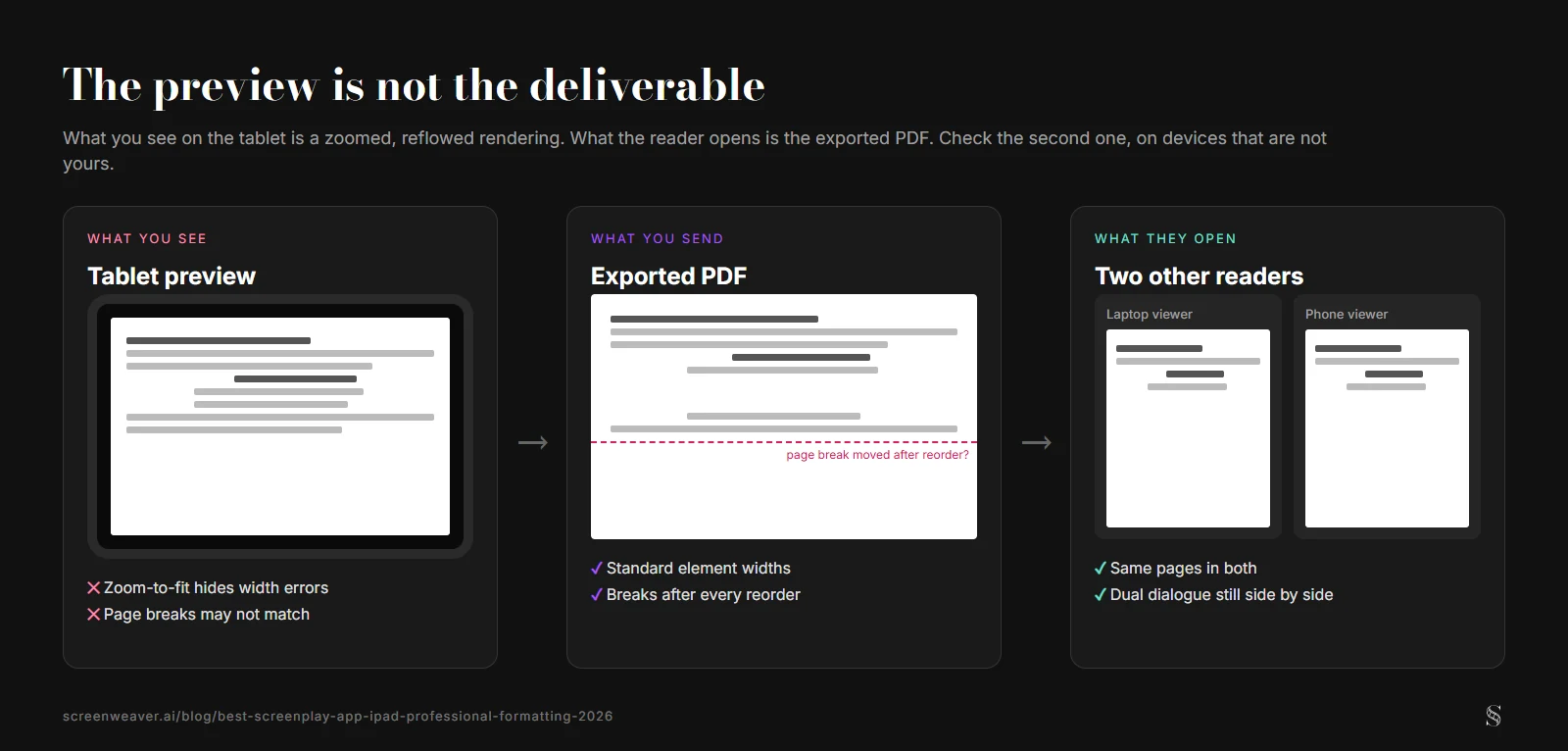
Check the file the reader opens, not the screen you write on.
Scenario One: Notes Meeting in a Coffee Shop
Ren carries an iPad and a folding keyboard. The producer marks beats verbally. Ren moves scenes on the fly and emails a PDF before dinner.
This only works if Ren’s app preserves pagination after reorganizing sequences. If not, Ren becomes the person apologizing for “weird formatting on your end.”
Scenario Two: Actor-Facing Rehearsal Edits
Lines change while a scene runs. Accessibility matters as much as formatting: large type, clean spacing, stable scene headers. The best iPad workflow is not the flashiest. It is the one that lets you adjust dialogue without breaking the reading experience for performers.
Scenario Three: Writer With Primary Desktop, Secondary iPad
Many professionals draft on Mac or PC and use iPad as satellite. The danger is two-device drift: desktop canonical, iPad stale - or worse, both “canonical.”
Fix with explicit sync rules: one home for truth, timed sync, and PDF parity checks after each cross-device session.
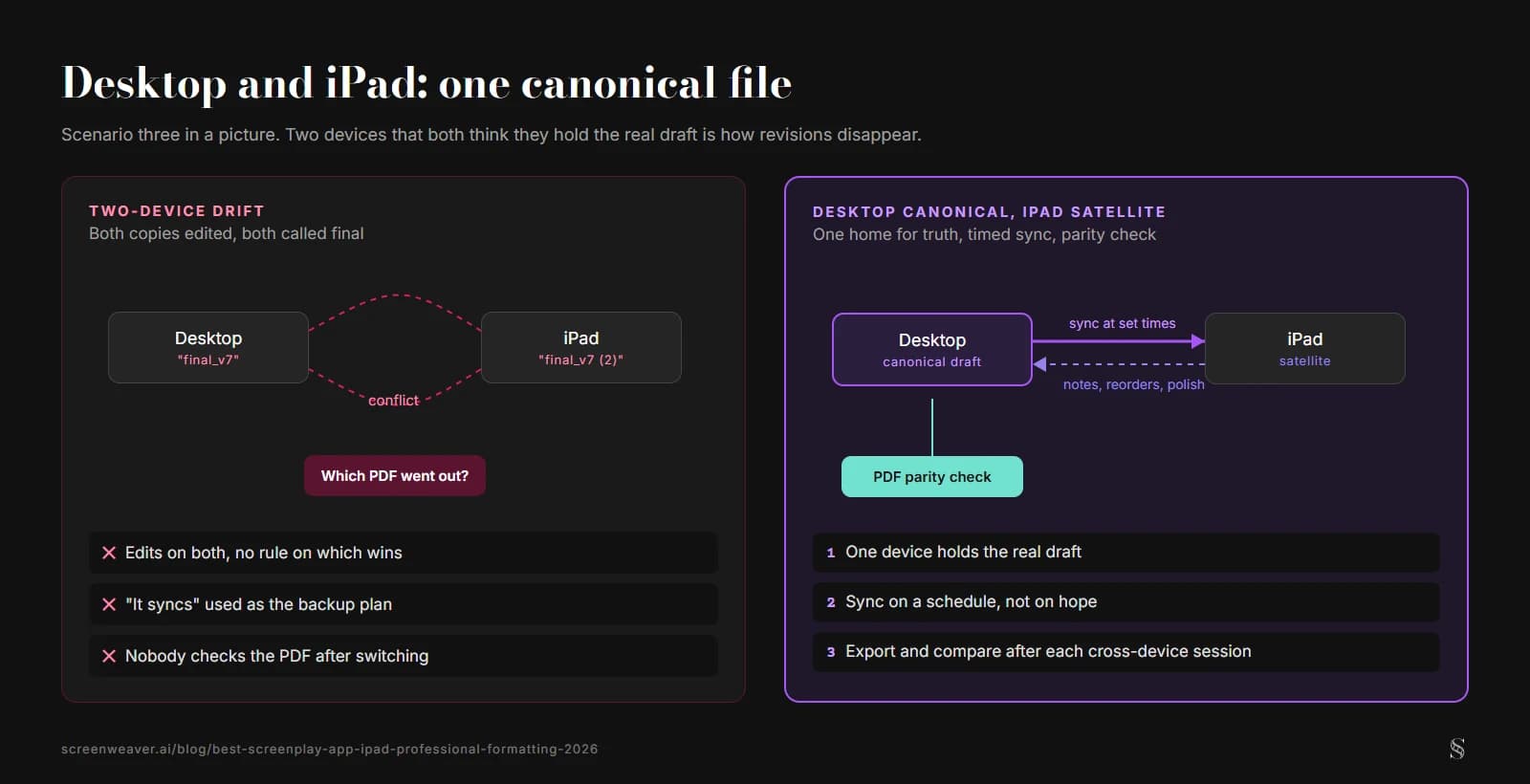
Drift on the left, the three sync rules on the right.
As discussed in our guide on formatting and screenwriting on mobile devices, small screens reward discipline, not improvisational element choices.
Step-by-Step: Validate an iPad Screenplay App Like a Coordinator Would
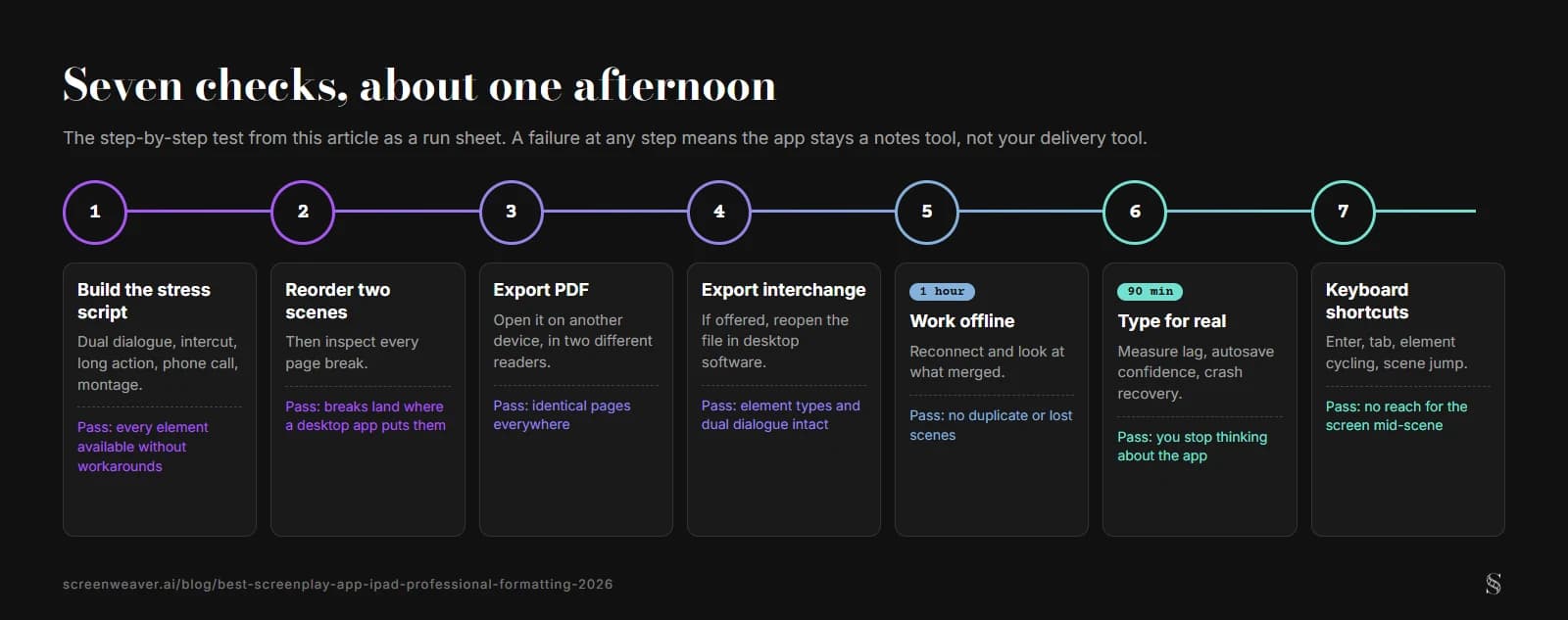
The seven steps below as a run sheet, with what counts as a pass.
Step 1 - Build a stress script mini: dual dialogue, intercut header, long action paragraph, phone call formatting if relevant, montage-ish brevity.
Step 2 - Reorder two scenes and inspect page breaks.
Step 3 - Export PDF. Open on another device in two different readers.
Step 4 - Export interchange format if offered. Reopen on desktop software.
Step 5 - Work offline for an hour, reconnect, confirm merge sanity.
Step 6 - Type for ninety minutes measuring lag, autosave confidence, and crash recovery.
Step 7 - Test external keyboard shortcuts: enter, tab, element cycling, scene jump.
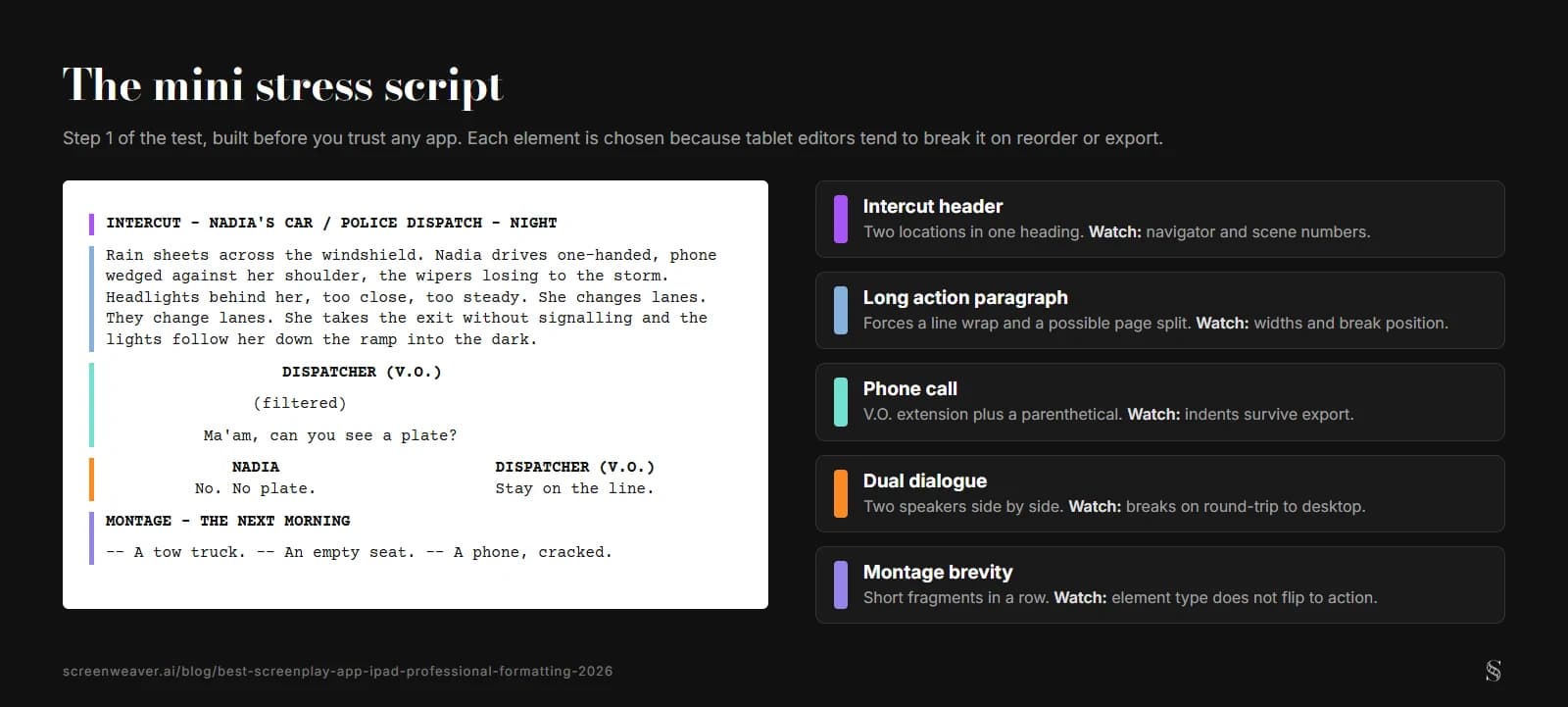
A mini stress script for step 1. Every element on it is one that tablet editors tend to mangle.
Hardware notes: keyboard case quality changes typing rhythm; pencil is optional; glare matters for outdoor reads; battery anxiety on set pushes you toward offline-first behavior.
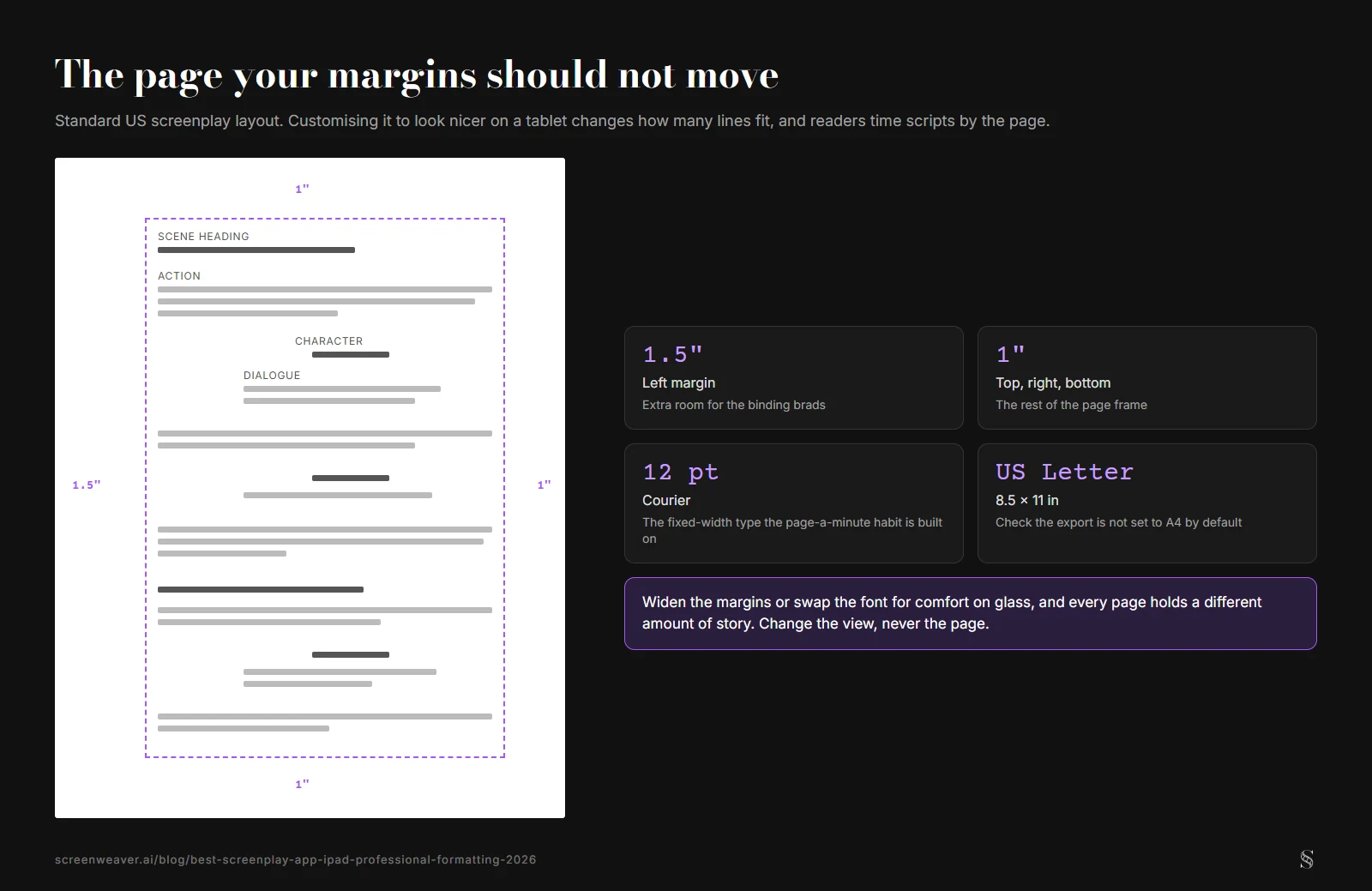
The standard page. Zoom the view on the tablet if you need to, but leave the margins and the font alone.
Try it free
Try Screenweaver for free on your script
It is free. Import your existing project, get a clearer view of your outline, and regain control of your story structure in minutes.
Start FreeTrench Warfare: iPad Screenwriting Failure Modes
Assuming preview equals export. It does not.
Trusting auto-format without element audits. You will bury mistakes.
Neglecting backup exports because “it syncs.” Sync is not truth.
Writing with on-screen keyboard for long sessions without noticing repetitive strain.
Ignoring bluetooth latency on certain keyboards.
Over-customizing margins to look “nice,” breaking standard expectation.
Letting scene numbering drift during rushed revisions before production reads.
If your iPad workflow cannot survive skepticism, do not stake your reputation on it.
For external fundamentals while you test apps, see <a href="https://www.oscars.org/nicholl/about/screenwriting-resources" rel="nofollow">Nicholl Fellowship screenwriting resources</a>.
Final Draft on iPad: Reality for Professionals
Many writers use Final Draft on desktop and want parity on iPad. Evaluate whether your specific needs - revision modes, production features, collaboration - match what the tablet build emphasizes. Sometimes parity is excellent. Sometimes tablet usage is best scoped to notes, reordering, and polish while heavy lifting stays desktop.
When a Web App Wrapped as “iPad App” Fails
Mobile Safari can work. It can also introduce odd focus behavior and fear-of-refresh. If your tool is web-first, test nerve-wracking scenarios: tab loss, reload, split view multitasking. iPad multitasking is where fragile apps reveal themselves.
Closing Perspective
The best iPad screenplay app is the one that preserves your professional credibility when you are not at your desk.
Pick for export truth and ergonomic stamina, not icon aesthetics.
Then carry the tablet like a serious instrument, because that is what it is.
Final Step
Build your next script with Screenweaver
Move from ideas to production-ready pages faster with timeline-native writing and AI-assisted story flow.
Try Screenweaver