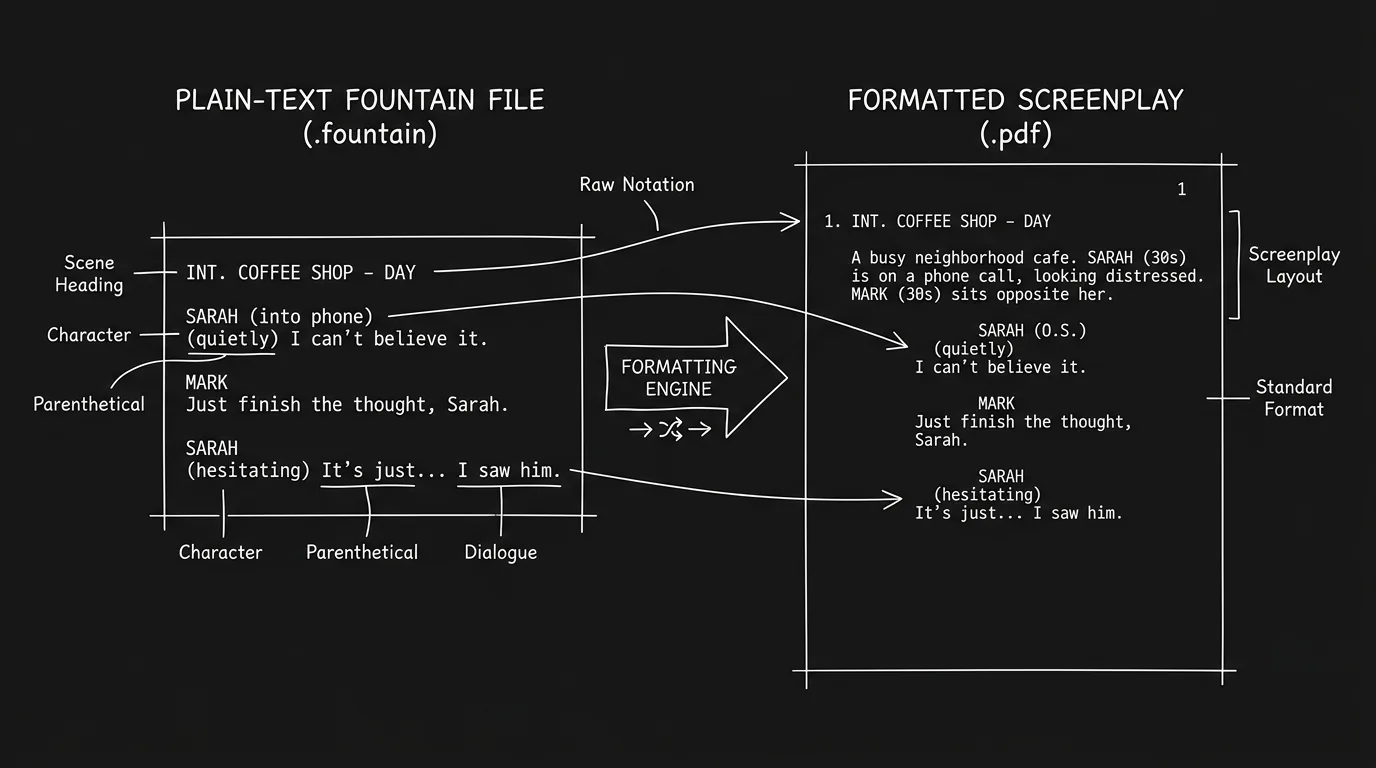

You've got a script in Fountain, plain text, readable anywhere, no lock-in. Then you open it in your screenwriting app and the scene headings are action. The character names are dialogue. Page one is no longer page one. Fountain is simple. The handoff isn't. The format itself is robust: scene headings follow the usual slugline rules and start with INT. or EXT., character names sit on their own line above dialogue, and so on. But when you import Fountain into Final Draft, Fade In, WriterDuet, or another tool, the parser has to guess what's what. When you export from those tools back to Fountain, they have to map their internal model onto Fountain's rules. That's where things break. You can keep your formatting intact if you know what gets lost, what to check, and how to fix it. For fast cleanup before export, run headings through the Slugline Formatter and use the Title Page Maker for a production-ready cover page.
Fountain was designed to be human-readable and machine-parseable. You can write in any text editor. No proprietary file. The spec is open, see <a href="https://fountain.io" rel="nofollow">fountain.io</a> for the full syntax. But "open" doesn't mean every app implements it the same way. One app might treat a line like "MOM (O.S.)" as a character with a parenthetical; another might split it or drop the (O.S.). So the real skill is round-tripping: Fountain → app → edits → Fountain (or PDF/FDX) without your structure collapsing. Here's why that matters. If you've ever had a project stuck in a format you can't open, corrupted FDX, old Celtx, a dead app, you know the fear. Fountain is a hedge. You keep a .fountain copy and you can always get the text and structure back. You're not locked into one vendor. The trade-off is that you have to own the handoff. No one else will guarantee that your favourite app's Fountain export matches another app's import. For moving between formats in general, see exporting for production. For keeping scripts safe across tools, we cover backup and standard formats.
Fountain gives you portability. The catch is that every app that reads or writes Fountain does so with its own parser. Your job is to verify the round-trip and fix the gaps.
What Fountain Is (And What It Isn't)
Fountain is a markup convention for screenplays in plain text. Scene headings are typically INT. or EXT. (or similar), often in caps. Character names appear on their own line, usually in caps. Dialogue follows. Action is unmarked, anything that isn't a heading, character, or dialogue. Parentheticals sit in parentheses under a character name. There are extensions for title page, notes, sections, and synopses. The file is .fountain or plain .txt. No binary, no XML. That's the appeal: you can version it in Git, read it in Notepad, and hand it to any Fountain-aware app. What Fountain doesn't do is pagination. Page count depends on the app that renders it. So when we talk about "losing formatting," we mean: element types (heading vs action vs character), title page, section/synopsis structure, and line breaks / spacing. Pagination will differ until you lock the script in one app and export to PDF or FDX. For how page count can go wrong in other contexts, see pagination in legacy software.
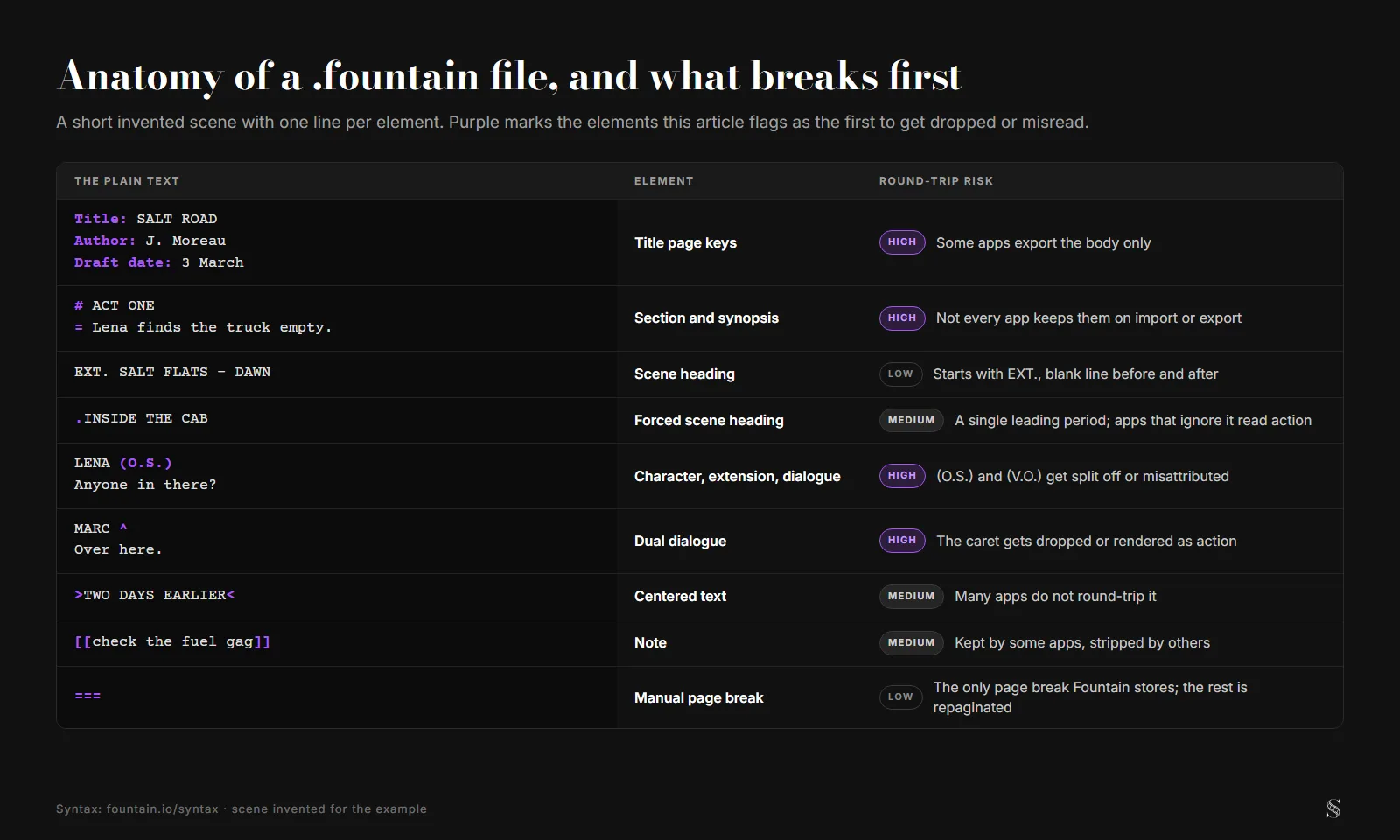
Each Fountain element next to how often it survives a round-trip, per this article. The scene is invented. ScreenWeaver diagram.
Relatable Scenario: The Writer Who Opened Fountain in Final Draft and Got Soup
Morgan had drafted a feature in a text editor using Fountain. They'd been careful: INT./EXT., character names in caps, blank lines between speeches. They imported the .fountain file into Final Draft. Half the scene headings had become action. A few character names were merged with dialogue. The (V.O.) and (O.S.) parentheticals were scattered. Morgan spent an afternoon fixing it by hand. The lesson: import once, then spot-check. Don't assume the parser got it right. Open the imported script, scroll through, and fix misclassified elements before you keep writing. For how auto-formatting can fight you, we cover similar surprises.
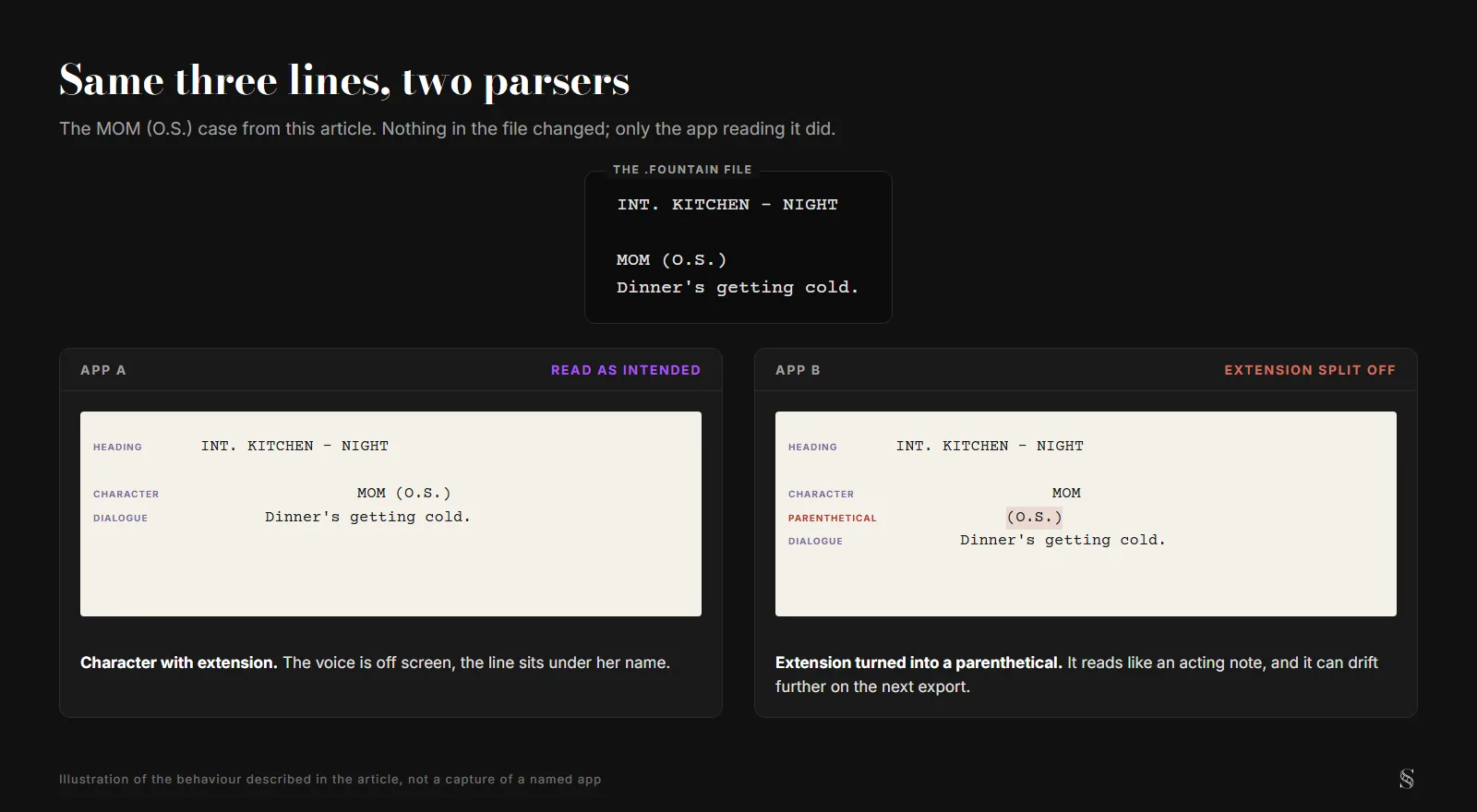
The MOM (O.S.) example from the introduction, drawn as two possible readings. An illustration of the behaviour, not a capture of a named app. ScreenWeaver diagram.
Relatable Scenario: The Export That Broke the Title Page
Jesse wrote a pilot in Fade In. They had a proper title page (title, author, contact, draft date). They exported to Fountain to share with a co-writer who preferred a plain-text workflow. When they opened the .fountain file, the title page was missing. Fade In had exported the body only. So the co-writer had no draft info or contact. Fix: After exporting to Fountain, open the file in a text editor. Check for title page content at the top (Fountain uses Title: and similar keys). If your app doesn't export it, add it manually at the top of the .fountain file. For collaboration without format chaos, we go into syncing with partners.
Relatable Scenario: The Round-Trip That Changed Page Count
Casey had a 98-page script in Highland. They exported to Fountain, made a few edits in VS Code, and re-imported into Highland. The story was the same. The element types were correct. But the page count jumped to 104. Different line-breaking, different margins or font in the renderer. So when they sent a PDF to a producer, the PDF said 104 pages, and the producer had been told 98. Takeaway: Fountain doesn't store automatic page breaks. After any Fountain round-trip, re-export to PDF from your primary app and check the page count. If it's wrong, adjust (trim action, tighten dialogue) until the count matches what you've promised.
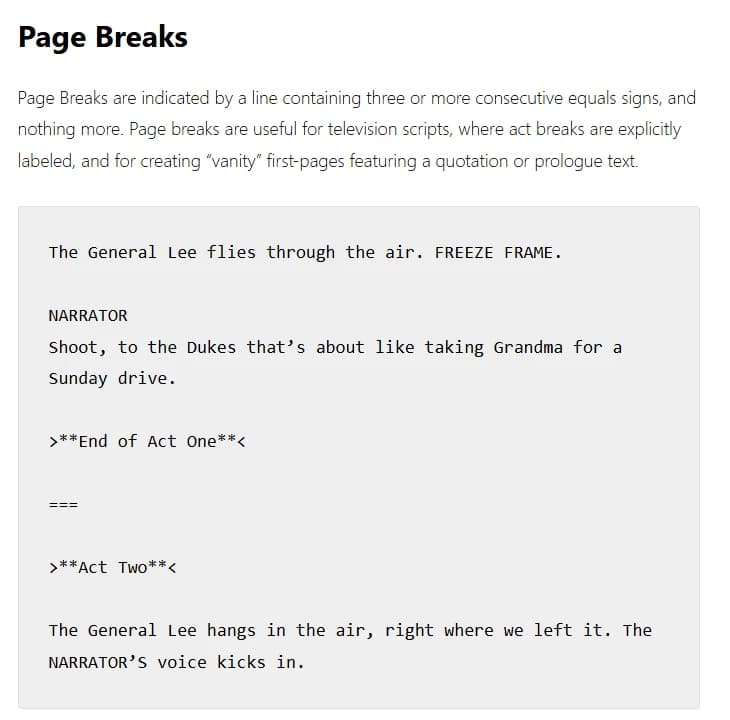
The Page Breaks section of the official Fountain syntax, fountain.io/syntax, captured 25 October 2026. Manual breaks are the only pagination a .fountain file keeps. For guaranteeing page one stays page one, we cover pagination discipline.
What Usually Gets Lost or Mangled
Different apps handle Fountain differently. Here's what to watch for. Title page: Some apps export it; some don't. If you need it, verify after export and add it in plain text if missing. Section and synopsis: Fountain supports # Section and = Synopsis. Not every app preserves these on import or export. If you use them, check. Dual dialogue: Fountain uses ^ for the second column. Parsers may drop it or render it as action. Parentheticals: (O.S.), (V.O.), and inline parentheticals can be split or misattributed. Forced headings: The spec forces a scene heading with a single leading period (.SNIPER SCOPE POV); some apps ignore it and read the line as action. Centered text: Fountain has a convention for centered text; many apps don't round-trip it. Page breaks: Fountain only stores the ones you force by hand, a line of three or more equals signs (===). Every other page break is recalculated on import. One more thing: notes and comments. Some apps store notes as Fountain comments (/* like this */ or similar). Others strip them on export. If you rely on in-document notes, check whether they survive the round-trip. If not, keep a separate notes file or use an app that embeds notes in a way that exports. For a full list of screenplay elements and how they map to format, see screenplay formatting.
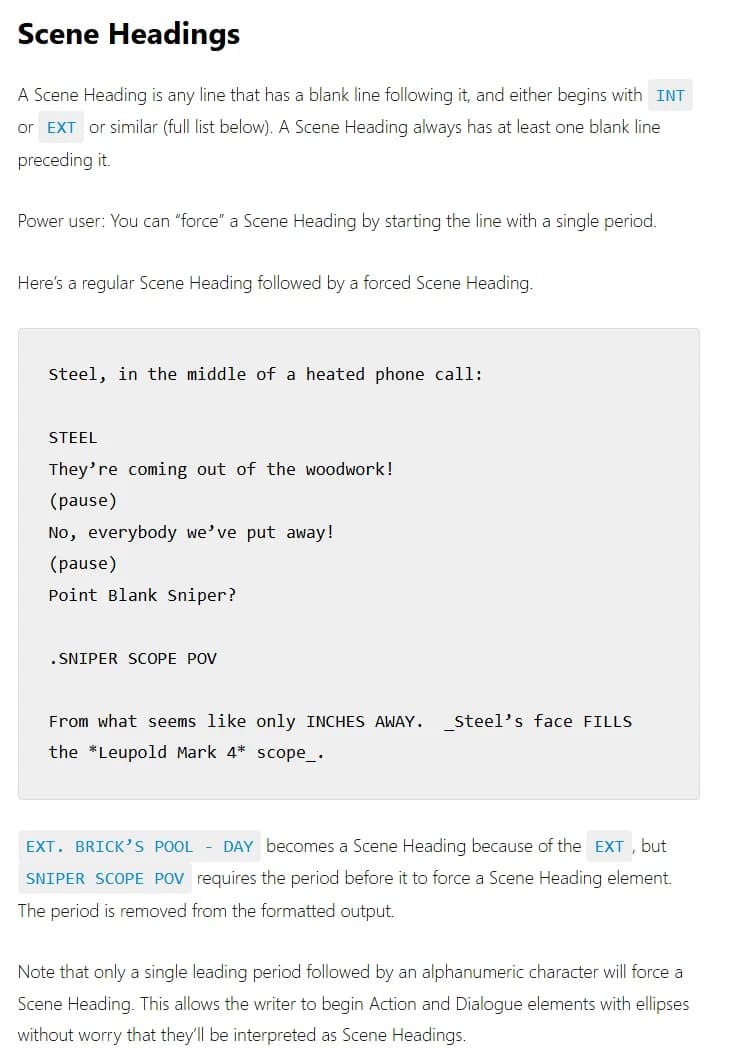
The Scene Headings section of the official Fountain syntax, fountain.io/syntax, captured 25 October 2026. A single leading period forces the heading.
Granular Workflow: Importing Fountain Without Losing Formatting
Step one: Clean the Fountain file before import. Open it in a text editor. Ensure scene headings start with INT., EXT., INT./EXT., or similar (and that they're on their own line). Ensure character names are on their own line, in caps. Remove stray blank lines in the middle of dialogue if your app treats them as new elements. Step two: Import into your app. Use File → Import or Open, and select the .fountain file. Step three: Scan by element type. In Final Draft, use the element view or scroll and look at the left margin (element tags). In Fade In or others, switch to a view that shows element types. Fix any scene heading that was tagged as action, and any character/dialogue that was merged or split. Step four: Check the title page. If the app supports a title page, see if it was imported. If not, re-add it in the app. Step five: Re-export to Fountain once to establish a baseline. If you plan to round-trip again, export to Fountain from this app and compare the new file to your original. You'll see exactly what the app considers Fountain. For version control and drafts, we cover keeping multiple versions safe.
Try it free
Try Screenweaver for free on your script
It is free. Import your existing project, get a clearer view of your outline, and regain control of your story structure in minutes.
Start FreeGranular Workflow: Exporting to Fountain Without Losing Formatting
Step one: Lock the draft in your app. No unsaved changes. Step two: Export to Fountain. In Highland: File → Export → Fountain. In Fade In: File → Export → Fountain. In WriterDuet: Export → Fountain. Final Draft has limited Fountain support; you may need to use a converter or a different export path. Step three: Open the exported .fountain in a text editor. Check the top for title page (Title:, Author:, etc.). Check that scene headings are intact (INT., EXT., etc.). Check that character names are on their own lines and dialogue follows. Step four: Search for oddities. Search for ( to find parentheticals and ensure (O.S.) and (V.O.) are on the same line as the character name. Step five: If you use sections/synopses, verify they're present. Then save. You now have a Fountain file that matches what your app produced. Not every writer needs Fountain. If you work in one app and only ever export PDF and FDX, you might never touch it. But if you collaborate with someone who likes plain text, or you want a future-proof backup that doesn't depend on a single vendor, Fountain is worth the extra verification step. The discipline is the same: export, open in an editor, confirm nothing critical was dropped. For alternatives that support Fountain, we compare tools.
The Trench Warfare: What Writers Get Wrong
Importing Fountain and writing 20 pages before checking. By then, misclassified elements are everywhere. Fix: Spot-check the first few pages and a random middle section right after import. Fix element types before you continue. For format discipline, we go through element rules.
Assuming "Fountain support" means "perfect round-trip." It doesn't. Every app has quirks. Fix: Do a test round-trip with a short scene. Export to Fountain, re-import, and see what changes. Then you know what to watch for. For exporting for production, we cover PDF/FDX as the delivery format.
Using Fountain as the only backup. Fountain is great for portability, but production often wants PDF or FDX. Fix: Keep Fountain for editing and sharing; also export PDF and FDX when you lock a draft. For backup and cloud, we cover what to store where.
Mixing Fountain syntax from different guides. One guide forces a heading with a leading period; another mixes in >, which the spec keeps for transitions and centered text. Your app might only support one. Fix: Use the Fountain spec and your app's Fountain docs. Stick to one convention. For screenplay format, we align with industry expectations.
Ignoring page count after a round-trip. Fountain doesn't store pagination. Fix: After re-importing, generate a PDF and check page count. If it's off, adjust the script until it matches. For pagination issues, we go deeper.
Relying on Fountain for final delivery. Producers and contests usually want PDF or FDX. Fountain is for writing, portability, and backup, not for "send this to the studio." Fix: Use Fountain in the middle of your pipeline. For handoff, export PDF and FDX from your primary app. For what production expects, we cover deliverables.
Which Tools Handle Fountain Well (And What to Expect)
Highland was built around Fountain, so import and export are first-class. You'll still want to spot-check, but the parser is tuned for it. Fade In supports Fountain import and export; title page and sections can be quirky. WriterDuet can import and export Fountain; dual dialogue and some edge cases may need a pass. Final Draft's native Fountain support is limited; many writers use a third-party converter or export to Fountain from another app after converting FDX. Celtx and other cloud tools vary, check the docs. The point isn't to rank apps. It's to say: whatever app you use, run a test round-trip. Export a short scene to Fountain, re-import it, and see what breaks. Then you'll know exactly what to fix when it matters. For comparing tools that support Fountain and FDX, we look at where each app shines.
Skipping the text-editor check after export. You export to Fountain and send the file without opening it. A week later your co-writer says "the title page is gone" or "scene 12 is all action." Fix: Open every exported Fountain file in a text editor before you share or archive it. A two-minute scan saves hours of repair. For version control and drafts, we cover keeping clean versions.
| Check | After import | After export to Fountain |
|---|---|---|
| Scene headings | All INT./EXT. (etc.) tagged as heading | Lines start with INT., EXT., etc. |
| Character names | Each on own line, correct element | Own line, caps |
| Dialogue | Attached to correct character | Directly under character name |
| Parentheticals (O.S./V.O.) | With character, not action | Same line as character or next line |
| Title page | Present if you had one | Present in file header |
| Page count | N/A (recalculated) | N/A; check in app after re-import |
For more on element types, see screenplay formatting.
The Perspective
Fountain is one of the best things that ever happened to portable screenplays. Plain text. No vendor lock-in. But portability doesn't mean every app treats it the same. Import and export with your eyes open: verify element types after import, verify structure after export, and never assume pagination survives a round-trip. Do that, and you can move between Fountain and your main app without losing your formatting. For more on moving between formats, see exporting for production and screenplay formatting. The official Fountain spec is at <a href="https://fountain.io" rel="nofollow">fountain.io</a>.
Takeaway
Import once and spot-check. Export once and verify in a text editor. Fix title page, section/synopsis, and parentheticals by hand if your app drops them. Treat page count as recalculated on every import. For format rules, production export, and pagination, you're covered.
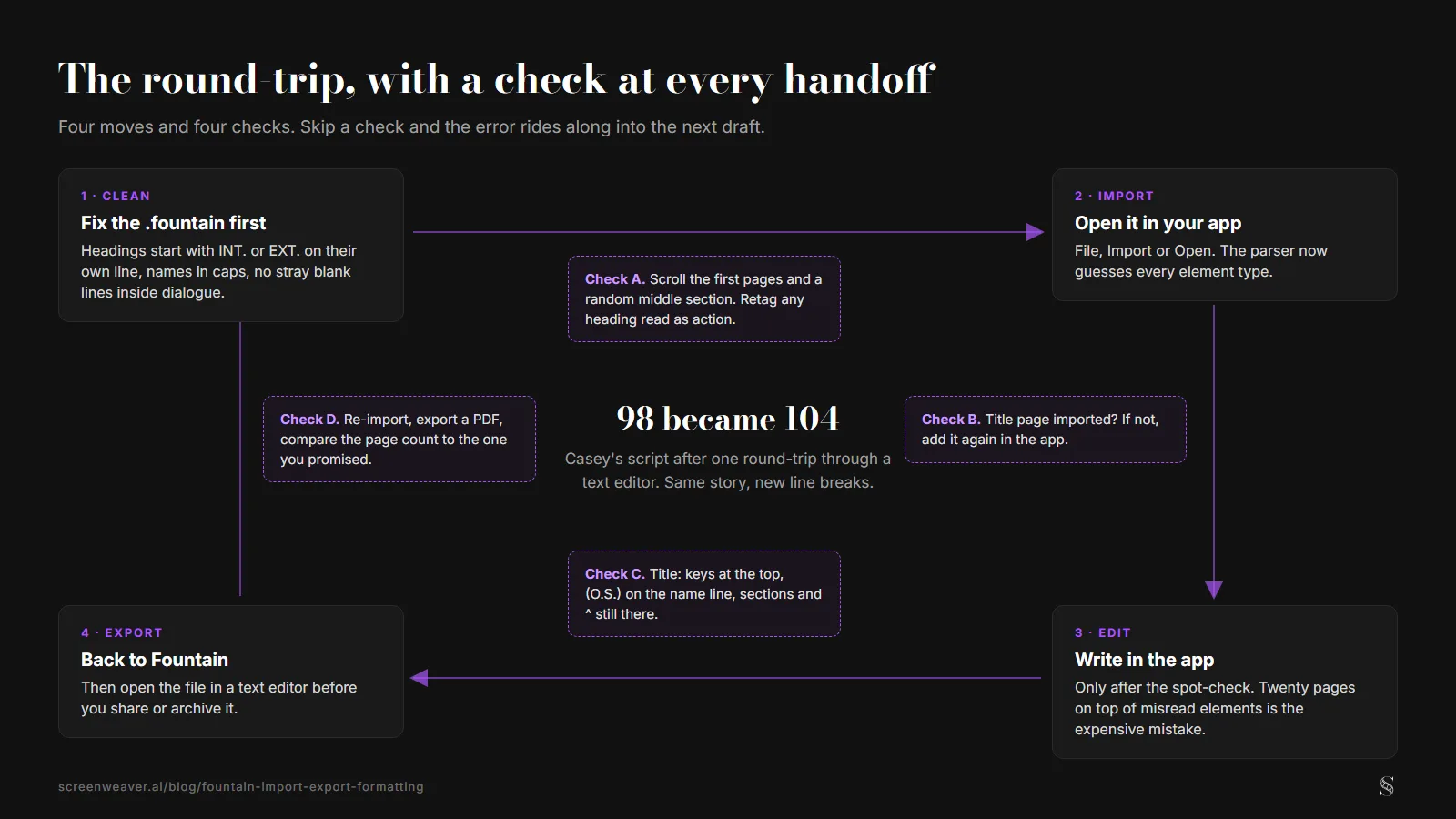
The import and export workflows from this article as one loop. ScreenWeaver diagram.
Final Step
Build your next script with Screenweaver
Move from ideas to production-ready pages faster with timeline-native writing and AI-assisted story flow.
Try Screenweaver