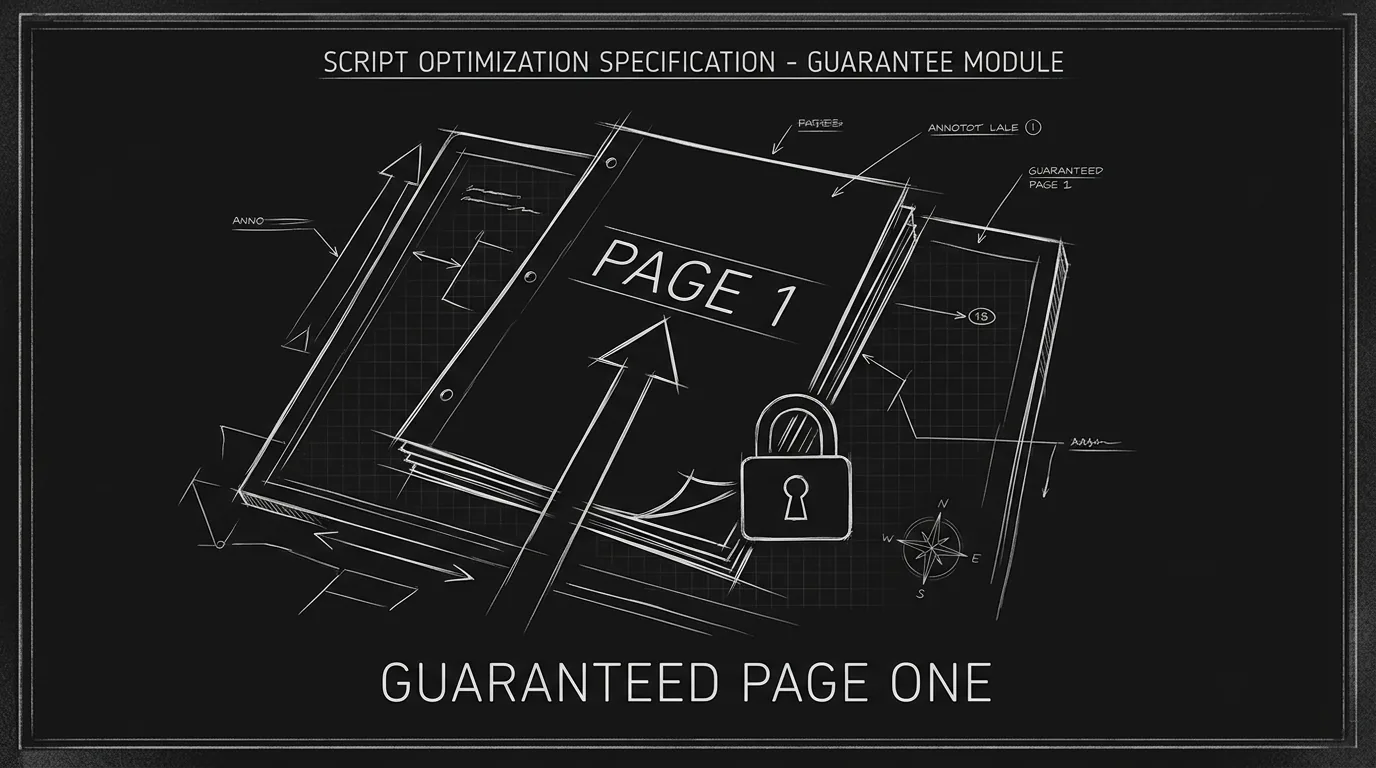

Prompt: Dark Mode Technical Sketch, Script pages with PAGE 1 label and an arrow or lock; guarantee page one; thin white lines on solid black; no 3D renders --ar 16:9
You lock page one. You add a scene. Suddenly page one is page two. Or you send a PDF to a producer and their reader opens it, page one is different from yours. Pagination is supposed to be predictable. In theory, screenplay software uses fixed margins, font size, and line spacing so that one page in the spec equals roughly one minute on screen and, more practically, so that "page 12" means the same thing for everyone. In practice, legacy apps and even newer ones can drift. You change fonts, you switch machines, you export from one app and open in another. Page breaks move. Here's how to understand why it happens and how to guarantee your page 1 stays page 1 when it matters.
Pagination depends on three things: margins, font and size, and what counts as a full page. Industry custom is roughly 1" left (binding), 1" right, 1" top and bottom, 12pt Courier (or equivalent monospace). Scene headings get a blank line above; dialogue and action follow specific spacing. If any of that changes, different default in another app, or a PDF generated with different settings, page breaks shift. So "guaranteeing" page one means: control the variables, lock the draft before sharing, and always generate the PDF from the same place you're quoting from. Older apps sometimes don't even expose margin controls in an obvious way. You get "Page Setup" with one set of defaults on Windows and another on Mac. Or the template that ships with the app was built for an older spec. So legacy software doesn't just "have" pagination issues, it often hides the levers that would let you fix them. For how format can bite you in other ways, see auto-formatting and rewrites. For exporting for production, we cover what to send.
Page one stays page one when you stop changing the rules. Same app, same margins, same font, same file. The moment you reflow or re-export elsewhere, all bets are off.
Free tool: use the Script Time Calculator to estimate your runtime from your script text or word count.
Why Page Breaks Move (And Why It Hurts)
Legacy software often stores pagination at export time. You're editing; the app recalculates on the fly. You save, you export to PDF, and the PDF is the "official" page count. But if you then open the same project on another machine where the same app has different defaults, or if you export again after a small edit, the engine may reflow. A line that was at the bottom of page 5 spills to page 6. Everything after shifts. Your "page 12" is now "page 13" for the reader. That breaks notes. "The scene on page 12" no longer matches. Production uses page numbers for scheduling and breakdown. So when your PDF doesn't match the page numbers you (or they) have been quoting, you look sloppy. Think about it this way: the reader doesn't care why the numbers moved. They care that the document they're holding is the one everyone agreed on. Your job is to make that true. For keeping scripts consistent across tools, we talk about round-trips; pagination is the same idea, consistency depends on controlling the pipeline. For backup and versioning, we cover locking a version before handoff.
Relatable Scenario: The Writer Whose Page 1 Became Page 2
Drew had a tight 98-page feature. They added one short scene at the top, a cold open, and saved. The app re-paginated. What had been page 1 was now page 2. The rest of the script shifted by one. Drew had already sent a previous PDF to a producer with "98 pages" in the subject line. The new PDF was 99 pages and every page number was off. They had to either remove the cold open, trim elsewhere to get back to 98, or send a new PDF with a note: "Updated draft; page numbers have shifted." They chose to trim. The lesson: lock the draft before you share. If you add pages, treat it as a new draft and say so. For screenplay format and length, we cover target length and why it matters.
Relatable Scenario: The PDF That Didn't Match the Room
The writers' room had been working off a shared FDX. Everyone quoted "page 15" in meetings. The showrunner asked for a clean PDF for the network. The assistant exported from Final Draft. The network's PDF viewer, or a different margin setting, showed different page breaks. So when the exec said "cut the scene on page 15," the room wasn't sure which scene. Fix: Establish one canonical PDF. Generate it from the same file, same app, same settings every time. Distribute that PDF. Don't let people re-export locally. For why rooms are moving away from legacy tools, we go into workflow and sync.
Relatable Scenario: The Contest That Rejected "Wrong" Page Count
Jamie submitted a 28-page short to a contest with a 30-page max. The confirmation said "28 pages." A week later, the contest wrote back: "Your submission is 31 pages. Disqualified." Jamie had exported from Fade In on a Mac. The contest might have opened the PDF on Windows, or with different viewer settings, or they might have re-printed with different margins. Whatever happened, their count was 31. Jamie had no way to appeal. Takeaway: Export your PDF, then open it and check the page count in a neutral viewer (e.g. Preview, Adobe Reader). If it shows 28, you've done your part. If a contest or producer uses different settings, you can at least say "my export was 28; something may have changed on your end." Contests rarely have the bandwidth to debug your PDF. So the burden is on you to produce a file that displays correctly in a standard viewer. For submitting in the right format, we cover PDF vs FDX.
What Actually Controls Pagination
Pagination is determined by: page size (usually US Letter), margins (top, bottom, left, right), font and point size (Courier 12pt is standard), line spacing (single), element spacing (e.g. blank line before scene heading, after character name), and orphan/widow rules (whether a single line can sit alone on a page). In legacy software, some of these are hard to find. They might be in Page Setup, in Preferences, or buried in a template. If you change any of them after you've locked a draft, you reflow. So the workflow is: set your template once. Use it for the whole project. Don't change margins or font for "that one export." If you're not sure where your app stores these settings, open the manual or the help file and search for "margins," "page setup," or "pagination." A half-hour of setup at the start of a project saves days of confusion later. For format rules that affect layout, we go through industry expectations.
Granular Workflow: Locking Page 1 Before Handoff
Step one: Set your template at the start of the project. Choose your app's default "screenplay" or "industry" template. Check Page Setup (or equivalent): US Letter, 1" margins all sides (or your app's equivalent). Font: Courier 12pt. Don't change these mid-draft. Step two: Write and revise in that template. Don't switch to "novel" or "stage play" mode. Step three: When you're ready to share, stop editing. Make a copy of the file if you need to keep working on a newer draft. The copy you're about to export is the "handoff" version. Step four: Export to PDF from that file, in that app. Don't open the file in another app and export from there unless you've verified that the other app uses the same margins and font. Step five: Open the PDF and confirm page count. Scroll to the last page. Note the number. That's the number you quote. Step six: If you must make changes after that, treat it as a new draft. Re-export, re-check page count, and send with a note like "Rev 2 , 99 pages." One more thing: if you're working in a writers' room, agree with the room who generates the canonical PDF and when. The showrunner's assistant might do it; or the writer whose draft it is. Whoever does it should use the same template every time. That way "page 15" in the room and "page 15" in the network PDF are the same. For exporting for production, we cover PDF and FDX delivery.
The Trench Warfare: What Writers Get Wrong
Changing margins or font "just for this PDF." You want it to look a bit tighter. You change the margin by 0.2". Every page break moves. Fix: Never change layout settings for a one-off. Export with your standard template. For format discipline, we stick to one setup.
Quoting page count before exporting. You tell a producer "it's 105 pages" based on what your app shows. Then you export and the PDF is 107. Fix: Always quote the page count from the actual PDF you're about to send. Open the PDF and count. For what production expects, we cover deliverables.
Assuming every app gives the same page count. You write in App A, export FDX, open in App B, export PDF. App B might use slightly different spacing or margins. Fix: Generate the PDF from the app you're using for the draft. If you must use another app, do a test: export a few pages from both and compare. For Fountain and round-trips, we cover similar consistency issues.
Ignoring orphan/widow settings. Some apps allow a single line of dialogue or action to sit alone on a page (orphan) or force a break so the next page doesn't start with one line (widow). That changes where breaks fall. Fix: Find your app's option for "widow/orphan control" or "keep lines together." Set it once and leave it. For auto-formatting pitfalls, we cover other auto-behaviours.
Sending different PDFs to different people. You send Producer A a PDF on Monday. You make a small edit and send Producer B a PDF on Tuesday. Now two people have different page numbers for the "same" draft. Fix: One canonical PDF per draft. If you revise, version the draft (e.g. "Draft 2") and generate a new PDF. Everyone gets the same file for that version. For version control, we go deeper.
Relying on "page lock" or "freeze page" without understanding it. Some legacy apps have a "lock pages" or "freeze pagination" option. It can mean different things: lock page breaks so they don't move, or lock the numbering so that even if content moves, the numbers stay. Read the manual. If locking doesn't prevent reflow when you add a scene, it's not guaranteeing page one, it's only fixing numbers. Fix: Treat the PDF as the source of truth. Generate it after you're done editing for that draft. For what production expects, we cover the handoff.
Try it free
Try Screenweaver for free on your script
It is free. Import your existing project, get a clearer view of your outline, and regain control of your story structure in minutes.
Start FreeWhy Legacy Apps Make This Harder
Newer screenwriting tools often bake in one set of industry margins and one font. You get fewer options, which sounds limiting, but it also means fewer ways to accidentally change pagination. Legacy software tends to offer more "flexibility": custom margins, multiple templates, font substitution. That flexibility means more ways to drift. Add to that the fact that some legacy apps were built when "page" meant "what fits on a printed sheet" and the engine was tuned for that. Today we care about PDFs and screen reading. So the same engine might behave differently when exporting to PDF than when printing. The takeaway: if you're in a legacy app, find the one template or setup that matches your needs, document it (margins, font, paper size), and never change it for that project. When you hand off to production or a partner, send the PDF that was generated from that setup. Don't re-export from a different machine or a different version of the app without testing. For alternatives and modern workflows, we compare how different tools handle layout.
Before vs After: Keeping Page 1 Stable
| Action | Effect on pagination |
|---|---|
| Add/remove content | Reflows; page count and break positions change |
| Change margins or font | Reflows entire document |
| Export from same app, same file | Stable (same engine) |
| Export from different app (e.g. after FDX import) | May differ; test first |
| Change paper size (e.g. A4 vs Letter) | Different page count and breaks |
For more on format and layout, see screenplay formatting.
The Perspective
Page one stays page one when you stop moving the goalposts. Set your template once. Write in it. When it's time to send the script out, export the PDF from that file, in that app, and don't change the settings for that export. Quote the page count from that PDF. If you revise, call it a new draft and export again. Legacy software won't guarantee consistency across machines or apps, you guarantee it by controlling the pipeline. For more on format and delivery, see screenplay formatting and exporting for production. For why writers' rooms are rethinking legacy tools, we cover the bigger picture. Industry guidelines for script format and page layout are often cited in production handbooks and by the <a href="https://www.wga.org" rel="nofollow">Writers Guild of America</a>, worth checking if you need a canonical reference.
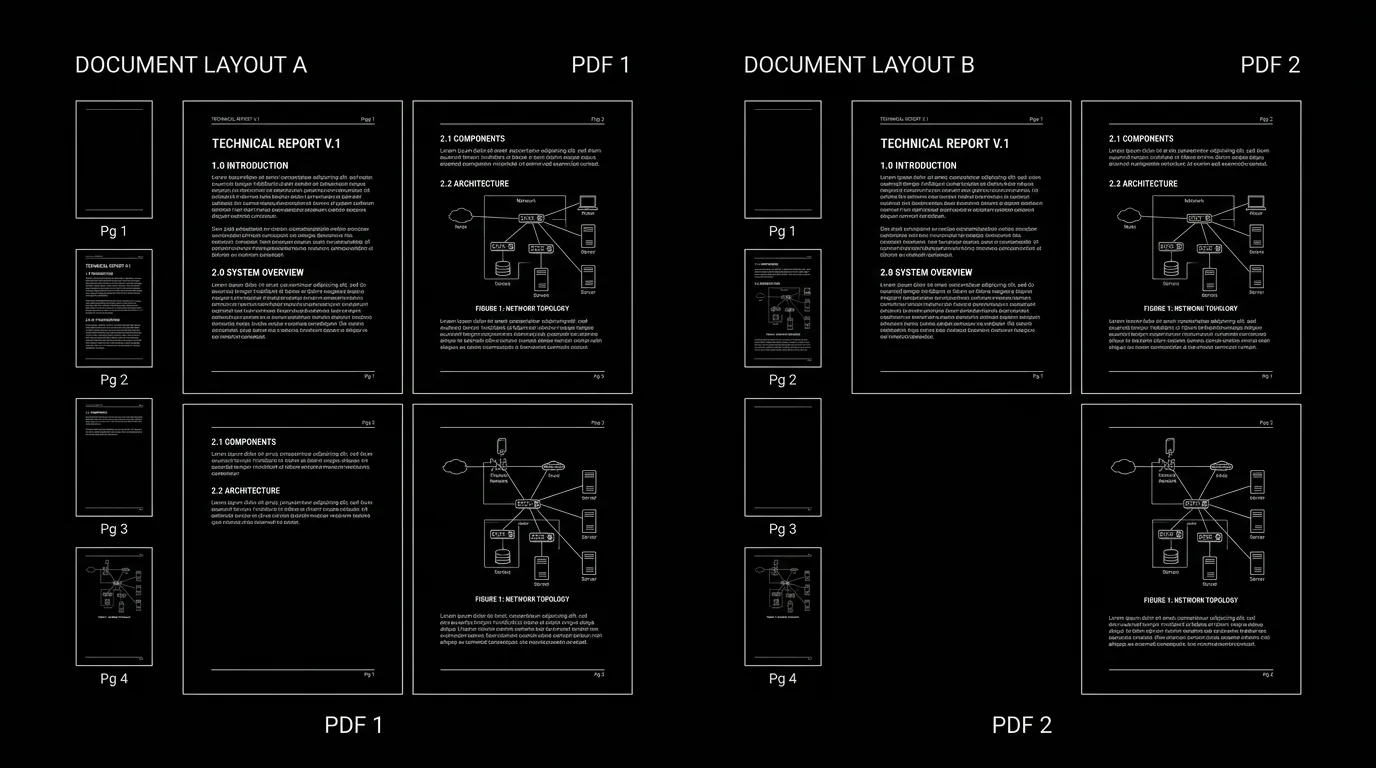
Prompt: Dark Mode Technical Sketch, Two PDFs side by side with same content but different page break; thin white lines on solid black; no 3D renders --ar 16:9
Takeaway
Lock your template. Export from the same app and file. Quote page count from the PDF you send. Don't change margins or font for a one-off. For format rules, export, and versioning, you're covered.
Prompt: Dark Mode Technical Sketch, Page 1 locked; same file same settings; thin white lines on solid black; no 3D renders --ar 16:9
Final Step
Build your next script with Screenweaver
Move from ideas to production-ready pages faster with timeline-native writing and AI-assisted story flow.
Try Screenweaver