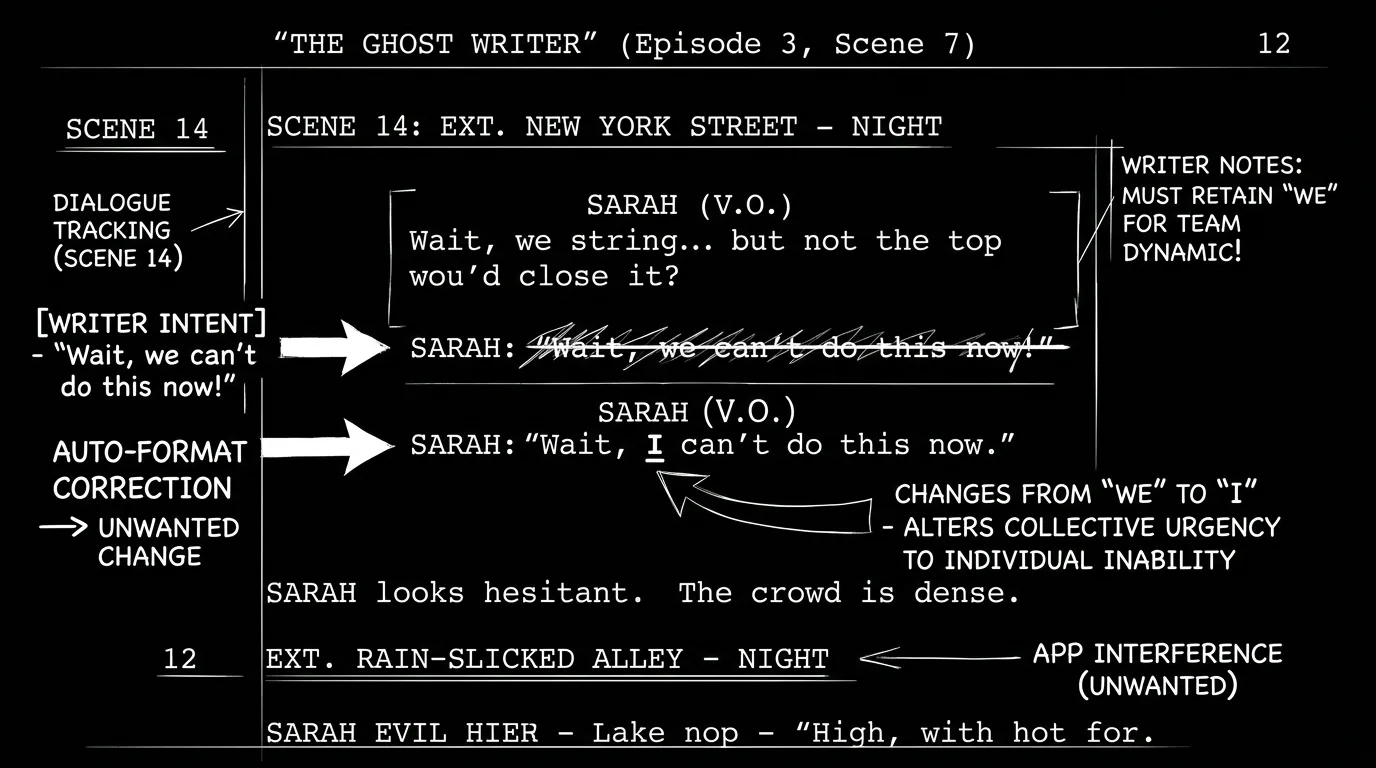

Prompt: Dark Mode Technical Sketch, A script page with one line "corrected" by an app, arrow or strikethrough suggesting unwanted change; thin white lines on solid black; writer's intent vs. auto-format; no 3D renders --ar 16:9
You're in the middle of a rewrite. You delete a scene. You paste a new beat. You move a block of dialogue. Then you look at the page and the formatting has gone wrong. A line that was action is now a character name. A scene heading has become action. Margins have shifted. Final Draft 13's auto-formatting has "fixed" something you didn't ask it to fix, and now you're stopping to correct the corrections instead of writing. That's the rewrite tax. The app is trying to help by guessing what element you're typing, but during rewrites you're not typing from scratch. You're cutting, pasting, and restructuring. The guesses land wrong. This piece is about why that happens, what it costs you, and what you can do about it.
Auto-format is useful when you're writing linearly: you type a character name, the app formats it as a character cue; you type INT. or EXT., it formats as a scene heading. The trouble starts when the flow is non-linear. You paste a note from another document and Final Draft interprets it as dialogue. You delete three scenes and the following elements shift or re-tag. You're editing structure, not entering new text, and the app keeps applying rules that assume you're entering new text. So you spend rewrite time fighting the formatter instead of improving the story. The industry has accepted Final Draft as the default; that doesn't mean every feature is optimized for every phase of writing. Rewrites are a different phase. For what "correct" format looks like when you're not fighting the app, see our screenplay format guide. For when the file itself goes bad, see recovering a corrupted .fdx.
During a first draft, auto-format is a convenience. During a rewrite, it's often a bottleneck. The app doesn't know you're restructuring, it only knows you're typing or pasting.
Free tool: use the Beat Sheet Calculator to map these beats to exact page numbers for your script length.
Relatable Scenario: The Writer Who Cut a Scene and Broke the Page
Alex deletes a full scene, twenty lines, from the middle of the script. The next element should be a scene heading. Instead, Final Draft has left the following block in a weird state: the first line is formatted as action, the next as a character name, and the scene heading is missing or merged into something else. Alex has to manually re-apply the scene heading, fix the character cue, and sometimes re-tab through the whole block to re-establish element types. What should have been a five-second delete becomes two minutes of cleanup. That's the rewrite tax. The app's auto-format logic assumes continuity. When you break continuity by removing a chunk, the logic doesn't re-evaluate the next block, it just leaves it in whatever state the parser thinks it's in. So you pay the cost every time you make a structural edit. Multiply that by a dozen scenes in a rewrite and the wasted time is real.
Relatable Scenario: The Writer Who Pasted From Notes
Jordan keeps beat notes in a separate doc or in the margin. During the rewrite they copy a line from the notes and paste it into the script. Final Draft sees the pasted text and tries to format it. Sometimes it gets it right. Often it doesn't: the note becomes dialogue when it should be action, or a character name when it's a note to self. Jordan has to select the line, change the element type (Format > Paragraph > Action, or the equivalent), and move on. When that happens five times in a scene, the flow of the rewrite is gone. The problem isn't that Final Draft is broken, it's that auto-format is optimized for new input, not pasted or moved input. For workflows that mix outline and script, see beat boards vs. outlines; the friction is similar when the tool doesn't distinguish "this is a note" from "this is script."
Relatable Scenario: The Writer in the Zone Who Keeps Getting Interrupted
Sam is rewriting a dialogue pass. They're in flow. They change a character name (fixing a typo or renaming a minor character). Final Draft auto-formats the line, and the next line, and the next, sometimes "correcting" lines that were already correct or changing the element type because the parser got confused. Sam has to stop, undo, or manually fix. The interruption pulls them out of the moment. Rewrites are already mentally heavy; having to second-guess the formatter adds cognitive load. The result: slower rewrites and more fatigue. When the tool stays out of the way, you can focus on story. When it keeps "helping," you focus on the tool. For alternatives that handle structure and script differently, see screenwriting software alternatives.
Why This Happens (And Why It's Hard to "Fix" in the App)
Final Draft's auto-format is rule-based. It looks at what you type, and at context like position on the page, capitalization, and line length, and assigns an element type. When you're typing from scratch, those rules usually match your intent. When you're pasting or when you've just deleted a block, the context is wrong. The line that remains might look like action to you but like a character name to the parser (e.g. a short, capped phrase). The app doesn't have a "I'm in rewrite mode" switch that says "be less aggressive." So the same engine that helps you in draft one fights you in draft two. That's not a bug in the narrow sense, it's a design that optimizes for one workflow. Knowing that doesn't fix it, but it does explain why "just use Final Draft" isn't enough: you have to adapt your rewrite workflow to the tool. For tools that separate structure from script or that apply format differently, see screenwriting software alternatives.
When Auto-Format Helps vs. When It Hurts
| Situation | Auto-format typically | Why |
|---|---|---|
| First draft, linear typing | Helps | You're entering element by element; the app's guesses match intent |
| Adding a new scene | Helps | New content, clear boundaries; scene heading, action, dialogue in order |
| Deleting a scene or block | Hurts | Next block may be mis-parsed; you have to re-tag elements |
| Pasting from another doc | Hurts | App doesn't know context; pasted text gets wrong element type |
| Moving blocks (cut/paste) | Hurts | Same as paste; destination context is wrong |
| Renaming a character | Mixed | Sometimes fine; sometimes triggers reformat of following lines |
| Heavy structural rewrite | Hurts | Many cuts and pastes; constant wrong guesses |
The pattern: linear entry = help. Structural editing = friction. Final Draft 13's auto-format is built for the first. Rewrites are the second. So during rewrites you're either turning it off, working around it, or paying the tax. For a full picture of how different tools handle format and structure, see Final Draft vs. alternatives. If you're weighing whether the app is worth its price at all, our Final Draft 13 review breaks down every 2026 tier.
The Trench Warfare: What Writers Get Wrong
Assuming "industry standard" means "optimized for every task." Final Draft is the default in many rooms. That doesn't mean its auto-format is tuned for heavy rewrites. Fix: Accept that you may need to adjust settings or workflow during rewrites, or temporarily disable auto-format for the messiest structural passes. Re-enable when you're back to linear typing.
Pasting without checking. You paste a block and don't look. Two pages later you notice half the pasted lines are wrong element types. Fix: After any paste, skim the pasted block and fix element types immediately. Or paste as plain text (if your workflow allows) and then apply format by hand so the app doesn't guess wrong.
Fighting the formatter instead of changing the workflow. You keep undoing and redoing. Fix: Try Format > Paragraph (or the element menu) and explicitly set the element type for the current paragraph. Once set, the app usually leaves it alone. Or turn off automatic element detection for the rewrite pass and apply format manually where needed. Check Final Draft's preferences for "Smart Type" or similar, reducing its aggressiveness can cut the number of wrong guesses.
Not saving before big structural edits. You delete two scenes and the formatting goes haywire. You want to undo but you've made more edits since. Fix: Save a version before you start a major structural pass (e.g. "Draft 2 pre-restructure"). Then if the format gets too mangled, you can revert to that version and redo the edit more carefully, e.g. smaller cuts, or fixing element types as you go. For versioning and backup, see .fdx and cloud backup.
Expecting one setting to work for draft and rewrite. First draft and rewrite are different activities. Fix: Use auto-format when you're writing new material. When you're cutting, pasting, and moving, consider turning it down or off and applying format explicitly. You can create a "rewrite" document that's a copy of the script and do the structural work there with format fixes as you go, then bring it back. For how to protect your script across versions, see recovering a corrupted .fdx, backup before big edits.
Try it free
Try Screenweaver for free on your script
It is free. Import your existing project, get a clearer view of your outline, and regain control of your story structure in minutes.
Start FreeHow to Reduce the Rewrite Tax in Final Draft 13
Use the element menu explicitly. When you're in a line that's been mis-formatted, don't just retype, select the paragraph and use Format > Paragraph (or the equivalent in your version) to set the correct element type: Scene Heading, Action, Character, Dialogue, etc. Once set, Final Draft tends to leave it alone. That's faster than undoing or retyping.
Paste in smaller chunks. Instead of pasting a full page from notes, paste a few lines at a time and fix the element type for each chunk before pasting the next. The app has less to mis-parse and you catch errors immediately.
Consider "Paste and Match Style" or plain text. If Final Draft offers a paste option that doesn't trigger full auto-format (e.g. paste as unformatted text), use it for pasted material. Then apply the correct element type to the pasted block. You're doing one manual step instead of fixing five wrong ones.
Save a snapshot before structural passes. Before you delete or move large sections, Save As a new version (e.g. Script_v2_pre-cut.fdx). Do the structural edit. If formatting goes wrong and it's too messy to fix in place, you can return to the snapshot and redo the edit with smaller steps and immediate format fixes. For backup discipline, see .fdx and cloud.
Check Preferences. Final Draft 13 has options that control how aggressively it applies format, e.g. when it assumes a new scene heading, when it capitalizes character names, or when it applies dual dialogue. During rewrites, turning down "Smart Type" or similar features can reduce wrong guesses. The exact names vary by version; look for formatting or "Smart" options and experiment. Some writers create two presets: one for drafting (auto-format on) and one for rewriting (auto-format reduced or off), and switch between them. That way you're not fighting the app with one hand tied behind your back, you're choosing the right mode for the job. For the official list of features and settings, Final Draft is the source of record.
Granular Workflow: Doing a Structural Rewrite Without Losing Your Mind
Step 1 – Save a backup. Save As Script_rewrite_backup_YYYY-MM-DD.fdx. Put it in your backup folder. If the rewrite goes wrong, you have a clean starting point. For backup routine, see .fdx and cloud.
Step 2 – Do one structural change at a time. Instead of deleting three scenes in a row, delete one scene, then fix any mis-formatted elements in the next block (scene heading, action, character, dialogue). Then delete the next scene. Fix again. Slower per cut, but you're not stacking up a page of wrong format to fix at the end.
Step 3 – After each paste, fix format immediately. Paste a block from notes or from elsewhere in the script. Select the pasted block. Use Format > Paragraph (or your version's equivalent) to set the correct element type for each paragraph in the block. Then move on. Don't paste five blocks and then discover they're all wrong.
Step 4 – Use Find and Replace with care. If you're renaming a character or changing a scene heading pattern, Find and Replace can do it in one go, but run it on the right element type if the app allows (e.g. "Replace in Character elements only"). Otherwise you may replace text inside dialogue or action by mistake. Do a quick scan after any bulk replace to catch mis-formats.
Step 5 – Export and skim. When the structural rewrite is done, export to PDF and skim the first twenty pages. Check scene headings, character cues, and action. If something looks off, go back to the .fdx and fix the element type. For format reference, see screenplay format. Once this routine is habit, the rewrite tax goes down. You're not eliminating it, Final Draft's design is what it is, but you're containing it so that rewrites stay about the story.
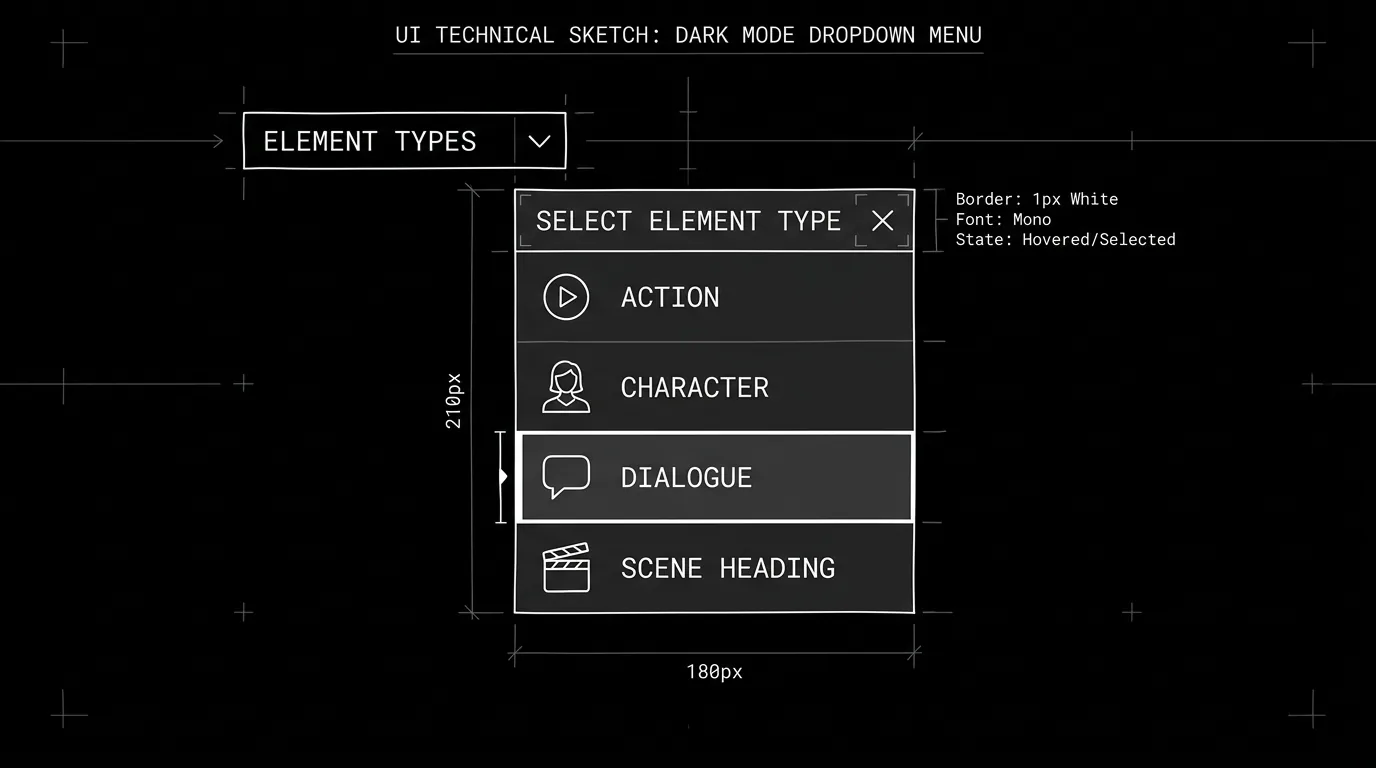
Prompt: Dark Mode Technical Sketch, A dropdown or menu with element types: Action, Character, Dialogue, Scene Heading; thin white lines on solid black; no 3D renders --ar 16:9
The Perspective
Final Draft 13's auto-formatting wastes your time during rewrites because it's built for linear entry, not structural editing. When you cut, paste, or move, the app guesses wrong and you correct the guesses. The fix isn't to abandon the app, many rooms require it, but to change how you work during rewrites: smaller edits, immediate format fixes, explicit element types, and a backup before you start. Turn down auto-format aggression if you can. Paste in chunks and fix as you go. Save versions so you're never one bad edit away from chaos. Your rewrite time should go into the story, not into fighting the formatter. The goal isn't to defeat the app, it's to spend less time on format and more on the page. For tools that bind structure and script differently, see screenwriting software alternatives and Final Draft vs. ScreenWeaver.
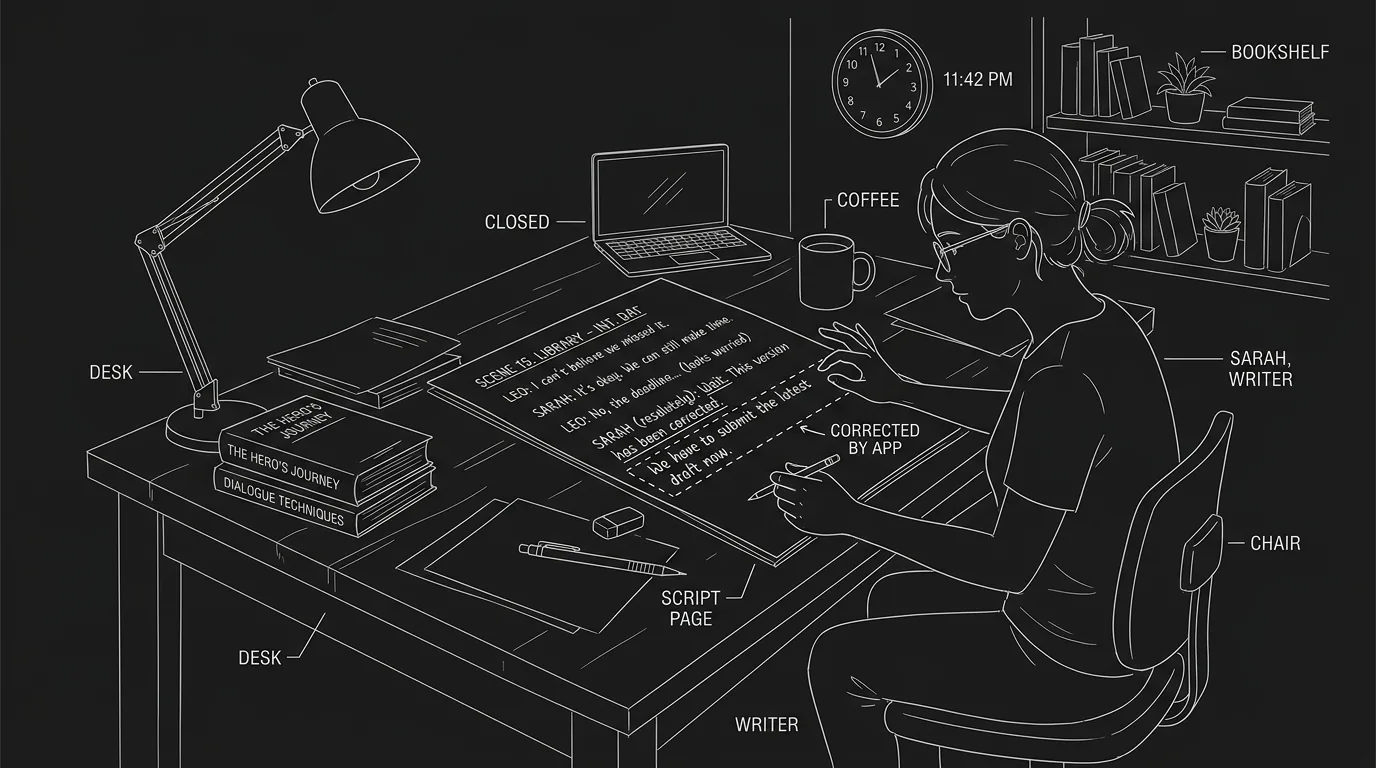
Prompt: Dark Mode Technical Sketch, A writer at a desk; script page with one line highlighted as "corrected" by app; subtle undo or revert gesture; thin white lines on solid black; no 3D renders --ar 16:9
Final Step
Build your next script with Screenweaver
Move from ideas to production-ready pages faster with timeline-native writing and AI-assisted story flow.
Try Screenweaver