
Essential Keyboard Shortcuts Every Pro Screenwriter Uses (Tab, Enter, and Beyond)
You're in flow. You finish a line of dialogue. You need a new character cue. You reach for the mouse, click the menu, choose "Character," type the name. Flow gone.
Shortcuts keep your hands on the keyboard. Tab, Enter, and a few others let you move between elements, scene heading, action, character, dialogue, parenthetical, without leaving the page. The less you reach for the mouse, the more you stay inside the scene.
Why Shortcuts Matter
Screenplay format is repetitive. Scene heading, action, character, dialogue. Again. The same moves hundreds of times per script. If each move costs a click or two, that's thousands of interruptions. Shortcuts compress "next element" into one key. Your brain stays in story mode; your fingers handle format.
The pros aren't faster because they're better writers. They're faster because they've removed the friction between thought and keystroke.
The Core Shortcuts (Most Apps)
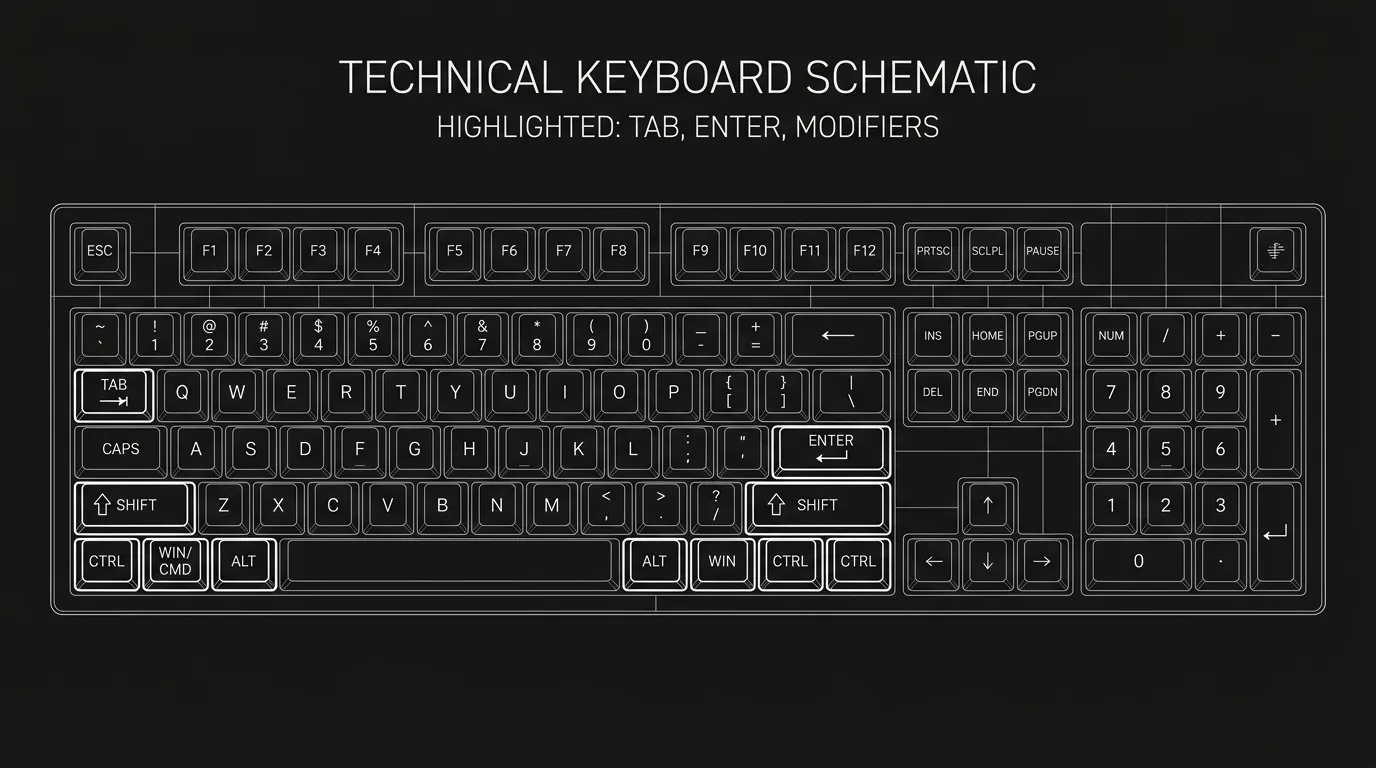
Tab / Enter (or equivalent): Move to next element. After a scene heading, Tab might take you to action; after action, to character; after character, to dialogue. Enter often does "new line within current element" or "next element" depending on context. Learn your app's exact mapping, it's the one you'll use most.
Character cue: In many apps, typing a name in caps and hitting Enter (or Tab) creates a character cue and jumps to dialogue. So: type "JANE", Enter, type the line. No mouse.
Scene heading: Often a special shortcut (e.g. Ctrl+1 or Cmd+1) or typing "INT." or "EXT." and Tab. Again, app-specific but worth learning.
Action vs dialogue: Many apps let you toggle or jump: e.g. Tab from dialogue to action, or a shortcut to "insert action line." Check the app's keyboard shortcut list (often under Help or Preferences).
Previous / next scene: Jump to previous or next scene heading without scrolling. Huge for long scripts. Often Ctrl+Up/Down or Cmd+Arrow. See our navigating scene trees piece, shortcuts and scene navigation go together.
Save: Cmd+S / Ctrl+S. Make it automatic. Save often.
Try it free
Try Screenweaver for free on your script
It is free. Import your existing project, get a clearer view of your outline, and regain control of your story structure in minutes.
Start FreeApp-Specific vs Universal
Every screenwriting app has its own shortcut set. Final Draft, Highland, Fade In, WriterDuet, ScreenWeaver, each has a reference (Help menu or PDF). Spend 15 minutes once: write down the 10 you'll use daily (next element, character, scene heading, next/previous scene, save, maybe undo/redo and find). Put the list next to your monitor until it's muscle memory.
Universal habits: Stay off the mouse for format. Use Tab/Enter (or the app's equivalent) to move between elements. Use "next/previous scene" to jump. Use Save constantly.
Scenario: Writing a Dialogue Exchange Without the Mouse
Two characters. You type "ALEX", Enter, type Alex's line, Enter or Tab. You type "JORDAN", Enter, type Jordan's line. You need an action beat. You hit the shortcut for "action" (or Tab until you're in action), type the beat, Tab back to character, type "ALEX", Enter. No mouse. No "Insert > Character." Just keys. After a few pages, it's automatic.
The Trench Warfare: What Goes Wrong
Never reading the shortcut list. You assume there isn't one or it's too much. Fix: Open Help > Keyboard Shortcuts (or the equivalent). Write down five: next element, character, scene heading, next scene, previous scene. Learn those. Add more later.
Using the mouse for "next element." You click the next line or the next field every time. Fix: Find the key that moves to next element (usually Tab or Enter). Use it for one full writing session. By the end you'll feel the difference.
Overloading with too many shortcuts. You try to memorize 30. Fix: Start with 5–10. Next element, character, scene heading, next/previous scene, save. That's 80% of the benefit.
Different apps, same expectations. You switch apps and expect the same keys. Fix: When you switch, re-check the shortcut list. Map the same actions (next element, next scene) to whatever keys the new app uses. Consider customizing if the app allows.
The Perspective
Shortcuts are not power-user fluff. They're the difference between "I'm writing" and "I'm fighting the software." Tab, Enter, next scene, previous scene, save, learn those first. Then add character, scene heading, action. Within a week your hands will do the work without thinking, and your brain can stay in the room with your characters.
Free tool: use the Slugline Formatter to clean up and standardize your scene headings.
Final Step
Build your next script with Screenweaver
Move from ideas to production-ready pages faster with timeline-native writing and AI-assisted story flow.
Try Screenweaver