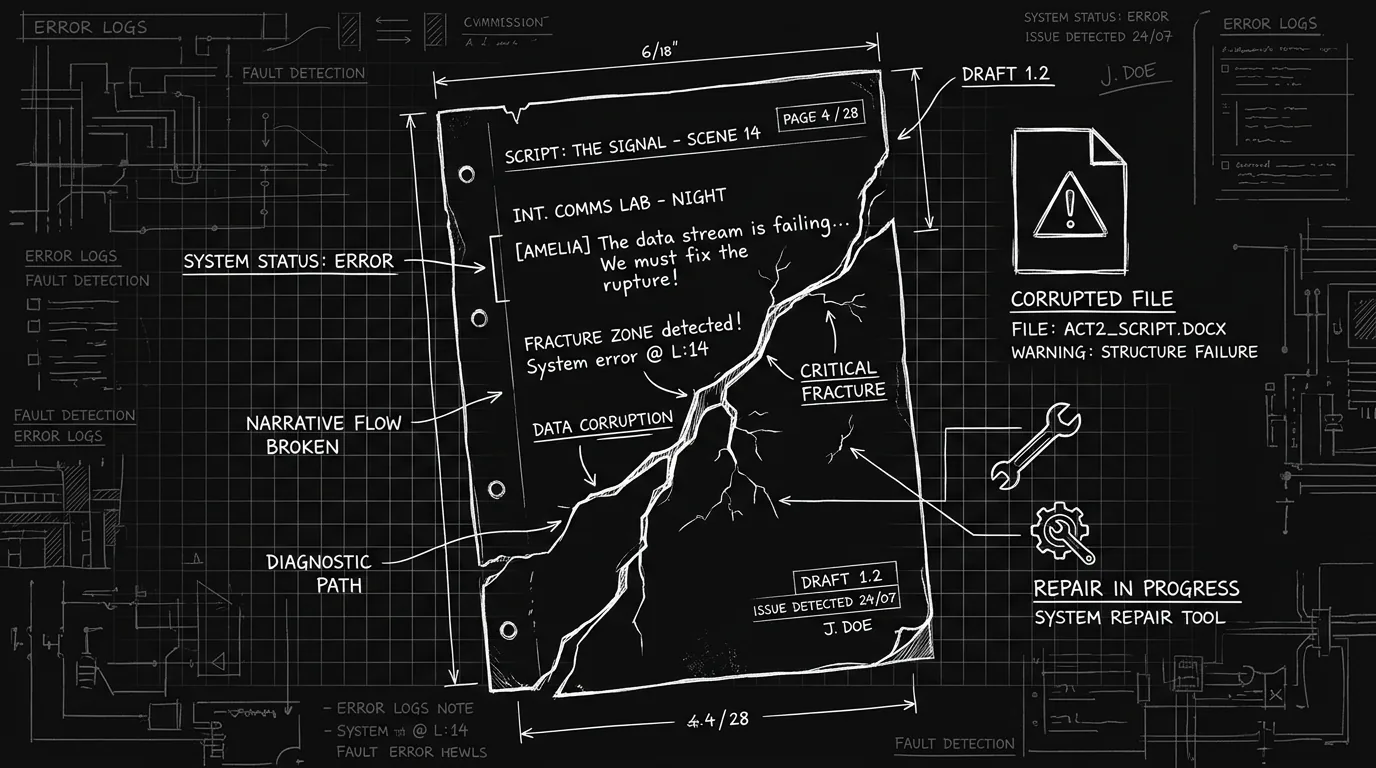

Prompt: Dark Mode Technical Sketch, A single script page with a crack or fracture line across it; a small wrench or repair symbol nearby; file icon with warning; clean thin white lines on solid black; hand-drawn technical feel; no 3D renders, no neon --ar 16:9
Final Draft quits. You weren't expecting it. You reopen the app and double-click your script. Instead of your pages, you get a message: the file is damaged, or it can't be opened, or the application freezes as soon as the document loads. Your stomach drops. That .fdx file is your draft, maybe your only copy. Recovering a corrupted .fdx is possible more often than people think. And once you've been through it, you'll want to make sure it never happens again. This guide walks you through both: how to get your script back, and how to protect it so you're not in that position next time.
Corruption can come from a crash during save, a bad sector on the disk, an interrupted sync, or a version mismatch between Final Draft and the file. The good news is that .fdx is based on XML. Under the hood it's structured text. That means there are multiple ways to try to salvage it, from using Final Draft's own recovery and backup features to opening the file in another program or even repairing the XML by hand in a pinch. We'll go in order of least to most invasive.
Free tool: use the Slugline Formatter to clean up and standardize your scene headings.
Relatable Scenario: The Night Before the Deadline
Sam has a contest submission due at midnight. They've been in Final Draft all day. Around 10 p.m. the app freezes, maybe the machine ran out of memory, maybe an update ran in the background. They force-quit and reopen. The script won't open. Final Draft says the file is damaged. They have no backup. They've never exported a PDF or a second .fdx to a different folder. Everything was in that one file. This is the nightmare scenario. It's also the one that teaches the hardest lesson: recovery is only part of the answer. The other part is never being one crash away from total loss. We'll cover recovery first, then the habits that prevent this.
Relatable Scenario: The Writer Who Had "Just One Copy"
Jesse keeps their scripts in a single folder on the desktop. They rely on Final Draft's autosave. When their .fdx stops opening, they discover that autosave only helps if the app is running and the file is open, it doesn't create separate backup copies elsewhere. They also never exported to PDF or FDX after major milestones. So when the main file corrupts, there's nothing to fall back on. The fix isn't just "try to recover this file." It's building a system where the script exists in more than one place and in more than one format. We'll get to that.
Relatable Scenario: "Damaged" in Final Draft, Fine Elsewhere
Morgan gets the "file is damaged" message in Final Draft. Before panicking, they try opening the same .fdx in another screenwriting app that supports the format, Fade In, WriterSolo, or an online converter. The file opens. The other app might show some formatting quirks, but the text is there. They export a clean FDX or PDF from that app and either keep working there or re-open in Final Draft. Corruption is sometimes app-specific. The file isn't necessarily destroyed; Final Draft may be choking on a particular element (e.g. a custom style, a rare character, or a malformed node in the XML). Trying another FDX-capable tool can recover the content without any manual repair.
Step-by-Step Recovery: What to Do Right Now
Try opening the file again in Final Draft. Sometimes a single bad read or a transient glitch causes the failure. Close Final Draft completely, reopen it, and try opening the document again. If you're on Mac, avoid opening the file by double-clicking it; use File → Open inside Final Draft and select the .fdx. That can avoid issues with file association or launch state.
Check Final Draft's backup and recovery locations. Final Draft can keep backup copies and recovery drafts. On Windows, look in %APPDATA%\Final Draft\Backup or the folder shown under Final Draft → Preferences → Backup. On Mac, check ~/Library/Application Support/Final Draft/Backup or the path in Final Draft → Preferences → Backup. Open those folders and look for files with your script's name and a date/time stamp. Try opening the most recent backup in Final Draft. If the main file is corrupted, a backup from a few minutes or hours earlier may be intact.
Use "Recover" if Final Draft offers it. When you launch Final Draft after a crash, it may show a recovery dialog listing recovered documents. If you see your script there, open it and immediately use Save As to save a new copy with a new name (e.g. MyScript_recovered.fdx). Don't overwrite the corrupted file until you're sure the recovered version is good.
Try opening the .fdx in another application. If Final Draft won't open it, another program might. Fade In opens FDX files. So do several other screenwriting apps and some online FDX-to-PDF or FDX viewers. Copy the .fdx to a safe location, then open it in the alternative app. If it opens, export to a new FDX or to PDF. Another quick test is to turn the .fdx into a PDF in the browser; if the pages render, the content survived. You've recovered the content. You can then re-import into Final Draft if you need to stay in that ecosystem, or continue in the other app. For context on alternatives that read and write FDX, see our comparison of screenwriting software.
Inspect the .fdx as XML. An .fdx file is a ZIP archive containing XML. Rename the file from MyScript.fdx to MyScript.zip, then unzip it. Inside you'll find at least one XML file (often Document.xml or similar). Open that XML in a text editor (e.g. Notepad++, VS Code, BBEdit). Search for obvious corruption: truncated tags, stray characters, or huge blocks of garbage. Sometimes deleting a single bad node or closing an unclosed tag can make the file open again. Save the XML, re-zip the contents with the same structure (the .fdx must be a valid ZIP with the expected internal paths), rename back to .fdx, and try opening in Final Draft or another app. This is a last resort and requires a bit of patience; if the XML is heavily damaged, you may only be able to copy-paste scene text into a new document.
Extract raw text if structure is lost. If the XML is too corrupted to repair but you can still open it in a text editor, you may be able to salvage the dialogue and action by copying the text content between tags into a new script. It's tedious and you'll lose formatting, but you don't lose the words. For proper formatting again, paste into a new Final Draft document and re-apply scene headings, character names, and action as needed. Our screenplay format guide can help you re-establish structure quickly.
When to Use Which Recovery Method
| Situation | What to try first |
|---|---|
| FD says "damaged" or won't open | Reopen FD; check Backup folder; try Recover dialog |
| No backup, file won't open in FD | Open same .fdx in Fade In or another FDX-capable app; export new FDX/PDF |
| Backup exists but is old | Open backup; re-apply recent changes from memory or notes if possible |
| File opens but content is garbled or missing | Inspect .fdx as ZIP/XML; fix or strip bad sections; or extract text and rebuild |
| Multiple backups available | Open the most recent backup that still opens; compare to corrupted file to see what's missing |
The moment you realize your .fdx might be corrupted, stop writing to that file. Don't save again from Final Draft over the same path. Copy the .fdx to a safe location and work on the copy. That way you keep one intact (if damaged) version for further recovery attempts.
Try it free
Try Screenweaver for free on your script
It is free. Import your existing project, get a clearer view of your outline, and regain control of your story structure in minutes.
Start FreeThe Trench Warfare: What Beginners Get Wrong
Relying only on autosave inside Final Draft. Autosave prevents loss when the app is running. It does not create a separate backup you can open if the main file corrupts. If the .fdx on disk is bad, the in-memory autosave may have written the same bad data. Fix: Turn on backup in Final Draft preferences (backup on save or on a timer) and know where that folder is. Then add a second habit: export a PDF or a copy .fdx to another location (e.g. Documents, cloud drive) at the end of every writing session or at least weekly.
Keeping a single copy in one place. One file on one drive means one point of failure. A disk error, a bad sync, or a crash during save can wipe out your only copy. Fix: Keep the working file in your usual folder, but also copy or export to a second location regularly, another disk, a cloud folder, or both. For more on protecting your script across formats and storage, see our guide on .fdx files and the cloud.
Overwriting the corrupted file. If you manage to recover content (e.g. from a backup or another app), it's tempting to save it back over the broken file. Don't. Save to a new filename. Keep the corrupted file somewhere until you're sure the recovered version is complete. You might need it for another recovery attempt or for comparing what was lost.
Assuming "corrupted" means "gone." Many "corrupted" .fdx files are only partially damaged or are rejected by Final Draft but still readable elsewhere. Fix: Before you give up, try at least (1) backup/recovery folders, (2) opening in another FDX-capable app, and (3) opening the .fdx as ZIP and inspecting the XML. Only after those do you conclude the content is unrecoverable.
Not knowing where Final Draft stores backups. When things go wrong, people waste time searching. Fix: Once, when you're calm, open Final Draft → Preferences (or Settings) → Backup. Note the path. On Mac it's often under ~/Library/Application Support/Final Draft/Backup. On Windows, %APPDATA%\Final Draft\Backup. Put that path in a note or bookmark. When you need it, you'll know exactly where to look.
How to Stop It From Happening Again
Enable backups in Final Draft. In Final Draft, go to Preferences (Mac) or Options (Windows) and find the Backup or Auto-Save section. Enable "Create backup when saving" or equivalent, and set the backup location to a folder you can find (e.g. a dedicated "Script Backups" folder in Documents). If the app offers "Keep backup copies for X days," set it to at least 7–14 days so you have several restore points.
Export a snapshot after every major milestone. When you finish an act, a draft, or a revision, export the script to PDF and, if possible, save a copy of the .fdx with a versioned name (e.g. MyScript_v2_draft2.fdx) to a backup folder or cloud drive. That way you never depend on a single .fdx. If the working file corrupts, you have a recent PDF (readable by anyone) and a recent FDX to re-open in Final Draft or another app.
Keep the working file on a reliable volume. Avoid writing the only copy of your script to an external drive that disconnects often, a network share with sync issues, or a drive that's already reporting errors. Use a local SSD or a stable cloud-synced folder (e.g. Dropbox, OneDrive, iCloud) and ensure the sync has finished before you close the app. If you use cloud sync, let it complete before disconnecting or shutting down.
Close Final Draft cleanly when possible. Force-quitting (e.g. after a freeze) can leave the file mid-write. If the app is unresponsive, try waiting a minute before force-quit; sometimes the save completes. When you're done writing, use File → Save, then File → Quit. Avoid closing the laptop or powering off immediately after a save, give the system a moment to flush to disk.
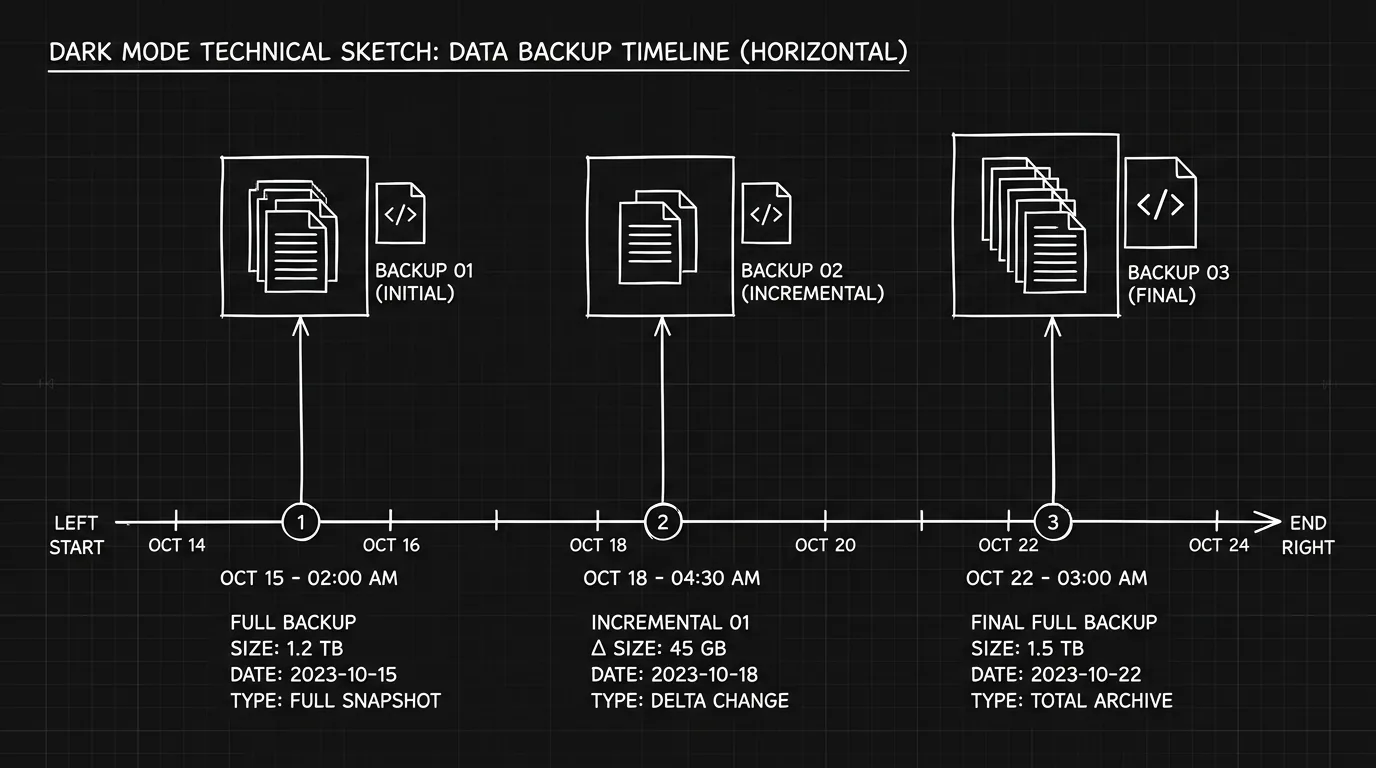
Prompt: Dark Mode Technical Sketch, A horizontal timeline with three backup points; small script icons or stacked pages at each point; thin white lines on solid black; no 3D renders --ar 16:9
Granular Workflow: Setting Up Your Backup Routine
Step 1 – Configure Final Draft backup now. Open Final Draft. Go to Final Draft → Preferences (Mac) or File → Preferences (Windows). Find Backup / Auto-Backup. Enable "Back up when saving" or "Save backup copy every X minutes." Set the backup folder to something like Documents/ScriptBackups or Documents/Final Draft Backups. Click OK. Save your current script once to generate the first backup.
Step 2 – Create a versioned export habit. At the end of each writing session (or at least when you complete a scene or act), do two things: (1) Save in Final Draft as usual. (2) Export to PDF via File → Export → PDF, and save the PDF in a folder like Documents/MyScript/PDFs or your cloud folder. Optionally, use File → Save As and save a copy of the .fdx with a date or version in the name (e.g. MyScript_2026-03-06.fdx) to the same backup location. You now have at least two formats and two copies.
Step 3 – Verify backup locations once. After a few days, open the backup folder and the PDF folder. Confirm that files are appearing with the expected names and dates. If you use cloud sync, check that the files show up in the cloud (e.g. in the Dropbox or OneDrive folder). If not, fix the path or sync settings.
Step 4 – When traveling or on a new machine. If you move the script to another computer or work from a USB drive, copy the whole project: the .fdx and at least one recent PDF. Don't rely on a single copy on a removable drive. When you're back, merge changes carefully (e.g. copy new material from the travel copy into your main file) and run your usual backup/export again.
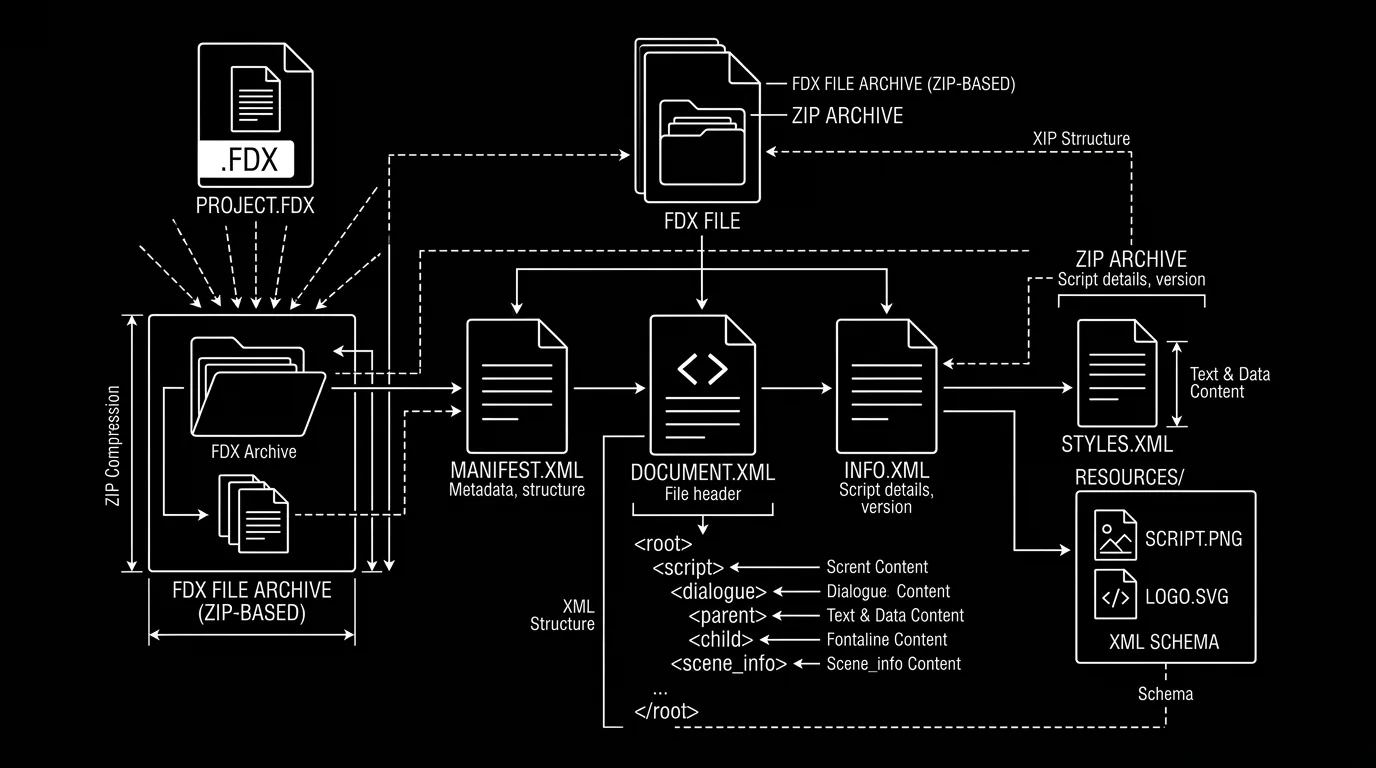
Prompt: Dark Mode Technical Sketch, A file icon with .fdx label; exploded or unpacked view showing Document.xml inside; clean thin white lines on solid black; technical diagram style; no 3D renders --ar 16:9
The Perspective
A corrupted .fdx is scary because it feels like your work is trapped. In practice, it's often recoverable, from backups, from another app, or from the XML inside the file. The real failure is not the corruption. It's having only one copy in one format in one place. Recovery gets you out of the immediate crisis. Backups and exports prevent the next one. Set up Final Draft's backup, export PDF and FDX copies on a schedule, and know where those files live. Then if Final Draft ever crashes again, you'll have a path back, and you'll sleep better between sessions.
For more on keeping your script safe across tools and storage, see .fdx files and the cloud and exporting for production.
Final Step
Build your next script with Screenweaver
Move from ideas to production-ready pages faster with timeline-native writing and AI-assisted story flow.
Try Screenweaver