
How to Automatically Generate Location and Character Reports
Prep needs a location list. And a character list. You could scroll the script, jot every INT/EXT and every character name, or you could hit a button and get a report.
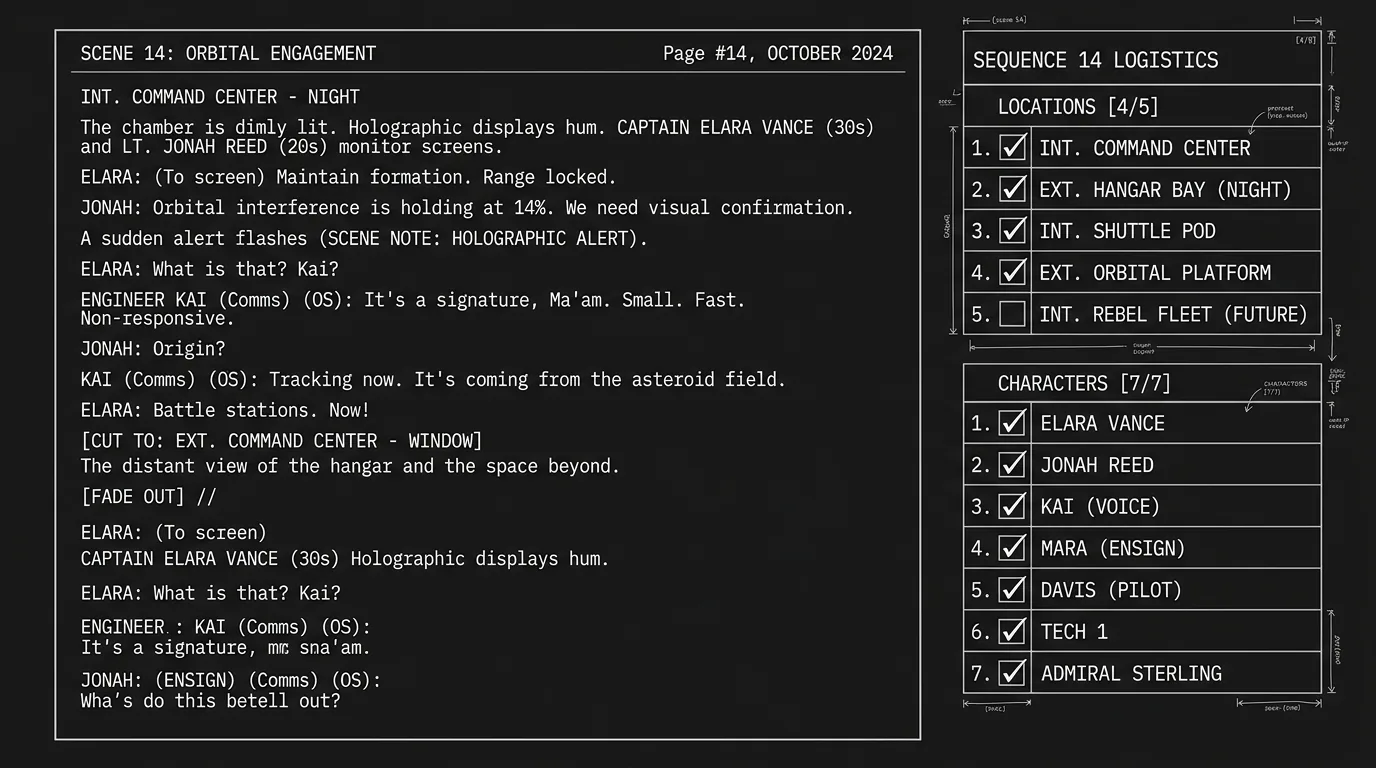
Automatic location and character reports parse your script and spit out clean lists: every location (with scene count or page range if the tool supports it), every character (with optional line count or appearance count). That saves time in development and pre-production and catches mistakes, a character you thought you cut still appearing in Scene 24, or a location typo that would confuse the breakdown.
Why Reports Matter
For you: A character report shows who's in the script and how often. You can spot underused characters or accidental duplicates (JANE vs JANET). A location report shows every INT/EXT so you can see how many locations you're asking for and whether the names are consistent.
For production: Breakdown and scheduling start from scene headings and character cues. A clean location list and character list (with optional scene/page references) give the production office and AD a head start. They'll still do a full breakdown, but your report is a sanity check and a first pass.
Automatic reports don't replace a human breakdown. They give you and production a fast, consistent snapshot so you can fix errors before they hit the schedule.
What "Automatic" Usually Means
The app (or a plugin/export) scans the script for:
-
Scene headings (INT., EXT., INT./EXT., etc.) and extracts the location part (e.g. "KITCHEN – DAY" → location "KITCHEN"). It may merge similar slugs (INT. KITCHEN – DAY and INT. KITCHEN – NIGHT → one location "KITCHEN") or list every slug. Depends on the tool.
-
Character cues (lines that look like character names, often ALL CAPS before dialogue). It builds a list of character names and optionally counts how many times each appears or how many lines they have.
Output is typically a simple list (or table) you can copy into a breakdown sheet, email to production, or use for your own audit. Some tools also integrate reports into the app, e.g. a "Characters" or "Locations" panel that updates as you write. Tools that extract ALL CAPS terms can help with character names; full character/location reports go further by distinguishing scene headings from character cues and grouping by location.
Try it free
Try Screenweaver for free on your script
It is free. Import your existing project, get a clearer view of your outline, and regain control of your story structure in minutes.
Start FreeScenario: Catching a Ghost Character
You cut a minor character in draft three. You're sure they're gone. You run a character report and see their name still listed, they have one line left in a scene you thought you'd cleaned. Without the report you'd have sent the script to production with a ghost character. With it you fix the scene and re-run the report until the list is clean.
When Your App Doesn't Generate Reports
Export and parse. Export the script to Fountain or plain text. Use a script (or a free tool) to find scene headings with a regex (e.g. INT.|EXT.) and character cues (ALL CAPS lines before dialogue). Build your own location and character lists. One-time setup, then run whenever you need a snapshot.
Manual pass. Scroll the script once, write down every location and every character. Slow but works. Do it at lock so production has a reference.
Third-party tools. Some standalone apps or web tools accept a script paste or upload and return location/character lists. Useful if your screenwriting app doesn't offer reports.
The Trench Warfare: What Goes Wrong
Inconsistent scene headings. "INT. KITCHEN" in one scene and "INT. KITCHEN - DAY" in another may show up as two locations. Fix: Standardize your slugs (same format every time) so the parser groups correctly. Or clean the report by hand before sending.
Character name variations. "JANE" and "Jane" and "JANE (V.O.)" may be parsed as different characters. Fix: Use consistent ALL CAPS for character cues; if the tool strips parentheticals, you're good. Otherwise normalize in the report.
Treating the report as the full breakdown. Reports are a starting point. Production will add scene numbers, cast breakdown, day/night, etc. Fix: Call it a "character list" or "location list" and share it as a reference, not the official breakdown.
Never running it. You have the feature but don't use it until the day before lock. Fix: Run reports at act breaks and at lock. Use them to audit your own script and to hand a clean list to production.
The Perspective
Automatic location and character reports are a small feature with a big payoff: fewer manual errors, faster prep, and a clear list you can hand to production. Use them to check your script and to give the room a head start. One click, one list, then get back to writing.
Free tool: use the Slugline Formatter to clean up and standardize your scene headings.
Final Step
Build your next script with Screenweaver
Move from ideas to production-ready pages faster with timeline-native writing and AI-assisted story flow.
Try Screenweaver