
Free tool: use the Screenplay Title Page Maker to generate an industry-standard title page as a clean PDF.
Try it free
Try Screenweaver for free on your script
It is free. Import your existing project, get a clearer view of your outline, and regain control of your story structure in minutes.
Start FreeCinematic workflow frames

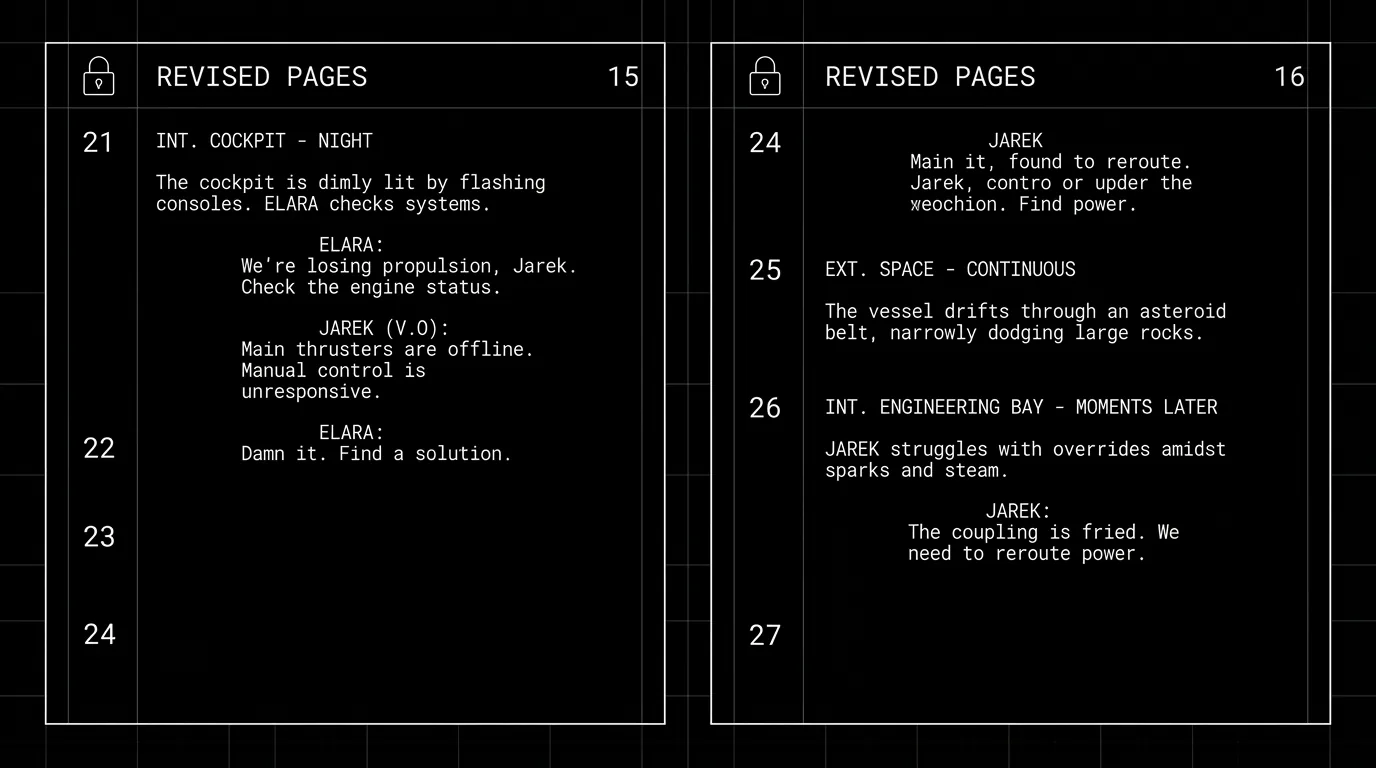
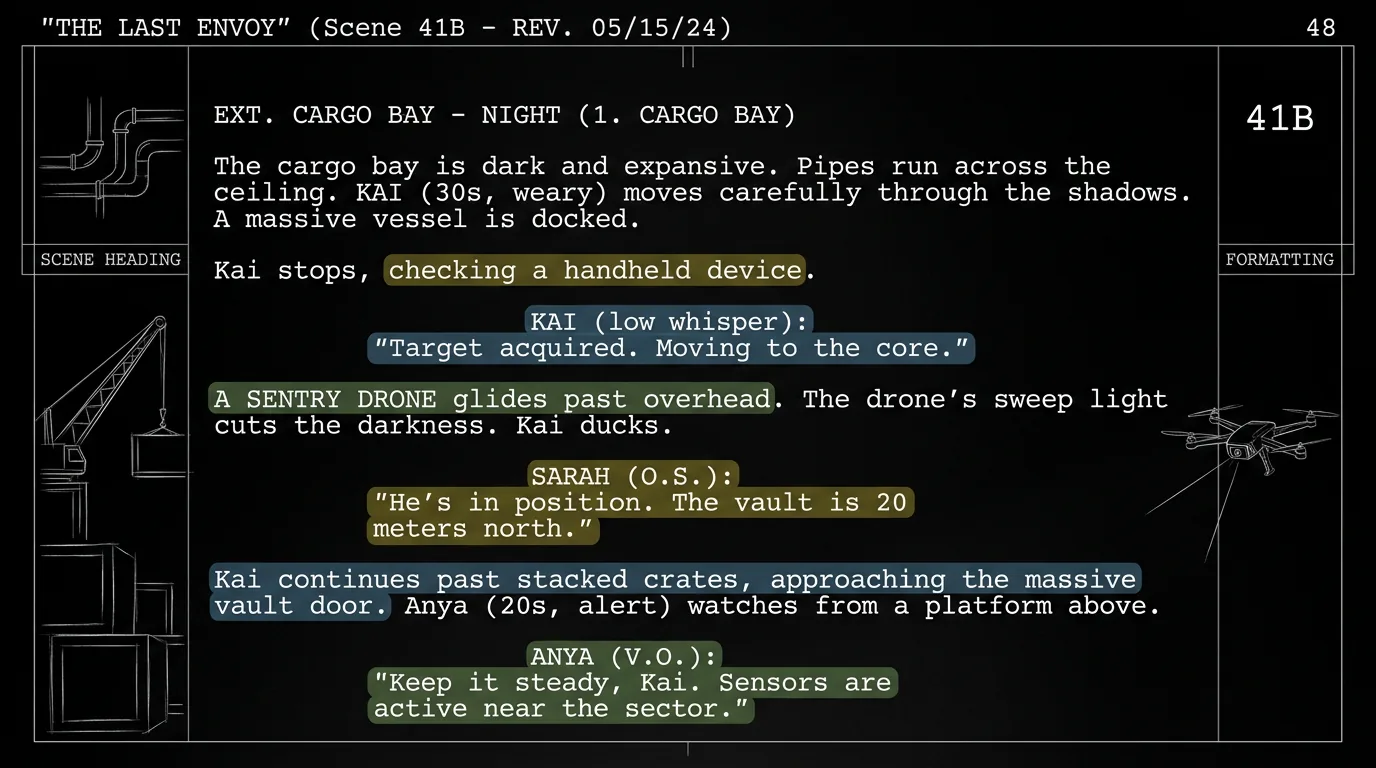
These two visuals work as a pair: the first shows Cinematic workflow still, first angle, 35mm film grain, and the second shifts to Cinematic workflow still, second angle, 35mm film grain - compare them briefly, then move on.
Color-Coding for Rewrites: How to Not Drive Your Director Crazy
The email lands at 4 p.m. Friday.
"We need a revision pass by Monday. Production wants to see exactly what changed so we can lock the budget."
You’ve been living inside this draft for months. You know every cut, every new line, every beat you moved. The director does not. The line producer does not. The script supervisor who will sit on set with a marked script definitely does not.
If you send them a clean, final PDF with no visible trail of what changed, you’ve just handed them a 120-page mystery. They will either waste hours comparing drafts by hand or, worse, miss a change that costs the shoot money or continuity.
Color-coding revisions is not optional once you leave your desk. It’s the professional contract between writer and production: here’s what’s new, here’s what’s gone, here’s what moved.
Do it wrong, and you drive everyone crazy. Do it right, and your revisions become a clear, scannable map.
Here’s how.
Why Production Needs to See Changes at a Glance
On set, time is money. In prep, clarity is money.
When a script goes through rewrites, several people need to answer the same question in seconds:
- What dialogue is new or altered?
- What action beats were cut or added?
- Which scenes were renumbered or merged?
- What do we need to re-breakdown, re-schedule, or re-budget?
If the only way to answer that is “diff the two PDFs” or “read the whole thing again,” someone will either skip steps and risk errors or burn a full day on comparison. Neither is acceptable. A script version diff tool can surface the changes automatically, but production still expects the marks on the page.
A color-coded revision draft says: I respect that other people’s jobs depend on seeing my changes. I’m not making them hunt.
Industry convention has settled on a simple idea: each revision pass gets a color. When you lock a draft and then do another round of changes, the new changes appear in the next color. Everyone agrees on the order (e.g. blue, then pink, then yellow, then green…) so that “yellow” means “the third revision” on any show.
That way:
- The director can skim and see only what’s new since the last version.
- The script supervisor can mark their copy with the correct revision color and know they’re in sync with the production draft.
- The line producer can isolate changed pages or scenes for cost impact.
- The writer can prove delivery: “This is the blue revision; here’s what changed.”
Without color (or an equivalent system), you’re asking the room to trust your memory. With it, you’re giving them a visual tool that scales.
Scenario 1: The Director Who Just Wants to Rehearse the New Beats
Imagine you’re on a low-budget feature. The director has two days of rehearsal before the shoot. They’ve read the script a dozen times. What they need now is only the material that changed in the last pass, new lines, cut lines, moved moments, so they can block and adjust with the actors without rereading the entire script.
You send a PDF. No revision marks. Just a clean, final document.
The director has to either:
- open your draft and an older draft side by side and compare page by page, or
- trust their memory and risk missing a cut line that an actor still has in their head from the previous draft.
Rehearsal becomes a minefield. An actor says a line you cut. The director didn’t know it was gone. Time burns. Nerves fray.
Now replay the same situation with a proper revision draft:
- New dialogue is highlighted in the current revision color (e.g. yellow).
- Deleted dialogue is struck through or shown in a “deleted” style, still readable.
- Moved scenes or renumbered beats are clearly marked.
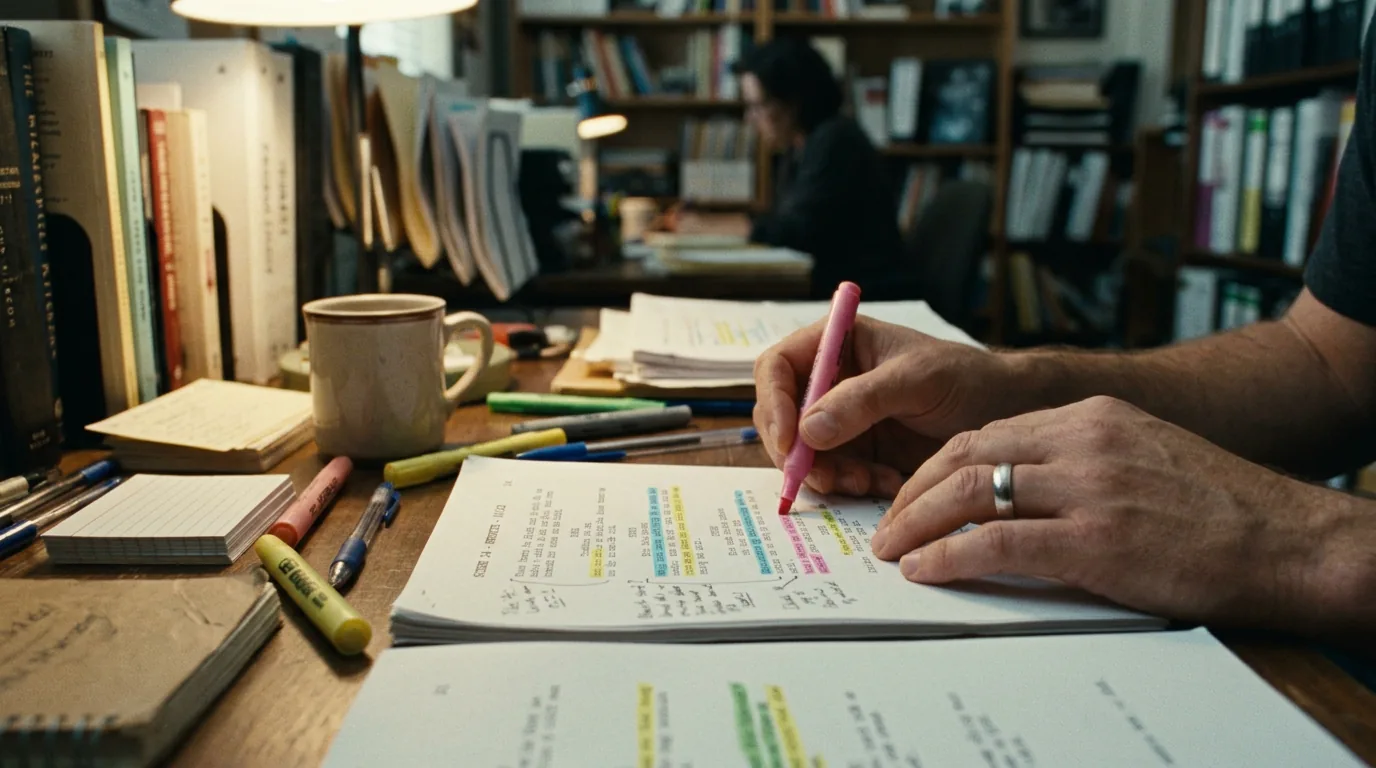
The director opens the PDF, scans for yellow (or whatever color you’re on). They see exactly which speeches and actions are new or changed. They can focus rehearsal on those moments. No side-by-side comparison, no guesswork.
That’s not “nice to have.” That’s the difference between a smooth prep and a chaotic one.
Scenario 2: The Script Supervisor Who Has to Match the Cut
On set, the script supervisor’s job is to keep the cut in mind: what’s been shot, what’s been dropped, what’s been altered. Their working copy of the script is usually marked up with take numbers, circled takes, and notes. If a new revision arrives and it’s not clear what changed, they have to manually merge the new pages into their marked copy or risk continuity errors in the edit.
When revisions are color-coded:
- They receive the same revision draft as everyone else.
- They can see at a glance which lines are new (highlighted) and which are removed (struck).
- They update their master script once, with confidence that they’re aligned with the production draft.
Without it, they’re cross-referencing two documents every time someone asks “is this line in or out?” That’s fragile and slow.
The Standard Revision Colors (And Why They Exist)
Different shops use slightly different sequences, but the logic is always the same: one color per revision pass, in a fixed order, so that “revision color” is a shared language.
A typical sequence looks like this:
| Revision pass | Color (common US convention) | What it means |
|---|---|---|
| First draft | White (no color) | Original draft; no revisions yet |
| Rev. 1 | Blue | First set of changes after lock |
| Rev. 2 | Pink | Second set of changes |
| Rev. 3 | Yellow | Third set of changes |
| Rev. 4 | Green | Fourth set of changes |
| Rev. 5 | Goldenrod / Buff | Fifth set (some use orange) |
| Later passes | Additional colors or double colors | Production may extend the sequence |
The exact palette can vary (some use “cherry” instead of pink, or “salmon”), but the principle is consistent: color = revision number. Once that’s established, anyone can say “we’re on yellow” and the whole team knows which draft they’re looking at.
Your job as the writer is to:
- Lock a draft (often with a date or version label).
- Make the next round of changes.
- Produce a new PDF where only the changed elements are marked in the next color in the sequence.
- Distribute that as “Blue Revision,” “Pink Revision,” etc.
So color-coding isn’t decorative. It’s versioning made visible.
For more on how versioning and locking interact with production, our article on managing scene numbers and locked revisions goes deeper into when and how to lock pages. Here we’re focused on the visual layer: how to show what changed so the director isn’t driven crazy.
What to Mark (And What to Leave Alone)
Not every tweak needs to scream. The goal is clarity for the reader, not noise.
Mark in the revision color:
- New dialogue: any line that wasn’t in the previous draft.
- Revised dialogue: if you changed even one word in a speech, mark the whole speech (or the changed portion, if your tool supports it).
- New action: added action/description lines.
- Revised action: meaningfully changed action (e.g. “He walks to the door” → “He runs to the door”).
- New or renumbered scenes: new scene headings, or scenes that were split/merged/renumbered.
Show as removed (strike-through or “A’s” in the margin):
- Cut dialogue: lines that were in the previous draft and are now removed. Production needs to see them so actors and script supervisors know they’re gone.
- Cut action: same idea, show what was removed so there’s no ambiguity.
Don’t over-mark:
- Minor typos or punctuation: fix them, but you don’t need to highlight “its” → “it’s” as a revision.
- Formatting-only changes: if you’re just fixing margins or slug style, that’s not a story revision.
- Every comma: use judgment. If the change doesn’t affect performance or breakdown, it’s often fine to leave it unmarked so the page stays scannable.
The rule of thumb: if it would change how an actor says the line, how a department heads a scene, or how the script supervisor tracks the cut, it gets a revision mark. If it’s housekeeping, it doesn’t.
The Trench Warfare: What Writers Get Wrong (And How to Fix It)
Revision marking seems simple until you’re in the thick of it. These are the failure modes that actually drive directors and production crazy, and the fixes that keep you out of the doghouse.
Mistake 1: Sending a “Clean” Draft When They Asked for Revisions
Sometimes the request is explicit: “Send the revision draft with changes marked.” Sometimes it’s implicit: “We need the new pages for the production meeting.”
If you send a final, clean PDF with no revision marks, you’ve made everyone’s job harder. They now have to guess or compare.
Fix: always ask. “Do you want a revision draft with changes marked, or a clean final?” If they say “revision,” export with your tool’s revision markup (or equivalent) and the correct color. If your software doesn’t support it, use a workflow that does: many writers round-trip through Fountain or FDX and then generate PDFs with revision highlighting from an app that supports it. Our piece on exporting for production (PDF vs FDX) touches on how format and revision marking intersect.
Mistake 2: Inconsistent Colors Across Documents
You send “Blue Revision” to the director. The script coordinator has a PDF they’re calling “Pink Revision” that’s actually an older draft. Chaos.
Fix: put the revision name and date on the title page and in the header or footer of every page. e.g. “BLUE REVISION – MARCH 9, 2026.” Then stick to one color per document. No mixing.
Mistake 3: Highlighting Everything So Nothing Stands Out
Some writers, anxious to be thorough, mark every tiny change. The page becomes a rainbow. No one can quickly see what matters.
Fix: reserve the revision color for story and performance changes. Typos, spacing, and formatting fixes can go in without highlight. If in doubt, ask the production office: “Do you want only dialogue/action changes marked, or every edit?” Most will say the former.
Mistake 4: Not Showing Deleted Material
If you remove a line or a beat, production needs to know it’s gone. Otherwise an actor might still have the old line in their script, or the script supervisor might still be tracking it.
Fix: use strike-through (or the standard “A” in the margin for deleted text) so that removed content is still readable but clearly marked as cut. Don’t just delete and send a clean page; that’s where “we didn’t know that was cut” comes from.
Mistake 5: Changing Revision Color Mid-Document
Rare but brutal: you start the draft in blue, then forget and mark some new changes in yellow. The reader no longer knows which pass they’re looking at.
Fix: one document, one revision pass, one color. If you need to do another round, lock the current draft, increment the revision (e.g. to pink), and generate a new PDF where all new changes in that round are in the new color.
How Your Software Can Help (Or Get in the Way)
Not every screenwriting app treats revision marking as a first-class feature. Some do; some bolt it on; some leave it to you.
Ideal behavior:
- You work in a “revision mode” (e.g. “Blue Revision”).
- Every change you make is automatically attributed to that revision and highlighted in the correct color when you export to PDF.
- You can toggle between “show revision marks” and “clean draft” for export.
- Deleted content can be shown as struck through in the revision draft.
Weaker but workable:
- You manually highlight changed text before export, or use a separate “revision pass” where you re-apply changes in a doc that supports highlighting.
- You keep a changelog or use “compare documents” in another tool to generate a marked PDF.
Deal-breaker:
- No way to produce a PDF that shows what changed. In that case, you need a workflow outside the app (e.g. export to Fountain/FDX, then use another tool to diff and highlight, or use a dedicated revision-marking utility).
If you’re evaluating tools, revision workflow is one of the things to test before you’re under a Monday deadline. For a broader look at how different apps handle production needs, our guide to best screenwriting software alternatives includes workflow and export behavior.
Lock the Draft, Then Revise
A clean revision process depends on a clear moment of “lock.”
- Locked draft: everyone agrees this is the version we’re revising from. It gets a label (e.g. “White Draft,” “March 2 Draft”) and, from that point on, any change is considered part of the next revision.
- New revision: you make your changes, assign them to the next color in the sequence, and export a new PDF. That PDF is “Blue Revision” (or whatever). No mixing with the previous draft.
If you don’t lock, you get into “which version is this?” confusion. If you do lock, then color-coding is just the visual report of “what’s different since the lock.”
Many productions also lock scene numbers at a certain point so that breakdowns and schedules don’t shift with every small edit. That’s a related discipline: managing scene numbers and locked revisions covers it in depth.
The Perspective: You’re Not Just Writing; You’re Communicating
Color-coding feels mechanical. It is. But underneath the mechanics is a single idea: your script is a handoff.
The director, the script supervisor, the line producer, the cast, they’re not inside your head. They don’t know what you changed unless you show them. Showing them in a standard, scannable way (revision color, strike-through for cuts, clear headers) means they can do their jobs without chasing you or second-guessing the document.
So don’t treat revision marking as busywork. Treat it as part of the deliverable. One clean revision draft, one color per pass, deletions visible, revision name and date on every page. That’s how you keep the room sane and your work aligned with production.
Do that, and the only thing that should drive your director crazy is the story, not the PDF.
Final Step
Build your next script with Screenweaver
Move from ideas to production-ready pages faster with timeline-native writing and AI-assisted story flow.
Try Screenweaver