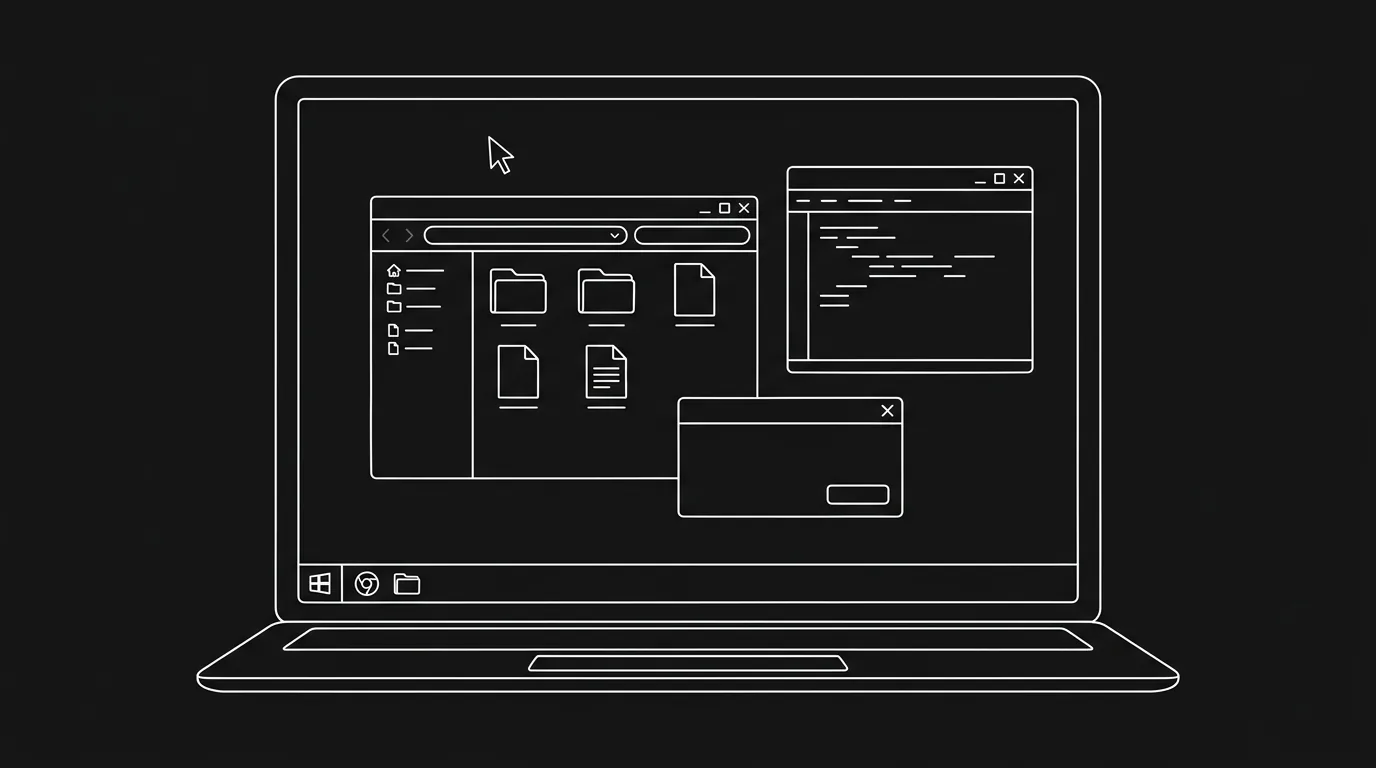

The whole film happens on a screen. Or most of it, Searching, Unfriended, Host. Desktop cinema (screen-life, screen capture) means the frame is a computer (or phone) desktop: windows, clicks, typing, video calls, notifications. Writing it is a mix of action (what we see on the desktop) and dialogue (video, chat, audio). Here's how to format a script that stays readable while specifying the screen's content.
The script is a map of the desktop. Every window, click, and beat has to be findable, without turning the page into a shot list.
Think about it this way. The audience never leaves the screen. So the script has to answer: what window is open, what do we see in it, what does the character do (click, type, scroll), and what do we hear (video call, music, notification)? You're not writing traditional scene headings for locations, you're writing screen states and actions. Our guide on formatting text messages and chyrons applies to on-screen text; desktop cinema is the full-frame version. For Zoom-style calls within the desktop, see Zoom call.
Free tool: use the Slugline Formatter to clean up and standardize your scene headings.
What Makes Desktop Cinema Different
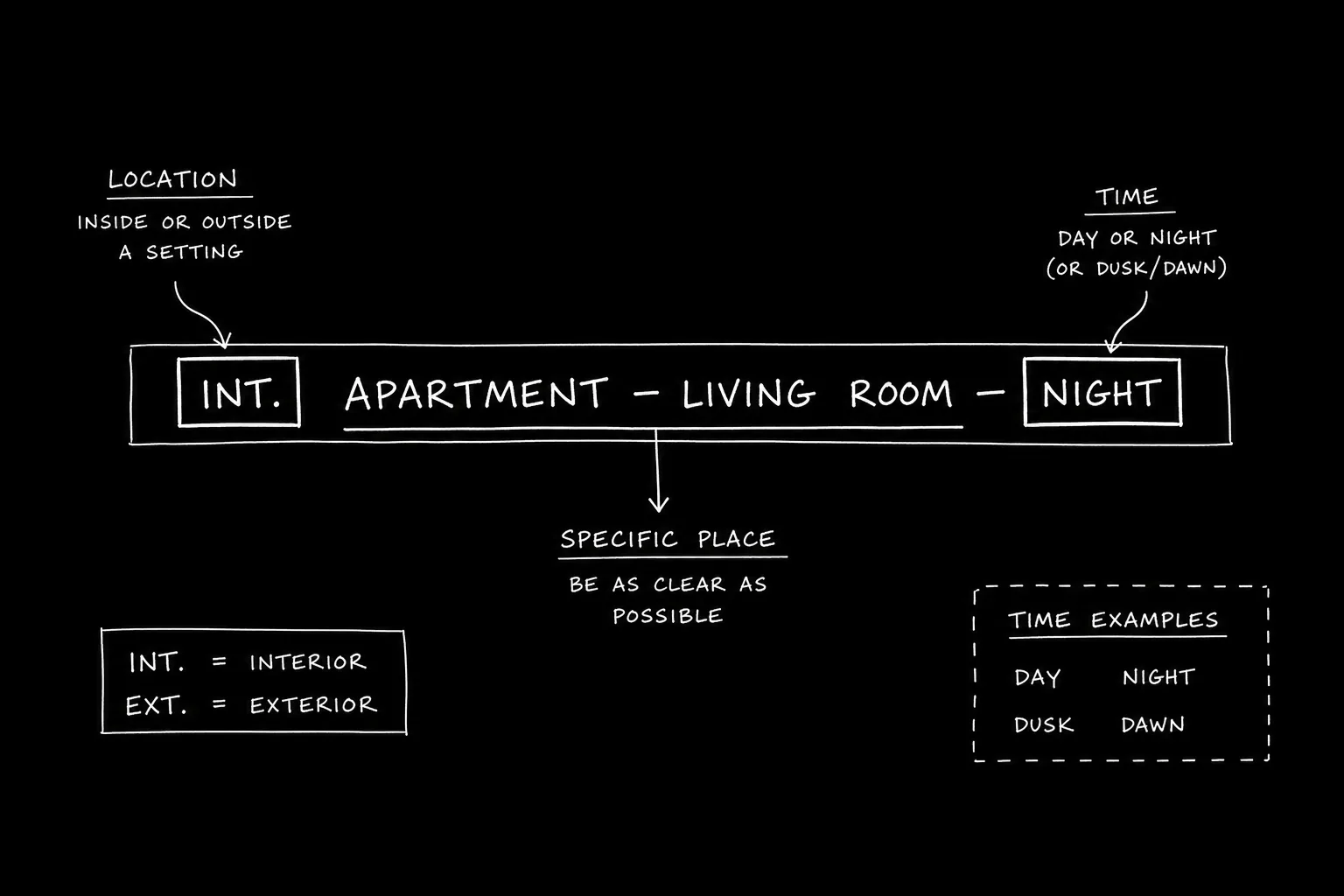
No traditional slug lines. We're not in "INT. OFFICE - DAY." We're on "MACBOOK DESKTOP - VIDEO CHAT WINDOW" or "DESKTOP - BROWSER OPEN TO [URL]." The unit of the scene is the screen state: which app or window is in focus, what's visible. Action is UI. Clicks, typing, scrolling, opening and closing windows. You describe what the user does and what we see as a result. Dialogue comes from video calls, voice messages, or on-screen text (chat, email). So the script alternates action (desktop events) and dialogue (from within the screen). For readability, see micro-pacing, short blocks and clear beats help.
Establishing the Desktop and the Character
Opening: Establish the device (e.g. "MACBOOK DESKTOP") and the first window or app we see. Then the character, we might see their face on a small video tile, or we infer them from the username, cursor, or typing. "The cursor hovers over the Chrome icon. Clicks. A browser opens." POV: We're almost always in one character's desktop (or shared between a few). Make it clear whose screen we're on when it matters. For POV and tension, see unreliable narrator.
Formatting Window Changes and Clicks
New window or app: Use a slug-like line or a clear action. "VIDEO CHAT WINDOW - FULL SCREEN." Or "She clicks the Zoom link. The call window opens. Six faces in gallery view." Clicks and typing: Action lines. "He types in the search bar: missing person." "She clicks SEND." The reader (and the editor) need to know the sequence. For text and on-screen content, see format text messages and chyrons.
Dialogue in Desktop Cinema
Video call: Same as Zoom, character name, (ON VIDEO) or (V.O.) as needed. Chat/email: Can be in action ("A message appears: I know what you did") or as a separate element. Voice message: (V.O.) with source. Keep dialogue tagged so we know who's speaking from where. For multimedia in scripts, see multimedia.
Relatable Scenario: The Detective on the Laptop
We're on the detective's desktop. They search, open emails, watch a clip. Format: Establish desktop. Each search, open, play is an action. Dialogue from video or audio is tagged. When they switch to a new tab or app, say so. For tension, see micro-pacing.
Relatable Scenario: The Group Call That Goes Wrong
We're on one character's screen. Zoom (or similar) is open. Something happens in the call, and maybe on the desktop (a notification, a message). Format: Combine Zoom formatting with desktop beats. "A Slack notification pops up. She glances. Doesn't click. Back to the call." For intercutting and tension, see intercutting.
Try it free
Try Screenweaver for free on your script
It is free. Import your existing project, get a clearer view of your outline, and regain control of your story structure in minutes.
Start FreeThe Trench Warfare Section: What Beginners Get Wrong
Over-specifying every click. The script reads like a UX flow. Fix: Summarize when the story doesn't need each click. "She opens the folder. Scrolls. Finds the file." We don't need "Click. Click. Scroll. Click."
Under-specifying. "She uses the computer." Fix: Say what we see, which app, which window, what text or image. Production and the reader need to see the same thing. For clarity, see screenplay format.
Losing the character. We're so deep in UI we forget who's driving. Fix: Tie beats to the character, their reaction, their typing, their face in the corner. For character and subtext, see subtext.
Inconsistent convention. Sometimes "DESKTOP - BROWSER," sometimes a paragraph. Fix: Pick a convention (e.g. caps for screen states, action for clicks) and stick to it. For format standards, see screenplay format.
Unreadable blocks. One long paragraph of desktop action. Fix: Break into short blocks. One window change or one action per beat. For pacing, see micro-pacing.
Desktop Cinema: What to Include
| Element | Include |
|---|---|
| Device / desktop | At open and when it matters |
| Active window / app | Every time it changes |
| Clicks, typing, scrolls | When they drive story or tension |
| On-screen text (chat, email, URL) | Content and, if needed, style |
| Dialogue (video, voice) | Tagged by character/source |
| Notifications, pop-ups | When they affect the story |
Step-by-Step: Formatting a Desktop Cinema Sequence
First: Establish the desktop and whose it is. Second: Use screen-state slugs or clear action for each major window/app change. Third: Write actions (click, type, scroll) in short blocks. Fourth: Tag dialogue from video, chat, or voice. Fifth: Keep one convention (e.g. caps for states, action for behavior). For more on on-screen content, see chyrons, text messages, and Zoom.
The Perspective
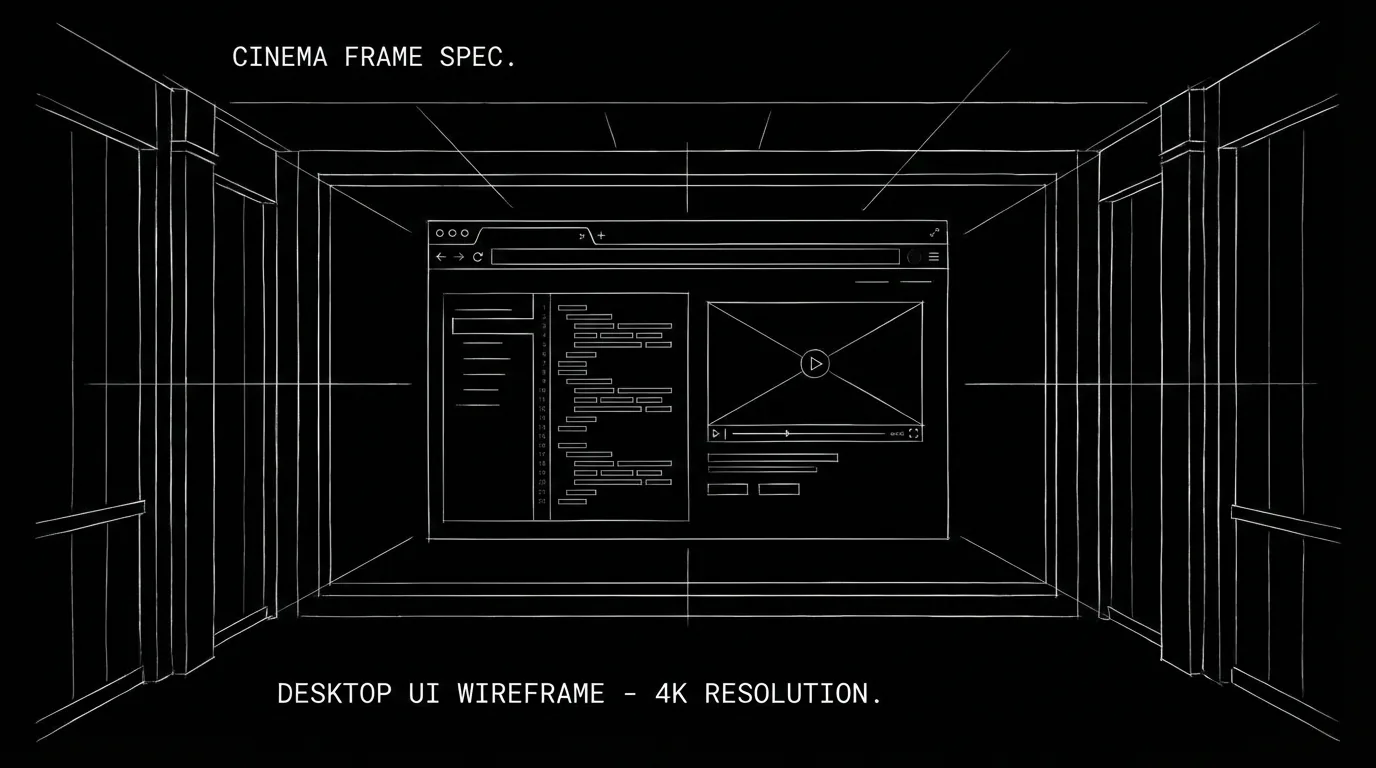
Desktop cinema scripts map the screen: device, active window, clicks, typing, and dialogue from the screen. Use clear screen-state slugs or action. Don't over-specify every click. Don't lose the character. When the reader can see the desktop in their head, the format works. So establish the screen. Track the windows. And keep the human in the frame.
Final Step
Build your next script with Screenweaver
Move from ideas to production-ready pages faster with timeline-native writing and AI-assisted story flow.
Try Screenweaver