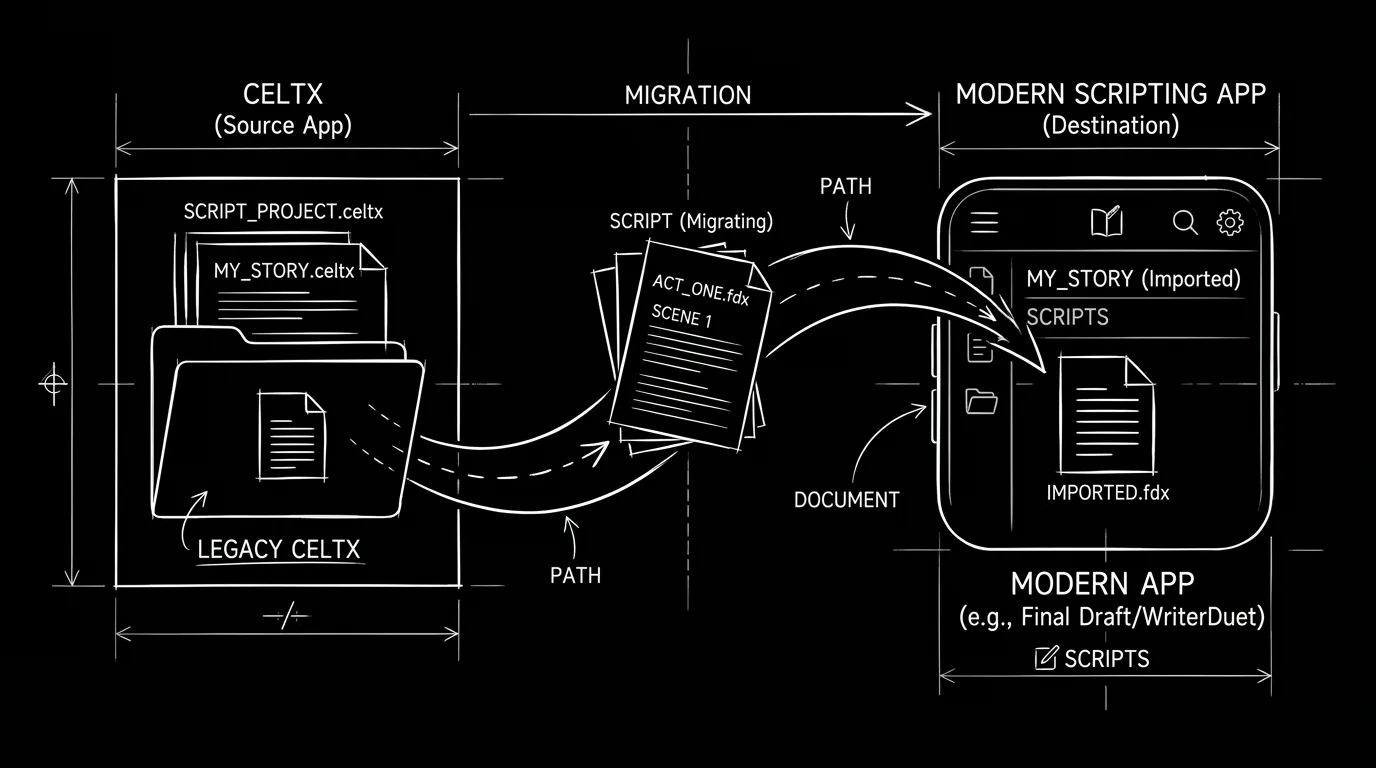

Prompt: Dark Mode Technical Sketch, A script document or folder moving from one box (Celtx) toward another (modern app); arrow or path between them; clean thin white lines on solid black; hand-drawn technical feel; no 3D renders --ar 16:9
You've been writing in Celtx for years. Maybe you started on the free tier in school, or you liked having script and breakdown in one place. Now something's shifted. The interface feels cluttered. You want a tool that fits how you write today, or you need to deliver in a format your collaborators actually use. Migrating from Celtx to a modern alternative doesn't mean losing your work. It means exporting it, choosing where it lands, and verifying that the new setup does what you need. This guide walks you through the move step by step: what to do before you leave, how to get your scripts out, and how to avoid the mistakes that turn a simple migration into a mess.
Celtx is still a solid choice for many writers, especially students and teams that want script and pre-production in one place. Our piece on Celtx in 2026 for students covers that. But "solid" isn't the same as "right for you forever." When the fit is wrong, when you've outgrown the free tier, when you need better FDX support, or when you're tired of the way the app behaves, moving is a professional decision, not a betrayal of the tool. The goal is to do it once, cleanly, so you can stop thinking about software and get back to writing.
Next stop after Celtx is often another “free” logo. Read hidden costs of free screenwriting software so you know what that sticker price omits. Once files land in the new app, eyeball layout against the screenplay format guide; before anyone asks, rehearse exporting for production.
Free tool: use the Beat Sheet Calculator to map these beats to exact page numbers for your script length.
Why Writers Leave Celtx
The reasons are usually a mix. Pricing: The free tier has limits; the paid tier may not feel worth it if you only need a good script editor. Format and compatibility: You need to send FDX or PDF to producers, contests, or a room that uses Final Draft. Celtx can export both, but the experience and reliability vary by plan and version. Workflow: You want something leaner, or something with a different structure, outlining, beat boards, or a single-document feel. Performance: Celtx runs in the browser and sometimes in a desktop wrapper; lag or sync issues can wear on you. Future-proofing: You'd rather own your files in a format and tool you control, without depending on one vendor's cloud. None of that means Celtx is bad. It means you're choosing a different path. The migration guide below works regardless of which alternative you pick, comparisons like our round-up of screenwriting software can help you decide where to land. One more thing: migrating doesn't require you to hate Celtx. Plenty of writers leave simply because they've changed, they want fewer features, or different ones, or a different price. The tool you started with doesn't have to be the tool you finish with.
Relatable Scenario: The Long-Time Celtx User With a Dozen Projects
Riley has eight finished scripts and four in progress, all in Celtx. They've never exported anything except the occasional PDF for a contest. When they decide to switch, they realize they don't know where Celtx stores the "real" files, is it all in the cloud? Can they bulk-download? They're afraid that if they cancel or stop paying, they'll lose access before they've moved everything. Here's the fix: don't cancel until the migration is done. Treat migration as a project. Export every script (PDF and FDX if available) to a folder on your machine or cloud drive. Open each export in the new tool and spot-check formatting. Only when you've confirmed that every project is readable and editable elsewhere do you consider closing the Celtx account. That way you're never racing the clock.
Relatable Scenario: The Student Moving From Celtx to a "Pro" Tool
Jordan used Celtx through film school. Now they're freelancing and want to work in whatever format studios and fellowships expect. They're not sure if they should keep Celtx and just export when needed, or switch entirely. The answer depends on how they work. If they're happy in Celtx and only need to send PDF or FDX occasionally, they can stay and export on demand, no full migration required. If they prefer to write in the new tool day to day, they migrate: export all current projects from Celtx, open them in the new app, and then use the new app as their primary. The key is owning a copy of every script in a portable format before relying on the new tool. That way "migration" is just changing where you write, not rescuing data.
Relatable Scenario: The Small Team Leaving Celtx Together
A writers' room or a production company has been on Celtx for years. Shared projects, comments, and breakdowns live there. Moving means everyone has to agree on the new tool, export their work, and re-establish collaboration in the new app. The step-by-step below still applies, export per project, verify in the target app, but add two things: assign one person to own the migration (who exports what, where files are stored, and how the team will use the new tool), and pick a cutover date so you're not half in Celtx and half elsewhere forever. Run a pilot: migrate one project, have two people work in the new tool for a week, then roll out to the rest.
Step-by-Step: Exporting Your Scripts From Celtx
Step 1 – List what you have. Open Celtx and list every project you care about. Note which are active (you'll edit them soon) and which are archive (you just need a safe copy). You'll export everything, but you'll prioritize checking the active ones in the new tool.
Step 2 – Find Celtx's export options. In the Celtx interface, open a script and look for File → Export or Download (or the equivalent in the web app, menus vary by version). You want at least PDF (universally readable) and, if your plan supports it, FDX (Final Draft format). Export one test script to PDF and one to FDX. Open the PDF in a reader and the FDX in another screenwriting app (e.g. Fade In{rel="nofollow"}, or the tool you're migrating to). Confirm that formatting looks correct: scene headings, character names, dialogue, page breaks. If something's off, note it, you may need to fix it after import or try a different export path.
Step 3 – Create a single migration folder. On your computer or in a cloud drive, create a folder like Celtx_Export_2026 or Scripts_Migration. Inside it, create subfolders by project name or by script title. You'll put every exported file here. That way you have one master copy before anything lives only in the new app.
Step 4 – Export every project. For each script in Celtx, export PDF (and FDX if available) and save into the migration folder. Use a clear naming convention: ProjectName_YYYY-MM-DD.pdf and ProjectName_YYYY-MM-DD.fdx. That way you know what's what and when you exported. If Celtx has a "Download all" or bulk export, use it, but still spot-check a few files. Don't assume bulk export is perfect.
Step 5 – Verify a few key exports. Open two or three exported files in the target application. Check scene headings, character cues, action, and page count. If the new app has an "Import FDX" or "Open FDX" option, use it for the .fdx files. If you only have PDF, many tools can import PDF or you can copy-paste (you may need to clean up formatting). Fix any major issues now so you're not surprised later. For format reference when cleaning up, see our screenplay format guide.
Step 6 – Move into the new tool. For each project you're actively using, open the FDX (or import the PDF) into your new screenwriting app. Save as the native format of that app. You're now working from the new tool. Keep the files in your migration folder as backup. If the new app uses cloud sync, make sure the project is synced before you consider the migration done for that script.
Step 7 – Decommission Celtx when you're ready. Only after every project is exported, verified, and (for active ones) opened and saved in the new tool should you cancel or downgrade Celtx. Before you do, do one last export of any project you touched in the meantime. Then close the account or let the subscription lapse. You've migrated. One last habit: bookmark or note where your migration folder lives. If you ever need to prove what you had in Celtx or recover a version, that folder is your evidence. Treat it like a legal backup, don't scatter the exports across random desktop folders or delete them to free space until you're sure the new tool has been your only source of truth for at least a few months.
What Can Go Wrong (And How to Avoid It)
| Pitfall | Prevention |
|---|---|
| Celtx exports with formatting errors | Export one script first; open in target app and fix; then repeat for rest |
| You cancel Celtx before exporting | Export everything before changing or cancelling the account |
| FDX not available on your plan | Export PDF; use a PDF-to-FDX converter or import PDF into target app if supported |
| Target app doesn't open Celtx FDX cleanly | Try another FDX-capable app as a bridge; open there, export a new FDX, then open in final tool |
| Lost project (wrong folder, wrong account) | Keep one migration folder with all exports; name files clearly; double-check before deleting Celtx |
Your migration is only done when you can open every script in the new tool and work on it. Exports in a folder are backup; they're not migration until you've confirmed the new app can read and edit them.
Try it free
Try Screenweaver for free on your script
It is free. Import your existing project, get a clearer view of your outline, and regain control of your story structure in minutes.
Start FreeThe Trench Warfare: What Beginners Get Wrong
Exporting once and deleting Celtx the same day. Something always gets missed, a draft you forgot, a project that didn't export cleanly. Fix: Export everything. Wait at least a few days (or a week) and open a random sample in the new app. Only then cancel or stop paying. Keep the export folder for at least a month.
Assuming the new app will look exactly like Celtx. Different tools have different layouts, shortcuts, and features. You'll have a learning curve. Fix: Budget time to learn the new app with one script before you move the rest. Use the new tool's help or tutorials. Accept that the first week will feel slower.
Skipping the PDF export. FDX is great for editing in another screenwriting app, but PDF is the universal fallback. If FDX import fails or the target app mangles something, you still have the PDF to read and, if needed, to copy from. Fix: Always export both PDF and FDX (when available) for every project. Store both in your migration folder.
Not checking formatting after import. Sometimes FDX import changes margins, fonts, or scene heading style. Fix: Open each imported script and skim the first few pages. Check scene headings, character names, and action. Fix any obvious errors before you close the migration for that file. For a quick reference on what "correct" looks like, see screenplay formatting.
Migrating without a backup of the exports. You export from Celtx, open in the new app, and delete the export folder to save space. Then the new app has a bug or you need to compare versions. Fix: Keep the migration folder (PDFs and FDXs) for at least several months. Back it up to a second drive or cloud. Only delete when you're sure the new app is your single source of truth and you've had no issues. For more on protecting your script in standard formats, see .fdx and cloud backup.
Choosing the Modern Alternative
Migration assumes you've picked a destination. If you haven't, the decision is: What do you need that Celtx isn't giving you? Better offline use? Tighter FDX round-trips? A different writing environment (e.g. outline-first, beat boards, or a single document)? Lower cost or one-time purchase? Our best screenwriting software alternatives round-up compares the main options. For a deeper Celtx vs. Final Draft angle, see Celtx vs. Final Draft. Once you've chosen, the steps above work the same: export from Celtx, verify in the new tool, then switch.
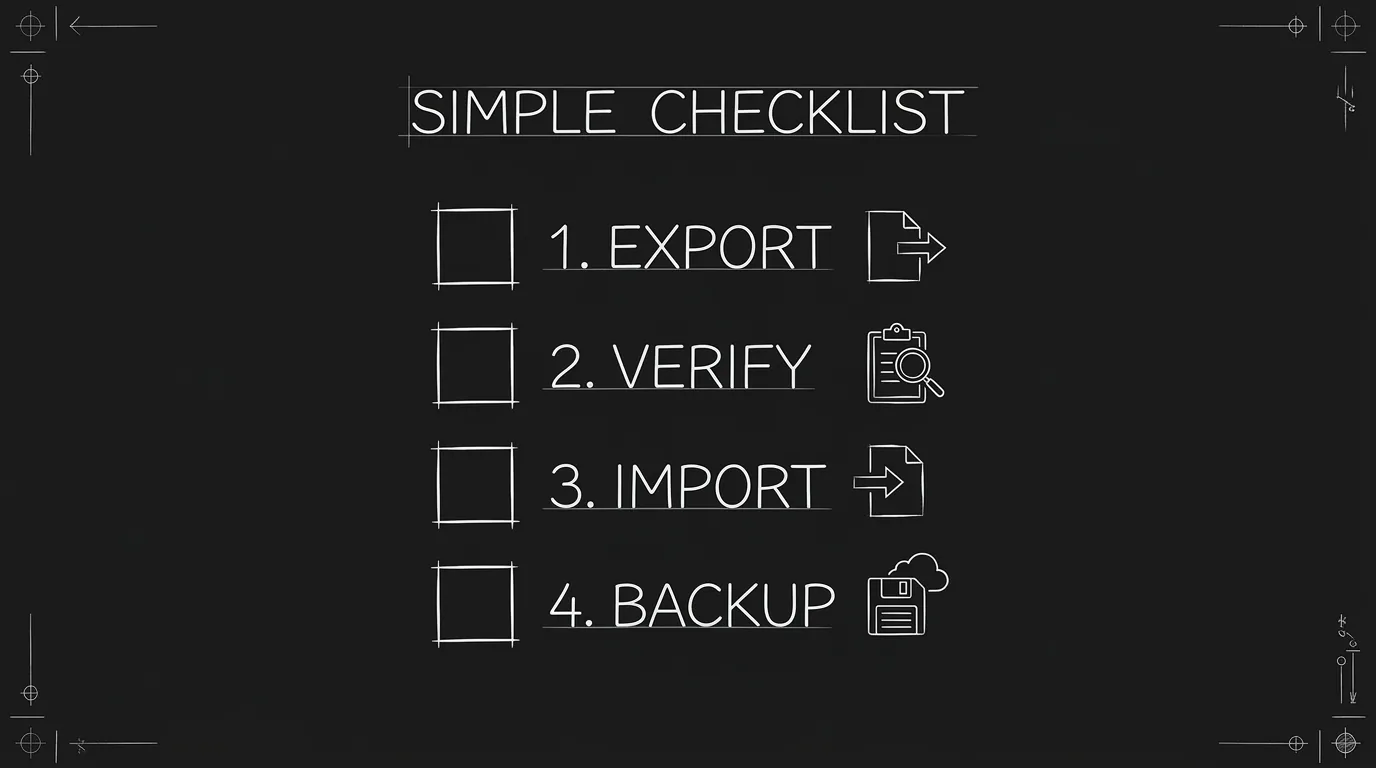
Prompt: Dark Mode Technical Sketch, A simple checklist: Export, Verify, Import, Backup; small script or document icons next to each step; thin white lines on solid black; no 3D renders --ar 16:9
Granular Workflow: One Script, Start to Finish
Open the script in Celtx. Make sure you're on the latest version you want to preserve (e.g. "Draft 2" not an old draft). Save if there are any unsaved changes.
Export. File → Export (or equivalent). Choose PDF; save to your migration folder with a clear name. If FDX is available, export FDX to the same folder.
Open the new app. Create a new project or use "Import" / "Open." Select the FDX file from the migration folder. If the app only imports PDF, use that instead.
Spot-check. Scroll through the first 10–15 pages. Scene headings in the right place? Character names capped? Dialogue and action intact? If yes, save the project in the new app's native format. If no, fix the obvious issues (or re-export from Celtx with different settings if the problem is export-side).
Repeat for the next script. Do the same for every project. For archive scripts you may only need to confirm they open; for active scripts you'll be working in the new app from here on.
Backup the export folder. Copy Celtx_Export_2026 (or whatever you named it) to a second location, another drive, cloud storage, and leave it there. You're done with that script's migration; the backup is your safety net.
[YOUTUBE VIDEO: Screen recording: exporting a script from Celtx to PDF and FDX, then opening the FDX in a second screenwriting app, scrolling through to verify formatting, and saving as a new project.]
Prompt: Dark Mode Technical Sketch, Two minimal app windows side by side; same script visible in both; thin white lines on solid black; migration complete; no 3D renders --ar 16:9
The Perspective
Migrating from Celtx to a modern alternative is a one-time project, not a leap into the unknown. Export everything. Put it in one folder. Open it in the new tool. Verify. Then close Celtx when you're ready. The writers who get into trouble are the ones who cancel first and export later, or who assume one click will move a dozen projects perfectly. Do the work once, in order, and you'll have your scripts in the right place and a backup that doesn't depend on any single vendor. After that, the only thing that changes is where you write, not whether you can. Your next script will start in the new app. The old ones will be there too, because you moved them instead of hoping.
For more on when to stay in Celtx vs. when to look elsewhere, see Celtx in 2026 for students and screenwriting software alternatives.
Final Step
Build your next script with Screenweaver
Move from ideas to production-ready pages faster with timeline-native writing and AI-assisted story flow.
Try Screenweaver