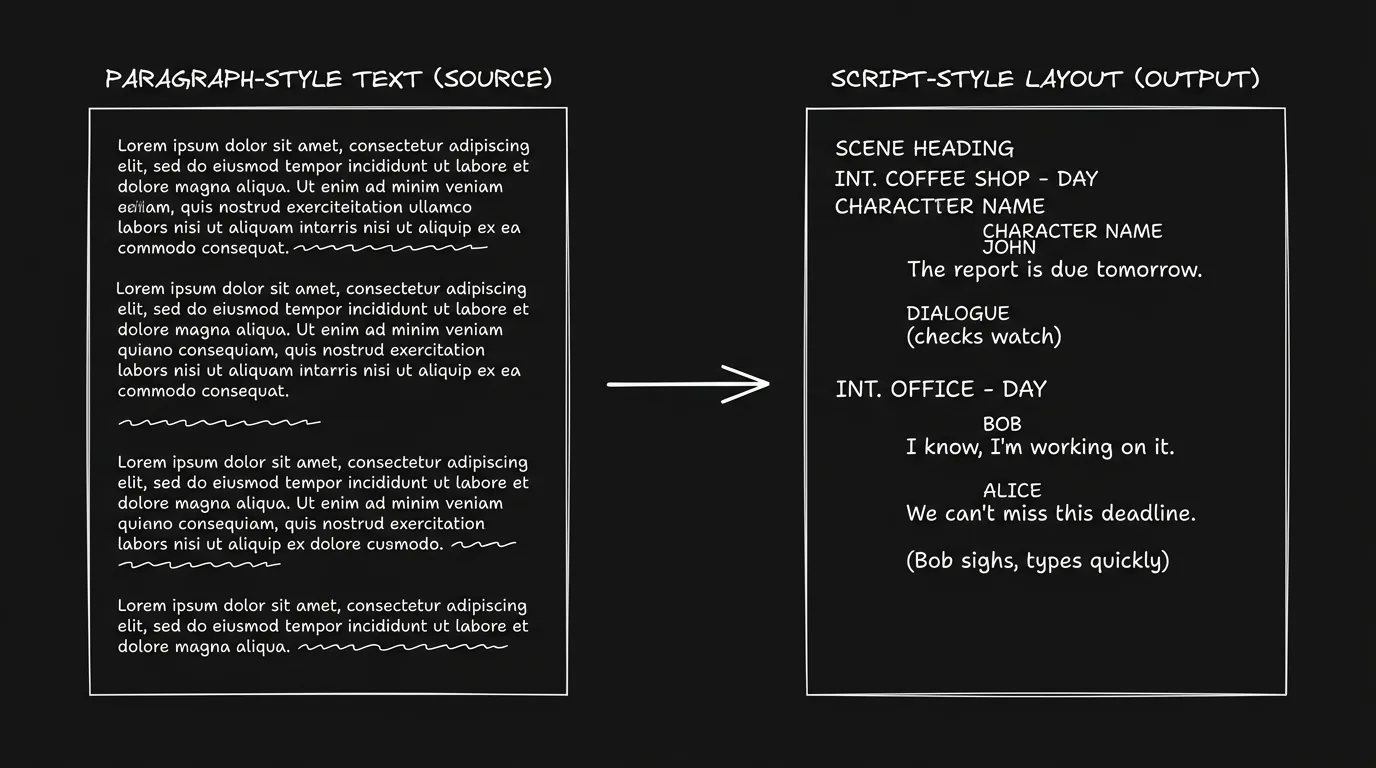

Prompt: Dark Mode Technical Sketch, A document on the left with paragraph-style text; an arrow; script-style layout on the right with scene headings, character names, dialogue; thin white lines on solid black; no 3D renders --ar 16:9
You wrote your first draft in Word or Google Docs. Everyone knows how to use them. No learning curve. You could focus on the story. Now you're done, or close, and you're about to send the script to a contest, a manager, or a producer. Someone asks for a PDF. You export from Docs or Word. The result looks like an essay with dialogue in it. Scene headings are mixed into the paragraphs. Character names aren't capped or positioned the way they are in a real script. The margins are wrong. That's the moment. The turning point to professionalize your text isn't when you decide you're a "real" writer. It's when the world you're sending to expects a script, and your document doesn't look like one. This guide is about that transition: why it matters, when to make the switch, and how to move from Word or Google Docs to real screenwriting software without losing your work or your mind. The earlier you make the switch, the less reconverting you'll do later.
A screenplay has a specific format for a reason. Scene headings (INT. LOCATION - DAY), character names above dialogue, action in blocks, dialogue with fixed margins, that layout is the industry standard. Readers and producers are used to it. They gauge length by page count (roughly one page per minute). They scan for structure. When your submission looks like a novel or an essay, you're asking them to read something that doesn't match their template. Some will try. Many will downgrade you before they've read a line. Not because the writing is bad, but because the package says "I don't know how scripts work." The good news: converting isn't rewriting. You're not changing the story. You're putting it in the right container. For the exact rules, margins, fonts, slugs, see our screenplay format guide. For what to do with the file once it's in shape, see exporting for production.
The turning point isn't "I'm ready for Hollywood." It's "I'm sending this to someone who expects a script." Once you cross that line, the word processor is the wrong tool.
Free tool: use the Beat Sheet Calculator to map these beats to exact page numbers for your script length.
Why "Google Docs" shows up in the same breath as screenwriting
Docs is everywhere. Comments. Sharing. Zero install.
Good enough for a treatment, a beat dump, a draft so ugly you would not show your cat.
Not the place where pagination quietly decides whether your “90 pages” reads like ninety minutes or a hostage situation. Docs does not know a character cue from a grocery list. Add one action line, watch the page break pretend nothing happened. Export a PDF: still reads like a very confident essay.
Did you land here from a generic Google Docs search with tabs and styles labeled “screenplay”? You are arm-wrestling the wrong opponent.
Move the locked draft into screenwriting software. Keep Docs as the messy notebook if you want; just stop asking it to be a print shop for the industry. Screenplay format guide shows what “correct” looks like; exporting for production is what happens when someone downstream actually has to use the file.
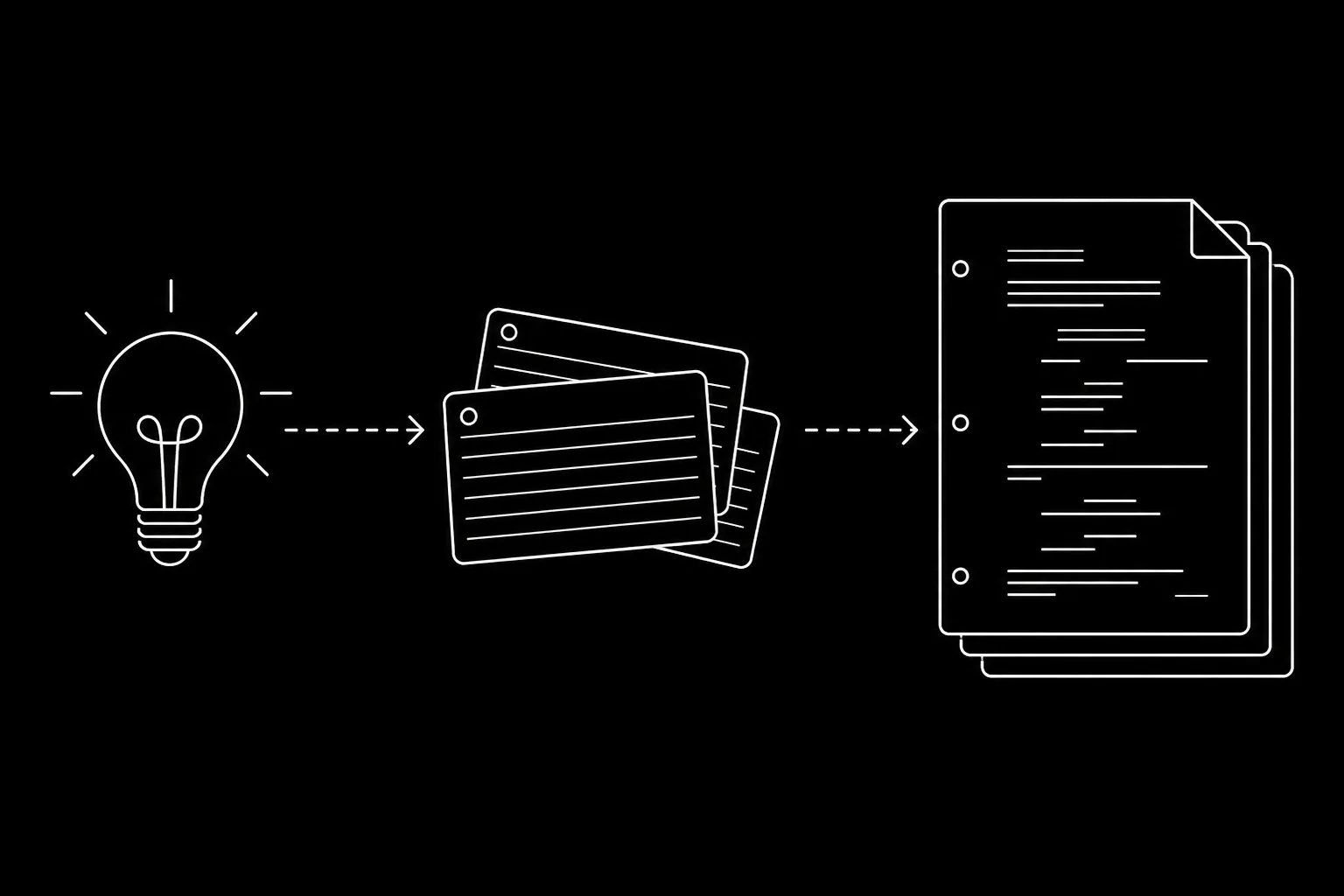
If you are still shaping story order, treat Docs as the sandbox and follow idea → beats → scenes → draft so you do not “professionalize” pages you will merge or delete.
Relatable Scenario: The Writer Who Submitted a Doc to a Contest
Casey finished a feature in Google Docs. They'd used bold for character names and tried to keep scene headings on their own lines. They exported to PDF and submitted. A few months later they got a form rejection. No notes. They wondered if the script was weak, until a friend who'd judged elsewhere said: "Format was a mess. Looked like a manuscript." Casey hadn't realized that "close enough" wasn't close. Contests and readers see hundreds of scripts. The ones that look wrong get less patience. Fix: Before you submit anywhere, convert the draft to a proper screenplay format in dedicated software. Export PDF (and FDX if the contest accepts it) from that tool. For a round-up of tools that handle format automatically, see best screenwriting software alternatives. For format rules so you know what you're aiming for, see screenplay format.
Relatable Scenario: The Writer Who Got "This Doesn't Look Like a Script"
Jordan sent their Word document to a producer's assistant. The assistant wrote back: "Do you have this in script format?" Jordan had thought they did, they'd used headings and indents. But Word doesn't enforce screenplay conventions. Margins were off. Dialogue ran full width. Character names weren't in the right place. The assistant wasn't being picky; they needed something that could be dropped into development or breakdown software. Fix: Move the script into a screenwriting app. Reassign every block to the correct element (scene heading, action, character, dialogue). Export to PDF and FDX. Then send that. For what production expects, see exporting for production.
Relatable Scenario: The Writer Who's Ready to Query and Has Three Drafts in Docs
Sam has three features in Google Docs. They're about to query managers and enter contests. They know they need "proper" format but they're afraid converting will take forever, or that they'll mess it up. So they keep postponing. The turning point is accepting that conversion is a one-time project per script. You open the Doc, you paste or import into a screenwriting app, you go through and fix element types (this block is action, this is dialogue, this is a scene heading). It's tedious for the first script. By the second you have a rhythm. By the third you're fast. And from then on you write in the screenwriting app so you never have to convert again. For how to choose the app, see screenwriting software alternatives. For protecting the result, see .fdx and cloud.
Word/Google Docs vs. Real Screenwriting Software: What Changes
| In Word/Docs | In screenwriting software |
|---|---|
| You set margins and fonts yourself (or leave default) | App applies industry margins and font (e.g. Courier Prime 12pt) |
| Scene headings are whatever you type, no structure | Scene headings are a distinct element; app can list them, reorder, export correctly |
| Character names are just text | Character names are a distinct element; positioned and capped automatically |
| Dialogue is a paragraph | Dialogue has its own margin and wrap; page count follows ~1 page/minute |
| No export to FDX | Export to FDX for compatibility with Final Draft, breakdown, scheduling |
| No element awareness | Outline, scenes, and script can be tied together (in some apps) |
The point isn't that Word or Docs are "bad." They're general-purpose. Screenplay format is specialized. Once you need the specialization, the general-purpose tool holds you back. Format isn't pedantry, it's how the industry communicates. Scene headings become a breakdown; character names become cast; page count becomes schedule. When your document doesn't have that structure, you're asking everyone downstream to do extra work. For a full format reference, see screenplay format guide.
Try it free
Try Screenweaver for free on your script
It is free. Import your existing project, get a clearer view of your outline, and regain control of your story structure in minutes.
Start FreeThe Trench Warfare: What Beginners Get Wrong
Thinking "I'll fix the format later." Later becomes never, or it becomes the night before the deadline. Fix: Set a turning point. "When I send this to the first contest or the first rep, it will be in proper format." Then convert before that moment. Don't send a Doc export and hope no one notices.
Manually formatting in Word to "look like" a script. You set custom margins, tabs, and styles. It's fragile, one wrong paste and the layout breaks. And it still won't export to FDX or integrate with production tools. Readers can often spot a "fake" script: spacing is off, or the font is wrong, or the page count doesn't match industry convention. Fix: Use software built for screenplays. Let it handle margins, elements, and export. Your job is story; the app's job is format. For tools that do both, see screenwriting software alternatives.
Converting once and never writing in the new app. You move the script to Final Draft (or another app), fix the format, export PDF, then go back to Word for the next draft. Now you have two versions. Fix: After conversion, write the next draft in the screenwriting app. That way there's one source of truth and you're not reconverting every time. For version and backup discipline, see .fdx and cloud.
Pasting the whole Doc in one go and hoping the app "figures it out." Some apps can import from PDF or try to detect elements from plain text, but the result is usually a mess. Scene headings become action; action becomes dialogue. Fix: Paste in chunks (scene by scene or section by section) and assign each block to the correct element type. Slower, but you only do it once per script. For format so you know what each element looks like, see screenplay format.
Picking a screenwriting app that's more than you need. You need correct format and PDF/FDX export. You don't necessarily need collaboration, beat boards, or subscription pricing. Fix: Choose the simplest tool that does format and export well. You can always upgrade later. Free or low-cost options exist, Fade In, WriterSolo, Celtx free tier, or others. The goal is to stop sending Doc-style PDFs, not to buy the most expensive app. For a round-up that includes simple and full-featured options, see best screenwriting software alternatives. For cost, see why your screenwriting software shouldn't cost a fortune.
Step-by-Step: Converting a Word or Google Docs Draft to a Script
Step 1 – Choose your screenwriting app. Pick one that does industry format and exports PDF and FDX. Trial or free tier is fine. You're not committing for life, you're committing to this conversion. For options, see screenwriting software alternatives. Install it (or open the web app) and create a new project. Name it after your script.
Step 2 – Break your Doc into blocks. In Word or Docs, go through the draft and identify: scene headings (INT./EXT., location, time), action paragraphs, character names (when someone speaks), and dialogue. You don't have to change the Doc, just know where each block starts and ends. If your Doc is already loosely structured (e.g. scene headings on their own line), that helps. If everything is in one long flow, you'll need to split as you paste. A trick: search for "INT." and "EXT." to find scene headings; that gives you a skeleton. Then fill in action and dialogue between them. For what each element looks like in final form, see screenplay format.
Step 3 – Paste and assign elements. In the screenwriting app, start at the top. Paste the first block (usually a scene heading). Use the app's menu or shortcut to set the paragraph type: Scene Heading. Paste the next block (usually action). Set it to Action. When you hit a character name and their dialogue, set the name line to Character and the dialogue to Dialogue. Repeat scene by scene. It's mechanical. Take breaks. For a 90-page script this might take an hour or two the first time. For a short or a pilot, less. Some writers do one act per sitting. The key is to assign every block, don't leave anything as "default" or the export will look wrong. For format reference, see screenplay format.
Step 4 – Fix what the paste broke. After you've gone through once, scroll the script. Look for: dialogue that's in the wrong element, scene headings that got merged with action, character names that didn't get capped. Fix them by selecting the paragraph and re-assigning the element type. For apps that auto-format during rewrites and can mis-tag, see Final Draft auto-formatting during rewrites, same idea: explicit element assignment avoids guesswork.
Step 5 – Export and verify. Export to PDF. Open the PDF and skim the first ten pages. Do scene headings look right? Character names? Dialogue margins? If something's off, go back to the app and fix the element type or the app's format settings. Then export again. When you're satisfied, you have a professional script. Keep the original Doc as a backup until you've done at least one full draft in the new app, then you can archive it. For handing off to production or contests, see exporting for production. For backup, see .fdx and cloud.
When to Make the Switch (And When You Can Wait)
Switch before you send to anyone. Contests, managers, producers, fellowships, all expect a script-format PDF (and sometimes FDX). If you're not there yet, don't send. Convert first. Switch when you're serious about the next draft. If you're going to do a real rewrite, do it in the screenwriting app so the next version is already in format. You can wait if you're still in early draft and only sharing with friends or a writing group who don't care about format. But the moment "someone who could say yes" is in the loop, the document has to look like a script. There's no half measure: either you're writing for yourself and your circle, or you're writing for the industry. The industry expects a script. For what readers and contests notice, see mistakes that get your script tossed, format is one of them.
The Perspective
The turning point from Word or Google Docs to real screenwriting software isn't about legitimacy. It's about meeting the expectation of the room. When you send a script, it should look like a script. That means the right tool. Convert your existing drafts once; write the next ones in the app. You'll save time, avoid "this doesn't look like a script," and have a file that exports to PDF and FDX for anyone who needs it. The word processor got you through the draft. The screenwriting app gets you through the door. Plenty of pros wrote early stuff in Word. The ones who kept going made the switch when it mattered. For format rules, see screenplay format guide. For tools, see best screenwriting software alternatives. For the official Final Draft product (one common choice), Final Draft is the source of record, but many alternatives also deliver correct format and export.
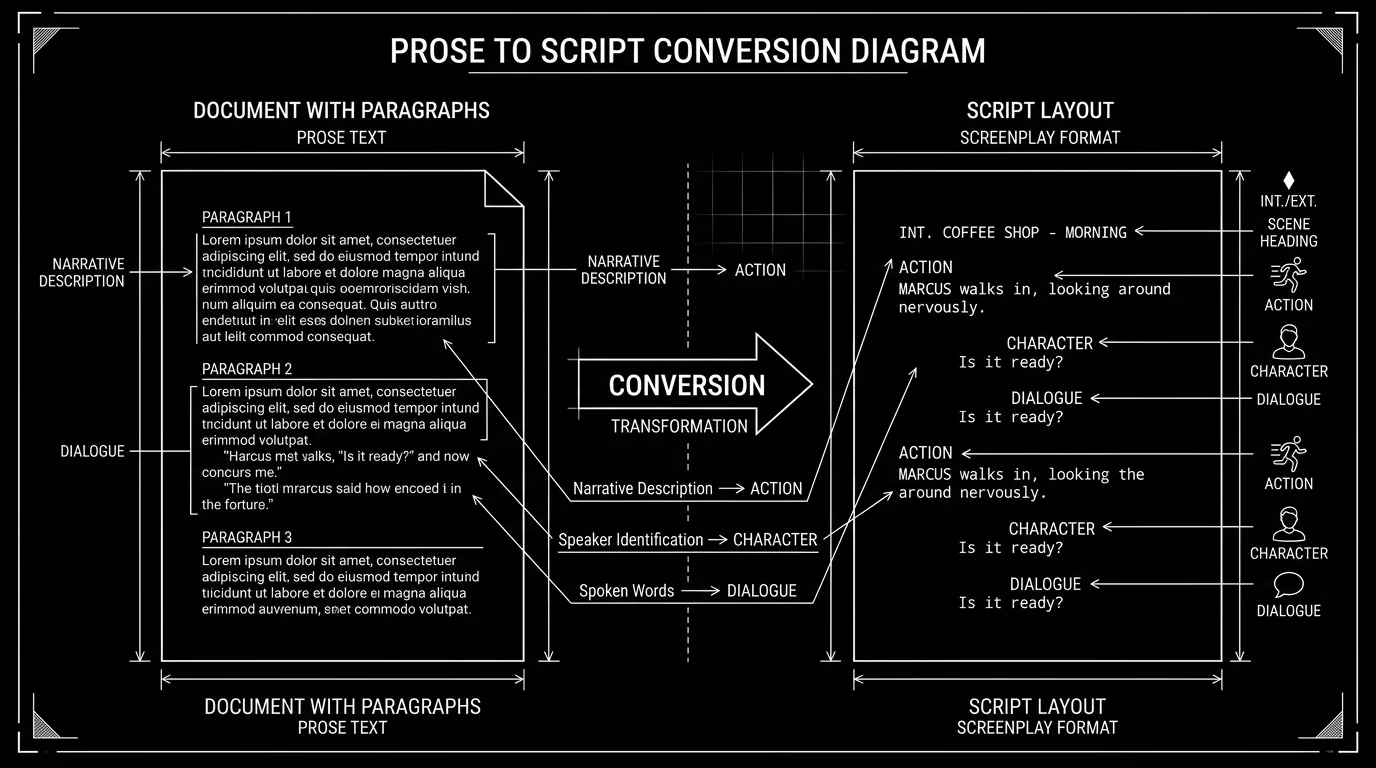
Prompt: Dark Mode Technical Sketch, Left: document with paragraphs; right: script layout with scene heading, action, character, dialogue; arrow between; thin white lines on solid black; no 3D renders --ar 16:9
After the Switch: Write in the New Tool
Once the script is in the screenwriting app, don't go back to Word or Docs for the next draft. Write in the app. That way you never reconvert. You'll learn the app's shortcuts (scene heading, action, character, dialogue) and the second script will be faster. The third will feel normal. The turning point is behind you. Many writers find that the structure of the app, having to choose an element type, actually helps them think in script terms. Prose wants to flow; scripts want to be broken into beats. The app reinforces that. For keeping that script safe and portable, see .fdx and cloud. For writing on the go with the new tool, see offline vs. online when writing on the go.
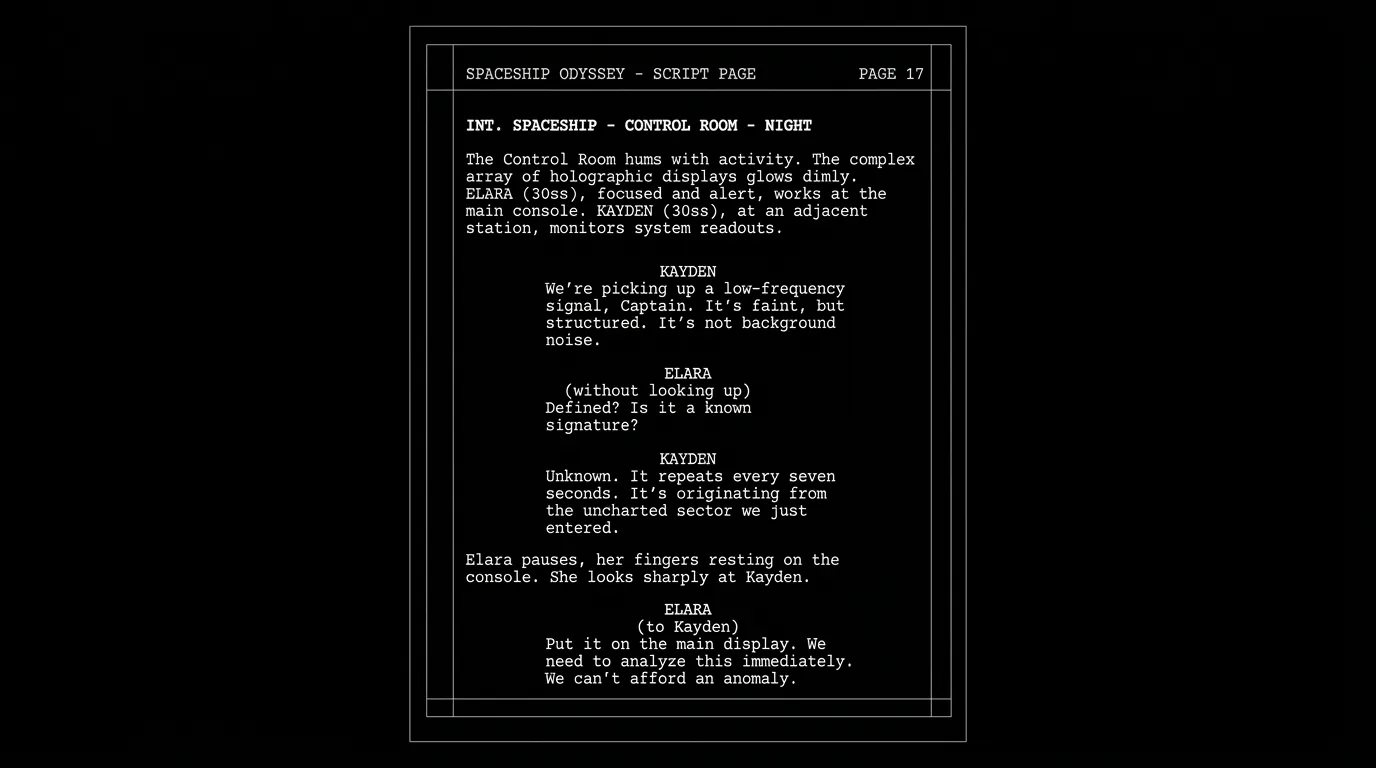
Prompt: Dark mode technical sketch, A single script page with clear scene heading, action, character name, dialogue; clean layout; thin white lines on solid black; no 3D renders --ar 16:9
Final Step
Build your next script with Screenweaver
Move from ideas to production-ready pages faster with timeline-native writing and AI-assisted story flow.
Try Screenweaver