
The Importance of Version History: How to Retrieve That Brilliant Line You Deleted Yesterday
You cut a line in the rewrite. It felt right at the time. This morning you read the scene again and that line was the one that made the beat land. You don't remember it exactly. You need it back.
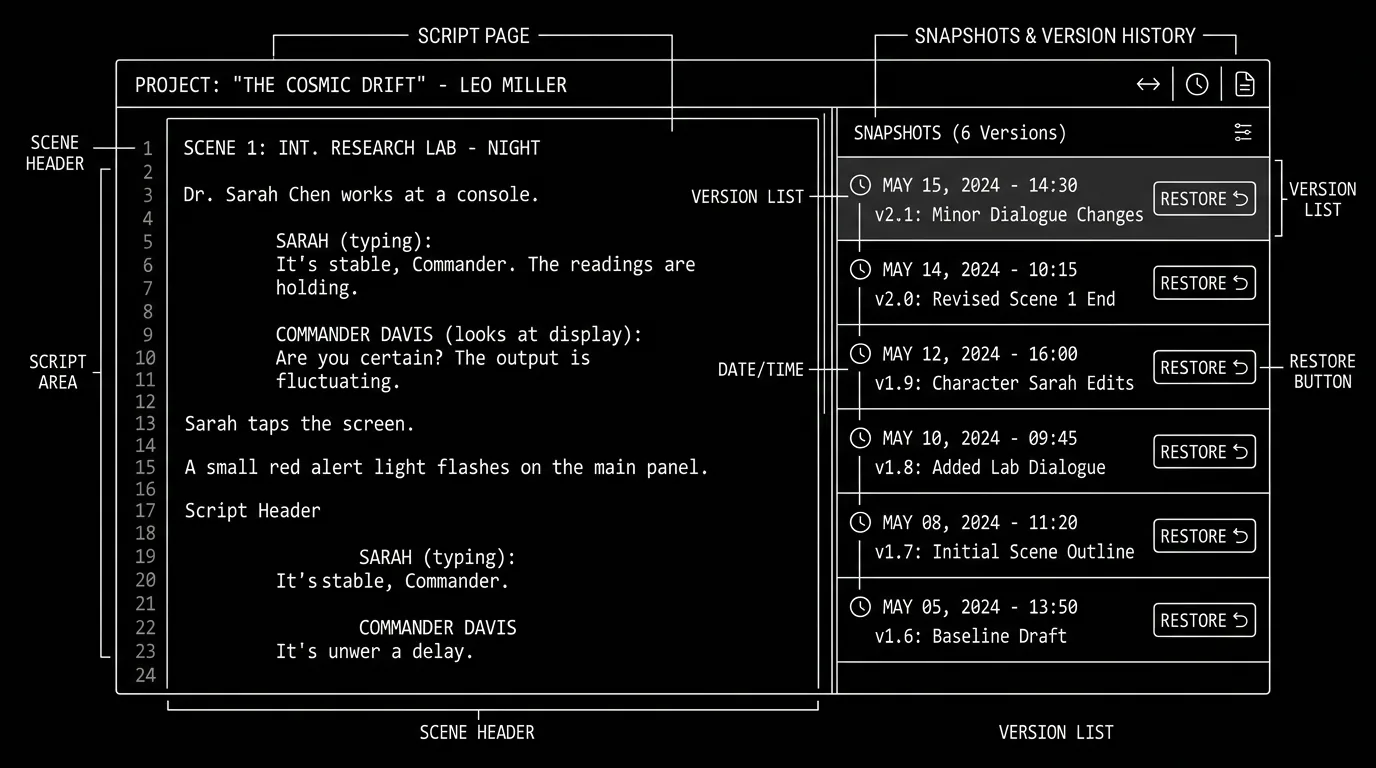
Version history (or snapshots) is your safety net. You save versions of the script as you go, or the app does it for you, so you can go back to "yesterday" or "before the big cut" and recover a line, a scene, or a whole act. Without it, that brilliant line is gone. With it, you're one click away from "what did I have here?"
Why Version History Matters
Writers cut. They restructure. They try a direction and then reverse. Sometimes the reverse is wrong and you want the previous version back. Not the whole script, maybe one speech, one scene, one act. Version history lets you compare or restore without "I hope I have an old PDF somewhere."
Version history isn't backup (that's 3-2-1). It's time travel for your draft, so you can take risks and still undo them.
What Good Version History Looks Like
Snapshots or auto-saves. Either you manually "Save version" at milestones (end of act one, before big cut) or the app keeps automatic versions (e.g. every day, every N edits). So there's always a past state to open.
Compare and restore. You can open an old version side by side with the current one, or restore a single scene/element from an old version into the current script. Full restore is useful; selective restore (e.g. paste one scene from yesterday into today's script) is even better.
Clear labels. Versions are dated or named ("Before midpoint cut", "March 9 6pm") so you know which one to open.
Accessible. Version history is in the app or in the cloud (e.g. project history). You don't have to dig through folders, you open the project, open history, pick a version. Our version control and snapshots piece goes deeper; so does 3-2-1 backup, backup and version history work together.
Try it free
Try Screenweaver for free on your script
It is free. Import your existing project, get a clearer view of your outline, and regain control of your story structure in minutes.
Start FreeScenario: Recovering the Line You Cut
You're on draft four. You deleted a three-line exchange in the midpoint because the scene felt long. Now the director says the scene needs more tension, and you remember that exchange had it. You open version history, find "Before midpoint trim" (or yesterday's auto-save), open that version, copy the three lines, switch back to the current script, paste them in. Two minutes. Without version history you'd be reconstructing from memory or hoping an old PDF exists.
When Your App Doesn't Have Version History
Manual snapshots. Before a big change, Save As: "Script_Midpoint_v2_March9.fdx". Keep a folder of these. When you need an old version, open the file and copy what you need into the current draft. Clunky but works. Pasting two snapshots into a screenplay draft compare tool shows exactly which lines differ, so you skip rereading the whole script.
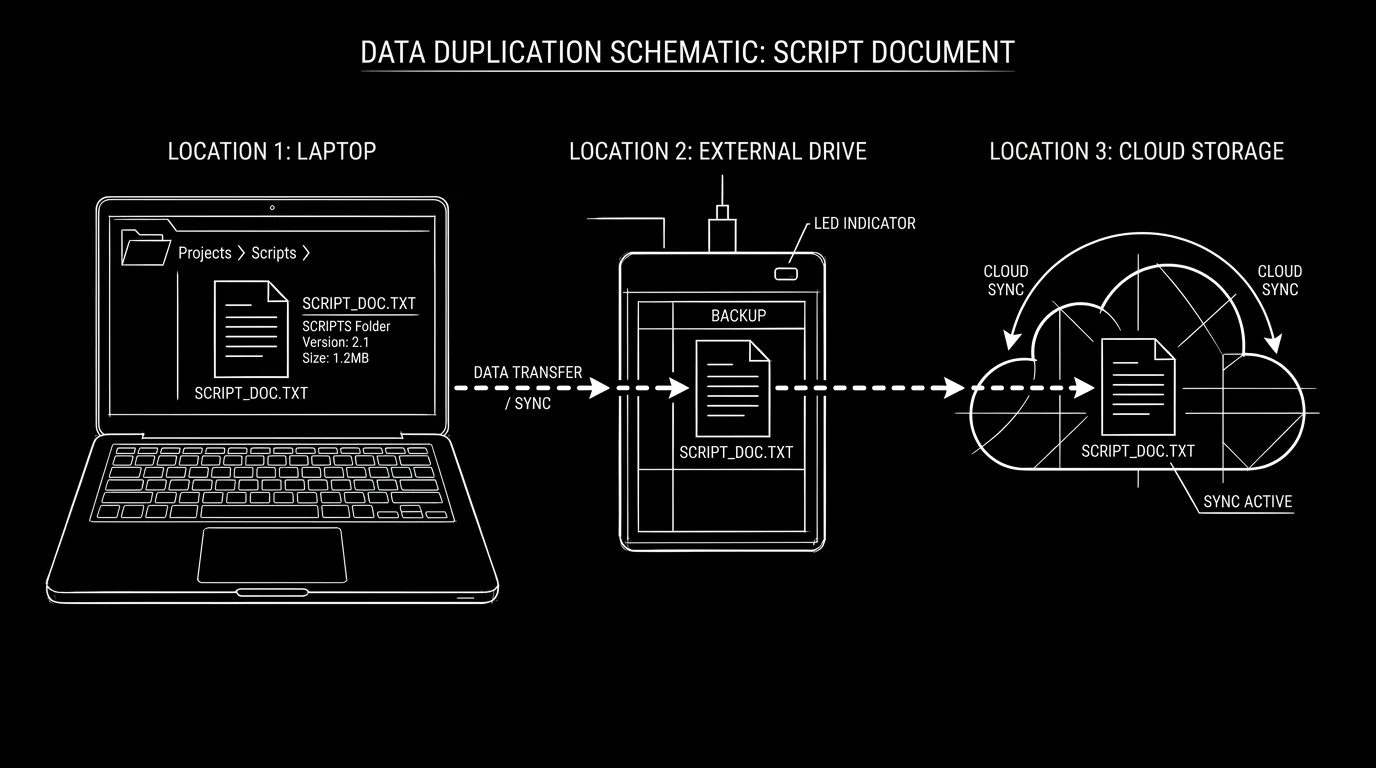
Cloud or backup with history. If your app saves to the cloud or you use backup software (Time Machine, Backblaze, etc.), you may have older copies of the file. Restore an old copy to a different name, open it, and grab the line or scene. That's version history at the file level.
Export at milestones. At the end of each writing day or each act, export a PDF or FDX with the date in the filename. You won't have in-app compare, but you'll have "Script_2026-03-08.pdf" to open and copy from.
The Trench Warfare: What Goes Wrong
Never saving versions. You rely on "I'll remember" or a single backup. Fix: Turn on auto-save/history if the app has it. If not, make a habit: before a big cut or at end of day, Save As with date or label. One minute of discipline saves hours of regret.
Too many versions, no labels. You have 50 auto-saves with timestamps and no idea which one is "before I rewrote Act Two." Fix: When you manually save a version, name it. "Before dialogue pass." "End of Act One." Then you can find it.
Deleting old versions to save space. You purge history after a few weeks. Then you need something from a month ago. Fix: Keep at least a few milestones (e.g. one per act, one per week). Export those to dated files in a folder if the app doesn't keep them long.
Confusing version history with backup. Version history is great for "get back that line." It's not a substitute for 3-2-1 backup. If the project file corrupts or the cloud account is lost, history may be gone too. Fix: Back up the project (including any history the app stores) to an external and to the cloud. See 3-2-1 backup.
The Perspective
Version history is how you write without fear. You can cut, restructure, and try big changes knowing you can always reach back for the line or the scene you need. Use it. Save versions at milestones. When you need that brilliant line you deleted yesterday, you'll have it.
Final Step
Build your next script with Screenweaver
Move from ideas to production-ready pages faster with timeline-native writing and AI-assisted story flow.
Try Screenweaver