
You have a cast of twelve. Half of them have names that are a chore to type. One location shows up in every other scene. Every time you hit a new scene heading or a character cue, your fingers dance the same keys. That repetition adds up. For professionals who live inside long-form scripts, templates and macros are not luxuries,they are how you keep your head in the story instead of in the keyboard.
The idea is simple: you define a shorthand, and the software expands it into the correct element. Type a few characters and get a properly formatted scene heading. Trigger a hotkey and get a character name, already capitalized and positioned. The gain is not just speed. It is consistency. The same location is spelled the same way every time. The same character never appears as "Jake" in one place and "JAKE" in another. For readers and for production, that predictability matters.
This piece is about how to think about templates and macros in a screenwriting workflow, why they matter for both speed and quality, and how to set them up so they actually get used instead of forgotten. We will stay clear of tool-specific step-by-steps; the principles apply whether you are in a classic desktop app or a modern web-based editor. The goal is to make your environment work for you so you can stop thinking about formatting and start thinking about what happens in the next scene.
"Script writing template" vs macros in your app
People type script writing template when they want one of two different saves: a blank page that already behaves, or a button that spits the same slug for the fiftieth time. Software owes you the first; you build the second.
Downloaded a Word "screenplay" PDF from a forum? Cute. Every margin fight is still yours. Safer bet: an app that hard-locks screenplay format, then macros for the strings that haunt your wrists. That is what most folks actually mean when they say template: less typing, fewer typos, not magic story juice.
Beats-only work, sequences without touching dialogue yet, lives next door. Pair shortcuts on the page with something like AI for outlining if you borrow machine suggestions; you still sign the rewrite.
Why Shortcuts and Templates Belong in Your Workflow
Screenwriting software exists to enforce format. Margins, fonts, element types,the boring stuff. But the moment you have to stop and type "INT. MARIA'S APARTMENT - KITCHEN - NIGHT" for the eighth time, or "DET. SARAH CHEN" every time she speaks, you are no longer just writing. You are performing data entry. Your brain switches context. The flow breaks.
Templates and macros reduce that friction. A template is a stored snippet: a scene heading, a character name, a block of action or dialogue that you reuse. A macro is usually a key combination or a short string that inserts that snippet. Different applications use different words,some call them "custom elements," others "snippets" or "autocomplete",but the function is the same. You signal intent with minimal input; the program fills in the rest in the correct format.
The best shortcut is the one you use without thinking. If you have to remember a complicated key combo or a long abbreviation, you will fall back to typing. The goal is to make the shortcut shorter and easier than the full text.
For character names and locations, the payoff is especially high. Names and places appear dozens or hundreds of times in a script. A single typo in a character name can confuse a reader or break a search later. A location that appears as "COFFEE SHOP" in one slug and "INT. COFFEE SHOP - DAY" in another can complicate breakdowns and scheduling. When the software expands a shorthand into the same formatted string every time, you remove an entire class of errors. You also save time. Five keystrokes instead of thirty might seem small until you multiply it by the number of scene headings and character cues in a 110-page script.
Characters and Locations: Where to Start
The two highest-leverage areas for templates are character names and scene headings (locations). Both are repeated constantly. Both need to be consistent. Both are easy to define once and reuse forever for that project.
Character name shortcuts
In most screenwriting applications, when you are in a dialogue block or about to write one, the program expects a character name. Typing the full name every time is redundant. Many apps already offer autocomplete: you type "MAR" and the editor suggests "MARIA SANTOS" or "DET. MARCO VEGA." That is a form of template. You can usually go further by defining custom shortcuts. For example, you might assign "jc" to expand to "JAMES CHEN" or "sc" to "DET. SARAH CHEN" so that you never have to type the full name or worry about capitalization. The software applies the correct element type (character name) and formatting (all caps, correct margin) for you.
The same idea applies to characters with long names or titles. "THE STRANGER" or "NURSE (V.O.)" can be shortened to a two- or three-letter trigger. The point is not to make your script unreadable to anyone else,the point is that in your drafting environment, you want the smallest possible gesture that produces the correct result. As discussed in our guide on screenplay formatting, correct placement and capitalization of character names are part of what readers and production expect. Templates ensure you hit that standard without thinking.
Location and scene heading shortcuts
Scene headings are even more repetitive than character names. You return to the same sets again and again. "INT. POLICE STATION - BULLPEN - DAY" might appear twenty times. "EXT. ABANDONED WAREHOUSE - NIGHT" might show up in every act. Defining a shorthand for each major location,e.g., "bullpen" or "bp" for the bullpen, "warehouse" or "wh" for the warehouse,lets you insert the full slug in one move. You stay in the flow; the script stays consistent. Production will thank you later, because breakdown and scheduling tools rely on exact slug text to group scenes. If one heading says "INT. POLICE STATION - BULLPEN" and another says "INT. BULLPEN - POLICE STATION," some systems will treat them as different locations. One canonical shorthand per location avoids that.
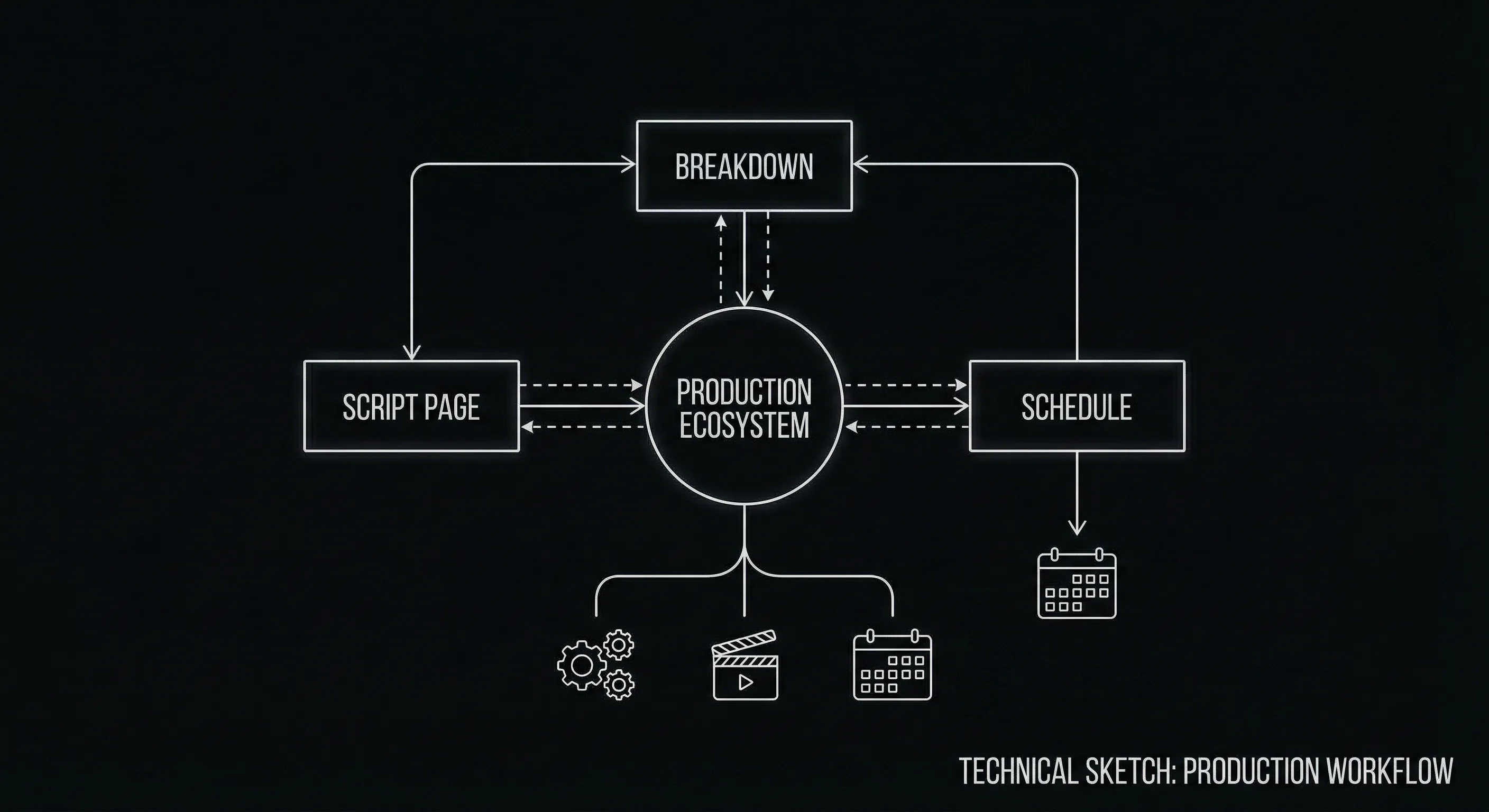
One gesture in, one formatted element out. That is the core of a macro-driven workflow.
You can extend the idea to time-of-day variants. "INT. COFFEE SHOP - DAY" and "INT. COFFEE SHOP - NIGHT" might be two different shortcuts, or your app might let you cycle through times. The exact mechanism depends on your tool. The principle does not: reduce repeated typing and enforce consistency for every slug you use often.
What You Gain and What You Give Up
Templates and macros are a clear win for speed and consistency. They do, however, ask something of you: a small upfront investment and a bit of discipline. You have to define the shortcuts before you need them, or at least early in the draft. You have to use them consistently. If you define "maria" for "MARIA SANTOS" but sometimes type the full name anyway, you risk inconsistency,though in practice, once the shortcut is faster, most writers naturally prefer it. The only real downside is overdoing it. Too many abbreviations can make the writing process feel like code. Stick to the names and locations that recur. Leave one-off characters and one-off locations as normal typing.
| Aspect | With templates / macros | Without |
|---|---|---|
| Repetitive typing | Minimal; short trigger expands to full text | Full name/location every time |
| Consistency | Same spelling and format every use | Risk of typos and variant slugs |
| Setup | One-time per project (or per app) | None |
| Mental load | Low once shortcuts are habit | Repeated focus on typing, not story |
Professionals who write under deadline or who revise heavily tend to rely on these features without even noticing. The script grows faster; the document stays clean. For a deeper look at how different tools handle automation and formatting, our roundup of screenwriting software alternatives compares where shortcuts and autocomplete fit into each ecosystem.
Setting Them Up So You Actually Use Them
The best template system is the one you do not have to think about. That means two things: your triggers should be fast and memorable, and they should live where you already work. If your app supports custom shortcuts, assign them to keys you can hit without looking. If it uses abbreviations, keep them short,two or three characters. Prefer patterns: maybe the first two letters of each word in a character name, or a clear abbreviation for a location ("cs" for coffee shop, "apt" for apartment). Avoid abbreviations that could conflict with real words you might type in action or dialogue. "cs" is safe for "COFFEE SHOP"; "the" is a bad choice for "THE STRANGER" because you will trigger it by accident in normal prose.
Many writers create a small cheat sheet for the first week,a sticky note or a text file listing the main character and location shortcuts for the current project. After a few days, the mappings become muscle memory. You can also add shortcuts as you go: the first time you notice you have typed "INT. MARIA'S APARTMENT - KITCHEN - DAY" three times, add a template for it. The next twenty times you will save the keystrokes and keep the slug identical.
One keystroke or abbreviation replaces a long, repeated string,and keeps formatting correct.
Where templates live depends on your software. Some apps store them per project; others per user. Per project is ideal for character and location names, which change from script to script. Per user is fine for things like a standard "FADE IN." or "CUT TO:" if you use them the same way every time. The important part is that they are available the moment you need them, without opening a menu or a separate panel. Speed is the point.
Seeing It in Action
A short demonstration can make the concept stick better than text alone. The clip below walks through how to define character and location shortcuts in a typical screenwriting environment, how to trigger them during writing, and how the script looks before and after. If you have never used templates or macros, this is a good place to start; if you already use them, you might pick up a pattern or two for naming your triggers.
The Bottom Line
Script templates and macros are about removing friction. They do not change how good your story is. They change how often you have to leave the story to type the same thing again. For character names and locations, that means fewer keystrokes, fewer typos, and a document that stays consistent for readers and for production. Set up a handful of shortcuts at the start of a project,or add them as you notice repetition,and let the tool handle the rest. Your job is to write what happens next. The software can handle the rest of the typing. For more on keeping your workflow fast and your script production-ready, see our piece on exporting for production and why file format and consistency matter when you hand the script off.
Final Step
Build your next script with Screenweaver
Move from ideas to production-ready pages faster with timeline-native writing and AI-assisted story flow.
Try Screenweaver