
Free tool: use the Beat Sheet Calculator to map these beats to exact page numbers for your script length.
Try it free
Try Screenweaver for free on your script
It is free. Import your existing project, get a clearer view of your outline, and regain control of your story structure in minutes.
Start FreeCinematic workflow frames

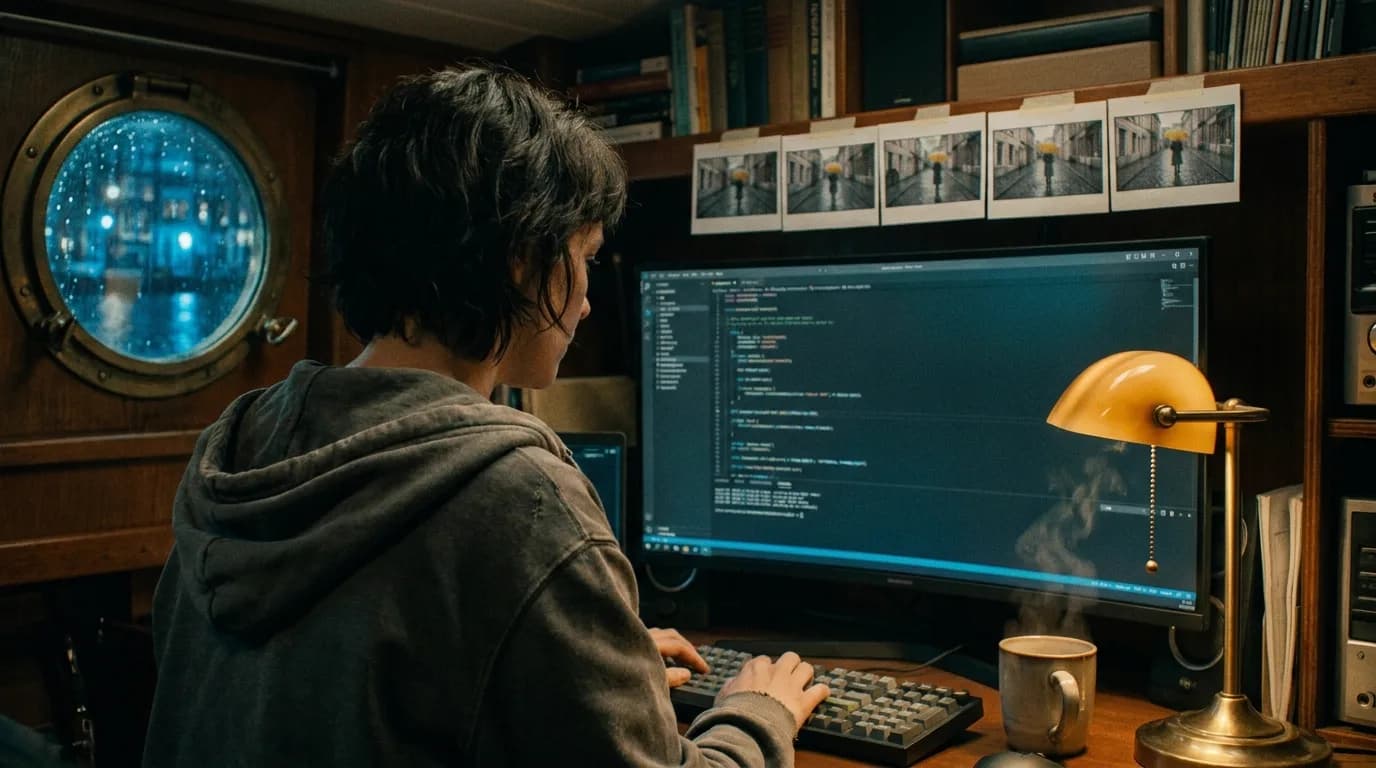
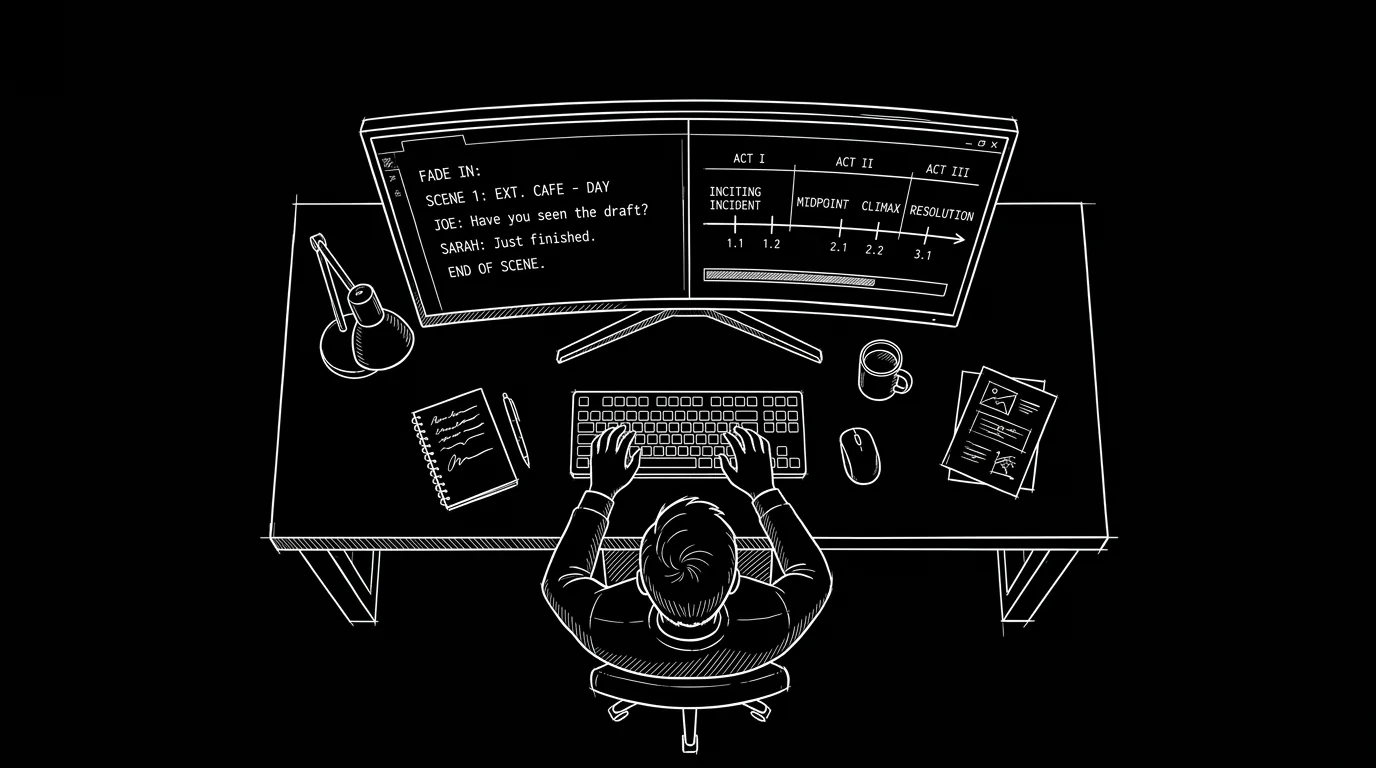
These two visuals work as a pair: the first shows Cinematic workflow still, first angle, 35mm film grain, and the second shifts to Cinematic workflow still, second angle, 35mm film grain - compare them briefly, then move on.

Screenwriter Productivity and Workflow: When UI/UX Becomes Your Quiet Co‑Writer
You open your script after a long day. You have ninety minutes before you crash.
Ten of them disappear before you write a single line.
You scroll to find the last scene.
You resize panes. Hunt for the outline. Close three pop-ups.
By the time you land in the right paragraph, the part of your brain that wanted to write is already half gone.
That tiny friction is not a side issue. It is your workflow.
Most screenwriters blame themselves for being “undisciplined” when their real problem is this: they’re trying to draft in tools whose interface was designed around pages, menus, and legacy preferences, not the way a modern writer actually thinks on a Tuesday night with too many tabs open.
Here’s the uncomfortable truth: UI/UX can make or break your output long before “motivation” shows up. The way your writing environment looks, behaves, and reacts to you is either giving you back hours a week… or quietly taxing every sentence you type.
This piece is about that tax. And how to stop paying it.
The Hidden Cost of a Bad Writing Interface
Think about the last time you lost a writing session to nonsense.
Not a real emergency. Not a call from your agent. Just software.
You were trying to:
- Jump from a scene card to the actual script pages and realized the outline and draft live in different parts of the app, with different scroll positions, different views, and no sense of “these two objects are the same story.”
Those thirty seconds of clumsiness don’t feel like much. But multiply them:
- 20 micro‑frictions per session
- 5 sessions per week
- 40+ working weeks a year
You’ve burned days of potential writing time without making a single conscious choice.
The best writing interface is not “pretty.” It’s the one that removes enough resistance that you show up on bad days and stay five minutes longer on good ones.
This is where UI (what’s on the screen) and UX (how you move through it) start to feel less like “nice design” and more like a practical craft tool, the way a steady tripod is for a DP. It’s invisible when it’s working. Painfully obvious when it’s not.
Scenario 1: The Drifting Draft
Meet Alex.
Alex is on draft three of a contained thriller. 104 pages. Their outline lives in a separate document. Their script lives in a traditional screenwriting app.
Tonight’s task is simple: tighten the first act by five pages without breaking the midpoint.
Here’s what actually happens.
Alex opens the script. Finds page 1. Starts cutting small lines. They flip to the outline, different window, different zoom level, to “check structure.” Their brain is constantly re‑mapping: Where am I in the story? Where is this on the outline? What did moving that scene do to the ripple effect later?
UI/UX failure number one: no persistent, glanceable map of structure.
The interface asks Alex to juggle context manually. The software displays pages. Alex has to remember story.
Now imagine a different surface.
Same draft. Same writer. But the script and structure live side by side, on one synchronized rail:
- A vertical script view on the right.
- A beat/sequence timeline on the left.
- As Alex scrolls the script, the currently active beat card highlights automatically.
- When Alex drags the “Inciting Incident” beat five pages earlier, a subtle shaded band appears in the script showing the new expected page range.
Nothing magical. No “AI rewriting your screenplay.”
Just UI exposing the real object you work with: a story spine plus pages, not pages alone.
Same brain. Same level of discipline. But instead of burning glucose on “Where am I?” Alex spends it on “What if I move this reversal earlier?” That’s productivity via interface, not personality.
Scenario 2: The Weekend Warrior’s Two‑Hour Window
Now meet Sam.
Sam has a day job. Saturday morning is sacred: two hours to move the script forward.
Sam’s current stack:
- Notes and research in one app.
- Beat board in another tool.
- Script in a third.
Sam opens the script. Realizes they forgot the new B‑story idea. Opens the notes app. Scroll, scroll, search. Copies a sentence.
Back to the script. The insertion point is gone. The scroll position reset. The brain has to re‑prime the scene context again.
By the time Sam finds the right place, they’ve lost that thin, fragile thread of “I know exactly what this character wants here.”
UI/UX failure number two: no single, calm surface that lets research, outline, and pages breathe together.
Now imagine Sam writing in a unified environment:
- The left third of the screen is a collapsible research panel with tags: “Theme,” “Character: Maya,” “Episode 3,” “Production Notes.”
- The center holds the script.
- The right side is a vertical mini‑map of scenes, always showing where Sam is in the overall episode.
Sam clicks on “Character: Maya.” The panel doesn’t cover the script; it slides over it at 60% opacity, like tracing paper. The current snippet of the script stays in view behind the notes, so the brain never loses the thread of “location on the page.”
Sam reads the note, taps Escape, and the panel glides away. Cursor is exactly where they left it.
That tiny interaction, overlay, don’t teleport, sounds cosmetic. It isn’t. It protects working memory, which is the single scarcest resource on a short, stolen writing block.
Great UI/UX is not there to impress you. It’s there to stop stealing focus.
How UI/UX Actually Changes Your Speed (Beyond “It Looks Nice”)
Designers talk about “cognitive load.” Screenwriters live it.
Every time your app makes you:
- Remember a keyboard shortcut that’s barely documented.
- Guess where a feature lives in a menu.
- Manually sync two views of the same project.
…you’re spending cognitive load on the container, not the content.
When you zoom in on screenwriting tools, there are a few specific UX levers that consistently change output:
1. The distance between idea and insertion point
How many actions sit between “I know what I want to add” and your cursor being in the right place?
If you have to:
- click the outline,
- scroll to a beat,
- guess the target page,
- then switch back to the script and manually search…
…your tool is asking for too much ceremony.
In a modern environment, that flow looks different:
- You click a beat card called “Dinner Fight.”
- The script jumps and centers on the first line of that sequence.
- The outline card and the active scene slug both highlight, so you see “object permanence”: this beat is this block of pages.
No searching. No scrolling. Just point at the idea, land on the pages.
2. The way time is visualized
Screenplays are time. One page, roughly one minute.
A good UI gives you quick, quiet time cues:
- A slim page counter on the side, showing “p. 37 · 00:37:10 est.”
- A shaded band on the timeline showing Act Two.
- A visible midpoint tick that doesn’t scream, just reminds.
Those gentle markers let you see at a glance whether your current scene is ballooning. You adjust as you go, not after a painful read‑through.
3. How interruptions are handled
The phone rings. You stop mid‑sentence.
When you come back, your tool either welcomes you with a calm, persistent context, cursor where you left it, visible mini‑map, last notes panel remembered, or it hits you with modal pop‑ups, “update available” notices, resynced files, or a cold open on page one.
This is not nitpicking. It’s rhythm.
A writing app that respects your return from interruption is worth more than a “feature‑packed” one that forgets where you were.
This is the area where tools like ScreenWeaver try to be opinionated: one object for script and structure, one place to come back to, instead of three apps and eight windows. If you’ve ever lost ten minutes re‑finding your place after a Slack notification, you know how much that matters.
A Quick Reality Check: Traditional Interface vs. UX‑First Environment
Let’s make this less abstract. Here’s how a legacy “script‑only” interface stacks up against a UX‑first environment built around structure, navigation, and cognitive load:
| Aspect | Traditional Script App | UX‑First Environment (e.g., timeline + script) |
|---|---|---|
| Relationship between outline and script | Separate documents or disconnected panes | One synchronized object; beats and pages are two views of same data |
| Navigation between scenes | Manual scrolling or “Find” by slug | Clickable scene/beat map jumps cursor to exact location |
| Handling of research | External docs, browser tabs, or buried notes pane | Integrated overlay or side panel linked to scenes and characters |
| Sense of story time | Page number only | Page + estimated runtime + visible act/sequence bands |
| Support on return from breaks | Often resets view or cursor | Remembers scroll, cursor, and open panels; shows “you were here” cue |
The point is not that you must switch tools tomorrow. It’s that you can demand this level of UX from whatever you use. If your current setup doesn’t provide it, there are concrete ways to close the gap, from customizing layouts to rethinking where your outline lives.
For a broader software comparison mindset, you can see the same thinking in our guide on best screenwriting software alternatives in 2026, where we look at how different tools treat the relationship between pages and structure.
The Trench Warfare: What Beginners Get Wrong About Productivity
This is where the myths live.
Spend time around new screenwriters and you hear the same refrains:
“If I were serious, I’d be writing in Final Draft on a separate office machine.”
“Real pros don’t care what their tools look like, they just grind.”
“If I add more features, I’ll be more productive.”
These are comforting stories. They shift the blame away from design. They also keep you stuck in interfaces that quietly sabotage your focus.
Let’s walk through the common failure modes, and the precise, technical ways to fix them.
Failure Mode 1: Treating UI as Wallpaper
Beginners often treat the interface like a wallpaper they don’t control. Default fonts. Default background. Default layout. Modal windows everywhere.
The result? Every time they open the app, their first emotion is a little spike of anxiety. Too many panels. Too much chrome. No clear answer to “Where do I put my eyes?”
Fix: ruthlessly simplify your default view.
Concretely:
- Hide panels you don’t use during drafting: production reports, revision marks, headers/footers. You can re‑enable them later.
- Choose one calm background mode (often dark with moderate contrast) and stick to it.
- Lock in a readable zoom level so line lengths feel natural: around 55–70 characters per line. Adjust preferences until your script page is centered with generous side gutters.
You’re not “customizing for fun.” You’re teaching your nervous system: when the screen looks like this, we write.
Failure Mode 2: Ignoring Navigation Until It Hurts
Many writers never touch navigation settings. They scroll. A lot.
In a 120‑page feature, that means:
- Scrolling thousands of lines per draft.
- Physically hunting for each scene.
- Wasting precious short sessions on “where the hell is that phone call?”
Fix: build one‑click pathways to the parts of the story you visit most.
If your tool supports it, you want:
- A persistent scene list or “scene tree” anchored to the left.
- Keyboard shortcuts for “jump to next/previous scene heading.”
- Search filters that let you type a slug (e.g., “INT. DINER”) and press Enter to land there instantly.
This is where a UX‑driven environment like ScreenWeaver’s scene navigation actively helps: you’re not asking “What page was that?” but “What’s the label of that moment?” and the software handles the jump.
If you’re staying in your current app, spend half an hour reading its navigation preferences. Set up shortcuts. You will get those thirty minutes back within a week.
Failure Mode 3: Fragmented Research Surfaces
Beginners love dumping research into whatever is closest: random docs, device Notes app, screenshots on their phone.
Then they try to write and realize the character bio they need is in a JPEG in a folder they don’t remember.
Fix: define one “research surface” that lives as close as possible to the script.
In a UX‑first tool, this often looks like:
- Right‑hand drawer for character sheets tied to actual script characters.
- Moodboard or link list pinned per scene.
- Hover states that preview notes without stealing focus.
If your current app doesn’t have that, approximate it:
- Use a single document or app as the canonical research home.
- Keep it open beside the script in split‑screen.
- Use headings that mirror your script’s structure: Acts, sequences, or episodes, not “random thoughts.”
This isn’t about aesthetics. It’s about knowing that when you need “Maya’s secret,” your hands know exactly where to go without thinking.
Failure Mode 4: Believing More Features = More Productivity
The trap is seductive. A new app promises index cards, moodboards, AI assists, character arcs, pitch decks, and a latte.
Beginners install it, open everything, and wonder why they suddenly feel less in control.
Fix: constrain your feature set to what actually moves pages.
For drafting, the high‑leverage features are boring:
- Stable, predictable formatting.
- Fast, intuitive navigation.
- Low‑friction outlining and restructuring.
- Clear page/time cues.
That’s it. Everything else is optional or for other phases (pitch, production, marketing). A good UI makes those core tools obvious and puts a polite distance between you and the toys.
Failure Mode 5: No Visual Feedback on Progress
Without a visible sense of movement, drafting feels like running on a treadmill in the dark.
Beginners often work in cramped views: tiny window, no page map, no sense of “we were on page 32, now we’re on 40.”
Fix: expose progress without turning your draft into a quantified‑self dashboard.
Look for or configure:
- A vertical mini‑map along the right edge, with subtle shading for acts and major sequences.
- A page/time marker that updates as you type.
- Soft session stats, “Today: +4 pages”, that appear once when you close the app, not every five minutes like a guilt tracker.
Some writers use a dedicated environment for this, others rely on built‑in metrics. Either way, you’re connecting what you did tonight with a visible change in the object you care about: your script.
How Screenweaver‑Style UI Principles Translate to Any Tool
You don’t have to uproot your entire workflow to benefit from better UX. Whether you’re writing in Final Draft, Highland, or something else, you can steal the same principles ScreenWeaver is built around:
One object, many views.
Low friction between structure and pages.
Interfaces that protect working memory instead of attacking it.
Here’s how that translates into concrete tweaks, whatever you use:
Unify your outline and script emotionally, even if they’re physically separate.
Name sections in your outline with the same language you use in scene slugs, so your brain doesn’t have to translate “Sequence 3B” into “INT. AIRPORT – DAY.” When your tool of choice lets you dock panes, dock the outline and script together. If you adopt a timeline‑driven tool like ScreenWeaver, lean into its “Living Story Map” so outline and pages literally share the same data.
Design one “drafting layout” and treat other layouts as special cases.
That means: one arrangement of panels, colors, and zoom that your brain recognises as the place where pages get written. Production breakdown? Different layout. Index card shuffle? Different layout. When you sit down to draft, you switch into the drafting layout and let muscle memory do some of the work for you.
Guard your field of view.
Reduce how many types of information are competing on screen: don’t have script, beat board, full research doc, and email all visible at once. Two or three layers at most. A ScreenWeaver‑style timeline plus script is usually enough; anything more belongs in a separate mode or on a second monitor.
This is the same logic UX practitioners discuss when they talk about “progressive disclosure”, something you can learn more about on <a href="https://www.smashingmagazine.com" rel="nofollow">Smashing Magazine</a>, which often covers how and when to show complexity. Your job as the writer is to insist on that discipline in your own tools.
If you’re curious how a single‑surface approach can look in practice, our overview of what ScreenWeaver is digs into the idea of a “Living Story Map” where outline and script stop fighting each other.
When Interface Design Becomes Marketing (And Why That’s Not a Bad Thing)
UI/UX is not just an internal concern. It’s also how you judge tools in the first place.
If you build software for screenwriters, your interface is your pitch long before anyone reads your feature list. A cluttered, dated UI tells pros: “We’re stuck in 2005. Expect jank.” A calm, visual, opinionated interface says: “We’ve thought about your day. We know what you actually do between drafts.”
That’s why tools built around visual timelines, beat boards that sync with pages, and clean dark modes attract a particular kind of writer: not just people who like pretty apps, but people who have felt the pain of being lost in their own draft one too many times.
Of course, there’s a trap here too. Some companies lean on surface‑level aesthetics, sleek gradients, slick transitions, without fixing the underlying UX problems:
- outline and script still don’t talk to each other
- navigation is still clunky
- session flow still collapses the moment you step away
You can feel the difference immediately: a genuinely writer‑centric tool feels calmer while you’re working, not just impressive in screenshots.
A good screenwriting UI doesn’t shout “look at me.” It fades into the background the moment you start typing, and quietly reappears only when you need to change gear.
As you evaluate new tools, this is the lens to use:
- Does this interface reduce the number of decisions I have to make per page?
- Does it help me recover quickly from interruptions?
- Does it make structure and script feel like one thing or two?
If the answer to those is “yes,” that’s a workflow upgrade. If not, it’s just marketing paint.
Bringing It Home: Designing Your Own Productive Writing Space
The point of all this is simple: you are allowed to be picky about your interface. That’s not indulgent. It’s professional.
Whether you end up writing inside a full visual environment like ScreenWeaver, a lean spec‑only app, or a hybrid stack, your next step is to make three decisions:
- What does my “writing‑only” layout look like, and how do I make it instantly accessible?
- How many clicks sit between “I know which beat I need to fix” and “my cursor is in that scene”?
- Where does my brain know to go for character, theme, and research support without thinking?
Design those answers. Build them in your current tool, or choose new ones that make them easier.
Some writers will obsess over lenses and cameras but shrug at their writing environment. That’s backwards. The page is where your entire career starts. The interface where you face that page, every day, deserves at least as much intent.
You don’t need to write more heroically. You need an environment that stops fighting you.
Once you’ve felt what it’s like to sit down, see your entire story as one living object, and land on the right scene in a single click, there’s no going back to scrolling through page 73 ever again.
Final Step
Build your next script with Screenweaver
Move from ideas to production-ready pages faster with timeline-native writing and AI-assisted story flow.
Try Screenweaver