
Free tool: use the Beat Sheet Calculator to map these beats to exact page numbers for your script length.
Try it free
Try Screenweaver for free on your script
It is free. Import your existing project, get a clearer view of your outline, and regain control of your story structure in minutes.
Start FreeCinematic workflow frames
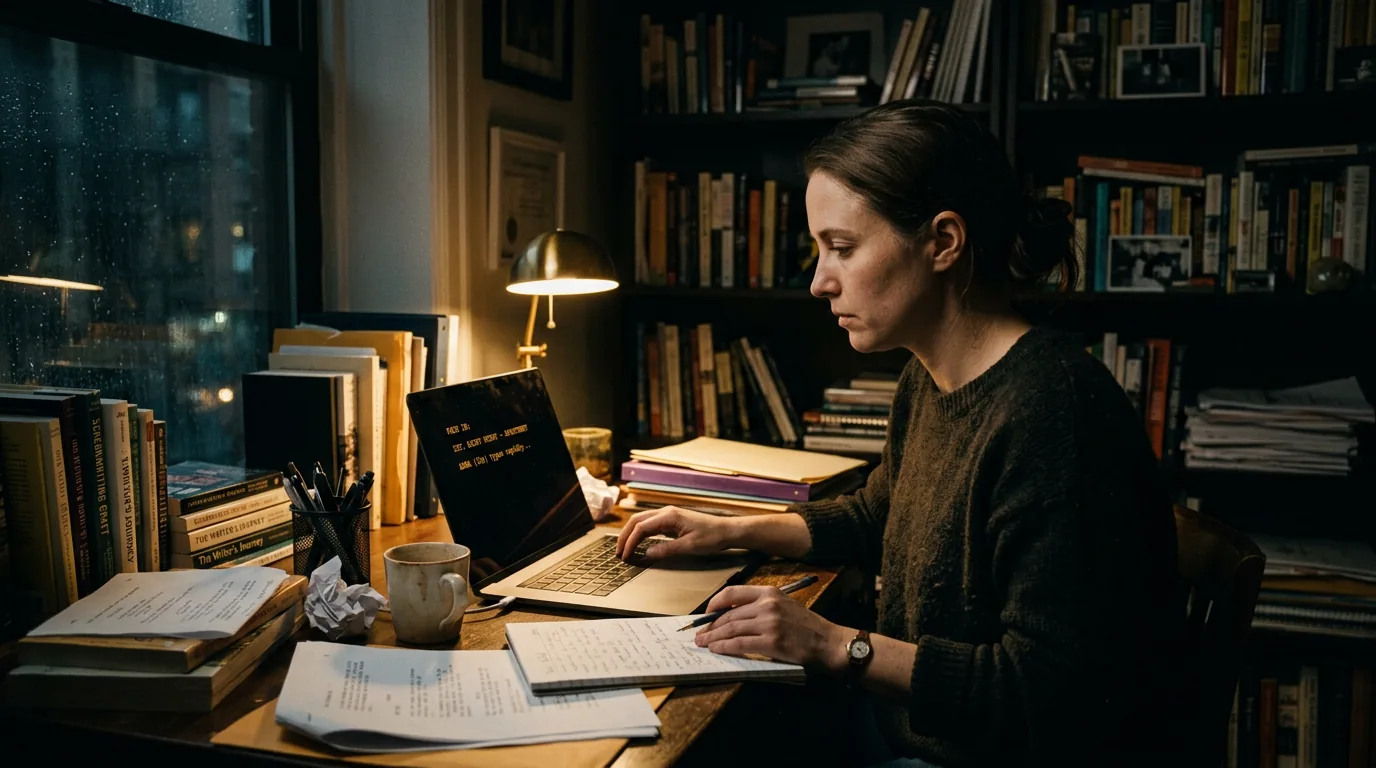
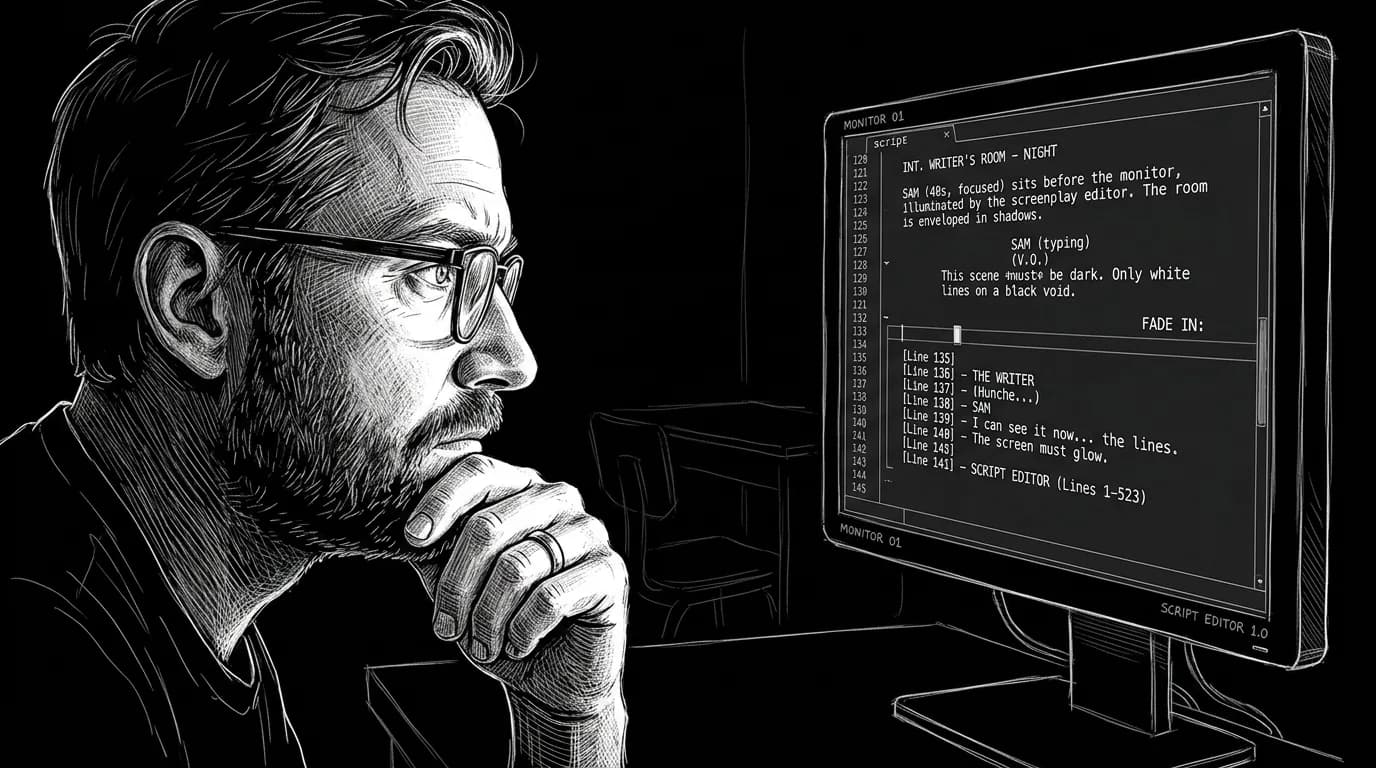
These two visuals work as a pair: the first shows Cinematic workflow still, first angle, 35mm film grain, and the second shifts to Cinematic workflow still, second angle, 35mm film grain - compare them briefly, then move on.
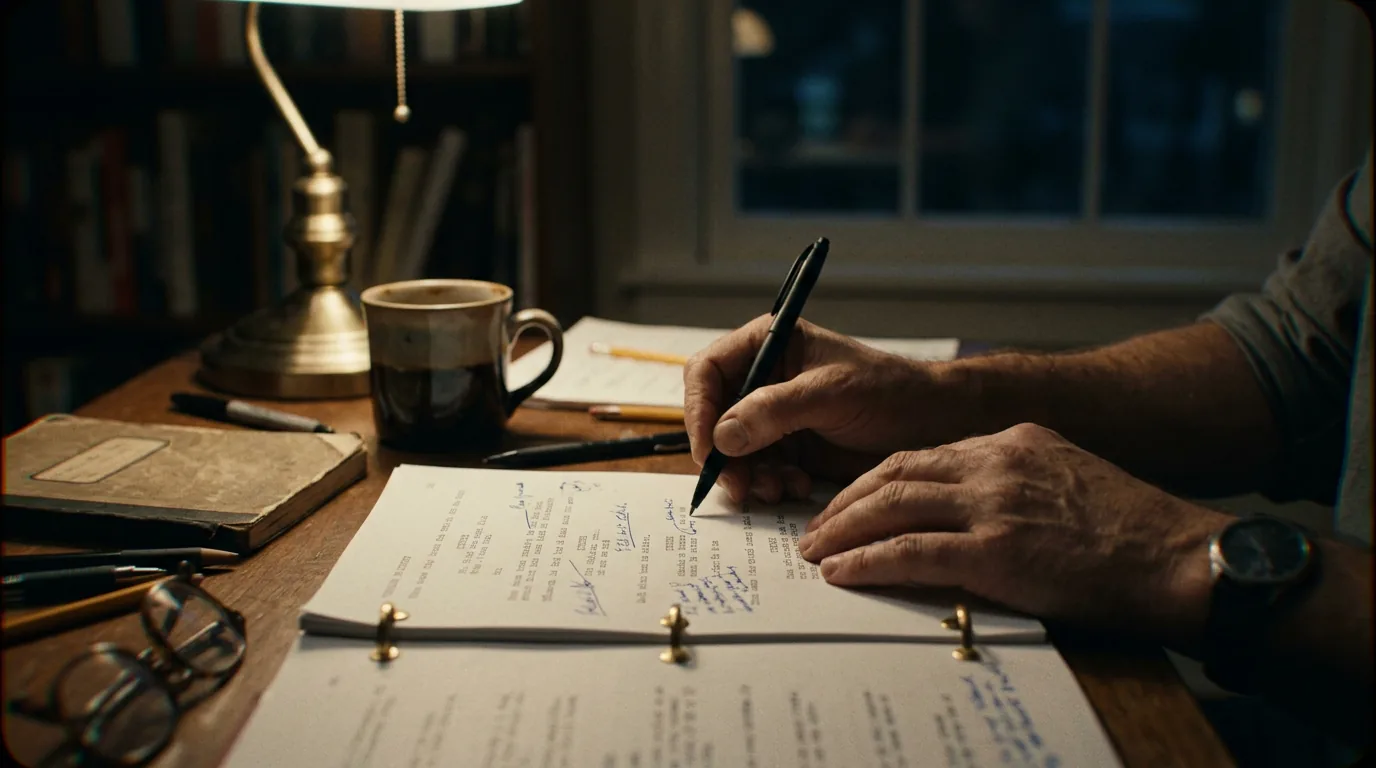
Dark Mode in Screenwriting: Protecting Your Eyes During Late‑Night Writing Sessions
Midnight. The room is quiet except for the fridge and the distant hum of traffic.
You open your script. A white rectangle explodes on the screen and your eyes slam shut on instinct.
You squint, lean back, lower the brightness, maybe tilt the laptop screen away. Five minutes later you have a headache and a familiar thought:
“Maybe I don’t have another hour in me tonight.”
You might blame fatigue, or the scene, or your life schedule. But a big chunk of that resistance is physical. The way your writing software handles light, contrast, and color is either giving you another page… or taking one away.
Dark mode is not an aesthetic preference for “people who like black UIs.” It’s a physiological, cognitive, and workflow decision that directly affects how long you can stay with your characters after the rest of the world goes to sleep.
Let’s treat it that way.
What Your Eyes Are Actually Doing at 1 a.m.
Before we talk settings and themes, it helps to understand what’s happening inside your head when you open a glowing slab of white next to a dark room.
Your pupils are doing emergency triage.
In low light, they dilate to let in more photons. When you slam a bright, high‑contrast white page in front of them, they have to clamp down fast to protect your retina. That flicker of discomfort you feel is your visual system being yanked from one extreme to another.
Now add movement: scrolling, cursor blinking, blinking text insertion point.
Every high‑contrast edge and sharp shift asks your visual cortex to work a little harder.
For a while, your brain compensates. This is why you can “push through” for an hour or two on bad ergonomics. But there’s a cost:
- higher perceived brightness than necessary
- faster onset of eye strain and headaches
- more frequent micro‑breaks, rubbing your eyes, looking away
- subtle but real drop in reading accuracy and typing precision
That’s the story behind the feeling you get when you jump into an all‑white script page at night: not drama, just basic biology clashing with design from the CRT era.
Dark mode, done well, changes that negotiation.
Dark mode is not about making your software look “cool.” It’s about making the screen feel like a soft lamp in the corner instead of a flashlight pointed at your face.
The nuance is in “done well.” Because turning the background black and the text neon isn’t a solution; it’s a different problem.
Scenario 1: The Night Owl on a Deadline
Picture Lea, a staff writer on a show that just got a page‑one rewrite note on episode five.
Call ended at 7 p.m.
She outlined from 8 to 10.
Now it’s 11:30 and she’s finally in pages.
The apartment lights are low, laptop on the couch, double espresso on the table. Lea’s writing software is still in the default bright theme it shipped with years ago.
She hits Page Down. Her eyes sting with every scroll. The more she concentrates on dense action blocks and overlapping dialogue, the more she feels a thin band of pain behind her eyebrows.
By 12:15, she calls it. “I’ll make it up tomorrow morning.”
Maybe she will. Maybe she won’t. Either way, the session is over because her eyes tapped out before the draft did.
Now rewind the same night with a different visual setup:
- Lea’s script editor is in a carefully tuned dark mode: charcoal background, off‑white text, high legibility but no pure white anywhere.
- The room light behind the laptop is on, even at a low level, so her pupils don’t have to jump between “black nothing” and “blazing panel.”
- The interface chrome fades into the margins, with the script column clearly framed but not haloed by bright toolbars.
She still gets tired. She’s still a human being writing hard scenes. But the enemy is story fatigue, not retinal assault. That difference often buys you forty, sixty, ninety extra minutes of usable focus.
For a professional, that’s not an aesthetic choice. That’s the difference between shipping the rewrite tonight or apologizing tomorrow.
Scenario 2: The Weekend Writer and the Living Room TV
Next, imagine Marco.
He’s working a day job, writing on weekends and at night. Friday is “screenplay and streaming” night: the TV is on in the background, family around, and his laptop balanced on a coffee table.
Marco cares about his eyes, but the environment is a mess of competing light sources: bright TV, dim lamp, laptop at factory brightness.
He opens his script and switches to dark mode. The page flips to a black slab with pure white text. It feels dramatic and cinematic. It also feels… harsh.
Within minutes:
- The high contrast between #FFFFFF text and #000000 background creates halation: letters seem to glow, edges blur.
- The mismatch between cold blue laptop light and warm lamp light makes everything feel off.
- The bright TV in the corner keeps pulling his gaze; the laptop now looks ridiculously dim or strangely stark by comparison, depending on how he fiddles with brightness.
He concludes dark mode is “overrated.” Goes back to light mode. Eyes still hurt.
The real problem: dark mode without context or calibration is just a vibe.
When you treat it as an actual ergonomic setting, the steps look very different.
Dark Mode vs Light Mode for Scripts: How They Really Compare
It’s tempting to frame this as a binary religious war: dark theme people vs light theme people. That’s never helpful.
For screenwriting specifically, the choice comes down to trade‑offs grounded in visual ergonomics and page craft.
Here’s what that looks like when you take the mystique out of it:
| Factor | Light Mode (Bright Background) | Dark Mode (Dark Background) |
|---|---|---|
| Perceived brightness at night | High; can feel like a lightbox in a dark room | Lower, if contrast is tuned; can feel closer to paper in a shaded room |
| Eye strain in low light | Higher over long sessions; frequent squinting and a “burned” feeling | Often reduced, especially when paired with ambient light behind the screen |
| Readability of long dialogue blocks | Strong, if font and spacing are good; familiar “black on white page” metaphor | Strong when using off‑white text on dark gray; suffers with pure white on black |
| Color coding (notes, revisions) | Subtle colors can be hard to see against bright white | Colors pop more, but can be aggressive if saturation is too high |
| Daytime usability | Excellent in bright rooms; resists ambient glare | Can feel washed out or low‑contrast in full sunlight |
The takeaway is not “dark mode wins.” It’s that late‑night drafting in a dim space is one of the rare use cases where a thoughtfully designed dark mode has an obvious advantage.
The word “thoughtfully” is doing a lot of work there.
Designing a Dark Mode That Actually Helps You Write
Dark mode is not a single switch. It’s a cluster of decisions about:
- background luminance
- text color and weight
- accent colors and highlight treatments
- how much of the UI chrome still glows or shouts at you
You don’t have to become a visual designer. But you do need to be deliberate about three things.
1. Background and Text Tuning
Pure black (#000000) and pure white (#FFFFFF) at full brightness is the most aggressive combination you can present to a tired eye.
For late‑night sessions, aim for:
- Background: very dark gray instead of black. Think #121212 to #1E1E1E more than a perfect void.
- Text: soft off‑white instead of pure white. Something in the #E0E0E0 range often reads as comfortably bright without feeling radioactive.
- Secondary text (scene numbers, page numbers): slightly dimmer, so your eyes naturally fall on dialogue and action.
You’ll find this philosophy baked into tools that take night writing seriously. A good dark mode in a modern environment like ScreenWeaver, or even in well‑tuned editors outside screenwriting, tends to pick charcoal and bone, not a black‑and‑laser show.
2. Contrast Without Halation
Too little contrast, and your script looks like fog. Too much, and you get halos around every letter.
Where you land depends on your display, but a practical test is simple:
- Type a full page of dialogue and action.
- Sit back at your normal writing distance.
- If the shapes of words are clear but individual pixels aren’t stabbing your eyes, you’re close. If letters seem to glow or smear when you scroll, you’re likely pushing contrast too hard.
This is one of the reasons a visual environment built for scripts often feels better than a generic code editor in dark mode: the spacing, line height, and font weight are tuned for long‑form reading, not short commands.
3. Calming the Chrome
A script editor can have gorgeous page colors and still feel fatiguing if the surrounding UI is screaming: bright toolbars, neon icons, hard outlines.
For late‑night work, the ideal is:
- muted icons (thin, monochrome line art instead of full‑color cartoons)
- status bars and rulers that fade toward the edges of your vision
- no sudden full‑screen flashes (e.g., success modals) when you hit save or compile
You want to feel like you’re looking into the page, not into an app advertisement.
If the edges of your screen are louder than the middle, your dark mode is decoration, not ergonomics.
This is one of the quiet superpowers of a tool designed with “Living Story Map” thinking: the visual emphasis sits on structure and script, not on brand‑colored chrome.
The Environment Around Dark Mode: Light, Distance, and Screens
Dark mode alone cannot save you if everything around your laptop is working against your eyes.
Three factors matter more than most people admit.
Ambient Light Behind the Screen
Writing in a pitch‑black room with a dark‑mode laptop is better than blinding white, but still not ideal. Your pupils are still bouncing between “almost no light” and “some light.”
Adding a small, indirect light source behind or beside the screen evens out that difference:
- a low‑wattage lamp behind the monitor
- an LED strip bouncing off the wall
- even the TV on mute, if its brightness is tamed, can act as background fill
The goal is not to illuminate your keyboard. It’s to give your retinas a baseline so the screen doesn’t feel like the only star in a black void.
Viewing Distance and Font Size
If you find yourself leaning toward your laptop to read tiny dark‑mode text, you’re compounding two sources of strain: eye muscles working to focus up close and pupils compensating for a bright source at short range.
Practical fixes:
- Increase font size until you can lean back a little and still read comfortably.
- Use a font designed for screen reading, many screenwriting tools now ship with modern alternatives to the old Courier clones.
- Keep line length reasonable: 55–70 characters per line with generous line spacing beats 100‑character lines squeezed edge to edge.
This is also where dual‑monitor setups come into play; if your script is on a larger, properly calibrated external display, you can keep size, distance, and dark mode all within a comfortable zone. Our piece on dual monitors and linking outline to script goes deeper into this physical layout question.
Display Quality and Blue Light
Two laptops in the same dark room can feel completely different. Panel type, backlight, and color calibration all matter.
You don’t need a grading monitor. But:
- Enable a gentle night‑mode color temperature shift after sunset (slightly warmer, not orange soup).
- Avoid cranking brightness to 100% “for clarity”; start lower, increase only until text feels crisp.
- If your tool supports it, pin its dark mode to your system’s dark appearance so your OS and app shift together, avoiding jarring light/dark mismatches.
Late‑night writing is already a fight against circadian rhythm. There’s no need to wage that war with weapons aimed at your own retinas.
What Beginners Get Wrong About Dark Mode (And How to Fix It)
This is the trench warfare section. The part most tutorials skip.
Beginners make the same mistakes when they flip to dark mode, then declare “it doesn’t work for me” after a week. Here’s what usually went wrong, and the precise ways to correct it.
Mistake 1: Treating Dark Mode as a Skin, Not a Workflow
New writers toggle dark mode on because it “looks cool,” then continue using their laptop in the exact same way:
- no change in ambient light
- no adjustment to font size or line spacing
- no attention to how tired their eyes feel after an hour
Dark mode becomes another aesthetic choice, like wallpaper. When it doesn’t magically fix everything, they switch back.
Correction: decide when you’re in “night draft mode” as a separate workflow.
That might mean:
- Dark mode + lower screen brightness + lamp on behind the monitor = late‑night revision setup.
- Light mode + normal brightness + daylight in the room = daytime outline setup.
By tying visual mode to session type, you help your brain and eyes anticipate what’s coming. Dark mode is not just a color inversion; it’s a signal: we are in low‑light, deep‑focus territory now.
Mistake 2: Racing to Pure Black and Pure White
A lot of beginner “custom dark themes” look like hacker movies: black void, neon green or electric blue text, maybe red scene headings for flair.
It feels dramatic for ten minutes. It feels like punishment by minute thirty.
Correction: tone everything down.
Dial back saturation on accent colors. Use slightly grayer versions of white. Test for an hour and watch for:
- reduced halo effect around letters
- less ghosting when you scroll fast
- fewer reflexive eye rubs
The goal is boring on purpose. Dark mode is your acoustic treatment, not your posters.
Mistake 3: Ignoring How Script Pages Are Read in Real Life
Some writers cling to bright mode at night because “production will read it on white paper anyway.”
True: when you send a PDF, it’s probably going to be printed or viewed in a bright office.
False: that means you need to suffer through fluorescent white for every late‑night draft.
Correction: separate drafting ergonomics from delivery format.
Your software should output industry‑standard pages regardless of how they’re displayed while writing. A timeline‑driven environment like ScreenWeaver, or any serious script editor, can happily show you a charcoal background at midnight and still print black on white when the time comes.
You don’t keep your set lit like a dentist’s office just because the final film will play in a multiplex. You light for the moment you’re in.
Mistake 4: Letting Notifications Destroy the Dark
Dark mode helps little if your writing session is constantly invaded by bright, high‑contrast notifications from other apps.
Beginners often forget to silence:
- message pop‑ups
- email banners
- calendar alarms that flash white cards over their carefully tuned script view
Each alert is a mini‑explosion of white on top of your dark environment.
Correction: build a “night writing focus” profile on your machine.
Silence most or all notifications. If your writing tool integrates with a larger workspace, pick a mode where only story‑relevant signals show up, scene comments, maybe, but not marketing emails.
You want your retina to see one consistent visual language: calm, low‑contrast UI whose only big movements are the ones you trigger, not random alerts.
Mistake 5: Believing Dark Mode Solves Fatigue on Its Own
There’s a seductive myth that if you just get your colors right, you can write indefinitely.
You can’t.
Your brain still has a finite amount of narrative decision‑making it can do after midnight. Your back still hates certain chairs. Your wrists still notice every extra page.
Correction: treat dark mode as one part of a broader late‑night routine.
Pairs well with:
- strict session limits (“90 minutes, then stop”)
- simple rituals (same tea, same playlist, same lamp)
- realistic goals (one scene, not three sequences)
The better your environment, the more likely you are to hit those goals without burning yourself out. But it’s still you doing the work.
How Dark Mode Interacts with Modern Screenwriting Tools
Legacy screenwriting apps have started to add dark themes as a checkbox feature. Sometimes they’re good. Sometimes they feel like someone inverted the colors and called it a day.
Modern tools built from the ground up with night sessions in mind do a few things differently:
- They rethink the whole surface. The script, outline, and navigation UI all participate in dark mode, not just the page itself. No bright pop‑up windows clashing against a charcoal canvas.
- They respect structure visualization. Timelines, beat boards, and scene trees use understated lines and shading so you can see structure at a glance without flooding your retina with bright bars.
- They sync with system preferences intelligently. When your OS goes dark at sunset, the writing environment does too, keeping your entire workspace visually consistent.
This is a big part of why ScreenWeaver leans so heavily on a “dark mode technical sketch” aesthetic in its own branding and product: it’s not just a look, it’s a promise that the tool will feel usable at the hours screenwriters actually work.
In one surface, you can move from:
- visual beat map
- to script
- to character notes
…without ever getting slapped by a white modal. That’s more than comfort; it’s preserved momentum.
If you want to see how we think about that at the product level, our general breakdown on what ScreenWeaver is gets into the idea of a Living Story Map that looks equally legible at noon and at 1 a.m.
The Perspective: Protecting the Tool That Protects the Story
You only get one pair of eyes. And, more practically, one brain per evening that’s capable of stringing coherent scenes together.
Dark mode won’t magically turn you into a machine. It won’t make bad scenes good. It won’t give you more hours in the day.
What it will do, if you treat it as an ergonomic setting instead of a color gimmick, is remove just enough friction, just enough squinting, just enough “ugh, this hurts,” that you stay in the chair a little longer on nights when you were tempted to bail.
And on a long script, over a long career, that’s what wins: not bursts of heroic effort, but one more clean page on the nights you almost quit early.
Dark mode is not a lifestyle. It’s not a personality. It’s a lens choice. The one you screw onto the front of your writing hours whenever the sun goes down, so the story has a clear path out of your head and onto the page.
You take care of that lens. It will take care of you.
Final Step
Build your next script with Screenweaver
Move from ideas to production-ready pages faster with timeline-native writing and AI-assisted story flow.
Try Screenweaver