Bild- und Bildratenrechner
Rechnen Sie Bilder, Bildrate und Dauer für KI-Video um
Dieser Rechner wandelt zwischen Bildanzahl, Bildrate und Cliplänge für KI-Video- und Animationsabläufe um. Geben Sie zwei Werte ein, und der dritte berechnet sich sofort, nach der Konvention (Bilder - 1) / fps, der Wan, AnimateDiff, die Videoknoten von ComfyUI und Stable Video Diffusion alle folgen.
Offene Modelle denken in Bildern, nicht in Sekunden. Wan erzeugt 81 Bilder bei 16 fps, AnimateDiff arbeitet in Kontexten von 16 Bildern, und Stapelgrößen in ComfyUI sind reine Bildzahlen. Filmschaffende denken in Sekunden und Timeline-Bildraten. Dieser Rechner übersetzt zwischen beiden, und das Interpolationsfeld unten zeigt, was RIFE oder FILM auf dem Weg zu einer 24-fps-Timeline mit Ihrer Bildzahl und Bildrate macht.
Alles läuft in Ihrem Browser. Nichts von dem, was Sie eingeben, wird an einen Server gesendet.
Ihre Umrechnung
5 Sekunden
Bilder: 81
Bildrate: 16 fps
Dauer: 5 s
Eine naive Rechnung Bilder geteilt durch fps ergäbe 5.063 s. Die spielbare Länge umfasst Bilder - 1 Intervalle, weshalb ein erzeugter Clip um ein Bildintervall kürzer läuft, als die einfache Division nahelegt.
Bildinterpolation
RIFE, FILM und ähnliche Interpolatoren vervielfachen Ihre Bildrate, ohne die Dauer zu ändern: Jedes Intervall bekommt neue Zwischenbilder.
Ausgabebildrate: 32
Ausgabebilder: 161
Dauer: 5 s (unverändert)
Dauer = (Bilder - 1) / fps | Ausgabe-fps = fps x Faktor | Ausgabebilder = (Bilder - 1) x Faktor + 1
Ziel: 24-fps-Timeline
Von 16 fps aus beträgt der exakte Interpolationsfaktor 1.5x, was 121 Bilder bei 24 fps mit derselben Dauer von 5 s ergibt. Interpolatoren mit ganzzahligen Faktoren kommen mit 3x auf 48 fps und dann durch Weglassen jedes zweiten Bildes oder eine Anpassung im Schnittprogramm auf 24.
Die Originalbilder stattdessen mit 24 fps abzuspielen kürzt den Clip auf 3.333 s, ein Verlust von 33.3 Prozent Dauer. Diese Verschiebung erklärt, warum KI-Clips auf einer 24-fps-Timeline beschleunigt wirken.
Referenztabelle der Bildanzahl
Bildanzahl für übliche Cliplängen, nach Bilder = Dauer x fps + 1.
| Cliplänge | 8 fps | 12 fps | 16 fps | 24 fps | 25 fps | 30 fps | 60 fps |
|---|---|---|---|---|---|---|---|
| 2 s | 17 | 25 | 33 | 49 | 51 | 61 | 121 |
| 4 s | 33 | 49 | 65 | 97 | 101 | 121 | 241 |
| 5 s | 41 | 61 | 81 | 121 | 126 | 151 | 301 |
| 8 s | 65 | 97 | 129 | 193 | 201 | 241 | 481 |
| 10 s | 81 | 121 | 161 | 241 | 251 | 301 | 601 |
So funktioniert es
Wählen Sie den zu berechnenden Wert, geben Sie die beiden anderen ein, und der Rechner wendet Dauer = (Bilder - 1) / fps an. Das Minus eins zählt: Die spielbare Länge eines Clips ist die Zeit zwischen dem ersten und dem letzten Bildzeitstempel, N Bilder umfassen also N - 1 Intervalle. Deshalb liefert Wan 81 Bilder für einen 5-Sekunden-Clip bei 16 fps, und deshalb kommen AnimateDiff-Renderings etwas kürzer heraus als Bildanzahl geteilt durch Bildrate. Das Interpolationsfeld wendet Ausgabe-fps = fps x Faktor und Ausgabebilder = (Bilder - 1) x Faktor + 1 an, die Rechnung, die RIFE- und FILM-Knoten in ComfyUI nutzen.
Wie viele Bilder sind 5 Sekunden Video?
Das hängt ganz von der Bildrate ab. Fünf Sekunden sind 81 Bilder bei 16 fps, 121 Bilder bei 24 fps und 151 Bilder bei 30 fps, jeweils mit dem Endbild gezählt. Ein Rechner von Bildern zu Sekunden gibt erst dann brauchbare Antworten, wenn Sie wissen, mit welcher Bildrate Ihr Modell erzeugt: Wan läuft standardmäßig mit 16 fps, AnimateDiff-Abläufe häufig mit 8 bis 16 fps, und Stable Video Diffusion liefert je nach Einstellung kurze Schübe mit 6 bis 14 fps.
Das Verhältnis von Bildrate und Bildanzahl steuert auch die Kostenrechnung. Die Videolänge in ComfyUI wird in Bildern eingestellt, und jedes zusätzliche Bild kostet Grafikspeicher und Rechenzeit. Zu wissen, dass ein 5-Sekunden-Clip bei 16 fps 81 Bilder braucht, sagt Ihnen genau, was Sie ins Längenfeld eintragen und was es kosten wird, bevor Sie den Auftrag starten.
Die KI-Ausgabe auf eine Schnitt-Timeline zu bringen ist die andere Hälfte. Geschnitten wird mit 24, 25 oder 30 fps, und eine Generierung mit 16 fps auf einer 24-fps-Timeline läuft entweder ein Drittel zu kurz oder ruckelt durch Bildmischung. Interpolation ist die günstige Lösung: Ein Durchgang mit 1,5x bringt 16 fps auf genau 24, und einer mit 3x auf 48 fps ergibt nach dem Weglassen jedes zweiten Bildes sauberes 24-fps-Material, dazu gratis eine Zeitlupenoption.
Für wen das gedacht ist
- KI-Filmschaffende: rechnen Sie eine in Sekunden gemessene Einstellungsliste in die Bildzahlen um, die Wan, AnimateDiff oder ComfyUI wirklich verlangen, bevor Sie GPU-Zeit ausgeben.
- Schnitt: finden Sie den Interpolationsfaktor, der erzeugtes Material ohne Ruckeln oder ungewollte Zeitänderung auf eine 24- oder 30-fps-Timeline bringt.
- Animation: planen Sie Ihre Animation mit 8 oder 12 Bildern pro Sekunde und kennen Sie das genaue Bildbudget jeder Cliplänge.
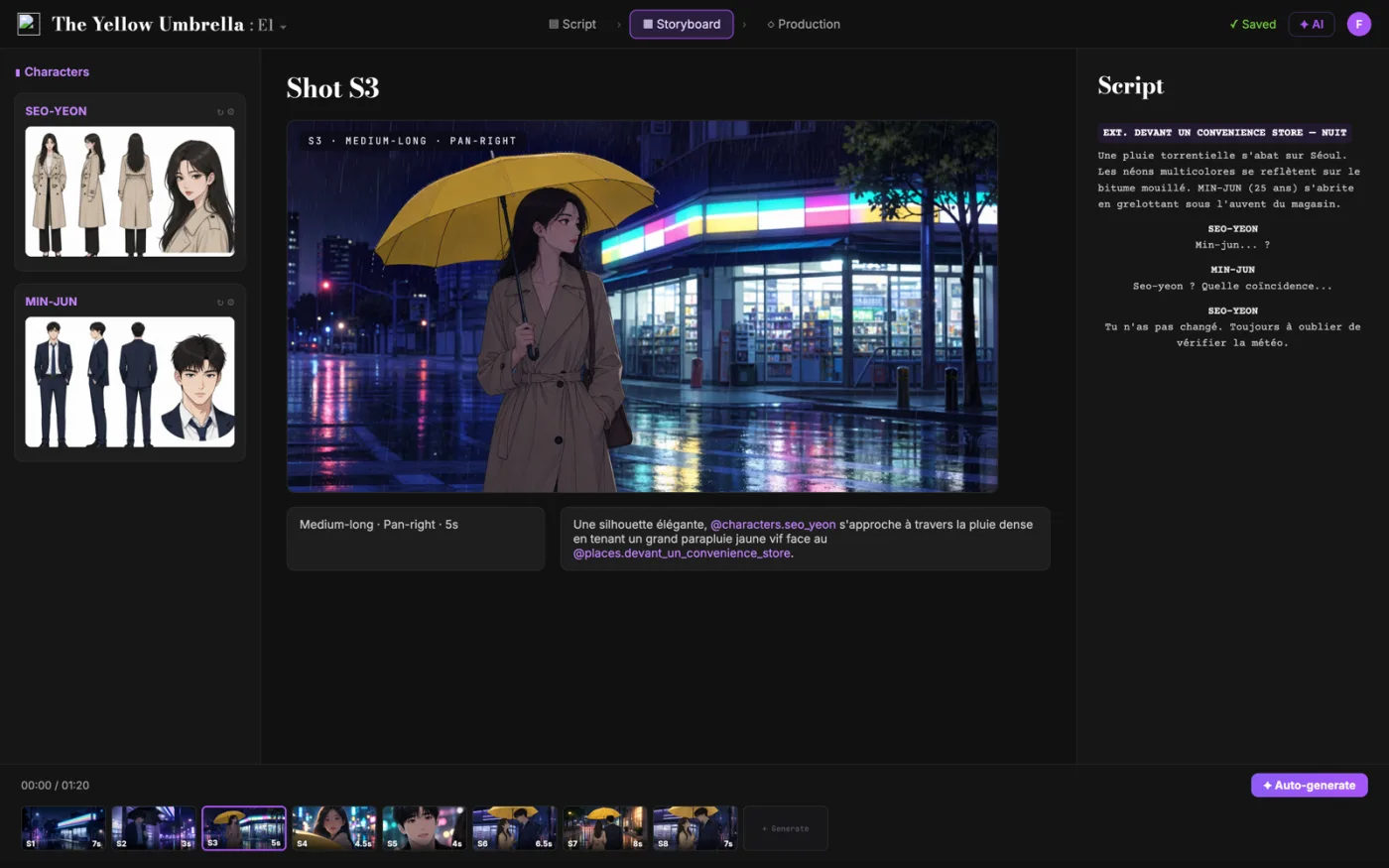
Vom Drehbuch aus.Zum Storyboard.
ScreenWeaver zerlegt dein Drehbuch in Einstellungen und erstellt daraus das Storyboard. Bildausschnitt, Winkel, Bewegung und Dauer bestimmst du. Figuren bleiben von Einstellung zu Einstellung gleich.
- 0 $, ohne Ablaufdatum
- Export als PDF und Final Draft
- Mac, Windows, Linux, iPad
Bildzahlrechner für Video: der komplette Leitfaden
Es löst je einen der drei Werte (Bildzahl, fps, Dauer) aus den beiden anderen, mit der Konvention (Bilder - 1) / fps, und modelliert die Interpolation, damit Sie Ausgabebildrate und Bildzahl kennen, bevor RIFE oder FILM läuft.
Bei dieser Arbeit liegt das Kernproblem offen: offene Videomodelle messen Clips in Bildern, während Filmschaffende in Sekunden planen, und die Konvention (Bilder - 1) / fps lässt naive Umrechnungen danebenliegen. Bleibt es ungelöst, erzeugt es Reibung weiter unten in der Kette und langsamere Entscheidungen. Das praktische Ziel ist exakte Bildzahlen, Bildraten und Dauern, die zu dem passen, was das Modell erzeugt und was die Timeline erwartet.
Grenze, die Sie im Kopf behalten sollten: Es kennt modellspezifische Beschränkungen der Bildzahl (wie Wans 4n+1-Schritte) nur, soweit sie dokumentiert sind, und es sagt das Verhalten des Encoders nach dem Export nicht voraus; prüfen Sie das Endtiming in Ihrem Schnittprogramm.
Fortgeschrittener Einsatz: Erfahrene Teams legen je Projekt eine Generierungsbildrate fest, notieren Bildzahlen je Einstellung in der Shotlist, und interpolieren alles mit einem einzigen Faktor, damit jeder Clip identisch zur Timeline passt.
Schritt für Schritt
- Wählen Sie den gesuchten Wert und tragen Sie die beiden bekannten ein: aus dem Modell kommen meist Bilder plus fps, aus dem Storyboard meist Sekunden.
- Nutzen Sie die fps-Schaltflächen, um die native Rate Ihres Modells zu treffen (16 bei Wan, 8 bis 16 bei AnimateDiff), statt zu raten.
- Lassen Sie das Interpolationsfeld rechnen, um den Weg von der Generierungsrate zur Timeline-Rate zu planen, bevor Sie etwas erzeugen.
- Kopieren Sie das Ergebnis in Ihre Shotlist, damit die Bildbudgets bis in den Schnitt und die Kostenschätzung überleben.
Anwendungsfälle nach Rolle
- KI-Filmemacher: eine 6-Sekunden-Einstellung in die exakte Bildzahl umrechnen, die in ein ComfyUI-Längenfeld gehört, bevor die Aufgabe startet.
- Schnitt: den Interpolationsfaktor wählen, der 16-fps-Generierungen ohne Retiming-Artefakte auf eine 24-fps-Timeline legt.
- Animation: Bilder für 12-fps-Durchgänge kalkulieren und die Laufzeitkosten jeder zusätzlichen Sekunde kennen.
Häufige Fehler
- Bilder durch fps teilen und sich wundern, warum jeder Clip ein Intervall kürzer ist als erwartet.
- 16-fps-Generierungen direkt auf eine 24-fps-Timeline legen und das entstehende Ruckeln oder Beschleunigen ausliefern.
- Die Schrittbeschränkungen eines Modells ignorieren und Bildzahlen verlangen, die es stillschweigend rundet.
Bewährte Praxis im Beruf
- Merken Sie sich die Anker: 81 Bilder bei 16 fps sind 5 Sekunden, 121 Bilder bei 24 fps sind 5 Sekunden.
- Interpolieren Sie vor Farb- und Korndurchgängen; Interpolatoren arbeiten auf sauberen Bildern besser.
- Wenn ein Modell die Zahl einschränkt (4n+1 bei Wan), nehmen Sie die nächstgültige Zahl und rechnen Sie hier die echte Dauer neu.
Behandeln Sie die Ausgabe dieses Werkzeugs als Entscheidungshilfe, nicht als Ersatz für das Schreiben. Ein starkes Drehbuch bleibt wegen seiner konkreten Entscheidungen, seiner emotionalen Genauigkeit und der Klarheit seiner dramatischen Bewegung im Gedächtnis. Werkzeuge nehmen das Rauschen weg, damit Ihre Energie dorthin geht, wo sie zählt: Figur, Konflikt, Steigerung, Auszahlung. Wenn Sie nach jedem Durchgang die Ergebnisse prüfen und die angenommenen Änderungen protokollieren, wird Ihre Arbeitsweise von Fassung zu Fassung schneller und berechenbarer. Genau das schätzen professionelle Partner: weniger Überraschungen, klarere Begründungen und ein Buch, das sich mit Absicht weiterentwickelt.
Ausführliche Fragen
Welche Formel benutzt ein Bildzahlrechner?
Dauer = (Bilder - 1) / fps. Das Minus eins existiert, weil N Bilder N - 1 spielbare Intervalle umspannen. Umgekehrt gilt: Dauer x fps + 1.
Warum erzeugt Wan 81 Bilder?
Wan 2.x gibt nativ 16 fps aus und zielt auf 5-Sekunden-Clips: 5 x 16 + 1 = 81. Das Modell bevorzugt außerdem Bildzahlen der Form 4n+1, und 81 erfüllt beides.
Mit welcher Bildrate arbeitet AnimateDiff?
Die Bewegungsmodule von AnimateDiff wurden um Kontextfenster von 8 bis 16 fps trainiert, und die meisten Abläufe rendern mit 8, 12 oder 16 fps und interpolieren für die Auslieferung nach oben.
Besser mit 24 fps erzeugen oder hochinterpolieren?
Erzeugen mit 24 fps kostet bei gleicher Dauer 50 Prozent mehr Bilder als 16 fps. Die meisten Abläufe erzeugen mit der nativen Rate und interpolieren, und behalten natives 24 fps für Einstellungen mit schneller Bewegung, wo Interpolationsartefakte auffallen.
Wie wirkt die Bildzahl auf VRAM und Rechenzeit?
Auf die Zeit ungefähr linear, auf den VRAM stark, da Videomodelle über Bilder hinweg attendieren. Die Bildrate bei gleicher Dauer zu halbieren, halbiert das Bildbudget, und das ist der Hauptgrund, warum Erzeugen mit 16 fps plus Interpolation der übliche Sparweg ist.
Welche Bildrate für den Export?
Die Ihres Auslieferungsziels: 24 fps für filmische Arbeiten, 25 für PAL-Ausstrahlung, 30 oder 60 für Social und Bildschirmaufnahmen. Entscheiden Sie zuerst das Ziel und planen Sie Generierungsrate und Interpolationsfaktor von dort rückwärts.
Häufige Fragen
Weil die Dauer (Bilder - 1) / fps beträgt und nicht Bilder / fps. Die spielbare Länge eines Clips umfasst die Intervalle zwischen den Bildern, und N Bilder haben nur N - 1 Intervalle. Ein Clip aus 81 Bildern bei 16 fps dauert genau 5,0 Sekunden, nicht 5,06.
81 Bilder: 5 x 16 = 80 Intervalle plus das Endbild. Genau deshalb liefert Wan standardmäßig 81 Bilder, was bei seiner nativen Bildrate von 16 fps einen 5-Sekunden-Clip ergibt.
Interpolieren Sie mit 1,5x, wenn Ihr Werkzeug gebrochene Faktoren erlaubt, dann bleibt die Dauer gleich. Bei ganzzahligen Faktoren gehen Sie mit 3x auf 48 fps und lassen jedes zweite Bild weg, oder Sie exportieren mit 48 fps und lassen Ihr Schnittprogramm anpassen. Vermeiden Sie das reine Umtakten: 16-fps-Bilder mit 24 fps abzuspielen kürzt die Dauer um ein Drittel.
Multiplizieren Sie die Zielsekunden mit Ihrer Ausgabebildrate und addieren Sie 1. Ein 4-Sekunden-Clip bei 16 fps sind 65 Bilder, bei 24 fps 97. Manche Knoten verlangen zusätzlich modellspezifische Stufen (Wan nutzt Werte nach 4n+1 wie 81): Runden Sie dann auf den nächsten gültigen Wert.
Nein. Interpolation füllt jedes bestehende Intervall mit neuen Zwischenbildern: Ein Durchgang mit 2x auf 81 Bildern bei 16 fps ergibt 161 Bilder bei 32 fps, und die Dauer bleibt 5 Sekunden. Die Dauer ändert sich nur, wenn Sie danach umtakten, eine Rampe setzen oder Bilder weglassen.
Related tools
Kostenrechner für KI-Video
Einen KI-Film pro fertiger Minute budgetieren, Wiederholungen eingerechnet.
KI-Video-Modellwahl
KI-Videomodelle an den echten Anforderungen Ihrer Einstellung messen.
Szenen-zu-Clip-Planer
Eine Szene in KI-Videoclips zerlegen, die zur Längenbegrenzung Ihres Modells passen.
Drehbuch-Laufzeitrechner
Laufzeit aus eingefügtem Drehbuchtext oder einer Wortzahl schätzen.
You can also browse the full library on /tools.
Core blog guides
- Idea → first draft (process hub)
- Screenplay format guide 2026
- Hidden costs of “free” software
- Affordable software & TCO
- Revision passes (structure → dialogue)
Filmtechniken
Filmtechniken zum Entdecken
Jede mit einem kurzen Clip, einem Drehbuchauszug und der Zeile für die Shotlist.