เครื่องคำนวณเฟรมวิดีโอ
แปลงเฟรม FPS และความยาวสำหรับวิดีโอ AI
เครื่องคำนวณเฟรมนี้แปลงระหว่างจำนวนเฟรม อัตราเฟรม และความยาวคลิปสำหรับเวิร์กโฟลว์วิดีโอ AI และแอนิเมชัน กรอกค่าใดสองค่าแล้วค่าที่สามจะคำนวณทันที โดยใช้ธรรมเนียม (เฟรม - 1) / fps ที่ Wan, AnimateDiff, โหนดวิดีโอของ ComfyUI และ Stable Video Diffusion ใช้เหมือนกันหมด
โมเดลวิดีโอแบบเปิดคิดเป็นเฟรม ไม่ใช่วินาที Wan 2.x สร้าง 81 เฟรมที่ 16 fps ส่วน AnimateDiff ทำงานในบริบท 16 เฟรม และจำนวนแบตช์ของ ComfyUI เป็นตัวเลขเฟรมดิบ ๆ แต่คนทำหนังคิดเป็นวินาทีและอัตราเฟรมของไทม์ไลน์ เครื่องคำนวณนี้แปลระหว่างสองโลกนั้น และแผงการแทรกเฟรมด้านล่างแสดงว่า RIFE หรือ FILM ทำอะไรกับจำนวนเฟรมและ fps ของคุณระหว่างทางไปสู่ไทม์ไลน์ 24 fps
ทุกอย่างทำงานในเบราว์เซอร์ของคุณ ไม่มีสิ่งที่คุณกรอกถูกส่งไปยังเซิร์ฟเวอร์ใด
การแปลงของคุณ
5 วินาที
เฟรม 81
อัตราเฟรม 16 fps
ความยาว 5 วินาที
การคำนวณแบบตรง ๆ ว่าเฟรมหารด้วย fps จะได้ 5.063 วินาที แต่ความยาวที่เล่นได้ครอบคลุมช่วงระหว่างเฟรมจำนวน เฟรม - 1 ช่วง คลิปที่สร้างขึ้นจึงสั้นกว่าที่การหารแบบง่ายบอกไว้อยู่หนึ่งช่วงเฟรม
การแทรกเฟรม
RIFE, FILM และตัวแทรกเฟรมที่คล้ายกันจะคูณอัตราเฟรมของคุณโดยไม่เปลี่ยนความยาว ทุกช่วงระหว่างเฟรมจะได้เฟรมใหม่มาแทรกอยู่ตรงกลาง
fps ขาออก 32
เฟรมขาออก 161
ความยาว 5 วินาที (ไม่เปลี่ยน)
ความยาว = (เฟรม - 1) / fps | fps_ขาออก = fps x ตัวคูณ | เฟรม_ขาออก = (เฟรม - 1) x ตัวคูณ + 1
เป้าหมาย ไทม์ไลน์ 24 fps
จาก 16 fps ตัวคูณการแทรกเฟรมที่แม่นยำคือ 1.5 เท่า ซึ่งให้ 121 เฟรมที่ 24 fps โดยมีความยาว 5 วินาทีเท่าเดิม ตัวแทรกเฟรมที่รับแต่จำนวนเต็มจะไปถึงด้วยการคูณ 3 เท่าเป็น 48 fps แล้วทิ้งเฟรมแบบ 2 ต่อ 1 หรือปรับลงเป็น 24 ในโปรแกรมตัดต่อ
การเอาเฟรมต้นฉบับไปเล่นที่ 24 fps แทนจะทำให้คลิปสั้นลงเหลือ 3.333 วินาที ซึ่งเป็นการเสียความยาวไป 33.3 เปอร์เซ็นต์ ความคลาดนี้คือเหตุผลที่คลิป AI ซึ่งถูกวางลงบนไทม์ไลน์ 24 fps ตรง ๆ รู้สึกเหมือนถูกเร่งความเร็ว
ตารางอ้างอิงจำนวนเฟรม
จำนวนเฟรมสำหรับความยาวคลิปที่ใช้กันบ่อย โดยใช้สูตร เฟรม = ความยาว x fps + 1
| ความยาวคลิป | 8 fps | 12 fps | 16 fps | 24 fps | 25 fps | 30 fps | 60 fps |
|---|---|---|---|---|---|---|---|
| 2 วินาที | 17 | 25 | 33 | 49 | 51 | 61 | 121 |
| 4 วินาที | 33 | 49 | 65 | 97 | 101 | 121 | 241 |
| 5 วินาที | 41 | 61 | 81 | 121 | 126 | 151 | 301 |
| 8 วินาที | 65 | 97 | 129 | 193 | 201 | 241 | 481 |
| 10 วินาที | 81 | 121 | 161 | 241 | 251 | 301 | 601 |
วิธีการทำงาน
เลือกว่าจะหาค่าไหน กรอกอีกสองค่า แล้วเครื่องคำนวณจะใช้สูตร ความยาว = (เฟรม - 1) / fps เลขลบหนึ่งนั้นสำคัญ ความยาวที่เล่นได้ของคลิปคือเวลาระหว่างเฟรมแรกกับเฟรมสุดท้าย เฟรม N เฟรมจึงครอบคลุม N - 1 ช่วง นั่นคือเหตุผลที่ Wan ส่ง 81 เฟรมสำหรับคลิป 5 วินาทีที่ 16 fps และเหตุผลที่ผลเรนเดอร์ของ AnimateDiff ออกมาสั้นกว่าจำนวนเฟรมหารด้วย fps เล็กน้อย แผงการแทรกเฟรมใช้สูตร fps_ขาออก = fps x ตัวคูณ และ เฟรม_ขาออก = (เฟรม - 1) x ตัวคูณ + 1 ซึ่งเป็นการคำนวณที่โหนด RIFE กับ FILM ใช้ใน ComfyUI
5 วินาทีของวิดีโอคือกี่เฟรม
ขึ้นอยู่กับอัตราเฟรมล้วน ๆ ห้าวินาทีคือ 81 เฟรมที่ 16 fps, 121 เฟรมที่ 24 fps และ 151 เฟรมที่ 30 fps โดยแต่ละค่านับรวมเฟรมปลายทางที่บวกเพิ่มอีกหนึ่ง เครื่องคำนวณจากเฟรมเป็นวินาทีจะให้คำตอบที่ใช้ได้ก็ต่อเมื่อคุณรู้ว่าโมเดลของคุณสร้างงานที่ fps เท่าไร Wan ใช้ 16 fps เป็นค่าตั้งต้น เวิร์กโฟลว์ AnimateDiff มักอยู่ที่ 8 ถึง 16 fps และ Stable Video Diffusion ส่งคลิปสั้นที่ 6 ถึง 14 fps ตามการตั้งค่า
ความสัมพันธ์ระหว่าง fps กับจำนวนเฟรมยังเป็นตัวคุมการคำนวณงบของวิดีโอ AI ด้วย ความยาวใน ComfyUI ถูกตั้งเป็นจำนวนเฟรม และทุกเฟรมที่เพิ่มขึ้นกิน VRAM กับเวลาสร้าง การรู้ว่าคลิป 5 วินาทีที่ 16 fps ต้องใช้ 81 เฟรมจึงบอกคุณได้ทันทีว่าต้องพิมพ์อะไรลงในช่องความยาว และมันจะมีต้นทุนเท่าไรก่อนที่คุณจะสั่งงานเข้าคิว
การเอาผลลัพธ์จาก AI ขึ้นไทม์ไลน์ตัดต่อคืออีกครึ่งหนึ่งของเรื่อง คนตัดต่อตัดที่ 24, 25 หรือ 30 fps และงานที่สร้างมาที่ 16 fps เมื่อวางลงบนไทม์ไลน์ 24 fps จะเล่นสั้นไปหนึ่งในสามหรือกระตุกจากการผสมเฟรม การแทรกเฟรมคือทางแก้ราคาถูก การแทรกที่ 1.5 เท่าพา 16 fps ไปที่ 24 พอดี ส่วนการแทรกที่ 3 เท่าไปเป็น 48 fps ให้ 24 fps ที่สะอาดหลังทิ้งเฟรมแบบ 2 ต่อ 1 พร้อมแถมตัวเลือกสโลว์โมชัน 2 เท่ามาให้ฟรี ๆ
เหมาะกับใคร
- คนทำหนังด้วย AI แปลงรายการช็อตที่วัดเป็นวินาทีให้เป็นจำนวนเฟรมที่ Wan, AnimateDiff หรือ ComfyUI ต้องการจริง ก่อนจะเสียเวลา GPU
- คนตัดต่อ หาตัวคูณการแทรกเฟรมที่พาฟุตเทจที่สร้างขึ้นไปลงบนไทม์ไลน์ 24 หรือ 30 fps โดยไม่กระตุกและไม่เปลี่ยนความเร็วโดยไม่ตั้งใจ
- คนทำแอนิเมชัน วางแผนแอนิเมชันที่ 8 หรือ 12 fps (การถ่ายทุกสองเฟรม) และรู้งบเฟรมที่แน่นอนของแต่ละความยาวคลิป
เริ่มจากบทภาพยนตร์แล้วได้สตอรีบอร์ด
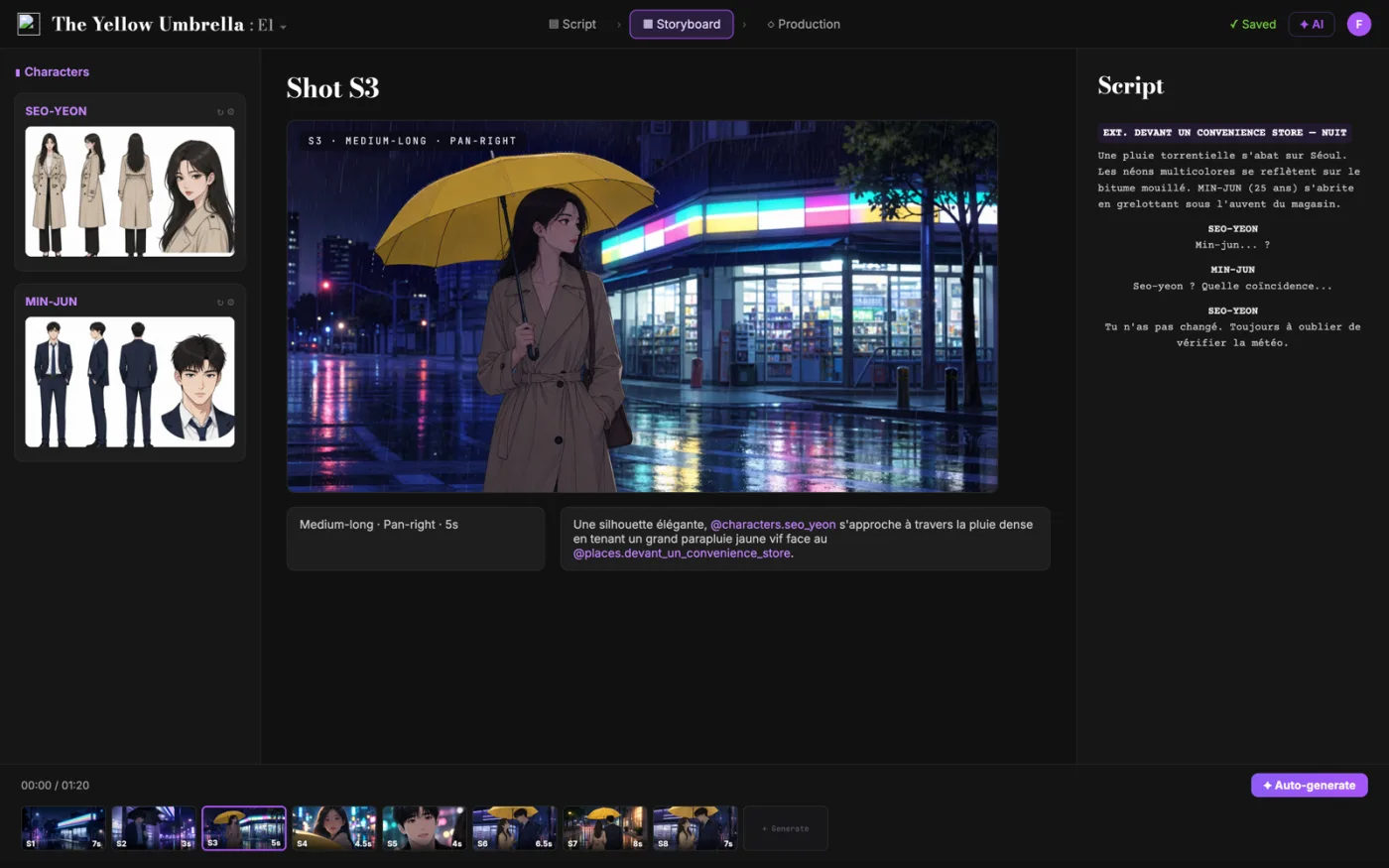
ScreenWeaver แบ่งบทของคุณออกเป็นช็อต แล้วสร้างสตอรีบอร์ดจากบทนั้น คุณกำหนดขนาดภาพ มุมกล้อง การเคลื่อนกล้อง และความยาวได้เอง ตัวละครคงเดิมในทุกช็อต
- 0 ดอลลาร์ ไม่มีวันหมดอายุ
- ส่งออกเป็น PDF และ Final Draft
- Mac, Windows, Linux, iPad
ตัวคำนวณเฟรมวิดีโอ: คู่มือฉบับเต็ม
มันคำนวณค่าใดค่าหนึ่งในสามอย่าง (จำนวนเฟรม fps หรือความยาว) จากอีกสองค่าที่เหลือ ด้วยธรรมเนียม (เฟรม - 1) / fps และจำลองการแทรกเฟรม เพื่อให้คุณรู้ fps และจำนวนเฟรมของผลลัพธ์ ก่อนจะรัน RIFE หรือ FILM
ในงานแบบนี้ ปัญหาหลักชัดเจนอยู่แล้ว: โมเดลวิดีโอแบบเปิดวัดคลิปเป็นเฟรม ในขณะที่คนทำหนังวางแผนเป็นวินาที และธรรมเนียม (เฟรม - 1) / fps ก็ทำให้การแปลงแบบตรงไปตรงมาออกมาผิด ถ้าปล่อยไว้ มันจะไปสร้างความติดขัดในขั้นถัดไปและทำให้ตัดสินใจช้าลง เป้าหมายที่จับต้องได้คือ จำนวนเฟรม อัตราเฟรม และความยาว ที่แม่นตรงกับสิ่งที่โมเดลสร้างและสิ่งที่ไทม์ไลน์คาดหวัง
ข้อจำกัดที่ควรจำไว้: มันไม่รู้ข้อจำกัดเรื่องจำนวนเฟรมเฉพาะของแต่ละโมเดล (เช่นขั้น 4n+1 ของ Wan) เกินไปกว่าที่บันทึกไว้ และมันไม่ทำนายพฤติกรรมของตัวเข้ารหัสหลังส่งออก ให้ตรวจเวลาสุดท้ายในโปรแกรมตัดต่อของคุณ
การใช้งานขั้นสูง: ทีมที่ทำงานจริงจังจะกำหนด fps ของการเจนให้เป็นค่าเดียวทั้งโปรเจกต์ จดจำนวนเฟรมของแต่ละช็อตไว้ในลิสต์ช็อต และแทรกเฟรมทั้งหมดด้วยตัวคูณเดียว เพื่อให้ทุกคลิปเข้ากับไทม์ไลน์เหมือนกันหมด
วิธีทำทีละขั้น
- เลือกค่าที่ต้องการหา แล้วใส่สองค่าที่รู้แล้ว ฝั่งโมเดลมักได้มาเป็นเฟรมกับ fps ส่วนฝั่งสตอรีบอร์ดมักได้มาเป็นวินาที
- ใช้ปุ่ม fps ลัดเพื่อให้ตรงกับอัตราดั้งเดิมของโมเดลคุณ (16 สำหรับ Wan, 8 ถึง 16 สำหรับ AnimateDiff) แทนการเดา
- รันแผงการแทรกเฟรมเพื่อวางเส้นทางจาก fps ของการเจนไปสู่ fps ของไทม์ไลน์ ก่อนจะเจนอะไรทั้งนั้น
- คัดลอกผลลัพธ์ไปไว้ในลิสต์ช็อตของคุณ งบเฟรมจะได้อยู่รอดไปจนถึงขั้นตัดต่อและการประเมินค่าใช้จ่าย
ตัวอย่างการใช้งานตามบทบาท
- คนทำหนัง AI: แปลงช็อตยาว 6 วินาทีเป็นจำนวนเฟรมที่แน่นอน สำหรับพิมพ์ลงช่องความยาวใน ComfyUI ก่อนสั่งคิว
- คนตัดต่อ: เลือกตัวคูณการแทรกเฟรมที่ทำให้งานเจนที่ 16 fps ลงบนไทม์ไลน์ 24 fps ได้โดยไม่มีร่องรอยของการปรับความเร็ว
- นักแอนิเมชัน: ตั้งงบเฟรมสำหรับงานแอนิเมชันที่ 12 fps และรู้ว่าทุกวินาทีที่เพิ่มเข้ามามีต้นทุนเท่าไร
ข้อผิดพลาดที่พบบ่อย
- เอาเฟรมหารด้วย fps แล้วสงสัยว่าทำไมทุกคลิปสั้นกว่าที่คิดอยู่หนึ่งช่วง
- ลากงานเจนที่ 16 fps ลงบนไทม์ไลน์ 24 fps ตรง ๆ แล้วส่งงานที่กระตุกหรือเร็วผิดปกติออกไป
- มองข้ามข้อจำกัดเรื่องขั้นของจำนวนเฟรมในโมเดล แล้วขอจำนวนที่โมเดลปัดให้เงียบ ๆ
แนวปฏิบัติของมืออาชีพ
- จำหมุดไว้ให้ขึ้นใจ 81 เฟรมที่ 16 fps คือ 5 วินาที และ 121 เฟรมที่ 24 fps ก็คือ 5 วินาที
- แทรกเฟรมก่อนขั้นตอนทำสีและเกรน ตัวแทรกเฟรมทำงานได้ดีกว่ากับเฟรมที่สะอาด
- เมื่อโมเดลบังคับจำนวนเฟรม (4n+1 สำหรับ Wan) ให้เลือกจำนวนที่ใช้ได้ซึ่งใกล้ที่สุด แล้วคำนวณความยาวจริงใหม่ที่นี่
ให้ถือว่าผลลัพธ์จากเครื่องมือนี้เป็นตัวช่วยตัดสินใจ ไม่ใช่ตัวแทนการเขียน บทที่ดีถูกจดจำจากการเลือกที่เฉพาะเจาะจง ความแม่นยำทางอารมณ์ และความชัดเจนของการเคลื่อนของเรื่อง เครื่องมือช่วยตัดเสียงรบกวนออก เพื่อให้แรงของคุณไปลงตรงที่สำคัญจริง ๆ คือตัวละคร ความขัดแย้ง การยกระดับ และการจ่ายคืน ถ้าคุณทบทวนผลลัพธ์หลังทุกรอบและจดบันทึกสิ่งที่ยอมรับไว้ วิธีทำงานของคุณจะเร็วขึ้นและคาดเดาได้มากขึ้นจากร่างหนึ่งไปอีกร่างหนึ่ง ความสม่ำเสมอแบบนี้คือสิ่งที่คนทำงานมืออาชีพให้ค่า คือเซอร์ไพรส์น้อยลง เหตุผลชัดขึ้น และบทที่พัฒนาไปอย่างมีเจตนา
คำถามเชิงลึก
ตัวคำนวณเฟรมใช้สูตรอะไร
ความยาว = (เฟรม - 1) / fps ที่ต้องลบหนึ่งเพราะเฟรม N เฟรมกินช่วงที่เล่นได้ N - 1 ช่วง ส่วนการหาเฟรมจากความยาวคือส่วนกลับ ความยาว x fps + 1
ทำไม Wan ถึงสร้าง 81 เฟรม
Wan 2.x ให้ผลลัพธ์ที่ 16 fps โดยกำเนิด และเล็งคลิปยาว 5 วินาที คือ 5 x 16 + 1 = 81 อีกทั้งโมเดลยังชอบจำนวนเฟรมแบบ 4n+1 และ 81 ก็เข้าเงื่อนไขทั้งสองอย่าง
AnimateDiff ใช้ fps เท่าไร
โมดูลการเคลื่อนไหวของ AnimateDiff ถูกฝึกรอบ ๆ หน้าต่างบริบทที่ 8 ถึง 16 fps และเวิร์กโฟลว์ส่วนใหญ่เรนเดอร์ที่ 8, 12 หรือ 16 fps แล้วค่อยแทรกเฟรมขึ้นตอนส่งงาน
ควรเจนที่ 24 fps เลย หรือแทรกเฟรมขึ้นไป
การเจนที่ 24 fps กินเฟรมมากกว่าที่ 16 fps อยู่ 50 เปอร์เซ็นต์ที่ความยาวเท่ากัน เวิร์กโฟลว์ส่วนใหญ่จึงเจนที่อัตราดั้งเดิมของโมเดลแล้วแทรกเฟรม โดยเก็บ 24 fps แบบดั้งเดิมไว้ให้ช็อตที่เคลื่อนไหวเร็ว ซึ่งร่องรอยจากการแทรกเฟรมจะเห็นชัด
จำนวนเฟรมกระทบ VRAM และเวลาเจนยังไง
กับเวลาเกือบเป็นเส้นตรง และกับ VRAM มากพอสมควร เพราะโมเดลวิดีโอมองข้ามเฟรมไปมา การลด fps ลงครึ่งหนึ่งที่ความยาวเท่าเดิม ทำให้งบเฟรมลดลงครึ่งหนึ่ง นี่คือเหตุผลหลักที่การเจนที่ 16 fps แล้วแทรกเฟรมกลายเป็นทางประหยัดตามค่าเริ่มต้น
ไฟล์สุดท้ายควรส่งออกที่อัตราเฟรมเท่าไร
ให้ตรงกับปลายทางที่จะส่งงาน 24 fps สำหรับงานแนวภาพยนตร์ 25 สำหรับการออกอากาศระบบ PAL และ 30 หรือ 60 สำหรับโซเชียลกับการอัดหน้าจอ ตัดสินใจปลายทางก่อน แล้วค่อยย้อนกลับมาวาง fps ของการเจนและตัวคูณการแทรกเฟรม
คำถามที่พบบ่อย
เพราะความยาวคือ (เฟรม - 1) / fps ไม่ใช่ เฟรม / fps ความยาวที่เล่นได้ของคลิปครอบคลุมช่วงระหว่างเฟรม และเฟรม N เฟรมมีเพียง N - 1 ช่วง คลิป 81 เฟรมที่ 16 fps จึงยาว 5.0 วินาทีพอดี ไม่ใช่ 5.06
81 เฟรม เพราะ 5 x 16 = 80 ช่วง บวกเฟรมปลายทางอีกหนึ่ง นี่คือเหตุผลที่ผลลัพธ์ตั้งต้นของ Wan คือ 81 เฟรม ซึ่งถอดออกมาเป็นคลิป 5 วินาทีที่ 16 fps อันเป็นอัตราเฟรมดั้งเดิมของมัน
แทรกเฟรมที่ 1.5 เท่าถ้าเครื่องมือของคุณรับตัวคูณแบบเศษส่วนได้ ซึ่งจะรักษาความยาวไว้เท่าเดิม ถ้าตัวแทรกเฟรมรับแต่จำนวนเต็ม ให้คูณ 3 เท่าไปที่ 48 fps แล้วทิ้งเฟรมเว้นเฟรม หรือส่งออกที่ 48 fps แล้วให้โปรแกรมตัดต่อปรับเอง เลี่ยงการเปลี่ยนความเร็วเฉย ๆ เพราะการเอาเฟรม 16 fps ไปเล่นที่ 24 fps จะตัดความยาวหายไปหนึ่งในสาม
คูณจำนวนวินาทีที่ต้องการด้วย fps ขาออกของคุณแล้วบวก 1 คลิป 4 วินาทีที่ 16 fps คือ 65 เฟรม ส่วนที่ 24 fps คือ 97 เฟรม โหนดบางตัวยังจำกัดจำนวนให้เป็นขั้นเฉพาะของโมเดล (Wan ใช้ค่าแบบ 4n+1 อย่าง 81) ให้ปัดไปยังค่าที่ถูกต้องซึ่งใกล้ที่สุด
ไม่ การแทรกเฟรมเติมเฟรมใหม่ลงในช่วงระหว่างเฟรมที่มีอยู่แล้ว การแทรก 2 เท่ากับ 81 เฟรมที่ 16 fps จึงให้ 161 เฟรมที่ 32 fps และความยาวยังคงเป็น 5 วินาที ความยาวจะเปลี่ยนก็ต่อเมื่อคุณเปลี่ยนความเร็ว ทำแรมป์ความเร็ว หรือทิ้งเฟรมในภายหลัง
Related tools
เครื่องคำนวณต้นทุนวิดีโอ AI
ทำงบหนัง AI ต่อหนึ่งนาทีที่เสร็จแล้ว รวมการเจนซ้ำ
ตัวเลือกโมเดลวิดีโอ AI
เปรียบเทียบโมเดลวิดีโอ AI กับสิ่งที่ช็อตของคุณต้องการจริง
ตัวแบ่งฉากเป็นคลิป
แบ่งฉากเป็นคลิปวิดีโอ AI ที่พอดีกับข้อจำกัดความยาวของโมเดลคุณ
เครื่องคำนวณความยาวบท
ประเมินความยาวหนังจากตัวบทที่วางหรือจากจำนวนคำ
You can also browse the full library on /tools.
Core blog guides
- Idea → first draft (process hub)
- Screenplay format guide 2026
- Hidden costs of “free” software
- Affordable software & TCO
- Revision passes (structure → dialogue)
เทคนิคการถ่ายหนัง
เทคนิคภาพยนตร์ที่น่าสำรวจ
แต่ละเทคนิคมีคลิปสั้น ตัวอย่างบทภาพยนตร์ และบรรทัดในช็อตลิสต์