वीडियो फ़्रेम कैलकुलेटर
AI वीडियो के लिए फ़्रेम, FPS और अवधि बदलिए
यह वीडियो फ़्रेम कैलकुलेटर AI वीडियो और एनिमेशन के काम के लिए फ़्रेम संख्या, फ़्रेम दर और क्लिप की अवधि आपस में बदलता है। कोई भी दो मान डालिए और तीसरा तुरंत निकल आता है, उसी (फ़्रेम - 1) / fps परंपरा से जिसे Wan, AnimateDiff, ComfyUI के वीडियो नोड और Stable Video Diffusion सब मानते हैं।
ओपन वीडियो मॉडल सेकंड में नहीं, फ़्रेम में सोचते हैं। Wan 2.x 16 fps पर 81 फ़्रेम बनाता है, AnimateDiff 16 फ़्रेम के संदर्भ में काम करता है, और ComfyUI की बैच संख्याएँ कच्ची फ़्रेम संख्याएँ हैं। फ़िल्म बनाने वाले सेकंड और टाइमलाइन की फ़्रेम दर में सोचते हैं। यह कैलकुलेटर दोनों के बीच अनुवाद करता है, और नीचे का इंटरपोलेशन पैनल दिखाता है कि 24 fps की टाइमलाइन तक पहुँचते हुए RIFE या FILM आपकी फ़्रेम संख्या और fps के साथ क्या करता है।
सब कुछ आपके ब्राउज़र में चलता है। जो आप डालते हैं वह किसी सर्वर पर नहीं भेजा जाता।
आपका रूपांतरण
5 सेकंड
फ़्रेम: 81
फ़्रेम दर: 16 fps
अवधि: 5 से.
सीधा फ़्रेम / fps करने पर 5.063 से. आता। चलने लायक़ लंबाई फ़्रेम - 1 अंतरालों तक फैलती है, इसीलिए बनी हुई क्लिप सीधे भाग से निकले नतीजे से एक फ़्रेम अंतराल छोटी रहती है।
फ़्रेम इंटरपोलेशन
RIFE, FILM और इन जैसे इंटरपोलेटर अवधि बदले बिना आपकी फ़्रेम दर बढ़ा देते हैं: हर फ़्रेम अंतराल में नए बीच वाले फ़्रेम जुड़ जाते हैं।
नतीजा fps: 32
नतीजा फ़्रेम: 161
अवधि: 5 से. (अपरिवर्तित)
अवधि = (फ़्रेम - 1) / fps | नतीजा_fps = fps x गुणक | नतीजा_फ़्रेम = (फ़्रेम - 1) x गुणक + 1
लक्ष्य: 24 fps की टाइमलाइन
16 fps से सटीक इंटरपोलेशन गुणक 1.5x है, जो उसी 5 से. अवधि के साथ 24 fps पर 121 फ़्रेम देता है। सिर्फ़ पूर्णांक वाले इंटरपोलेटर वहाँ 3x से 48 fps पर पहुँचते हैं, फिर 2:1 फ़्रेम ड्रॉप या NLE में 24 पर कन्फ़ॉर्म।
इसके बजाय मूल फ़्रेम को 24 fps पर रीटाइम करने से क्लिप छोटी होकर 3.333 से. रह जाती है, यानी 33.3 प्रतिशत अवधि का नुक़सान। यही बदलाव है जिसकी वजह से सीधे 24 fps टाइमलाइन पर डाली गई AI क्लिप तेज़ चलती लगती है।
फ़्रेम संख्या की संदर्भ तालिका
आम क्लिप लंबाइयों के लिए फ़्रेम संख्या, फ़्रेम = अवधि x fps + 1 के हिसाब से।
| क्लिप की लंबाई | 8 fps | 12 fps | 16 fps | 24 fps | 25 fps | 30 fps | 60 fps |
|---|---|---|---|---|---|---|---|
| 2 से. | 17 | 25 | 33 | 49 | 51 | 61 | 121 |
| 4 से. | 33 | 49 | 65 | 97 | 101 | 121 | 241 |
| 5 से. | 41 | 61 | 81 | 121 | 126 | 151 | 301 |
| 8 से. | 65 | 97 | 129 | 193 | 201 | 241 | 481 |
| 10 से. | 81 | 121 | 161 | 241 | 251 | 301 | 601 |
यह कैसे काम करता है
चुनिए कि कौन सा मान निकालना है, बाक़ी दो डालिए, और कैलकुलेटर अवधि = (फ़्रेम - 1) / fps लगा देता है। वह घटा एक मायने रखता है: क्लिप की चलने लायक़ लंबाई उसके पहले और आख़िरी फ़्रेम के समय के बीच का अंतर है, इसलिए N फ़्रेम N - 1 अंतराल घेरते हैं। इसीलिए Wan 16 fps पर 5 सेकंड की क्लिप के लिए 81 फ़्रेम भेजता है, और इसीलिए AnimateDiff के रेंडर फ़्रेम संख्या को fps से भाग देने पर मिले नतीजे से थोड़े छोटे निकलते हैं। इंटरपोलेशन पैनल नतीजा_fps = fps x गुणक और नतीजा_फ़्रेम = (फ़्रेम - 1) x गुणक + 1 लगाता है, वही गणित जो ComfyUI में RIFE और FILM नोड इस्तेमाल करते हैं।
5 सेकंड का वीडियो कितने फ़्रेम का होता है?
यह पूरी तरह फ़्रेम दर पर निर्भर है। पाँच सेकंड 16 fps पर 81 फ़्रेम, 24 fps पर 121 फ़्रेम और 30 fps पर 151 फ़्रेम हैं, हर बार आख़िरी छोर वाला एक फ़्रेम जोड़कर। फ़्रेम से सेकंड निकालने वाला कैलकुलेटर तभी काम का जवाब देता है जब आप जानते हों कि आपका मॉडल किस fps पर बनाता है: Wan का डिफ़ॉल्ट 16 fps है, AnimateDiff के वर्कफ़्लो आम तौर पर 8 से 16 fps पर चलते हैं, और Stable Video Diffusion सेटिंग के हिसाब से 6 से 14 fps पर छोटे टुकड़े देता है।
fps और फ़्रेम संख्या का यही रिश्ता AI वीडियो के ख़र्च का हिसाब भी चलाता है। ComfyUI में वीडियो की लंबाई फ़्रेम में तय होती है, और हर अतिरिक्त फ़्रेम VRAM और बनाने का समय माँगता है, इसलिए यह जानना कि 16 fps पर 5 सेकंड की क्लिप को 81 फ़्रेम चाहिए (वही मशहूर सवाल कि 16 fps पर 81 फ़्रेम की अवधि क्या है) आपको ठीक-ठीक बता देता है कि लंबाई वाले खाने में क्या लिखना है और जॉब क़तार में डालने से पहले उसका ख़र्च क्या होगा।
AI के नतीजे को एडिटिंग की टाइमलाइन पर लाना दूसरा आधा हिस्सा है। एडिटर 24, 25 या 30 fps पर काटते हैं, और 24 fps की टाइमलाइन पर डाली गई 16 fps की जनरेशन या तो एक तिहाई छोटी चलती है या फ़्रेम मिलाने की वजह से हिचकोले खाती है। फ़्रेम इंटरपोलेशन सस्ता इलाज है: 1.5x का एक दौर 16 fps को ठीक 24 पर ले जाता है, और 3x का दौर 48 fps तक पहुँचकर 2:1 ड्रॉप के बाद साफ़ 24 fps देता है, साथ में 2x स्लो मोशन का विकल्प मुफ़्त में।
यह किसके लिए है
- AI फ़िल्म बनाने वाले: GPU का समय ख़र्च करने से पहले सेकंड में नापी शॉट लिस्ट को उन फ़्रेम संख्याओं में बदलिए जो Wan, AnimateDiff या ComfyUI असल में माँगते हैं।
- एडिटर: वह इंटरपोलेशन गुणक निकालिए जो बनी हुई फ़ुटेज को बिना हिचकोले और बिना अनचाहे रीटाइम के 24 या 30 fps की टाइमलाइन पर बैठा दे।
- एनिमेटर: 8 या 12 fps पर एनिमेशन की योजना बनाइए (दो-दो पर शूट करना) और हर क्लिप लंबाई का सटीक फ़्रेम बजट जानिए।
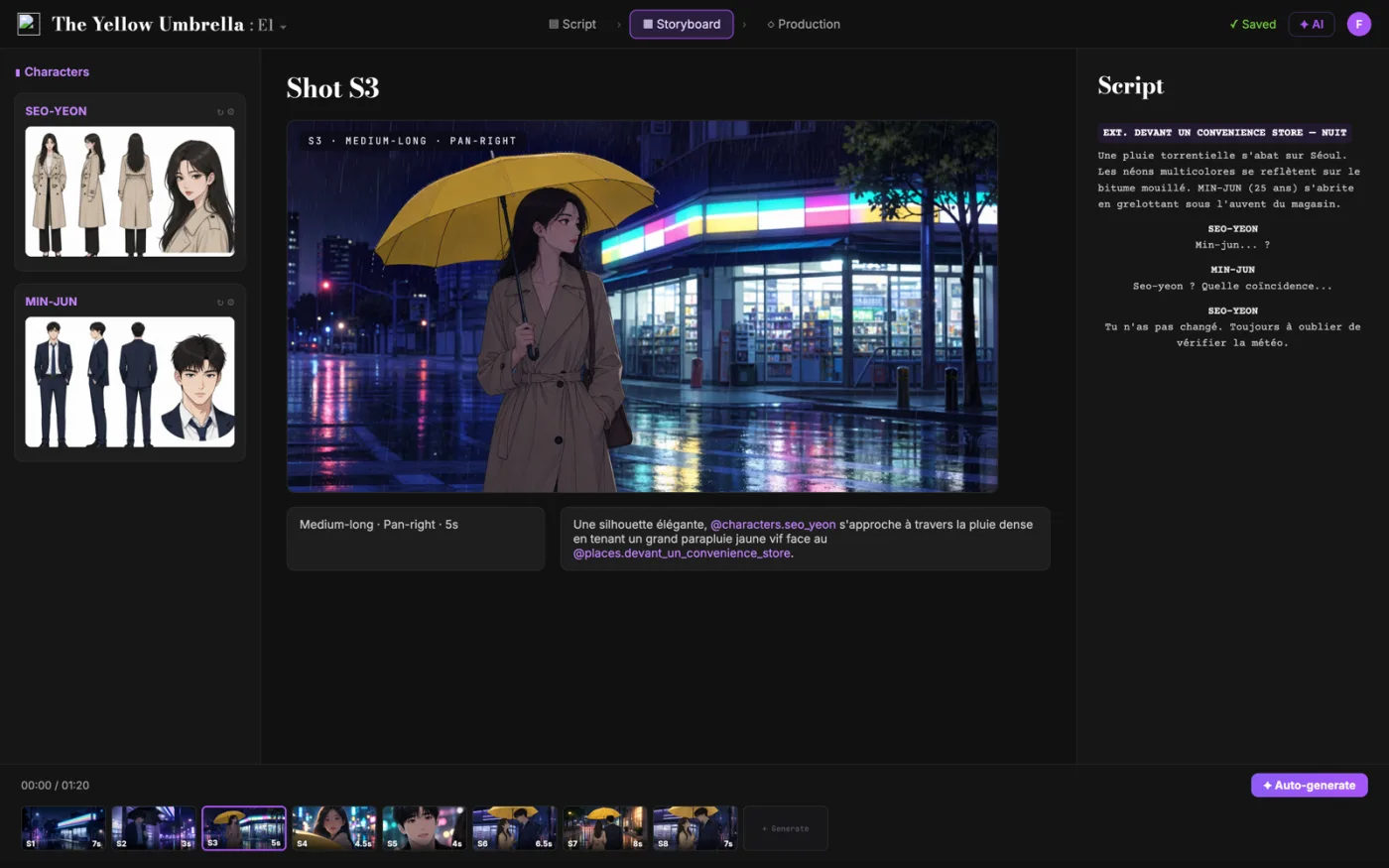
स्क्रीनप्ले से शुरू करें,स्टोरीबोर्ड पाएँ।
ScreenWeaver आपकी स्क्रिप्ट को शॉट्स में बाँटता है और उससे स्टोरीबोर्ड बनाता है। फ़्रेमिंग, एंगल, मूवमेंट और अवधि आपके हाथ में रहते हैं। किरदार हर शॉट में एक जैसे रहते हैं।
- $0, कभी ख़त्म नहीं होता
- PDF और Final Draft में एक्सपोर्ट
- Mac, Windows, Linux, iPad
वीडियो फ़्रेम कैलकुलेटर: पूरी गाइड
यह (फ़्रेम - 1) / fps के चलन से तीनों में से किसी एक मान को बाक़ी दो से निकालता है, और इंटरपोलेशन का मॉडल बनाता है, ताकि RIFE या FILM चलाने से पहले ही आपको बाहर आने वाली fps और फ़्रेम गिनती पता हो।
इस काम में असली दिक़्क़त साफ़ है: खुले वीडियो मॉडल क्लिप को फ़्रेम में नापते हैं जबकि फ़िल्ममेकर सेकंड में योजना बनाते हैं, और (फ़्रेम - 1) / fps वाला चलन सीधे-सादे हिसाब को ग़लत कर देता है। इसे यूँ ही छोड़ दिया जाए तो आगे के चरणों में रगड़ पैदा होती है और फ़ैसले धीमे पड़ जाते हैं। असल लक्ष्य है सटीक फ़्रेम गिनती, फ़्रेम दर और अवधि, जो मॉडल की असली उपज से भी मेल खाती है और टाइमलाइन की उम्मीद से भी।
यह सीमा याद रखिए: यह दस्तावेज़ में लिखे से आगे किसी मॉडल की अपनी फ़्रेम बंदिशें (जैसे Wan की 4n+1 सीढ़ी) नहीं जान सकता, और निर्यात के बाद एन्कोडर के व्यवहार का अनुमान नहीं लगाता; आख़िरी अवधि अपने एडिटर में जाँच लीजिए।
आगे का इस्तेमाल: अनुभवी टीमें पूरे प्रोजेक्ट के लिए एक जनरेशन फ़्रेम दर तय कर लेती हैं, हर शॉट की फ़्रेम गिनती शॉट लिस्ट में लिखती हैं, और सारा इंटरपोलेशन एक ही गुणक से चलाती हैं, ताकि हर क्लिप टाइमलाइन पर एक जैसी बैठे।
क़दम दर क़दम तरीक़ा
- जो मान निकालना है उसे चुनिए और दो ज्ञात मान डालिए: मॉडल की तरफ़ से आमतौर पर फ़्रेम और fps आते हैं, स्टोरीबोर्ड की तरफ़ से सेकंड।
- अंदाज़ा लगाने के बजाय fps के शॉर्टकट से अपने मॉडल की मूल दर से मिलाइए (Wan के लिए 16, AnimateDiff के लिए 8 से 16)।
- कुछ भी बनाने से पहले इंटरपोलेशन पैनल चलाकर जनरेशन दर से टाइमलाइन दर तक का रास्ता तय कर लीजिए।
- नतीजा अपनी शॉट लिस्ट में कॉपी कीजिए, ताकि फ़्रेम बजट एडिट और लागत के अनुमान तक ज़िंदा रहे।
किसके लिए, किस काम में
- AI फ़िल्ममेकर: 6 सेकंड के शॉट को उस सटीक फ़्रेम गिनती में बदलना जो ComfyUI के अवधि फ़ील्ड में डालनी है, क़तार में लगाने से पहले।
- एडिटर: वह इंटरपोलेशन गुणक चुनना जो 16 fps की उपज को 24 fps टाइमलाइन पर बिना रीटाइमिंग के निशान के बैठा दे।
- एनिमेटर: 12 fps के एनिमेशन पास के लिए फ़्रेम बजट बनाना और जानना कि हर अतिरिक्त सेकंड की क़ीमत क्या है।
आम ग़लतियाँ जिनसे बचिए
- फ़्रेम को fps से भाग देना और फिर हैरान होना कि हर क्लिप उम्मीद से एक अंतराल छोटी क्यों है।
- 16 fps की उपज को सीधे 24 fps टाइमलाइन पर डाल देना और उससे बनी झटकेदार या तेज़ चाल वाली फ़ाइल भेज देना।
- मॉडल की सीढ़ी वाली बंदिश अनदेखी करके ऐसी फ़्रेम गिनती माँगना जिसे वह चुपचाप बदल देता है।
पेशे के आज़माए तरीक़े
- ये पड़ाव याद कर लीजिए: 16 fps पर 81 फ़्रेम यानी 5 सेकंड, और 24 fps पर 121 फ़्रेम यानी 5 सेकंड।
- रंग और ग्रेन वाले पास से पहले इंटरपोलेट कीजिए; साफ़ फ़्रेम पर इंटरपोलेटर बेहतर काम करते हैं।
- जब मॉडल फ़्रेम गिनती बाँधता हो (Wan के लिए 4n+1), तो सबसे नज़दीक का मान्य मान लीजिए और असली अवधि यहीं दोबारा गिन लीजिए।
इस टूल के नतीजे को फ़ैसले में मदद मानिए, लिखाई की जगह नहीं। अच्छी पटकथा अपने ठोस चुनावों, भावनात्मक सटीकता और नाटकीय गति की साफ़गोई से याद रह जाती है। टूल का काम शोर हटाना है, ताकि आपकी ऊर्जा वहाँ लगे जहाँ मायने रखता है: किरदार, टकराव, चढ़ाव और भुगतान। हर दौर के बाद नतीजे दोबारा देखिए और जो बदलाव आपने माने उनका हिसाब रखिए, तो आपका तरीक़ा हर ड्राफ़्ट के साथ तेज़ और ज़्यादा भरोसेमंद होता जाता है। पेशेवर साथी इसी टिकाऊपन को क़ीमत देते हैं: कम चौंकाने वाली बातें, ज़्यादा साफ़ वजहें, और एक पटकथा जो सोच-समझकर आगे बढ़ती है।
विस्तार से सवाल
फ़्रेम कैलकुलेटर कौन-सा सूत्र इस्तेमाल करता है
अवधि = (फ़्रेम - 1) / fps। एक घटाने की वजह यह है कि N फ़्रेम N - 1 चलने योग्य अंतराल घेरते हैं। उल्टा हिसाब: अवधि × fps + 1।
Wan 81 फ़्रेम क्यों बनाता है
Wan 2.x मूल रूप से 16 fps पर निकलता है और 5 सेकंड की क्लिप को निशाना बनाता है: 5 × 16 + 1 = 81। मॉडल 4n+1 वाली फ़्रेम गिनती भी पसंद करता है, और 81 दोनों शर्तें पूरी करता है।
AnimateDiff किस fps पर चलता है
AnimateDiff के मोशन मॉड्यूल 8 से 16 fps की संदर्भ खिड़कियों के आसपास प्रशिक्षित हुए हैं, और ज़्यादातर वर्कफ़्लो 8, 12 या 16 fps पर रेंडर करके डिलीवरी के लिए इंटरपोलेट कर देते हैं।
24 fps पर बनाएँ या इंटरपोलेट करके वहाँ पहुँचें
उतनी ही अवधि के लिए 24 fps पर बनाना 16 fps से 50 प्रतिशत ज़्यादा फ़्रेम खाता है। ज़्यादातर वर्कफ़्लो मॉडल की मूल दर पर बनाकर इंटरपोलेट करते हैं, और मूल 24 fps उन शॉट के लिए बचाते हैं जिनमें तेज़ हलचल हो और इंटरपोलेशन के निशान दिखें।
फ़्रेम गिनती VRAM और बनाने के समय को कैसे प्रभावित करती है
समय पर लगभग सीधी रेखा में, और VRAM पर काफ़ी ज़्यादा, क्योंकि वीडियो मॉडल फ़्रेमों के बीच ध्यान लगाते हैं। उतनी ही अवधि पर fps आधा करने से फ़्रेम बजट आधा हो जाता है, और यही मुख्य वजह है कि 16 fps पर बनाकर इंटरपोलेट करना डिफ़ॉल्ट सस्ता रास्ता बन गया है।
आख़िर में किस फ़्रेम दर पर निर्यात करें
जहाँ डिलीवरी करनी है उसी से मिलाइए: सिनेमाई काम के लिए 24 fps, PAL प्रसारण के लिए 25, और सोशल तथा स्क्रीन रिकॉर्डिंग के लिए 30 या 60। पहले लक्ष्य तय कीजिए, फिर उल्टा चलकर जनरेशन दर और इंटरपोलेशन गुणक निकालिए।
आम सवाल
क्योंकि अवधि (फ़्रेम - 1) / fps है, फ़्रेम / fps नहीं। क्लिप की चलने लायक़ लंबाई फ़्रेमों के बीच के अंतरालों तक फैलती है, और N फ़्रेम में सिर्फ़ N - 1 अंतराल होते हैं। 16 fps पर 81 फ़्रेम की क्लिप ठीक 5.0 सेकंड चलती है, 5.06 नहीं।
81 फ़्रेम: 5 x 16 = 80 अंतराल, और उस पर आख़िरी छोर वाला फ़्रेम। ठीक इसीलिए Wan का डिफ़ॉल्ट नतीजा 81 फ़्रेम है, जो उसकी अपनी 16 fps पर 5 सेकंड की क्लिप बनता है।
अगर आपका टूल भिन्न गुणक सँभालता है तो 1.5x इंटरपोलेट कीजिए, इससे अवधि वैसी की वैसी रहती है। सिर्फ़ पूर्णांक वाले इंटरपोलेटर के साथ 3x चलाकर 48 fps पर जाइए और एक-एक फ़्रेम छोड़ दीजिए, या 48 fps पर एक्सपोर्ट करके अपने NLE को कन्फ़ॉर्म करने दीजिए। सीधे रीटाइम मत कीजिए: 16 fps के फ़्रेम 24 fps पर चलाने से अवधि का एक तिहाई कट जाता है।
अपने लक्ष्य सेकंड को नतीजे की fps से गुणा कीजिए और 1 जोड़ दीजिए। 16 fps पर 4 सेकंड की क्लिप 65 फ़्रेम है; 24 fps पर 97। कुछ नोड संख्या को मॉडल के हिसाब से क़दमों में भी बाँधते हैं (Wan 81 जैसे 4n+1 मान इस्तेमाल करता है), इसलिए निकटतम मान्य संख्या पर गोल कीजिए।
नहीं। इंटरपोलेशन हर मौजूदा फ़्रेम अंतराल को नए बीच वाले फ़्रेम से भरता है, इसलिए 16 fps पर 81 फ़्रेम का 2x दौर 32 fps पर 161 फ़्रेम देता है और अवधि 5 सेकंड ही रहती है। अवधि तभी बदलती है जब आप बाद में रीटाइम करें, स्पीड रैंप लगाएँ या फ़्रेम गिराएँ।
Related tools
AI वीडियो लागत कैलकुलेटर
AI फ़िल्म का बजट प्रति तैयार मिनट के हिसाब से बनाइए, दोबारा जनरेशन समेत।
AI वीडियो मॉडल चयनकर्ता
AI वीडियो मॉडलों की तुलना उसी से कीजिए जो आपके शॉट को सचमुच चाहिए।
सीन से क्लिप विभाजक
एक सीन को ऐसे AI वीडियो क्लिप में बाँटिए जो आपके मॉडल की समय सीमा में आ जाएँ।
स्क्रिप्ट अवधि कैलकुलेटर
चिपकाए गए पाठ या शब्दों की संख्या से फ़िल्म की अवधि का अंदाज़ा लगाइए।
You can also browse the full library on /tools.
Core blog guides
- Idea → first draft (process hub)
- Screenplay format guide 2026
- Hidden costs of “free” software
- Affordable software & TCO
- Revision passes (structure → dialogue)
फिल्म तकनीकें
जानने लायक फ़िल्म तकनीकें
हर तकनीक के साथ एक छोटा क्लिप, पटकथा का अंश और शॉट लिस्ट की पंक्ति।