视频帧数计算器
为 AI 视频换算帧数、帧率和时长
这个帧数计算器为 AI 视频和动画流程,在帧数、帧率和片段时长之间做换算。填入任意两个值,第三个立刻算出来,用的是 Wan、AnimateDiff、ComfyUI 的视频节点和 Stable Video Diffusion 共同遵循的(帧数 - 1)/ 帧率这条惯例。
开源视频模型是按帧思考的,不是按秒。Wan 2.x 在 16 fps 下生成 81 帧,AnimateDiff 工作在 16 帧的上下文里,而 ComfyUI 的批量数就是原始的帧数。电影人则按秒和时间线帧率思考。这个计算器在两者之间做翻译,下面的补帧面板还会告诉你,RIFE 或 FILM 在走向 24 fps 时间线的路上,对你的帧数和帧率做了什么。
全部在你的浏览器里运行。你填的任何内容都不会被发送到服务器。
你的换算结果
5 秒
帧数:81
帧率:16 fps
时长:5 秒
直接用帧数除以帧率会得到 5.063 秒。可播放的时长跨的是「帧数 - 1」个间隔,这也是生成出来的片段,比简单除法算出来的结果短一个帧间隔的原因。
补帧
RIFE、FILM 这类补帧工具会在不改变时长的前提下把帧率翻倍:每个帧间隔里都插进新的中间帧。
输出帧率:32
输出帧数:161
时长:5 秒(不变)
时长 =(帧数 - 1)/ 帧率 | 输出帧率 = 帧率 x 倍数 | 输出帧数 =(帧数 - 1)x 倍数 + 1
目标:24 fps 时间线
从 16 fps 出发,精确的补帧倍数是 1.5 倍,能得到 24 fps 下的 121 帧,时长还是 5 秒。只支持整数倍的补帧工具,可以用 3 倍补到 48 fps,再按 2 比 1 丢帧,或者在剪辑软件里降到 24。
如果改成把原始帧直接按 24 fps 播放,片段会缩短到 3.333 秒,时长损失 33.3%。正是这个偏差,让直接扔进 24 fps 时间线的 AI 片段显得被加速了。
帧数参考表
常见片段时长对应的帧数,用的是「帧数 = 时长 x 帧率 + 1」。
| 片段时长 | 8 fps | 12 fps | 16 fps | 24 fps | 25 fps | 30 fps | 60 fps |
|---|---|---|---|---|---|---|---|
| 2 秒 | 17 | 25 | 33 | 49 | 51 | 61 | 121 |
| 4 秒 | 33 | 49 | 65 | 97 | 101 | 121 | 241 |
| 5 秒 | 41 | 61 | 81 | 121 | 126 | 151 | 301 |
| 8 秒 | 65 | 97 | 129 | 193 | 201 | 241 | 481 |
| 10 秒 | 81 | 121 | 161 | 241 | 251 | 301 | 601 |
工作原理
选好要求解哪个值、填上另外两个,计算器就套用「时长 =(帧数 - 1)/ 帧率」。那个减一很关键:一个片段可播放的长度,是第一帧和最后一帧时间戳之间的那段时间,所以 N 帧只跨 N - 1 个间隔。这就是为什么 Wan 在 16 fps 下用 81 帧给出一个 5 秒片段,也是为什么 AnimateDiff 的渲染结果,会比帧数除以帧率略短一点。补帧面板套用的是「输出帧率 = 帧率 x 倍数」和「输出帧数 =(帧数 - 1)x 倍数 + 1」,也就是 ComfyUI 里 RIFE 和 FILM 节点用的那套算术。
5 秒视频是多少帧?
这完全取决于帧率。五秒在 16 fps 下是 81 帧,在 24 fps 下是 121 帧,在 30 fps 下是 151 帧,每一个都含末尾那一帧。一个从帧数到秒的计算器,只有在你知道自己的模型以什么帧率生成时才给得出有用的答案:Wan 默认 16 fps,AnimateDiff 的流程常见在 8 到 16 fps,Stable Video Diffusion 则按设置在 6 到 14 fps 之间输出短爆发。
帧率和帧数的关系,同样支配着 AI 视频的预算算术。ComfyUI 里的时长是按帧设定的,而每多一帧都要花显存和生成时间,所以知道「16 fps 下的 5 秒片段需要 81 帧」,就等于知道该在时长框里填什么数字,以及在把任务排进队列之前它会花多少钱。
把 AI 的产出弄上剪辑时间线,是另外一半功课。剪辑师在 24、25 或 30 fps 下剪片,而一段 16 fps 的生成结果扔进 24 fps 的时间线,要么播得短了三分之一,要么因为混合帧而抖动。补帧是那个便宜的解法:1.5 倍的一遍能把 16 fps 精确带到 24,而 3 倍补到 48 fps,在按 2 比 1 丢帧之后能给出干净的 24 fps,还白送你一个 2 倍慢动作的选项。
适合谁
- 用 AI 做电影的人 在花掉 GPU 时间之前,把按秒衡量的镜头表换算成 Wan、AnimateDiff 或 ComfyUI 真正要的帧数。
- 剪辑师 算出那个能把生成素材落到 24 或 30 fps 时间线上、既不抖动也不会被意外变速的补帧倍数。
- 动画师 按 8 或 12 fps(一拍二)规划动画,并清楚每种片段时长对应的确切帧数预算。
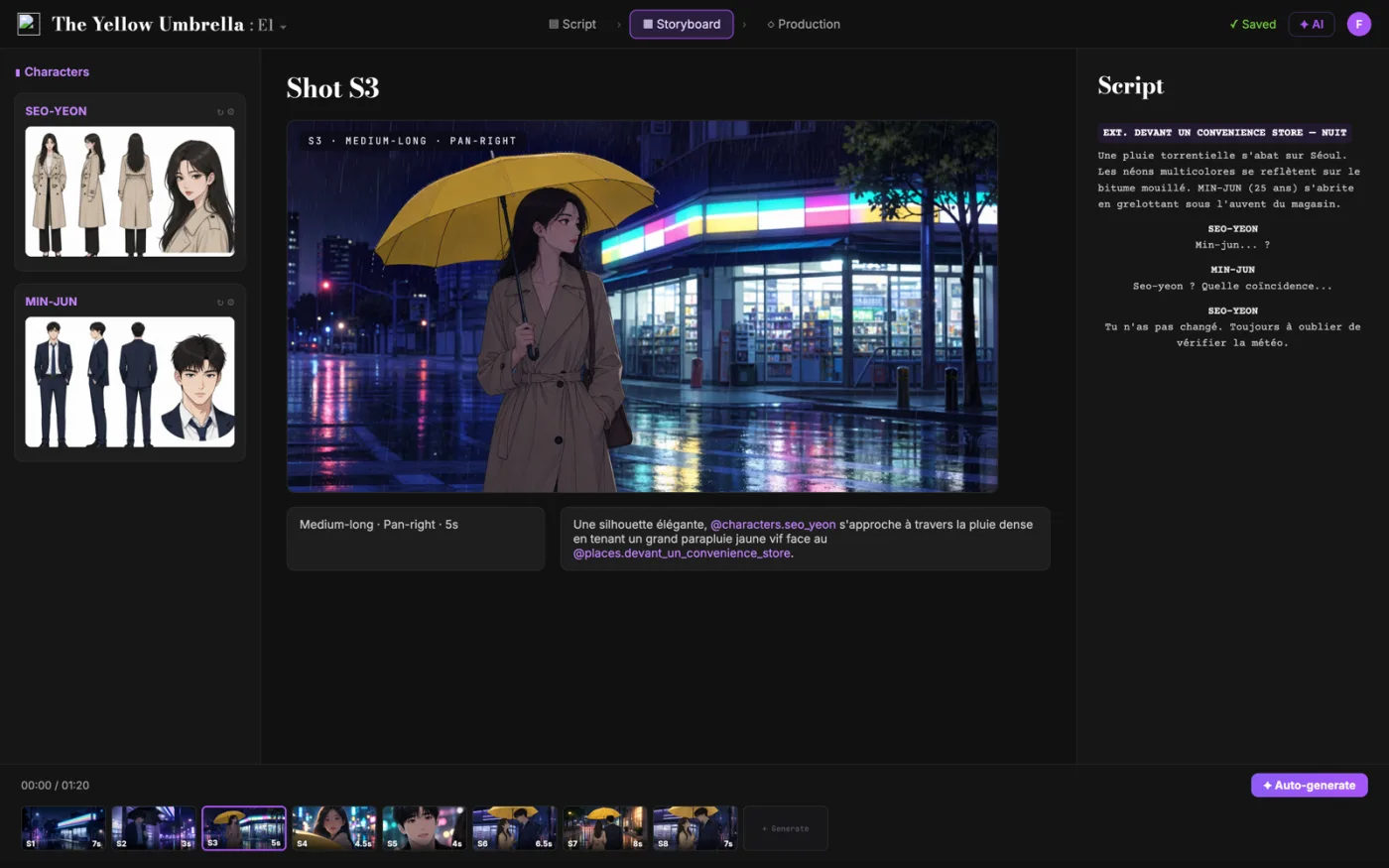
从剧本出发,直接得到分镜。
ScreenWeaver 把你的剧本拆成镜头,并据此生成分镜。景别、角度、运镜和时长都由你掌控。角色在镜头之间保持一致。
- 0 美元,永不过期
- 导出 PDF 和 Final Draft
- Mac、Windows、Linux、iPad
视频帧数计算器:完整指南
它用(帧数 - 1)/ 帧率这个惯例,从三个值里的任意两个推出第三个,并且模拟插帧,让你在跑 RIFE 或 FILM 之前就知道输出的帧率和帧数。
这类工作的核心问题很清楚:开源视频模型按帧计量片段,而创作者按秒来规划,而且(帧数 - 1)/ 帧率这个惯例会让想当然的换算算错。不解决,它就会在后面的环节制造摩擦,让决策变慢。实际要达到的是精确的帧数、帧率和时长,既对得上模型实际生成的东西,也对得上时间线的预期。
需要记住的限制:除了文档里记下的之外,它无从知道某个模型自己的帧数约束(比如 Wan 的 4n+1 步长),也不预测导出之后编码器的行为;最终时长请在剪辑软件里核对。
进阶用法:有经验的团队会给整个项目锁定一个生成帧率,把每个镜头的帧数写进镜头表,并用同一个倍数跑完所有插帧,这样每一段素材落到时间线上的方式都一致。
一步步怎么做
- 选择要求解的值,输入已知的两个:模型那边通常给你帧数和帧率,故事板那边通常给你秒数。
- 用帧率快捷按钮对齐你模型的原生帧率(Wan 用 16,AnimateDiff 用 8 到 16),不要靠猜。
- 在生成任何东西之前,先跑一遍插帧面板,规划好从生成帧率到时间线帧率的路径。
- 把结果复制进镜头表,帧数预算才能一路留到剪辑和成本估算阶段。
按角色分的使用场景
- AI 影像创作者:把一个 6 秒的镜头换算成确切帧数,填进 ComfyUI 的时长字段再排队。
- 剪辑师:挑一个插帧倍数,把 16 帧率的生成结果放进 24 帧率的时间线,而不留下变速痕迹。
- 动画师:为 12 帧率的动画流程做帧数预算,知道每多一秒的代价。
常见的坑
- 直接用帧数除以帧率,然后纳闷为什么每段素材都比预期短了一个间隔。
- 把 16 帧率的生成结果直接扔进 24 帧率的时间线,然后交付了由此产生的卡顿或加速。
- 无视模型的步长约束,去要一个它会悄悄取整的帧数。
行业里的做法
- 把这几个锚点记熟:16 帧率下 81 帧是 5 秒,24 帧率下 121 帧是 5 秒。
- 在调色和加颗粒之前先插帧;插帧算法在干净的帧上表现更好。
- 当模型限制帧数时(Wan 的 4n+1),取最接近的合法值,然后在这里重新算出真实时长。
把这个工具的输出当成决策的辅助,而不是写作本身的替代。一个好剧本被记住,靠的是具体的选择、准确的情绪,以及戏剧动作的清晰。工具的作用是把噪音去掉,让你的精力落到真正要紧的地方:人物、冲突、升级和兑现。每过一轮就回看一次结果,把接受的改动记下来,你的工作方式会一稿比一稿更快、更可预期。这种稳定正是专业合作者看重的东西:意外更少,理由更清楚,剧本朝着有意识的方向长。
延伸问答
帧数计算器用的是什么公式
时长 =(帧数 - 1)/ 帧率。减一是因为 N 帧覆盖的是 N - 1 个可播放的间隔。反过来算就是:时长 × 帧率 + 1。
Wan 为什么生成 81 帧
Wan 2.x 原生输出 16 帧率,目标是 5 秒的片段:5 × 16 + 1 = 81。这个模型还偏好 4n+1 形式的帧数,而 81 两个条件都满足。
AnimateDiff 用什么帧率
AnimateDiff 的运动模块是围绕 8 到 16 帧率的上下文窗口训练的,大多数工作流在 8、12 或 16 帧率下渲染,然后在交付时插帧提高。
该直接生成 24 帧率还是插帧上去
同样时长下,24 帧率生成比 16 帧率多花 50% 的帧。大多数工作流按模型原生帧率生成再插帧,把原生 24 帧率留给运动快、插帧痕迹看得见的镜头。
帧数怎么影响显存和生成时间
对时间接近线性,对显存影响很大,因为视频模型要跨帧做注意力。同样时长下把帧率减半,帧数预算就减半,这也是先按 16 帧率生成再插帧成为默认省钱做法的主要原因。
最终该按什么帧率导出
按你的交付目标:电影感用 24 帧率,PAL 制播出用 25,社交媒体和录屏用 30 或 60。先定目标,再倒推生成帧率和插帧倍数。
常见问题
因为时长是(帧数 - 1)/ 帧率,不是帧数 / 帧率。片段可播放的长度跨的是帧与帧之间的间隔,而 N 帧只有 N - 1 个间隔。16 fps 下的 81 帧片段正好是 5.0 秒,不是 5.06 秒。
81 帧:5 x 16 = 80 个间隔,再加上末尾那一帧。这正是 Wan 的默认输出是 81 帧的原因,它在原生的 16 fps 下解码出来就是一个 5 秒片段。
如果你的工具支持小数倍,就按 1.5 倍补帧,时长完全不变。如果补帧工具只支持整数倍,就用 3 倍补到 48 fps 再隔一帧丢一帧,或者按 48 fps 导出让剪辑软件去归一。别只是变速:把 16 fps 的帧按 24 fps 播放,会砍掉三分之一的时长。
把目标秒数乘以你的输出帧率再加 1。16 fps 下的 4 秒片段是 65 帧;24 fps 下是 97 帧。有些节点还会把帧数限制在模型特定的步长上(Wan 用 81 这样的 4n+1 值),所以请就近取到合法的数值。
不会。补帧是往每个已有的帧间隔里填进新的中间帧,所以对 16 fps 下的 81 帧做一次 2 倍补帧,会得到 32 fps 下的 161 帧,时长仍然是 5 秒。只有当你之后变速、做速度斜坡或丢帧时,时长才会变。
Related tools
AI 视频成本计算器
按成片每分钟给 AI 电影做预算,把重试算进去。
AI 视频模型筛选器
按你这个镜头的真实需求来比较 AI 视频模型。
场景切片规划器
把一场戏切成符合你模型时长上限的 AI 视频片段。
剧本时长计算器
根据粘贴的剧本文本或字数估算成片时长。
You can also browse the full library on /tools.
Core blog guides
- Idea → first draft (process hub)
- Screenplay format guide 2026
- Hidden costs of “free” software
- Affordable software & TCO
- Revision passes (structure → dialogue)
影视技法
值得了解的电影技法
每一种都附有短片、剧本片段和分镜表中的一行写法。